Skip to content

Voice Input

Voice input lets you dictate a message instead of typing it. You speak directly into your microphone, and Intra AI converts your audio into text (speech-to-text) and places it in the message box – ready for you to review and send.

At a glance: Click the microphone button at the bottom-right of the message box, speak, then click the blue check to confirm. The transcript is added to whatever you have already typed.

This feature is only available when two conditions are met:

  1. Voice input has not been disabled by your administrator (it is enabled by default; admins control it via the Voice input toggle in the admin System Configuration panel).
  2. Your browser supports audio recording (all modern desktop browsers do; iOS Safari requires version 14.5 or later).

If either condition is not met, the microphone button will not appear.


What voice input is

Voice input is a way to get your words into the message box faster than typing – especially useful for longer questions, notes you would rather dictate, or situations where typing is inconvenient.

When you speak, the audio is recorded in your browser and uploaded to a transcription service that runs inside your own instance. No audio ever leaves your instance for a third-party speech service. The service returns the text it heard, the language it detected, and the length of the recording. That text is placed directly in the message box.

The browser's own built-in speech recognition (if your browser has one) is not used – Intra AI uses its own Whisper-based service, which is multilingual and works consistently across browsers.


How to dictate a message

Step 1 – Find the microphone button

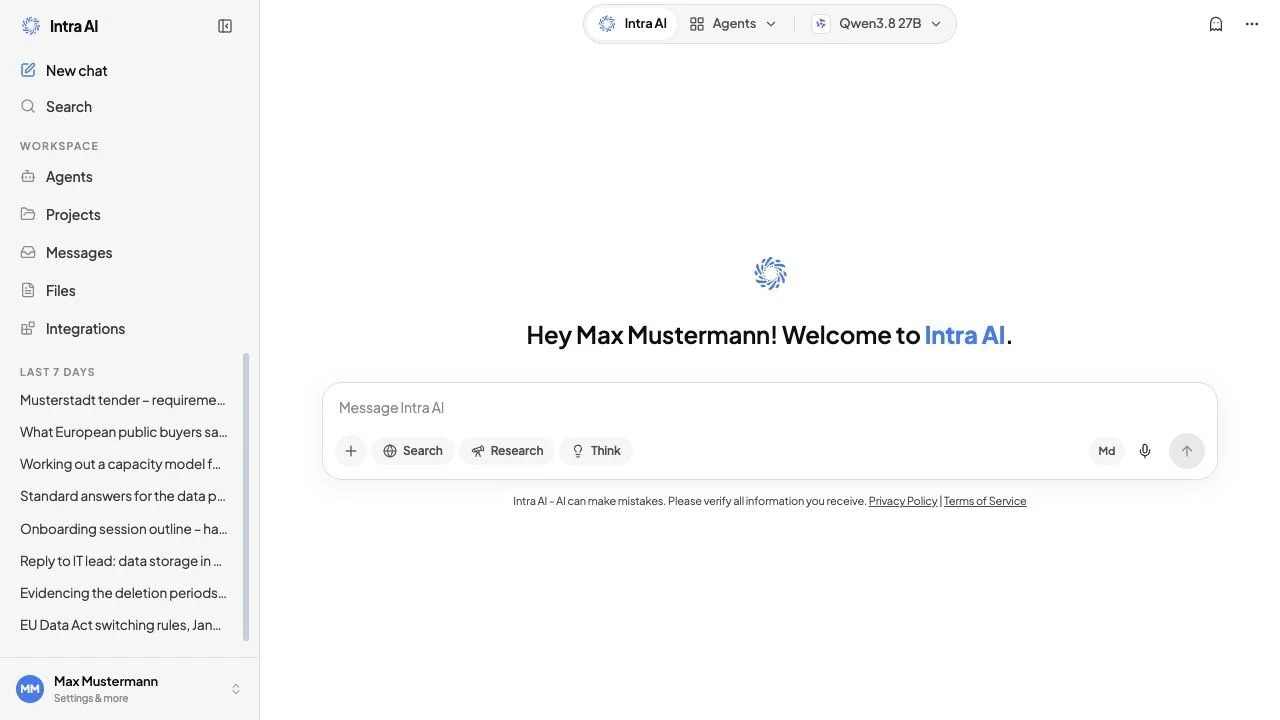
The microphone button sits in the bottom-right corner of the message box, just to the left of the round send button (which turns blue once there is text to send). It looks like a small microphone icon.

The chat composer at rest, with the microphone button on the right of the message boxThe chat composer at rest, with the microphone button on the right of the message box

Note: The button only appears when your administrator has enabled Speech-to-Text and your browser supports audio recording. If you do not see it, see Troubleshooting below.

Step 2 – Click the microphone to start recording

Click the microphone button. Your browser will ask for permission to use your microphone the first time (or if you have previously denied it). Click Allow.

The message box area changes immediately: the text area and toolbar are replaced by the recording bar – a row of 80 animated vertical bars that visualise the volume of your voice in real time, plus a timer counting up on the right side.

The message box while recording, showing the live waveform, a timer, and cancel and confirm buttonsThe message box while recording, showing the live waveform, a timer, and cancel and confirm buttons

While the waveform is visible, Intra AI is actively recording everything your microphone picks up.

Step 3 – Speak your message

Speak naturally and at a normal pace. Watch the waveform bars move as you speak – if they stay flat, your microphone may not be picking you up (check your system's microphone settings).

The timer shows how long you have been recording (format M:SS).

Step 4 – Confirm or cancel

When you have finished speaking, you have two choices:

ButtonIconWhat it does
ConfirmBlue circle with a check (✓)Stops recording and sends the audio for transcription (tooltip: "Use recording")
CancelGrey circle with an XDiscards the recording – nothing is sent and no text is added (tooltip: "Discard recording")

Click Confirm (the blue check button on the right). The check icon changes to a spinning indicator while the audio is being processed. This is normal – the transcription service is running on your organisation's servers and typically takes a few seconds.

Step 5 – Review and send

Once transcription completes, the recording bar disappears and the message box reappears with the transcribed text already in it.

The transcript is appended to whatever was already in the box – existing text is never overwritten. If you had typed "Please summarise" before recording, the final text will be "Please summarise [your dictated words]", with a space inserted automatically if needed.

Edit the text if needed (transcription is not perfect – proper nouns, technical terms, and accents can occasionally trip it up), then press Enter or the send button as normal.

Tip: You can dictate multiple times in a row. Each new transcript is appended to the end of the previous text. This lets you build up a message piece by piece.


How transcription works

When you click confirm, the browser packages your audio as a compressed audio file (the format – webm/opus, ogg/opus, or mp4 – is chosen automatically based on what your browser supports) and uploads it to the Intra AI API.

The API checks that:

  • You are logged in and Speech-to-Text is enabled for your workspace.
  • The file is under the size limit (default 10 MB).

It then forwards the audio to the transcription service running inside your instance. That service uses the Whisper model (a multilingual speech recognition model) to decode the audio. Voice Activity Detection (VAD) filtering is applied automatically, which means silent gaps and background noise are largely ignored.

The service returns three things:

  • text – the transcript.
  • language – the language it detected (e.g. en, de, fr). Whisper detects the language automatically by default; note that administrators can pin a fixed transcription language via STT_DEFAULT_LANGUAGE, in which case auto-detection is off.
  • duration – the length of the recording in seconds.

The text is placed in the message box. The language and duration are logged for your administrator's monitoring purposes; they are not shown to you in the UI.


Limits and defaults

LimitDefaultConfigurable by admin
Maximum audio file size10 MBYes (STT_MAX_AUDIO_SIZE_MB)
Maximum recording duration120 seconds (2 minutes)Yes (STT_MAX_AUDIO_DURATION_S)
Requests per window30 per user in a 5-minute windowYes (RATE_LIMIT_STT_MAX; window length via RATE_LIMIT_STT_WINDOW_MIN, default 5 minutes)

If your recording exceeds the size cap, the Intra AI API rejects the upload; if it exceeds the duration cap, the transcription service rejects it. Either way Intra AI shows an error notification. Break long recordings into shorter chunks if you hit the duration limit.

The transcription timeout on the client side is 60 seconds – if the server takes longer than that, the request will fail and you will see an error toast.


Controls reference

ControlLocationWhat it does
Microphone button (Mic icon)Bottom-right of message boxStarts recording; only visible when STT is enabled and browser supports recording
Cancel button (X, grey circle)Left of waveform barDiscards the current recording immediately
Confirm button (✓, blue circle)Right of waveform barStops recording and submits audio for transcription
Spinner (replacing ✓)Right of waveform barShown while transcription is in progress
Waveform barsCentre of recording bar80 animated bars showing live microphone volume; purely visual
TimerRight of waveformElapsed recording time in M:SS format

Tips & notes

Tip: Speak naturally and at a normal pace. Short pauses between sentences are fine – the transcription service handles them well.

Tip: If you are dictating in a language other than English, just speak – Whisper detects the language automatically.

Note: The cancel button (X) is disabled while transcription is in progress (after you have clicked the confirm button). Wait for the result, or refresh the page if the spinner does not resolve.

Note: Voice input works in every conversation, including conversations inside projects. It is not available in the admin panel.

Warning: Transcription uses processing capacity inside your instance. If many people use it at the same time, there may be a brief wait before the transcript appears. This is normal.


Troubleshooting

SymptomLikely causeWhat to do
Microphone button is not visibleSpeech-to-Text is not enabled for your workspace, or your browser does not support audio recordingAsk your administrator to enable the stt feature; or switch to a supported browser (Chrome, Edge, Firefox, Safari 14.5+)
Browser asks for microphone permission and I clicked DenyMicrophone access was blocked for this siteGo to your browser's site settings for Intra AI and change the microphone permission to Allow, then reload the page
A warning says "Microphone access denied. Please allow access in your browser settings."Microphone permission denied at browser levelAllow microphone access in your browser's site settings, then reload
A warning says "No microphone found"No microphone is connected or recognised by the OSConnect a microphone, check your operating system's sound settings, and try again
The waveform bars stay flat during recordingMicrophone is connected but not picking up soundCheck your OS sound settings – make sure your browser is allowed to use the correct input device; try speaking louder
A warning says nothing was capturedRecording stopped with an empty or near-empty audio fileMake sure you actually spoke after clicking the microphone, then try again
A warning says "No speech detected"Audio was captured but Whisper found no recognisable speechReduce background noise, speak more clearly, and try again
Error: audio exceeds the size limitRecording file exceeded the configured max size (default 10 MB)Break your dictation into shorter segments
Error: audio duration exceeds the limitRecording was longer than the configured max (default 120 seconds)Keep recordings under 2 minutes; dictate in multiple shorter takes
Error notification after clicking confirmTranscription service is unavailable or returned an errorTry again in a few moments; if the problem persists, contact your administrator
Confirming always fails with "Speech-to-text service is not configured"The transcription backend has not been set upContact your administrator to configure the transcription (Whisper) service
Spinner runs for a long time then failsServer took longer than 60 seconds to respondThe transcription service may be under load – try again shortly
Rate limit errorMore than 30 transcription requests sent in a 5-minute windowWait a few minutes before trying again

Frequently asked questions

Q: Does Intra AI send my voice recordings to a third party? A: No. Audio is uploaded to and processed inside your own instance. Nothing is sent to an external speech service.

Q: Can I use voice input in any language? A: Yes. The transcription service is multilingual and detects the language automatically by default. You usually do not need to change any setting – just speak in your preferred language. (Administrators can pin a fixed transcription language via STT_DEFAULT_LANGUAGE, which turns auto-detection off.)

Q: Will dictating overwrite the text I have already typed? A: No. Transcribed text is always appended to whatever is already in the message box. A space is inserted automatically if needed.

Q: Can I cancel mid-transcription? A: The cancel button is disabled once transcription has started (after you click the blue confirm button). If the request is taking too long, you can reload the page.

Q: How accurate is the transcription? A: Accuracy depends on your microphone, background noise, and how clearly you speak. Common words in most languages transcribe well. Technical jargon, proper names, and heavy accents may need manual correction. Always review the text before sending.

Q: What audio format is recorded? A: The browser picks the best format it supports – typically webm/opus on Chrome and Firefox, ogg/opus on some Linux browsers, or mp4 on Safari. The server accepts all of these automatically.

Q: The feature was available before but the button is now gone – what happened? A: Your administrator may have turned off the Voice input toggle in the admin System Configuration panel. Contact them to re-enable it.


Related: Chatting · Settings · Files & Knowledge