
Deep Research
Research has Intra AI run a multi-step web search and write a report that cites numbered sources. A run takes a few minutes. For a quick question about something current, regular web search is usually enough.
Deep Research runs on your instance's web search. If web search is turned off there, the Research button is missing too. Deep Research is included in the trial.
Start a research run
- Open a conversation, for example with New chat.
- Click Research in the message box. The button turns blue. Search switches off for this message, because the research job does its own searching. In a narrow window the button shows only a telescope icon.
- Describe the task precisely: the topic, the time period, the region, and what the report should compare or answer.
- Send the message. The Deep Research panel appears below your question.
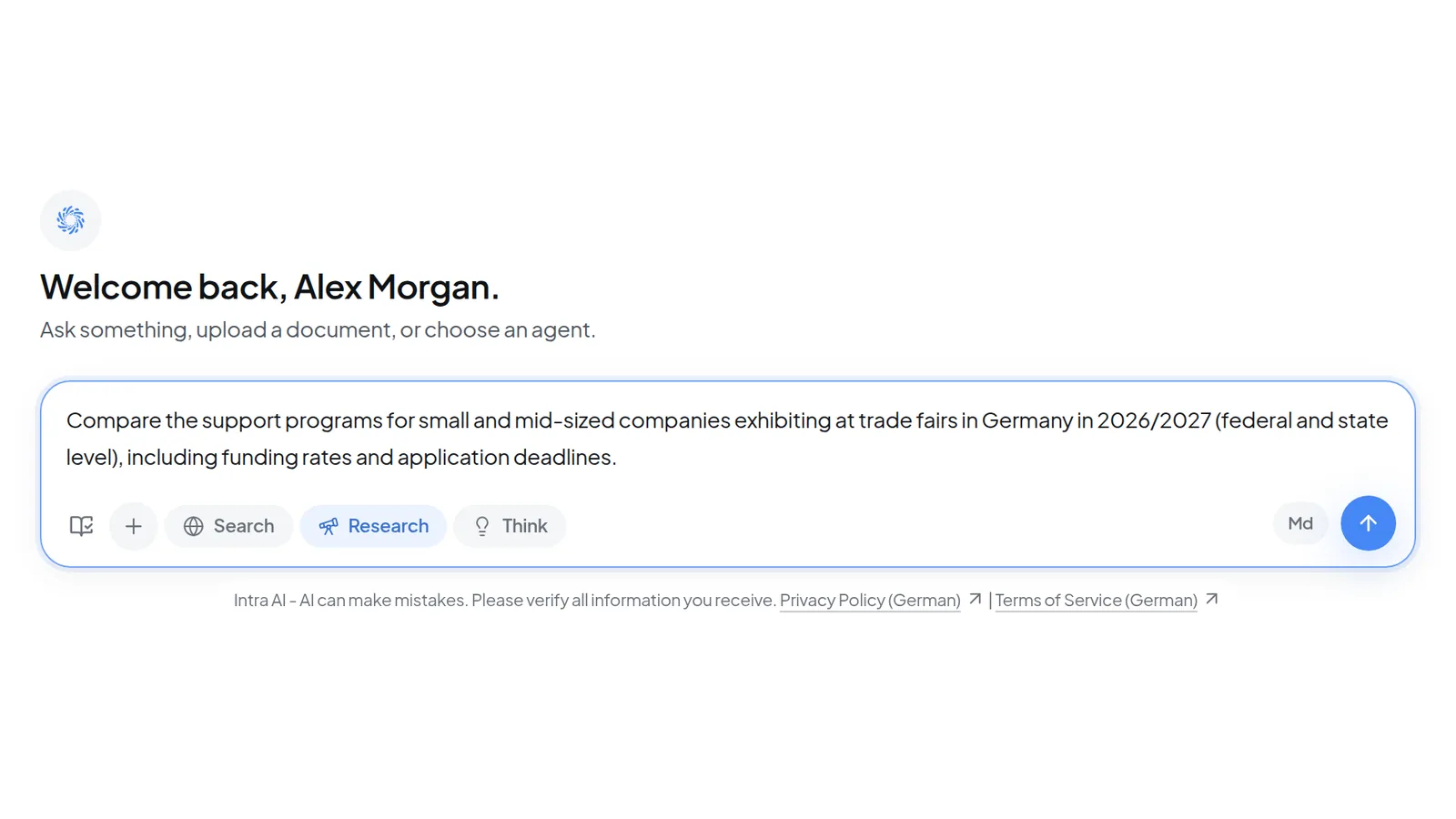 Turn on "Research" and phrase a specific research task. Search switches itself off for that message.
Research applies to one message only. It turns itself off after you send, and when you switch to another conversation. If Search was on before, it comes back on afterward. Clicking Search before you send turns Search back on and Research off.
A research request can be up to 250,000 characters long. Research searches only the web. It also reads the recent messages in this conversation. It does not use files you attach or documents in your projects.
Follow the progress
The panel walks through five stages:
- Planning sub-questions: Intra AI breaks your task into smaller questions.
- Searching the web: each sub-question goes out as a web search. The counter (for example 3/5) shows how many of this iteration's searches have been sent.
- Reading sources: Intra AI reads the pages it found. A line below shows which website it is reading right now.
- Reflecting on findings: Intra AI checks what is still missing and, if needed, asks further sub-questions. That starts another iteration. For a simple factual question this step is skipped and the run ends after one iteration.
- Writing report: Intra AI writes the report from the sources that best match your question. You can watch the text appear in the panel as it is written.
Above the stages you see the current iteration and the number of sub-questions, for example "Iteration 2 / 3". Expand Sub-questions to read them. The percentage in the top right is a rough guide and only reaches 100% once the report is done.
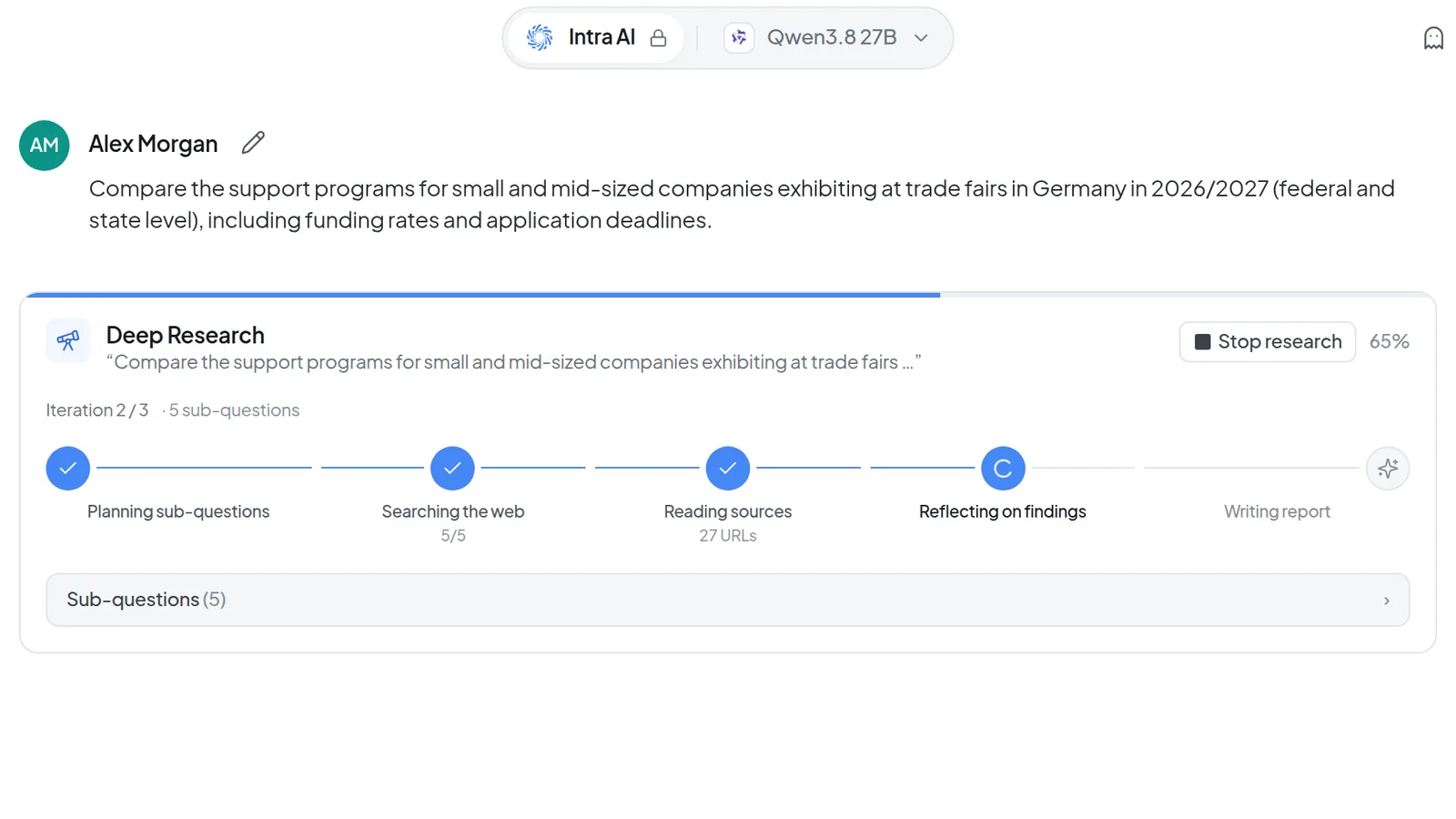 While research runs, the "Deep Research" panel shows the current stage, and "Stop research" ends the run early.
By default a run goes through at most three iterations. The report draws on at most 15 sources.
Note: The sub-questions are sent as search queries to Staan, a European search service, and the pages the research reads also come through Staan. Don't put anything confidential into a research task. This also applies to earlier messages in the conversation: for a follow-up, Intra AI rewrites the task using the recent messages, and the search queries are built from that.
Stop a run
Click Stop research in the panel. The button briefly reads Stopping…, then the panel says Stopped by you. Whatever was written up to that point stays in the conversation as the answer. If the run had already picked its sources, those stay visible as well.
If you switch conversations or reload the page, the run keeps going in the background. Open the conversation again to see its progress and stop it with Stop research.
Read and check the report
When the report is finished, the panel says something like Synthesised from 15 sources. Below it are the source cards under 15 web sources, then the report itself. The row of cards scrolls sideways. A number in square brackets, such as [3], refers to the card with the same number. The model is instructed to cite every factual statement this way. Still, check important figures on the original page.
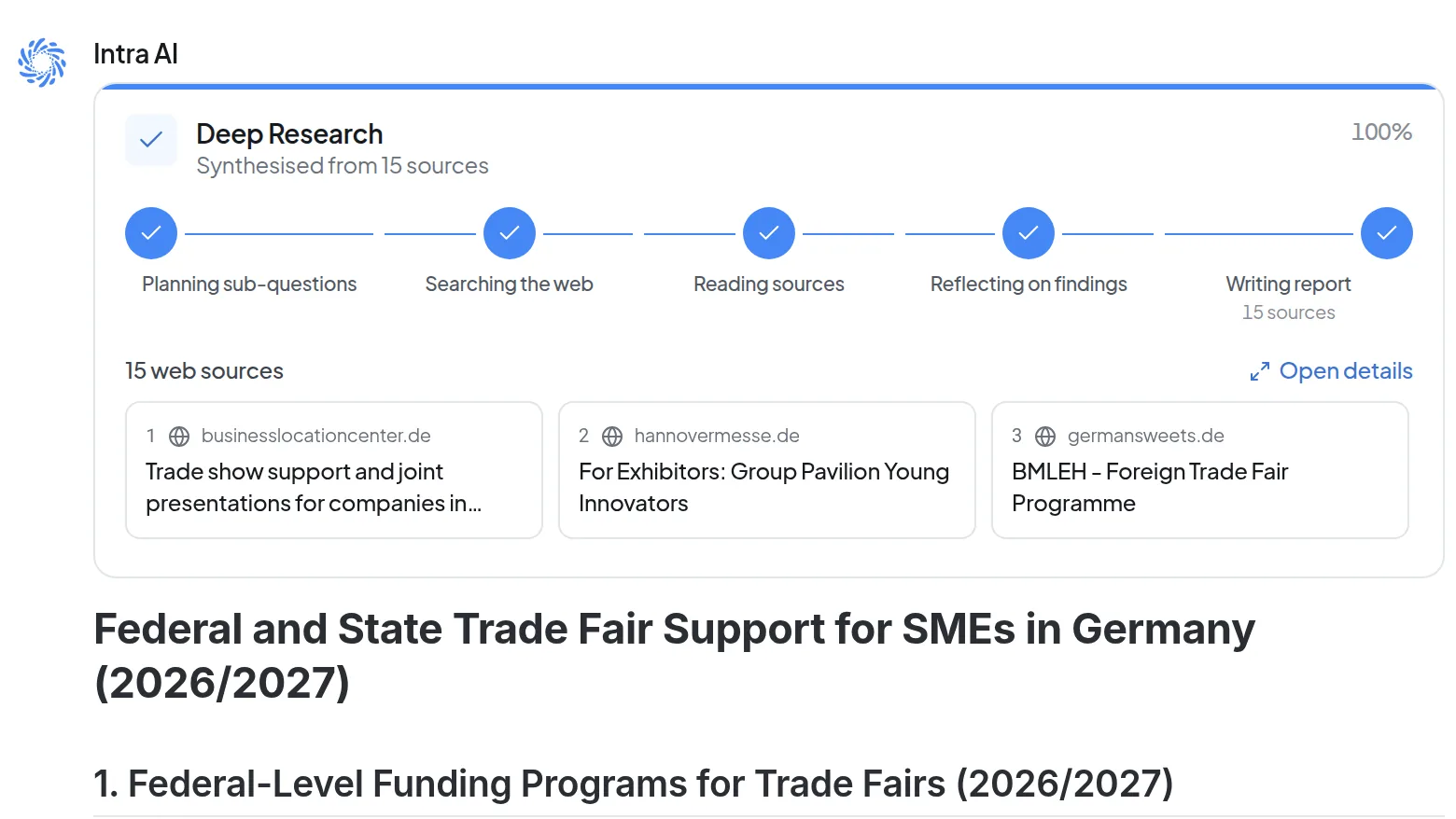 When the run finishes, the panel shows how many sources the report draws on. "Open details" shows what the research read.
Clicking a source card asks "Do you want to open this source in a new tab?" Choose Open in new tab or Cancel. Intra AI has no built-in reader view.
The report is an ordinary answer in the conversation, so you can keep asking questions with or without Research. The panel with the sources and Open details stays above the report, even when you come back to the conversation later.
Look at the research details
-
Click Open details above the source cards. Research details opens on the right.
-
Under Run you see the status, the model, the number of iterations, the duration, URLs attempted and Sources used.
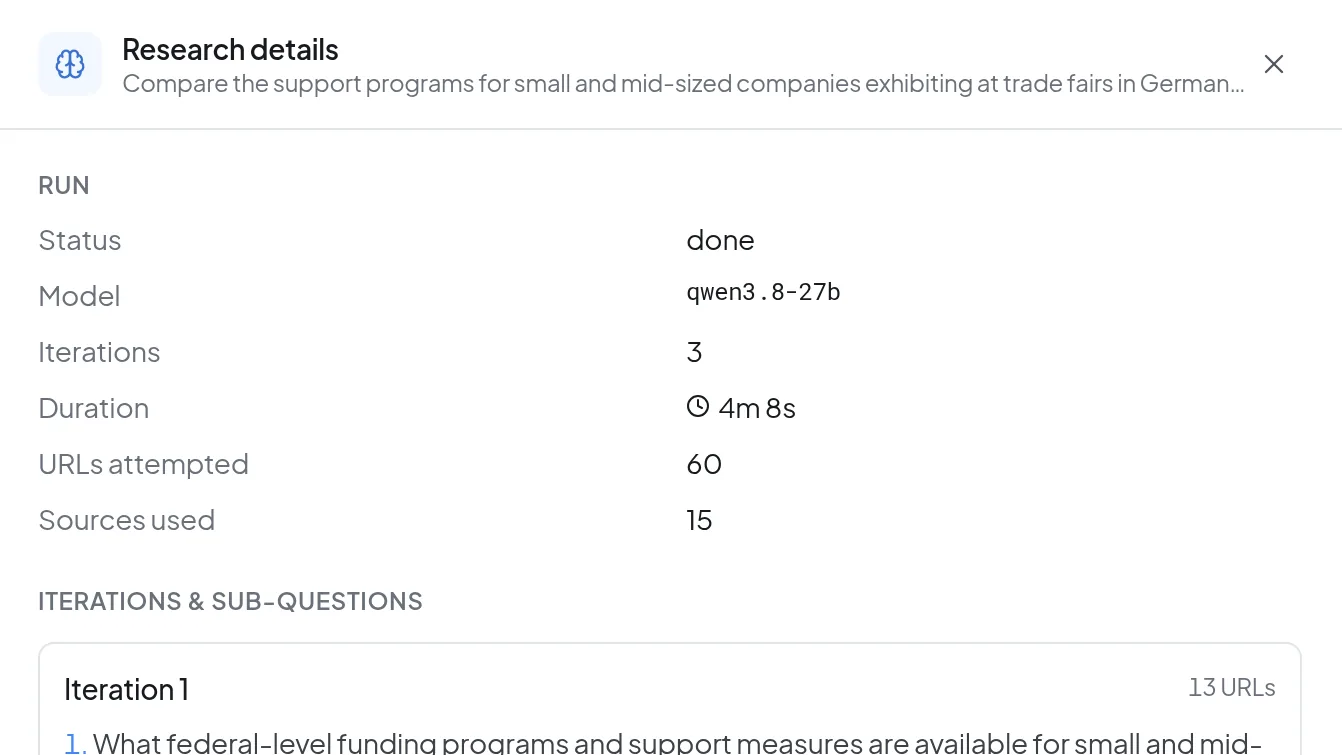 "Research details" shows the duration, the iterations, and how many URLs were tried and used as sources.
 -
Iterations & sub-questions lists, for each iteration, the sub-questions it asked and how many URLs it read.
-
Sources used in the report lists every source with its title, a snippet, the sub-question that found it, and the iteration (for example "iter 1").
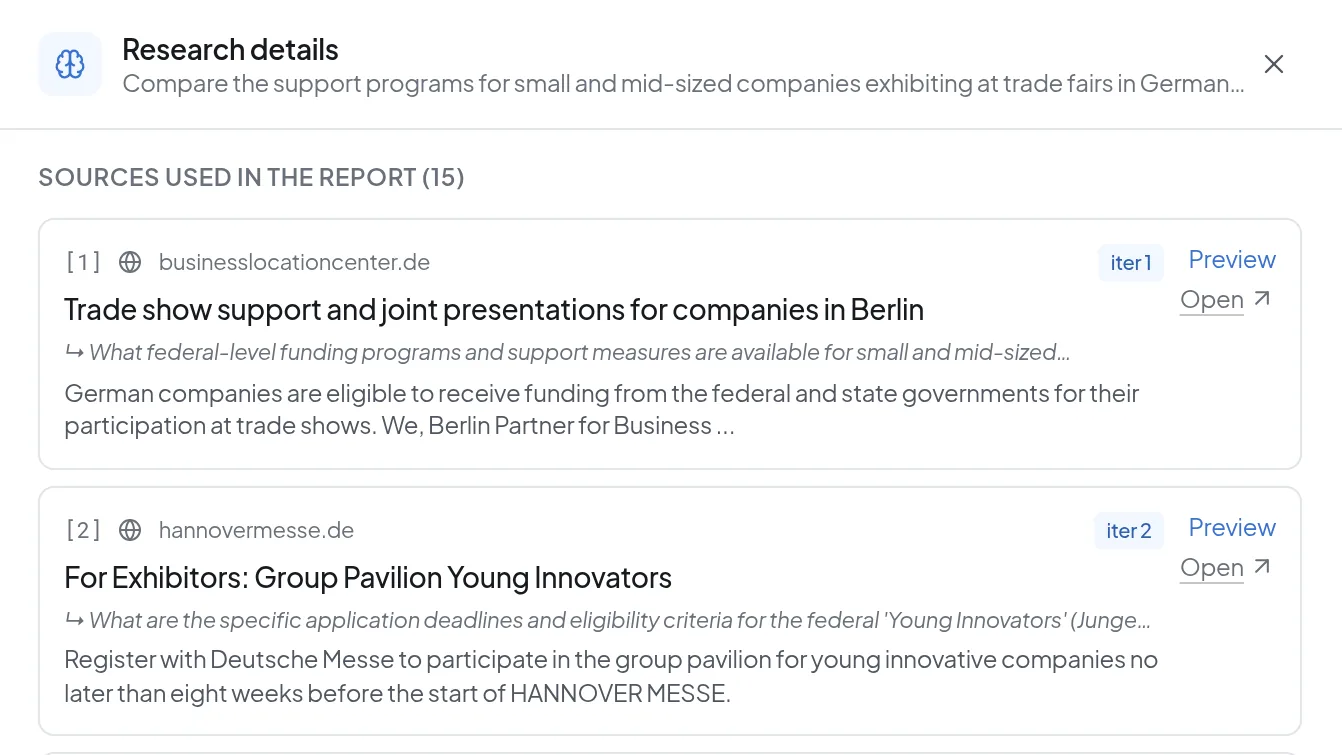 "Sources used in the report" lists each source with its sub-question, iteration and snippet, and you can open it from there.
 -
Open takes you straight to a source in a new tab. Preview asks the same question as a source card.
-
To close the panel, click the X in the top right, press Esc, or click outside it.
Expect URLs attempted to be well above Sources used. Not every page can be read, and only the sources that fit the question best make it into the report.
Research a follow-up question
If you start another research run later in the same conversation, Intra AI takes the earlier messages into account, by default the last six. A short follow-up like "And what about Austria?" becomes a complete research task. Research details then shows a Researched as line under your question with the version that was actually researched. The line appears only when Intra AI rewrote the question, and never in a temporary chat. On a first question it does not appear.
Use Research with an agent
When you work with an agent, Research only appears if the agent has the Deep research capability. Whoever builds the agent turns it on in the agent builder (see Tools, knowledge and sub-agents).
With Research on, the message box shows a note before you send: Deep Research uses the agent for tone and wording only. Its tools, files and knowledge do not apply to that message. If the agent has web search set as a fixed capability, Search stays lit. The research still runs.
If you have just picked an agent with @ in a conversation with Intra AI and not yet sent a message, the research still runs as Intra AI. The note then reads "Research runs as Intra AI; your agent applies from the next message."
Token use
A research run uses tokens from your balance. Intra AI reserves an amount before the run starts. You are charged only for a finished report. If you stop a run or it fails, the whole reserved amount goes back to your balance. If your balance is used up, the run does not start. You can see your balance under Profile, usage and token balance.
Troubleshooting
| Message or situation | What to do |
|---|---|
| Research is missing from the message box | Web search is turned off on your instance, or the selected agent does not have the Deep research capability. Ask your administrator or whoever maintains the agent. |
| "No sources could be found for this question. …" | Rephrase the question, for example with more common terms or a broader scope. |
| "The research hit its time limit before the report was written. …" | By default a run can take at most six minutes. If it had already picked its sources, they stay visible in the panel. Ask a narrower question, for example with fewer countries or a shorter time period. |
| "The research did not finish. …" | Start again with a narrower question. |
| "The research could not be completed. …" | Try again. If it keeps happening, tell your administrator the date, time and which conversation it happened in. |
| "Deep Research prompt is too long: …" | Shorten the text to 250,000 characters or fewer. |
| "You already have several answers running. …" | Wait until another answer or research run has finished. |
| "Your token balance is exhausted. …" | Contact your administrator. |
| "This trial has ended. …" | Your trial access has expired. Contact Intra AI to continue. |
| "The run could not be stopped, so it may still be working. …" | Reload the page and click Stop research again. |
If the research did not start or failed, your question is back in the message box.