
How Intra AI uses your documents
When you ask about a file, Intra AI either reads the whole file or searches it for matching passages. How document search handles a file depends on where it's stored. Any user can attach files. Your administrator can turn uploads off, in which case the + button is missing from the message box.
Read in full or searched
| Where the file is | How Intra AI uses it |
|---|---|
| Attached to this conversation | Read in full for every answer, the file from your latest message first, up to a limit that also depends on the selected model. Exception: files with the status Read in full (see below) |
| In a folder you attached to the conversation | Searched, except while the conversation is shared or in a fully shared project (the folder then shows "Not used") |
| In the project the conversation belongs to | Searched |
| In an agent's Knowledge | Searched |
| In an agent's Standing facts | Read in full for every answer |
"Searched" means Intra AI looks for the sections that best match your question and passes only those few passages to the model. The model doesn't see the rest of those files. If all searchable files together are short, Intra AI reads them in full as well.
If an agent has the File search capability, Intra AI skips the automatic search. The agent searches on its own when it needs to, sometimes several times per answer, across its knowledge, the conversation's files and the project's files. An agent gets this capability automatically with its first knowledge file. Without an agent, Intra AI can also search your files on its own. That step appears above the answer, for example as "Found 1 passage." Expand it to see the Search term and the File Sources it found.
Intra AI has to process every file first, which means extracting its text. That applies to files it reads in full, too. While a file shows Processing, it isn't used in answers.
Attach a file to a message
- Select + (Attach file) in the message box.
- Choose Upload from computer, Browse files and folders, or a file under Recent.
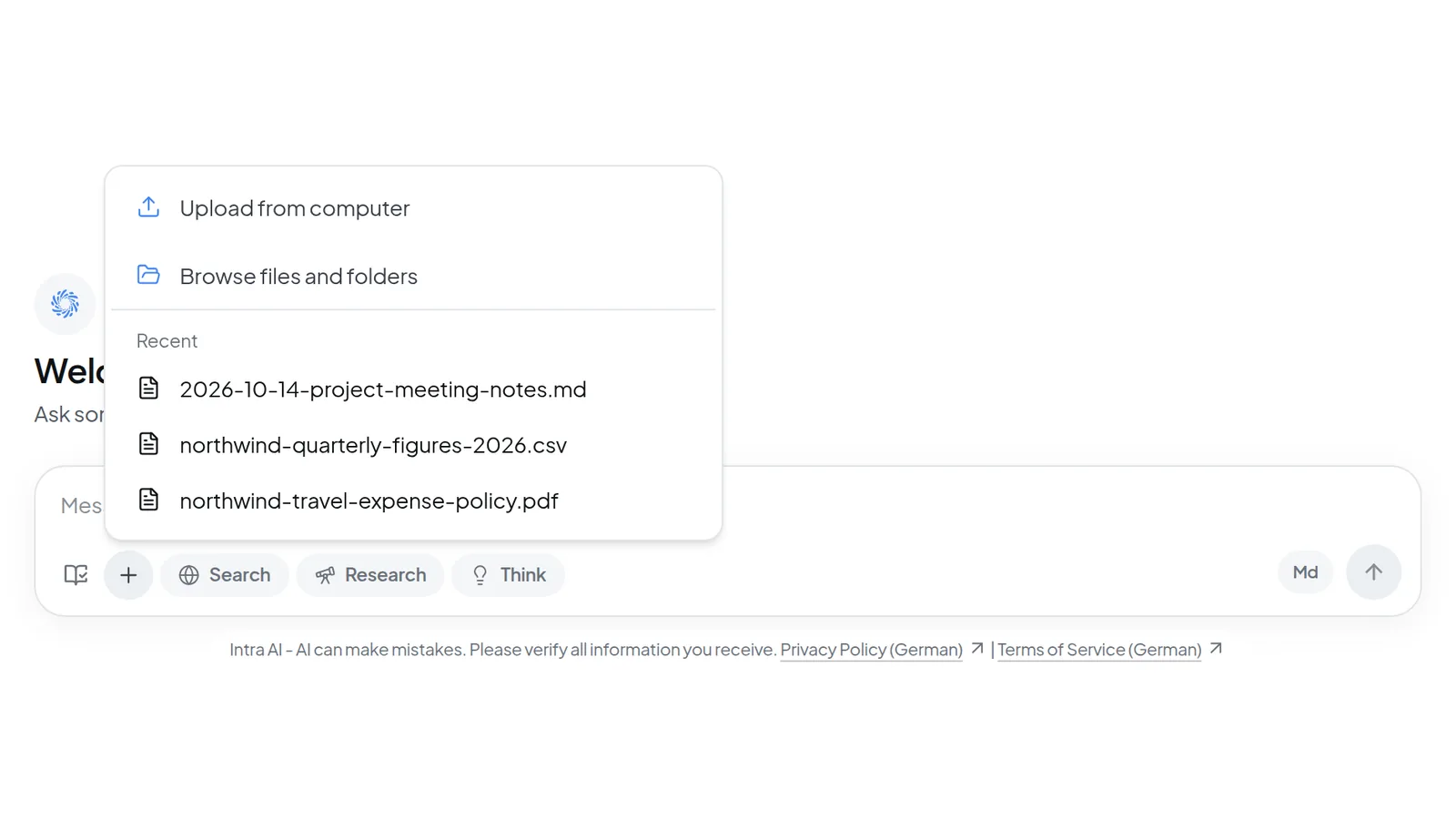 The + button in the message box attaches a file from your computer, from your files and folders, or from your recent files.
- Wait until the attachment no longer shows Processing. For documents, Send stays disabled until then. If the attachment shows Error, see Troubleshooting below.
- Say what you want done with the file, and send the message.
A file uploaded from your computer is also saved to your Files. You can attach up to 10 files per message. In a project conversation, Attach existing file lists project files that other members added.
Images can only be read by a model that understands images. If the selected model can't, Intra AI doesn't attach the image and tells you why. If you switch to a model that can't read images in a conversation that already has images, Send stays disabled. Each answer only gets the newest images in the conversation, 4 by default. Older images show Not sent.
When a file is too big
Reading in full has a limit. It covers all files in a conversation together and also depends on the selected model. Intra AI reads whatever fits, starting with the file from your latest message. If a file gets cut off partway, Intra AI only searches the rest of it, and the same goes for any files that didn't fit at all. The conversation doesn't tell you when that happens.
In practice:
- With a long document, ask about specific chapters or sections rather than "everything."
- To summarize a whole long document, split it into parts and go one part at a time.
- For a new document, start a new conversation, so it doesn't share the limit with files from earlier.
Processing has limits of its own. A file that hits one shows Error with a sentence such as "The document is too large to index. Split it and upload the parts." or "This PDF has more pages than the indexing limit." Truncated means processing ran out of time, and the missing pages won't appear in any answer. The maximum upload size is shown in the upload area on the Files page.
Check where an answer comes from
- Select Sources below the answer. The number in parentheses counts the files. The list shows each file with a short excerpt, plus its section and Page when the file has them.
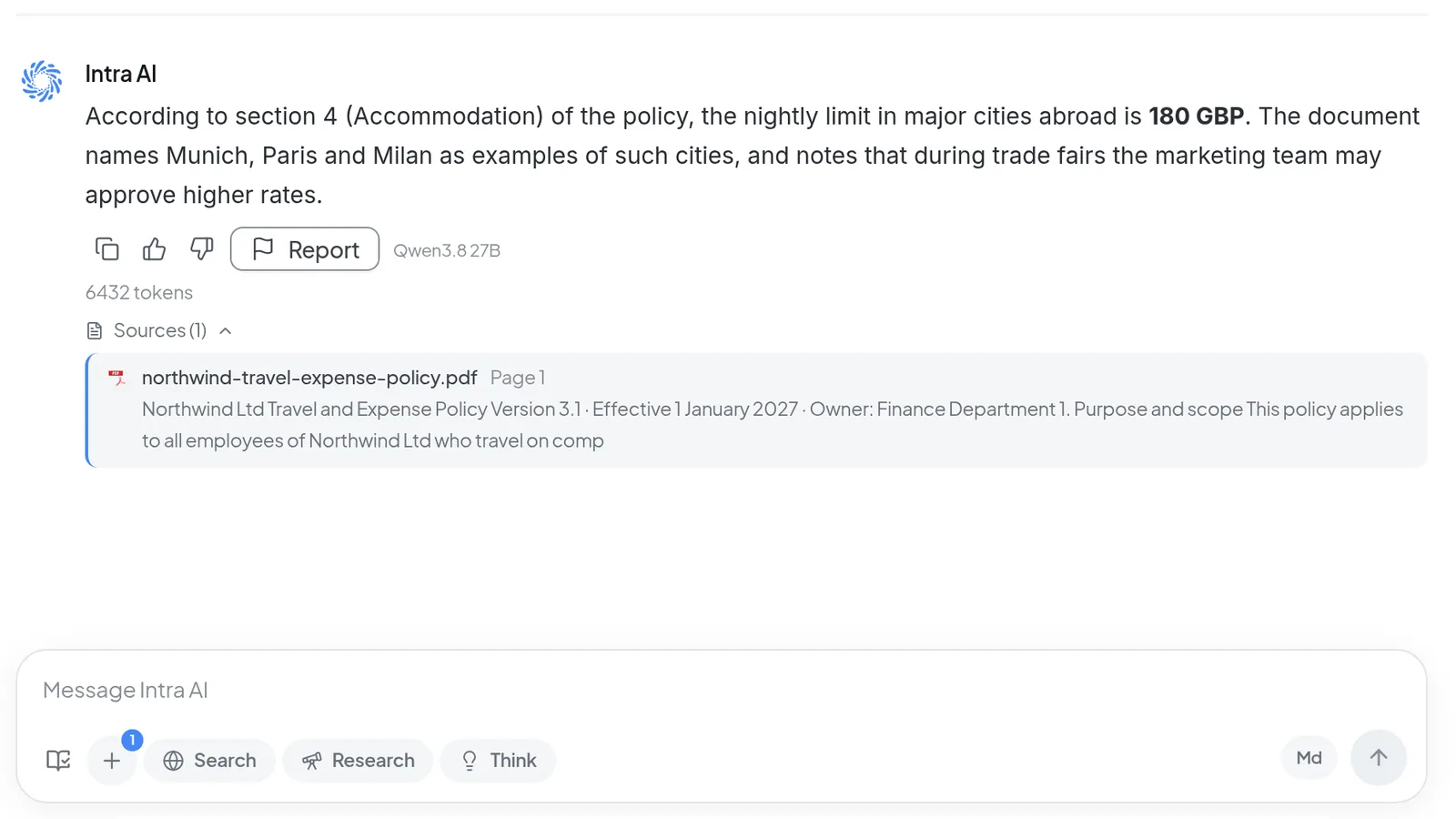 An answer to a question about an attached PDF, with the Sources (1) list expanded to show the file name, page and excerpt.
- Select a file in the list. It opens in a preview. A searched PDF opens on the page of its best-matching passage, and a PDF that was read in full opens at the beginning.
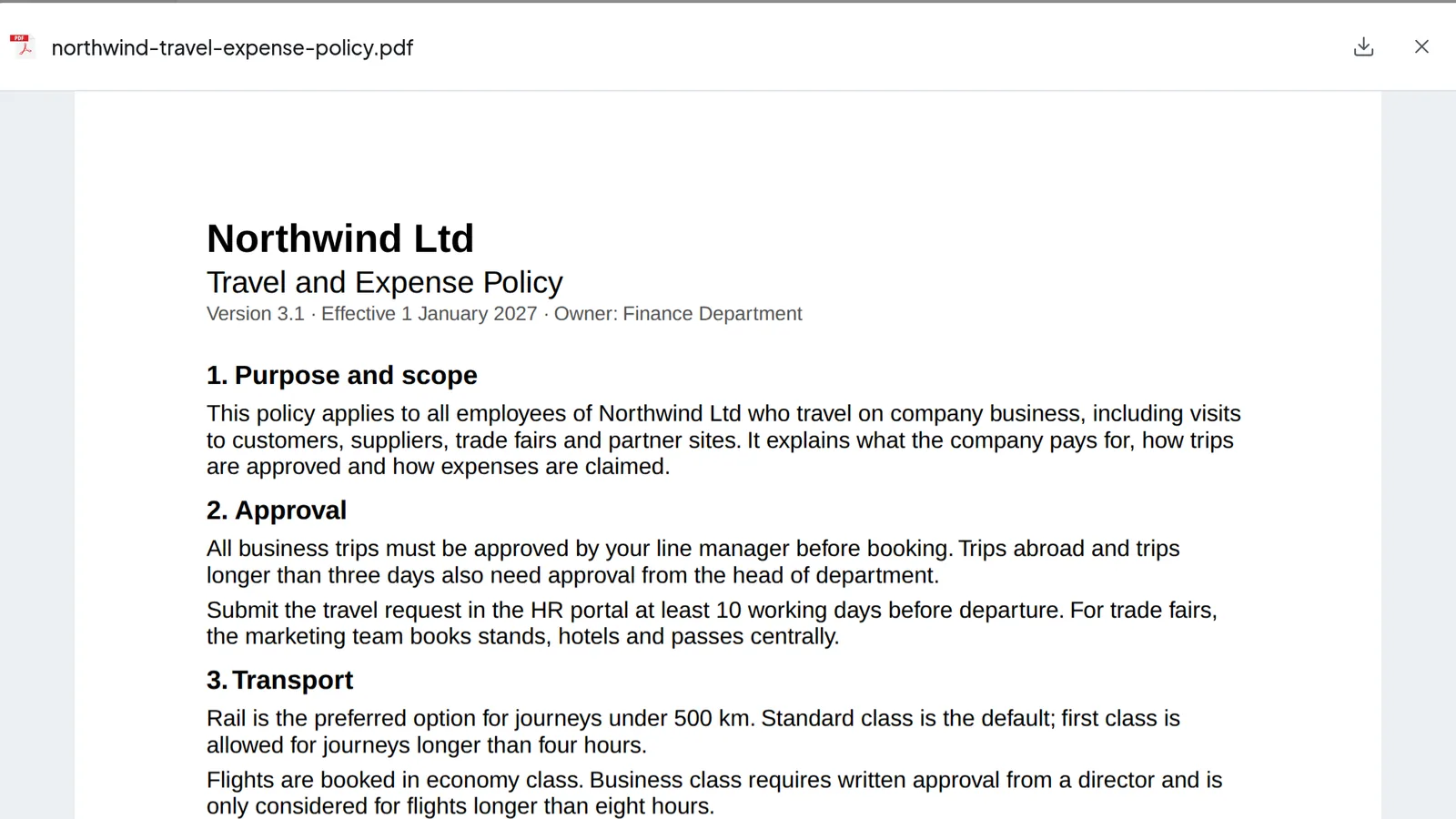 The preview shows the cited PDF inside the conversation, with download and close at the top right.
- If Intra AI searched your files, the model usually puts a blue number in the text wherever it cites a passage it found. Select a number to open the preview at that passage. With web search (Search) on, a number can also point to a web page.
When the answer has numbers, the Sources list keeps only the searched passages it cited. When it has none, the list shows all of them. Files that Intra AI read in full don't get a blue number, but they're always in the list. If the model writes a bracketed number such as [1] anyway, that's plain text and doesn't link anywhere.
If an answer shows "Answered without your documents" or "Some document evidence could not be loaded.", it used your files only partly or not at all. See Troubleshooting for what to do.
A source shows which passage the model was given. It doesn't prove the model got it right. For figures, deadlines and contract terms, read the passage in the preview yourself.
Ask questions document search can match
- Use the words the document uses. If the contract says "termination notice," a question like "How early do I have to cancel?" is less likely to find the clause.
- Ask one question per message. Document search works from your message, and several questions at once split the few passages across several topics.
- If several similar files could be meant, name the one you mean, for example "in the 2026 price list."
- If you want a whole document checked, attach it to your message directly rather than relying on project files.
- Ask for page numbers or exact quotes when you plan to verify the answer.
See which files a conversation uses
- Select Content above the messages. The number next to it counts the files in this conversation and its project. The button appears once the conversation has files or a folder, or belongs to a project.
- In a project, select the Project files tab to see the project's files. The Files tab lists this conversation's files, each with its status.
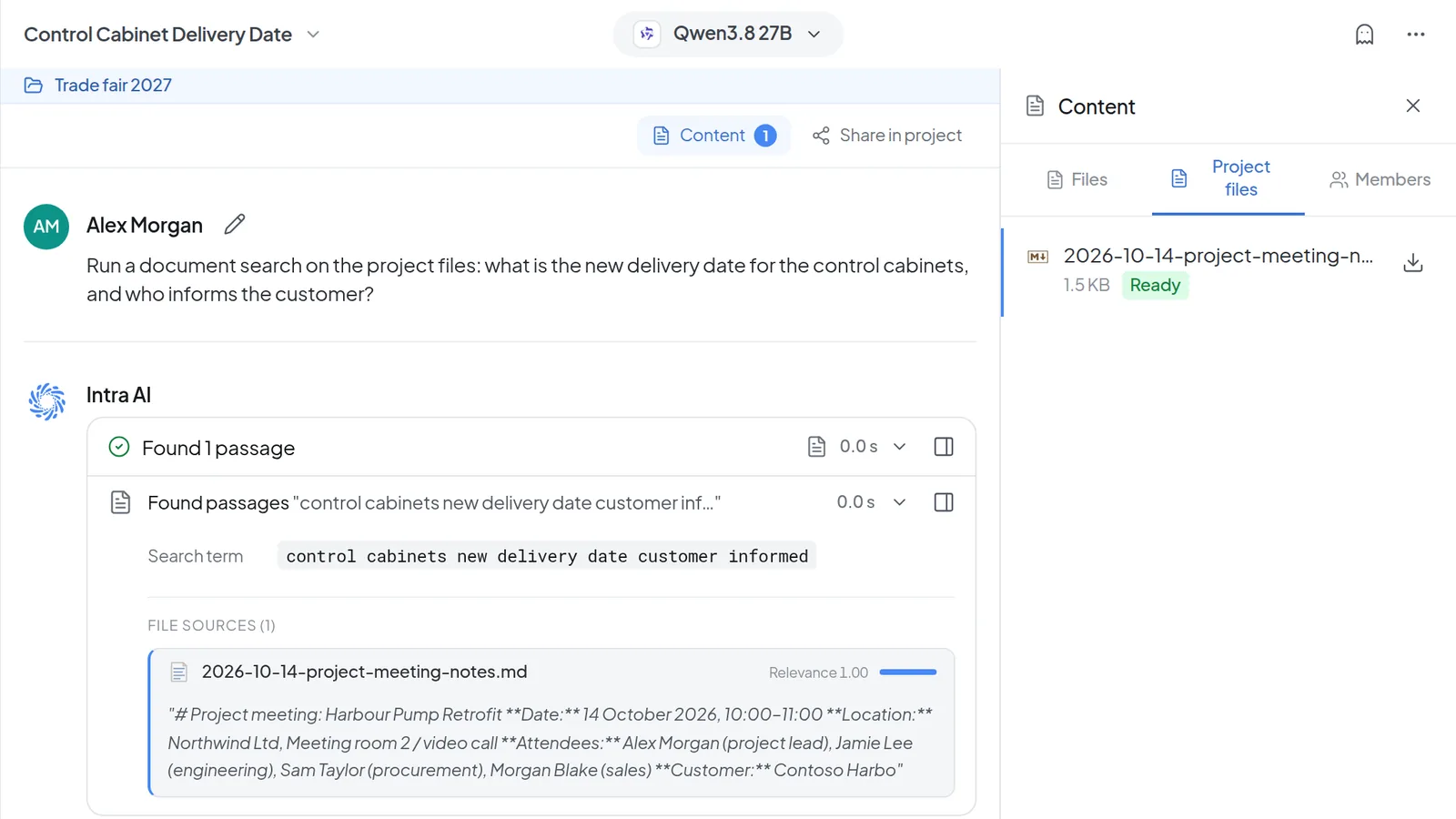 The Content panel on the right with the Project files tab and a Ready file, and on the left the expanded document search step (Found 1 passage, search term, file sources).
- Remove takes a file out of the conversation. It stays in your Files. The notice that follows has an Undo button.
The Content panel only shows Processing, Ready, Not in search and Error. To see missing pages or why a file failed, open the Files page or the project's Files tab.
What the statuses mean there:
| Status | Meaning |
|---|---|
| Processing | The text is being extracted. The file isn't used in answers yet. |
| Ready | The file is processed and in use. |
| Read in full | Despite the name, the model doesn't get this file's content, either whole or as passages. The file isn't indexed for search, and in the conversation Intra AI only knows its name. This applies to files uploaded through an agent set to Pass through (they go only to the connected program) and to some files Intra AI produced itself, such as translations or code interpreter output. |
| Partial | Some pages couldn't be read. Answers from this file may be incomplete. |
| Truncated | Processing stopped early. Some pages are missing. |
| Not in search | An image with no readable text. A model that understands images can still read it. |
| Error | Processing failed. The cause is shown under the file name. |
Note: Every project member can see the project's files, and answers in any member's project conversations can quote them. Only put confidential files in a project whose members are allowed to see them.
Troubleshooting
- The answer says a file's content isn't available yet: the file is still processing, or it stopped with Error. If it shows Processing, wait, then send your question again. If it shows Error, see the next item.
- A file shows Error: open Files and read the sentence under the file name. Where trying again can help, you'll see Retry. If it says the document "may be corrupt or password-protected," remove the password protection and upload the file again.
- The answer shows "Answered without your documents": document search found nothing relevant. Rephrase your question with words from the document, or attach the file to your message directly.
- The answer shows "Some document evidence could not be loaded.": document search failed for that answer, so none of the files Intra AI would normally search went into it. Send the same question again a little later. You don't need to rephrase it.
- A project file isn't being used: check under Files in the project whether it still shows Processing or Error.
- A file can't be attached to a project: if it's already in another project, it has to come out of that project first. Only that project's owner and admins can remove it, on its Files tab. Files from a synced folder can't be attached to any project.
- The + button is missing: your administrator has turned off uploads for your instance.
Next: Managing files · Working together in projects · Tools, knowledge and sub-agents