
Workflows
A workflow runs an agent while you are away from your desk. It starts on chosen weekdays at a set time, or when something happens, such as a new email arriving in a folder. The agent gets the same message from you on every run. You see the results under Workflows, and depending on your notification setting the agent also reports in Messages. Anyone who can use an agent that is approved for workflows can set one up.
Before you start
- Workflows are off by default. Intra AI turns them on centrally for your instance. They also need the Agents area. If either one is off, Workflows does not appear in the sidebar.
- The agent must be approved for workflows by someone who can edit it. In the agent builder, they switch on Expert mode, open the Tools step, turn on This agent may run unattended in workflows under Approved for workflows, and save. If they are working in a draft, the approval takes effect when they publish the draft. See Building an agent.
- Every run uses your account and your token balance. You can check your balance under Profile, usage and token balance.
Note: An unattended run only uses tools the agent has set to "no confirmation". A tool set to "confirm first" pauses the run until somebody answers.
Create a workflow
-
Open Workflows in the sidebar. Until you have a workflow, the page shows "No workflow yet".
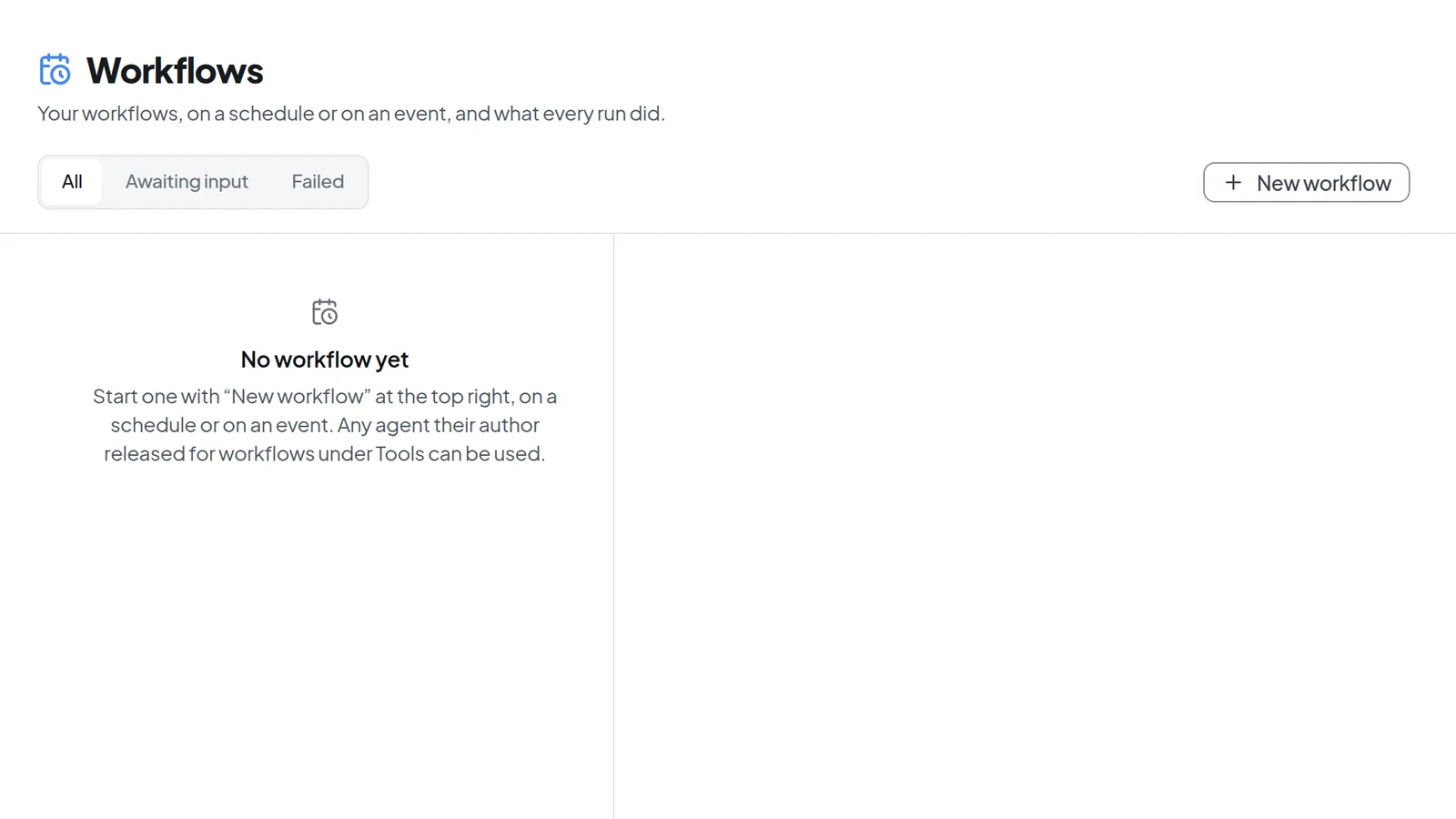 The empty Workflows page with the note "No workflow yet"
 -
Select New workflow at the top right. A panel opens on the right and explains the three steps.
-
Under Pick an agent, select the agent. The list only shows agents approved for workflows. If there are none, you see "No agent is released for workflows".
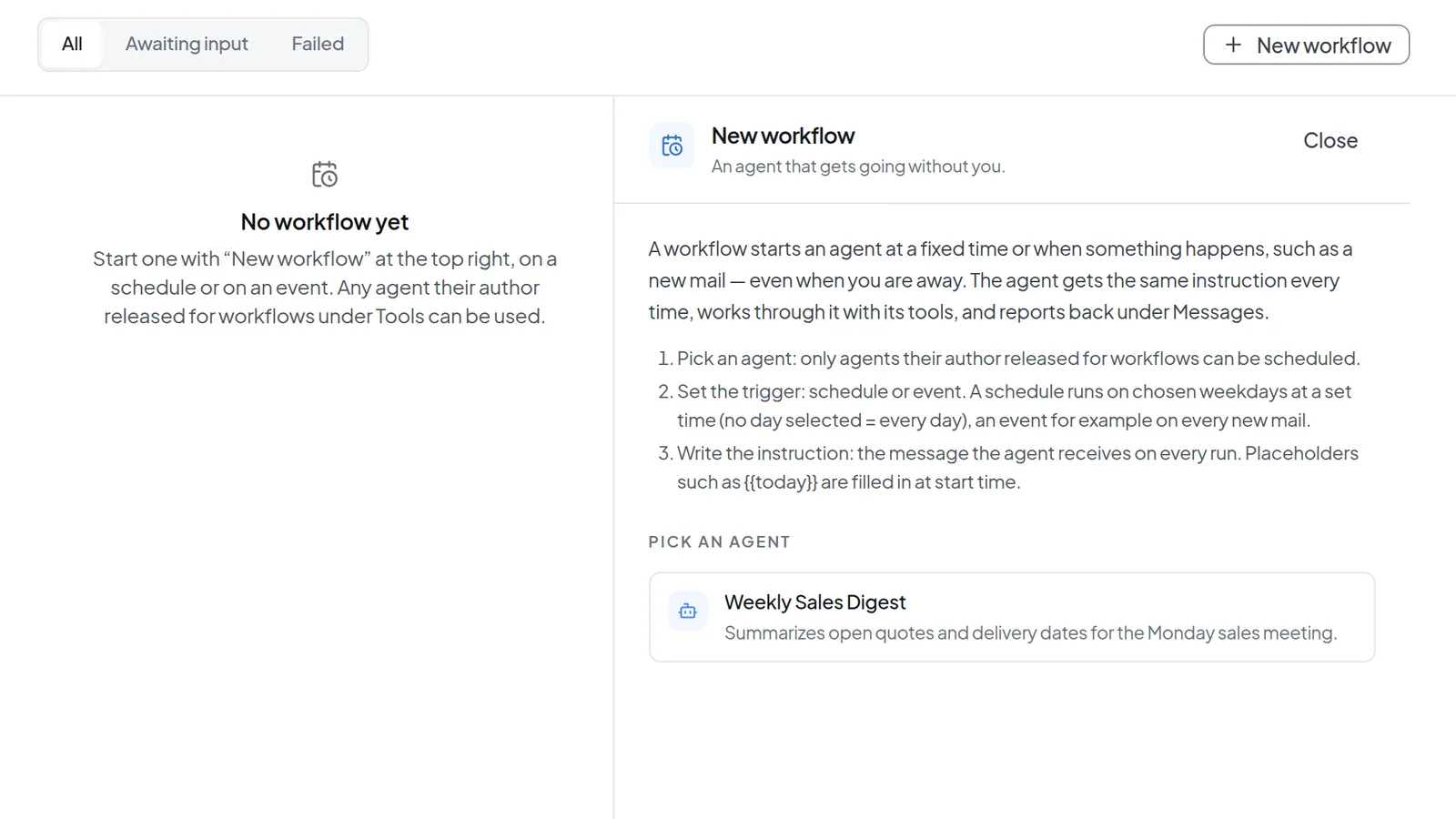 New workflow with the three steps and one approved agent to pick
 -
At the top of the form, choose Schedule or Event, then fill it in as described in the next two sections.
You can have one schedule per agent. If you already have one, the agent is marked Already scheduled in the list, and only Event is left for it.
You can also set up a workflow from an agent's details: Schedule workflow opens the same form. If you already have a schedule for that agent, the button reads Open workflow and takes you to it. In expert mode, the agent builder also has a Workflow step, which sets up schedules only.
Set a schedule
-
Pick the weekdays the agent should run (Mon to Sun). Mon to Fri are preselected. If you pick no day, the agent runs every day.
-
Set the Time. The default is 9:00 in the morning. The field comes from your browser, so it shows a 24-hour clock or AM/PM depending on your browser's language settings.
-
Check the Time zone. It is preset to Europe/Berlin.
-
Under Message to the agent, write the task the agent receives on every run, up to 4,000 characters.
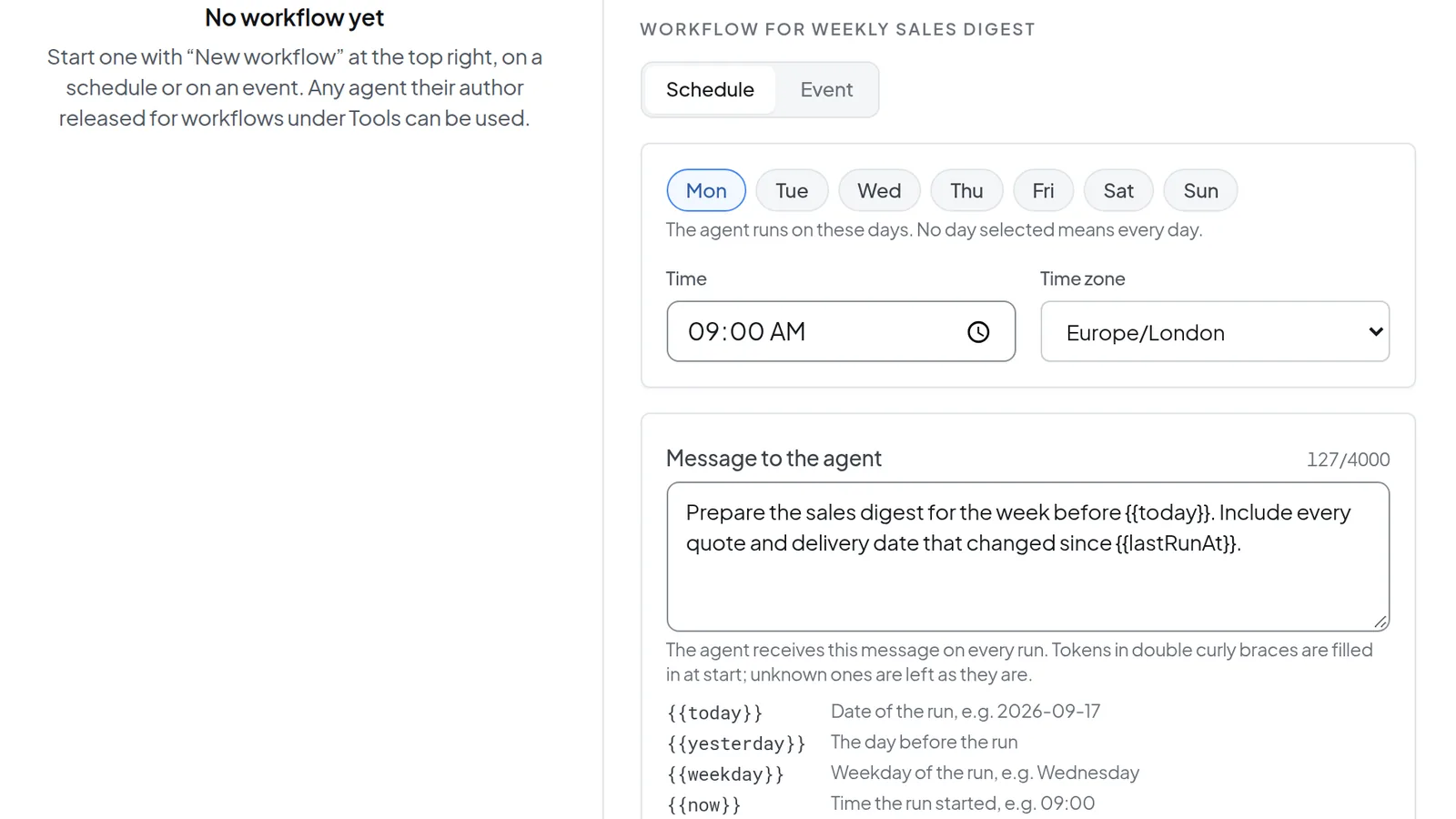 A schedule changed to Mondays only at 9:00 AM, with the time zone set to Europe/London and a message to the agent
 -
Under Inbox notification, choose when you hear from the workflow: After every run, Only on failure (the default, which also covers skipped runs) or Never. A run that waits for your answer always notifies you.
-
If you want, cap each run with Time limit (minutes) and Token limit per run. Then select Create schedule.
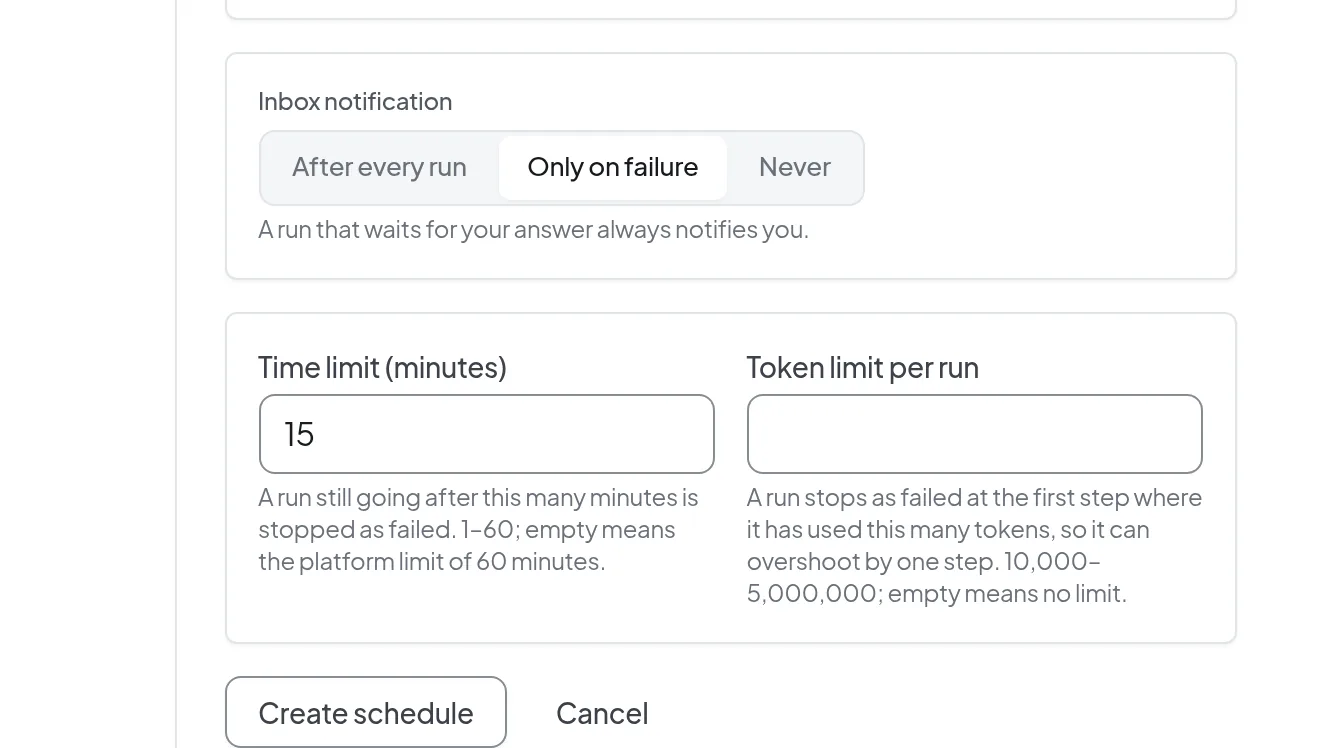 Inbox notification, time limit and token limit at the bottom of the form, with the Create schedule button
The time limit is 1 to 60 minutes. Leave it empty to use the platform limit of 60 minutes. The token limit is 10,000 to 5,000,000, and empty means no limit. It is checked at the end of each step, so a run can go over it by one step. With a very low limit, runs often stop before the agent has finished.
Placeholders in the message
Placeholders in double curly braces are filled in when the run starts. Unknown placeholders are left as they are.
| Placeholder | Replaced with |
|---|---|
{{today}} | Date of the run, for example 2026-09-17 |
{{yesterday}} | The day before the run |
{{weekday}} | Weekday of the run in your instance's default language, for example Wednesday |
{{now}} | Time the run started, for example 09:00 |
{{lastRunAt}} | Date and time the last successful run started |
Dates and times use the schedule's time zone. {{lastRunAt}} stays empty until a run has succeeded, and runs you start by hand count too. Write the message so it still works without it: "Summarize everything that is new since {{lastRunAt}}. If no time is given, use the last seven days."
React to an event
An event trigger starts the agent when something happens, for example on every new email in a folder. It needs a service your instance has enabled for event triggers, such as a mailbox connected through IMAP or Outlook, and an account you have connected under Connecting integrations. Without such a service, the form only shows "No service is enabled for event triggers on this instance yet."
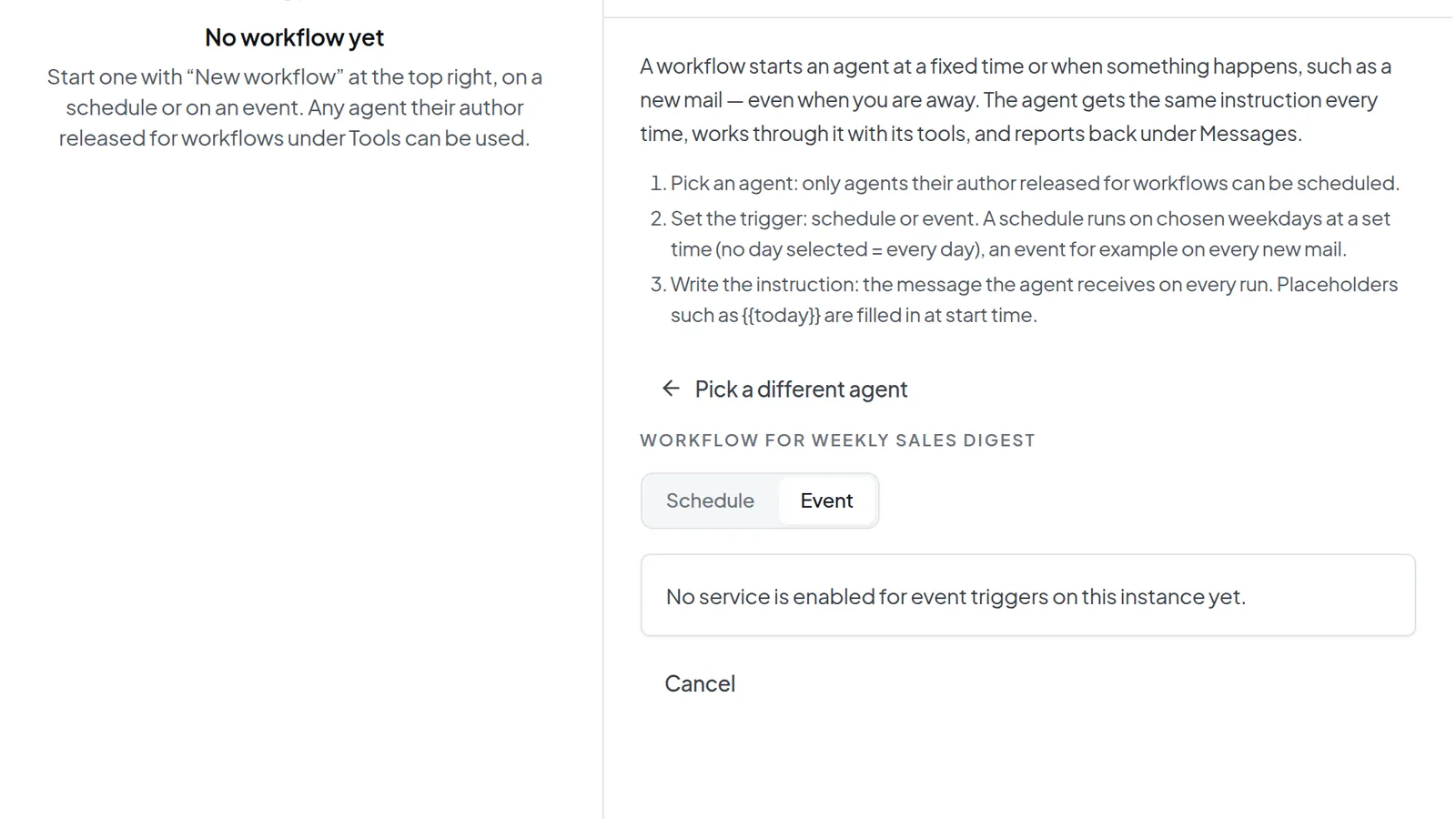 Event selected, but no service is enabled for event triggers on this instance
When a service is available, choose the Service, the Event (for example New mail in a folder), the Account and the Folder, and set how often it is checked. Then write the task under Message to the agent. You cannot save the trigger without it. Placeholders of the form {{event.…}} take values from the event, and the form lists the available ones below the field. The item that triggered the run is always passed to the agent, and values from the event reach it as data, never as instructions.
Under Only events where … you can filter, for example by sender or subject. Choose the Inbox notification as you would for a schedule. For events, Token limit per run is required, and there is no Time limit (minutes). Runs per day and Keep a question open (hours) limit the trigger further. Select Create to save it.
The section What an event run may do lists which tools run without asking, which only run with your confirmation, and which are not available on event runs. On event runs, anything that sends, shares or deletes always waits for your confirmation, even if the agent may do it without asking in chat. The same goes for tools that are not classified or are marked as needing confirmation. If the agent hands work to sub-agents, their tools are not listed, but an event run can use them.
Check the runs
The left side lists your workflows with their cadence, the next run and the status of the last one. Use the tabs All, Awaiting input and Failed to narrow the list to workflows that are waiting for your answer or whose last run failed.
- Select a workflow on the left. Its runs appear on the right.
- Select a run to see its status, when it was due (Scheduled for, Event at for an event run, or Requested at for a manual run), Started, Duration, Tokens and Result. A failed run also shows why it failed.
- Select Open chat to read the run's full conversation. The button is missing if the run never started.
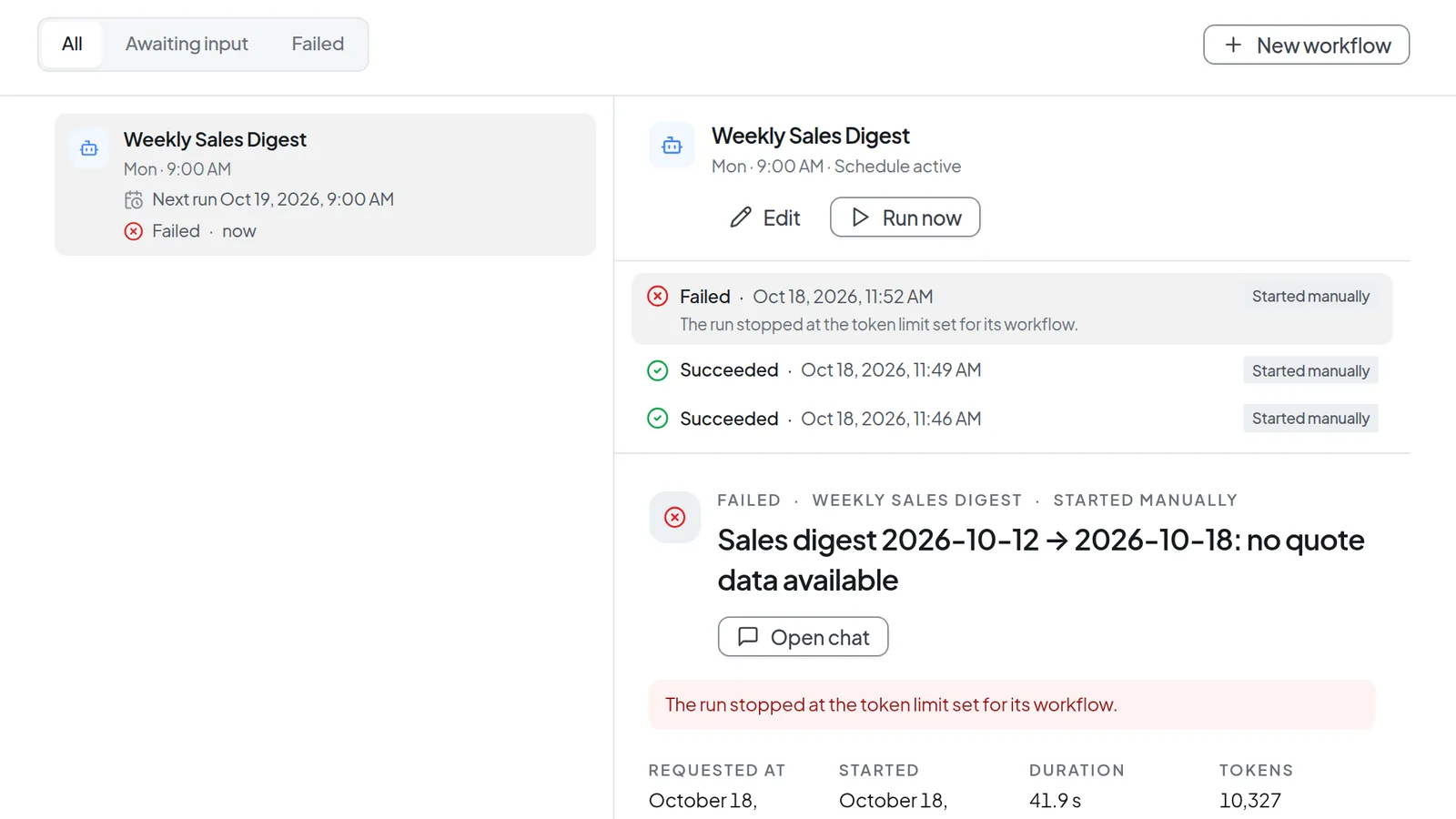 A workflow with its runs and the details of a failed run
Run now starts a real run right away, with no confirmation step, and it uses your token balance. It is tagged Started manually. A run can be Running, Succeeded, Awaiting input, Failed or Skipped.
Each person can have only one scheduled or manually started run going at a time. While another one of yours is still running, Run now is refused. A schedule that comes due in the meantime waits up to 30 minutes and is skipped after that.
Results and questions in Messages
Depending on your setting, a workflow reports in Messages with a notice like "… finished a run" and the agent's name. Open run takes you to the run in Workflows. Some agents also send their own message with the result, even when you chose Only on failure.
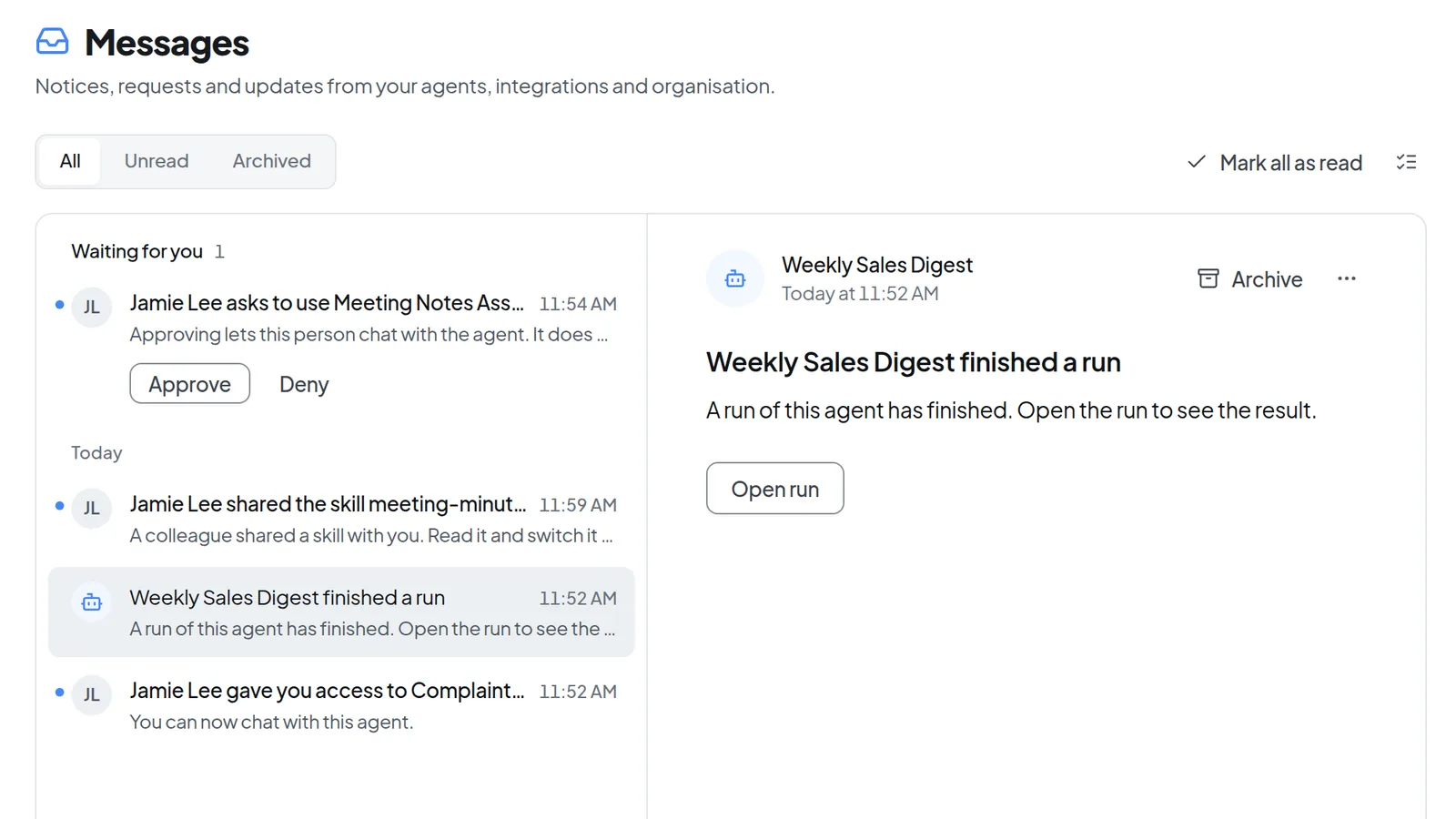 In Messages, the agent reports a finished run, with the Open run button
If a scheduled run needs an answer from you, you get "… is waiting for your answer" with Answer in the run. The question stays open only until the next run starts. After that it counts as unanswered.
For an event trigger you get "… is waiting for your answer on an event" with Decide in the workflow instead. Until you answer, further events of that trigger wait. The question stays open for the number of hours set under Keep a question open (hours), between 1 and 24.
Pause, change or delete a workflow
- Select the workflow, then Edit.
- Turn off Schedule active to pause the schedule. It then runs only when you start it yourself with Run now.
- Change the days, time, message or limits if needed, and select Save schedule.
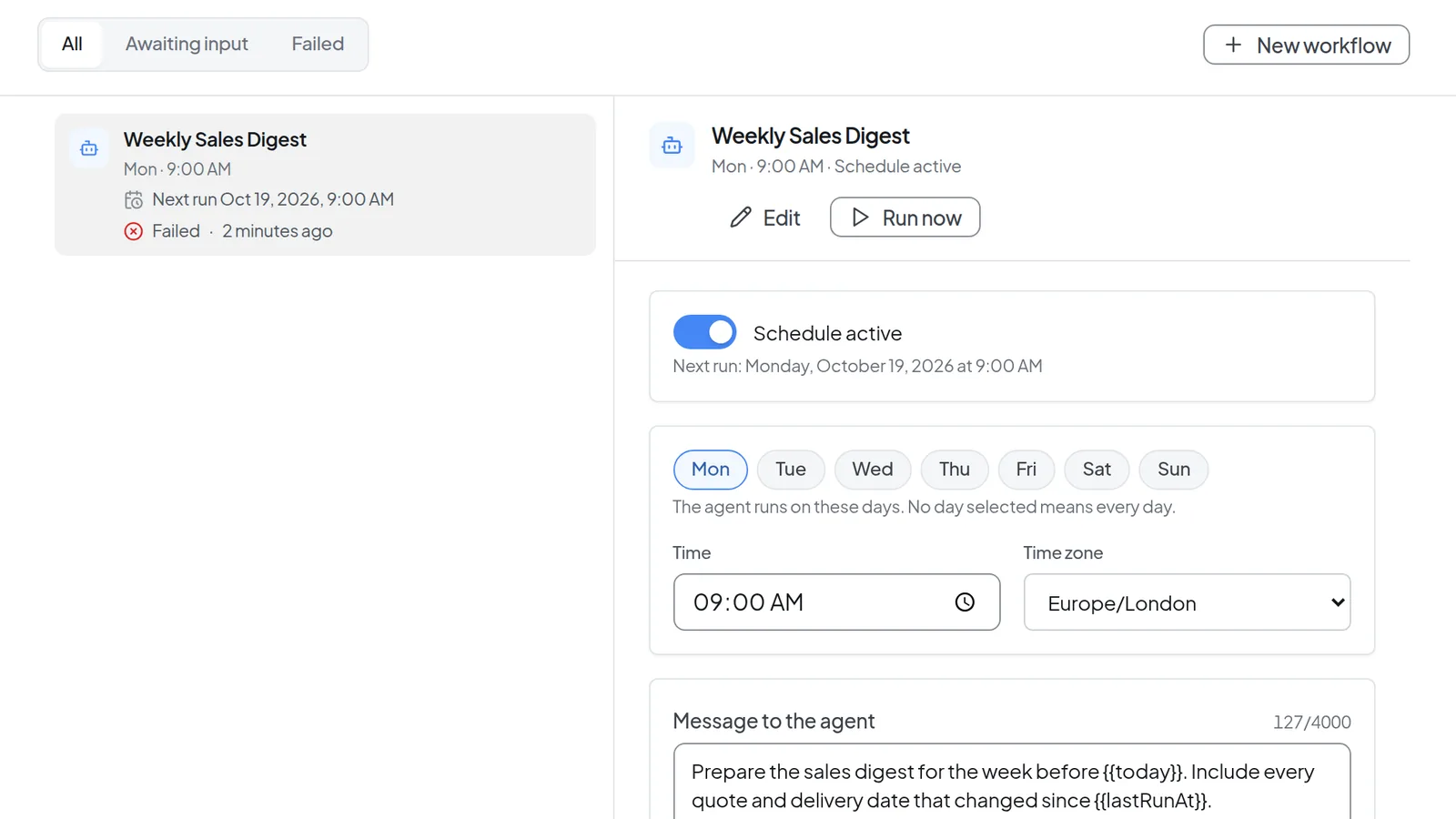 Editing a schedule, with the Schedule active switch and the next run time
To delete it, select Delete schedule at the bottom of the form and confirm with Yes, delete.
Warning: Once you delete a schedule, its past runs are no longer listed under Workflows. If you still need the results, turn the schedule off instead.
For an event trigger, Pause stops it and Resume starts it again. Delete event trigger removes it along with any events still waiting for a run. Its past runs are kept and open from Open run in Messages, but they no longer appear in the list under Workflows.
Troubleshooting
- "Paused after repeated failures": after three failed runs in a row, Intra AI turns the schedule off and tells you in Messages. Runs you start by hand do not count. Check the last run, then turn Schedule active back on and save.
- An event trigger stops after five failures in a row. It also stops when the agent's tools change (continue with Confirm tools and resume), after very many events in a short time, when your balance is used up, or when the account is no longer connected (Reconnect the account). The workflow shows the reason. Some of these you can resume straight from Messages, and others resume on their own once the cause is fixed.
- With more than 50 events waiting, the trigger starts no runs until you choose Process all or Discard. Once the Runs per day limit is reached, further events wait until 00:00.
- "The run stopped at the token limit set for its workflow." Raise the Token limit per run. On a schedule you can also leave the field empty.
- "The run exceeded its time limit." Raise the Time limit (minutes) or give the agent a smaller task.
- "Your token balance was used up": the run did not start and counts as a failed run. After three of these in a row the schedule switches itself off. Once your balance has been topped up, turn Schedule active back on and save.
- "Paused: the agent is no longer approved for workflows." The approval was withdrawn. The schedule is kept and resumes once the agent is approved again.
- A run shows Skipped: it could not start within 30 minutes of its scheduled time, usually because another scheduled or manual run of yours was still going. Space your schedules so they do not overlap.
- Workflows is missing from the sidebar: workflows or the Agents area are not turned on for your instance.