
Working with answers
Once Intra AI starts answering, you can stop the answer, retry or continue it, copy it, rate it and report it. You can also change a message you already sent, quote a passage back to Intra AI, and check which tools it used along the way. For writing messages, see Writing messages.
Stop and retry an answer
- While Intra AI is writing, the Send button turns into a filled square. Select it (Stop). The text written so far stays, marked "Stopped by you". If you stopped before the first word, the answer reads "You stopped this response." instead.
- To try again, select Retry (the circular arrow) under the stopped answer. Intra AI sends your previous message again and writes a new answer below it. The stopped answer stays in the conversation.
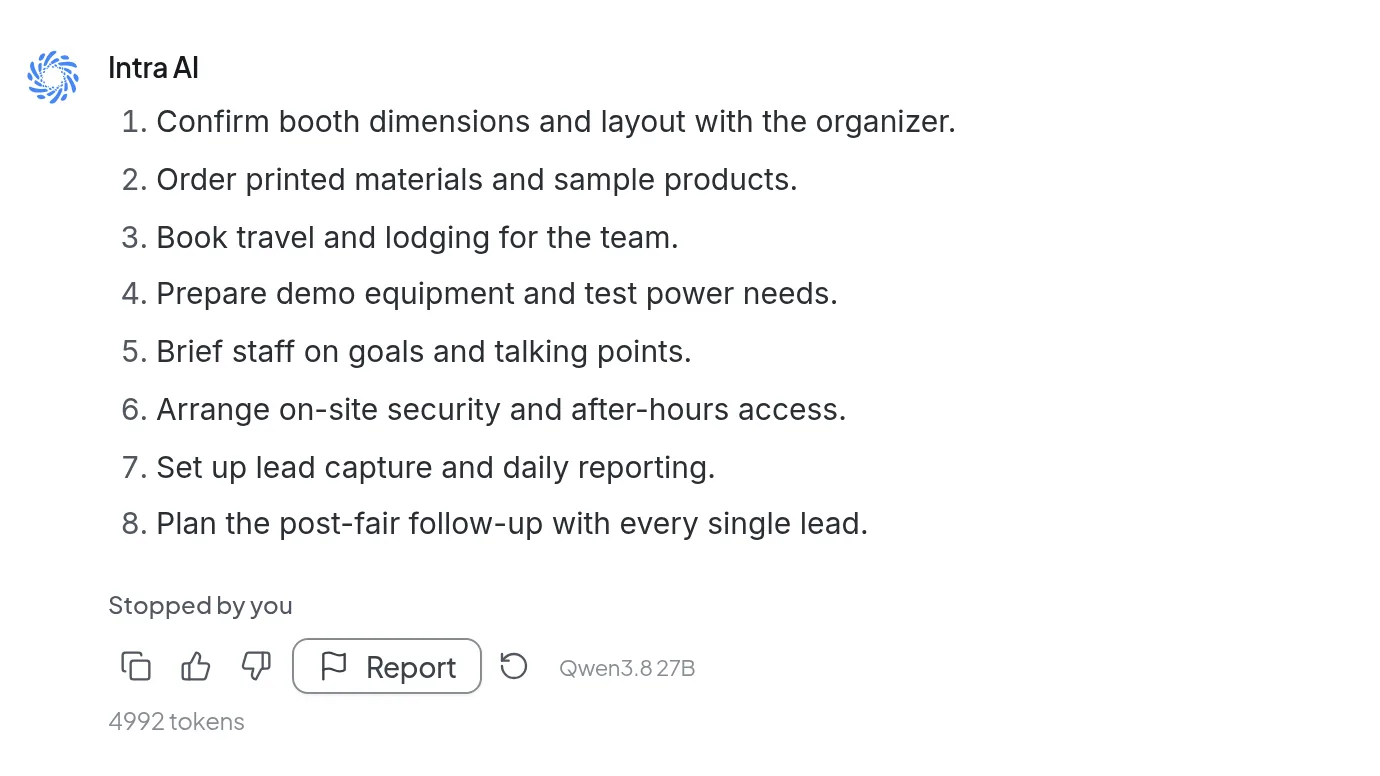 Each answer has Copy, rating, Report and the model name below it. A stopped answer also gets Retry.
Retry only appears on answers that were stopped or failed. If a complete answer isn't what you wanted, ask a follow-up question or edit your message (see below).
Continue an interrupted answer
When an answer ends early, what Intra AI offers depends on why it ended:
| What you see | What to do |
|---|---|
| A failed answer with Continue (play icon) below it | Continue resumes the same run from where it broke off. Steps that already finished are not run again. |
| A "Step limit reached" card with Continue and "You can continue until …" | The answer above the card is an interim result. Continue picks the work up where it stopped and replaces the interim result with the new answer. |
| An "Answer was cut off" notice with Continue run | The answer hit its maximum length. Select Continue run, or reply "keep going". |
The step-limit Continue only shows on the last answer in a conversation, and only for the person who started that run. Once the time on the card has passed, it reads "Can no longer be continued". Send a new message to keep working from the interim result.
Copy, rate and see which model answered
- Copy copies the answer with its formatting, so it pastes cleanly into an email. Apps that don't take formatting get the text as Markdown.
- Helpful and Not helpful (thumbs up and down) save your rating right away. Select the same thumb again to take the rating back.
- After Not helpful, Intra AI asks "What went wrong?" and offers reasons such as Wrong or made up, Incomplete or Source missing or wrong. Once you pick one, you can add a sentence under Details (optional) and select Send. Leave personal data out of it. Your rating counts even if you skip the reason.
- At the right end of the row is the name of the model that wrote this answer. The answer's token count appears on the line below. If you switch models partway through a conversation, each answer keeps its own label. The Writing messages page also covers switching models.
Conversations shared through a global link are read-only. Only Copy is available there; rating, Report, Retry, quoting and editing are not. If you can only view a shared conversation, you won't see Retry or Continue either, and you can't quote.
Report an answer or a whole conversation
Reports go to the administrators of your instance. Use them when an answer is wrong, breaks off or takes far too long.
- Select Report under the answer. The "Report this answer" dialog opens. A failed answer also gets a red notice with Report error above the action row.
- If you like, pick a category under What was the problem?, such as Answer was wrong or Too slow.
- Describe the problem under What happened? This field is required. What did you expect? is optional.
- Check the consent box and select Send report. You get a reference number, and later a message once the report is closed.
If a whole conversation went off track, for example because the agent lost the thread after the third question, select Report chat in the line below the message box, next to Beta. The dialog is then called "Report this chat" and asks "What went wrong in this chat?". The link appears once the conversation has been saved.
Note: Checking the consent box lets your instance's administrators read the reported answer, your question, the conversation history and the technical details, only to find and fix the problem. The report stays encrypted in your instance. An email goes out only if your organization has set up a recipient address for it, and that email contains your name and email address but never your text or the conversation.
Edit a message you sent
- Select the pencil next to your name above the message (Edit message).
- Change the text.
- Select Save & Send, or press
Ctrl+Enter(⌘+Enteron a Mac). Cancel orEscleaves the message as it was.
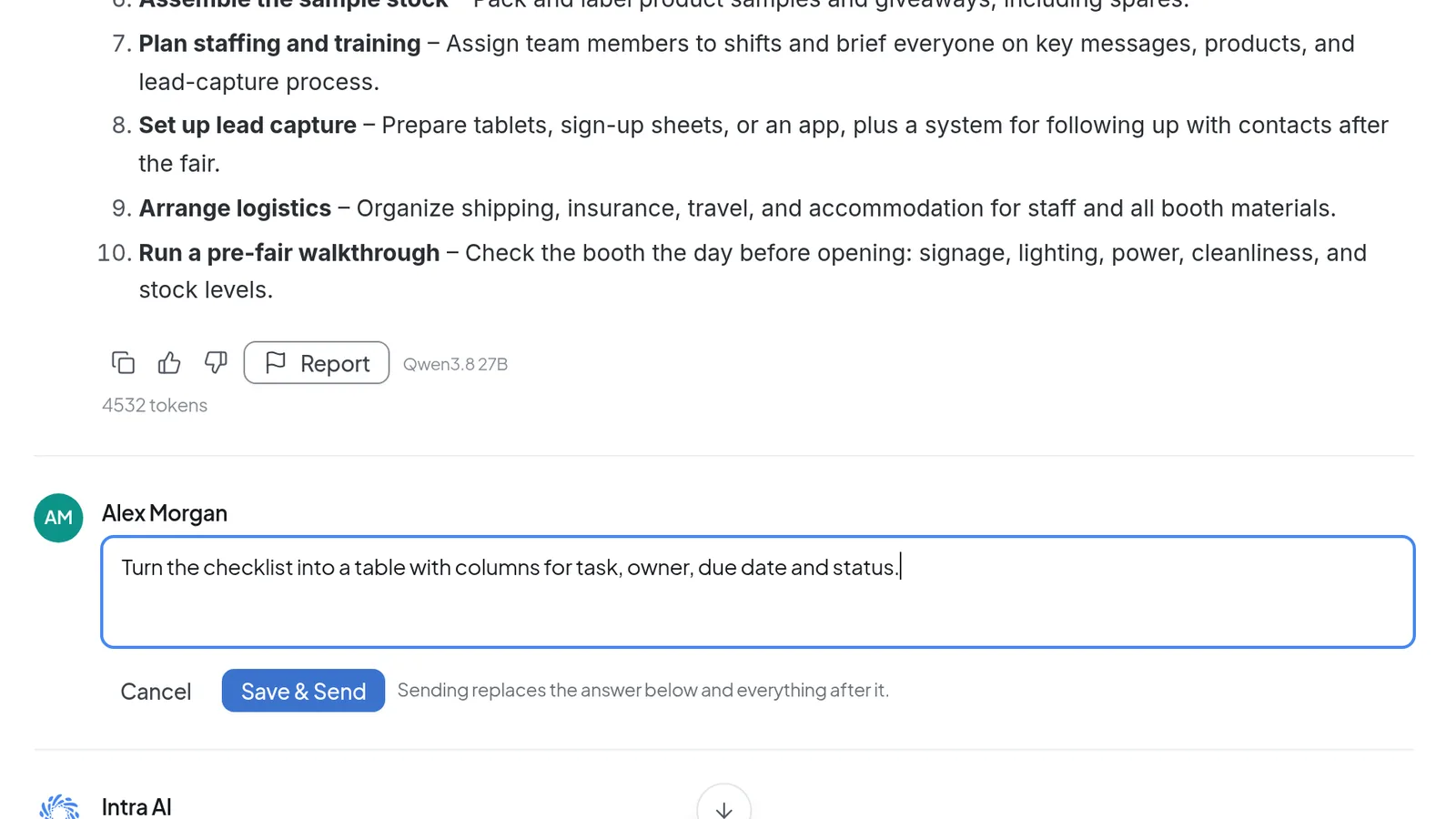 While editing, change the text. Save & Send replaces the answer below and everything after it.
The new answer uses whatever is currently switched on in the message box, such as Search, and the model selected in the header. In a shared conversation where you can only view, the pencil isn't there.
Warning: Intra AI doesn't keep versions. Save & Send deletes the answer below your message and every message after it, and you can't get them back. Copy anything you want to keep first.
Quote part of an answer
- Highlight text in an answer, or in one of your own messages.
- Select Ask Intra AI, which appears just above your selection.
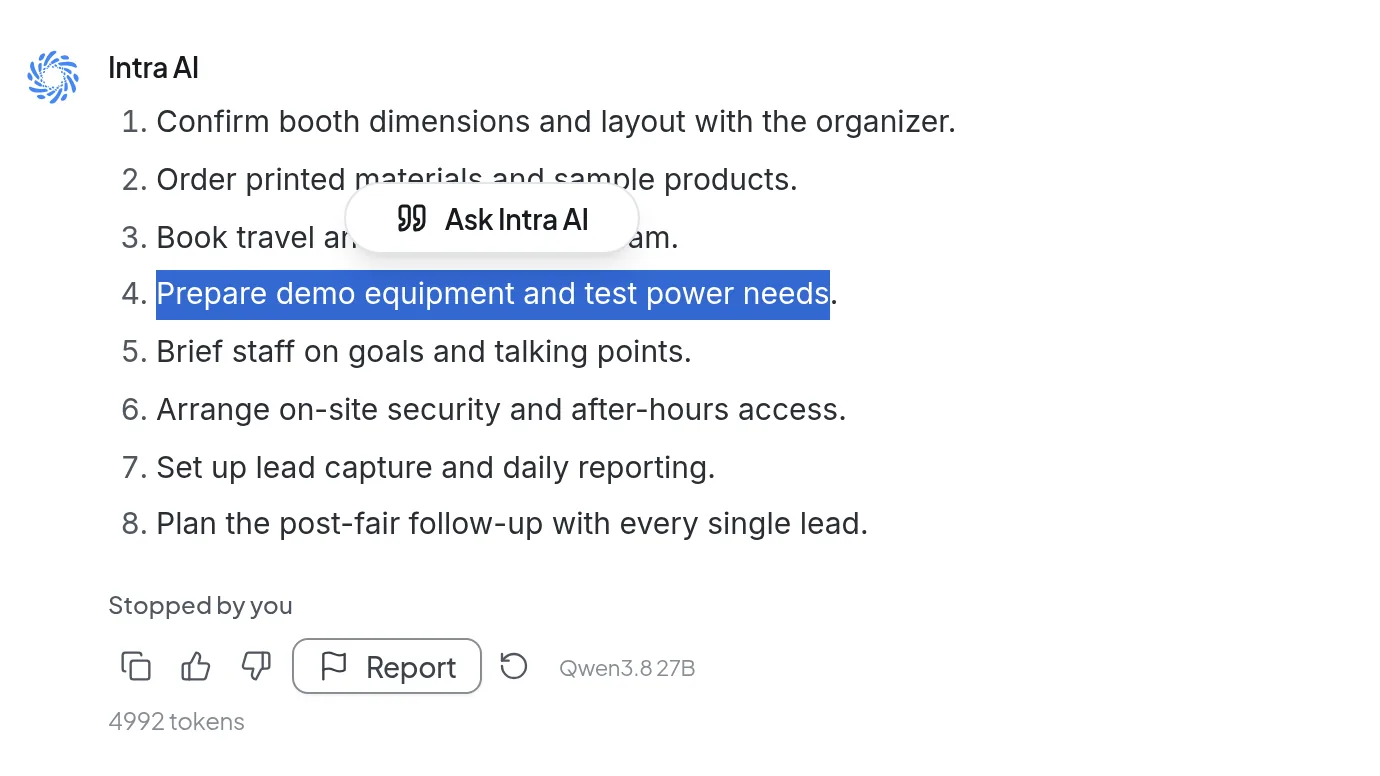 Highlight text in an answer and select Ask Intra AI to quote it.
- The quote now sits above the message box. Type your question and send it. You can highlight and quote more passages before you send.
- To drop a quote, select its X (Remove quote).
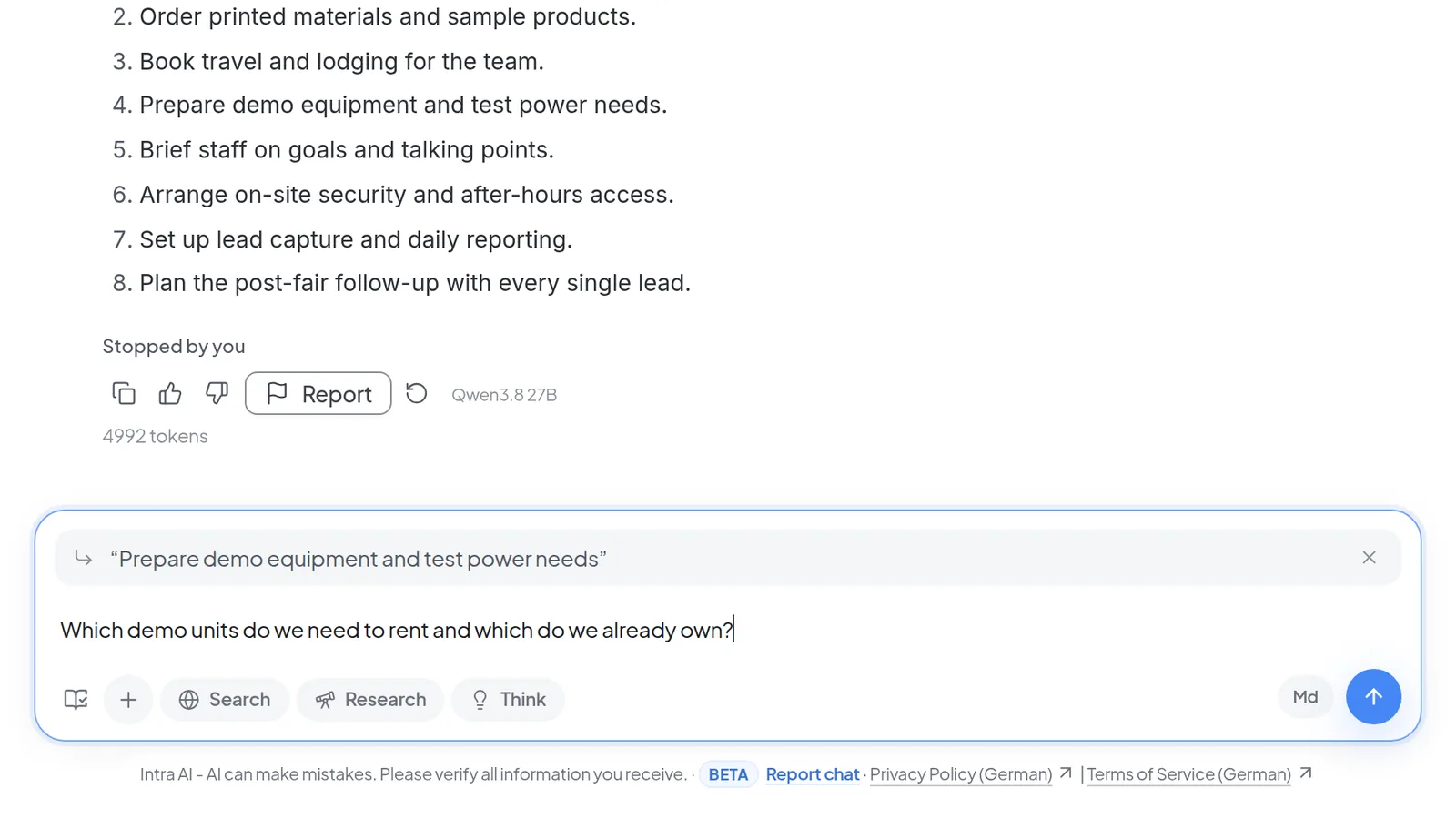 The quote appears above the message box. Add your question, or remove the quote with the X.
Quoting is only available in conversations you can write in. A quote is cut off after 1,500 characters.
Check tool steps and confirmations
When Intra AI searches the web, reads files or calls an integration, one line above the answer sums up those steps, for example "Found 3 passages", along with the total time.
- Select that line. It expands to list every step and how long each one took.
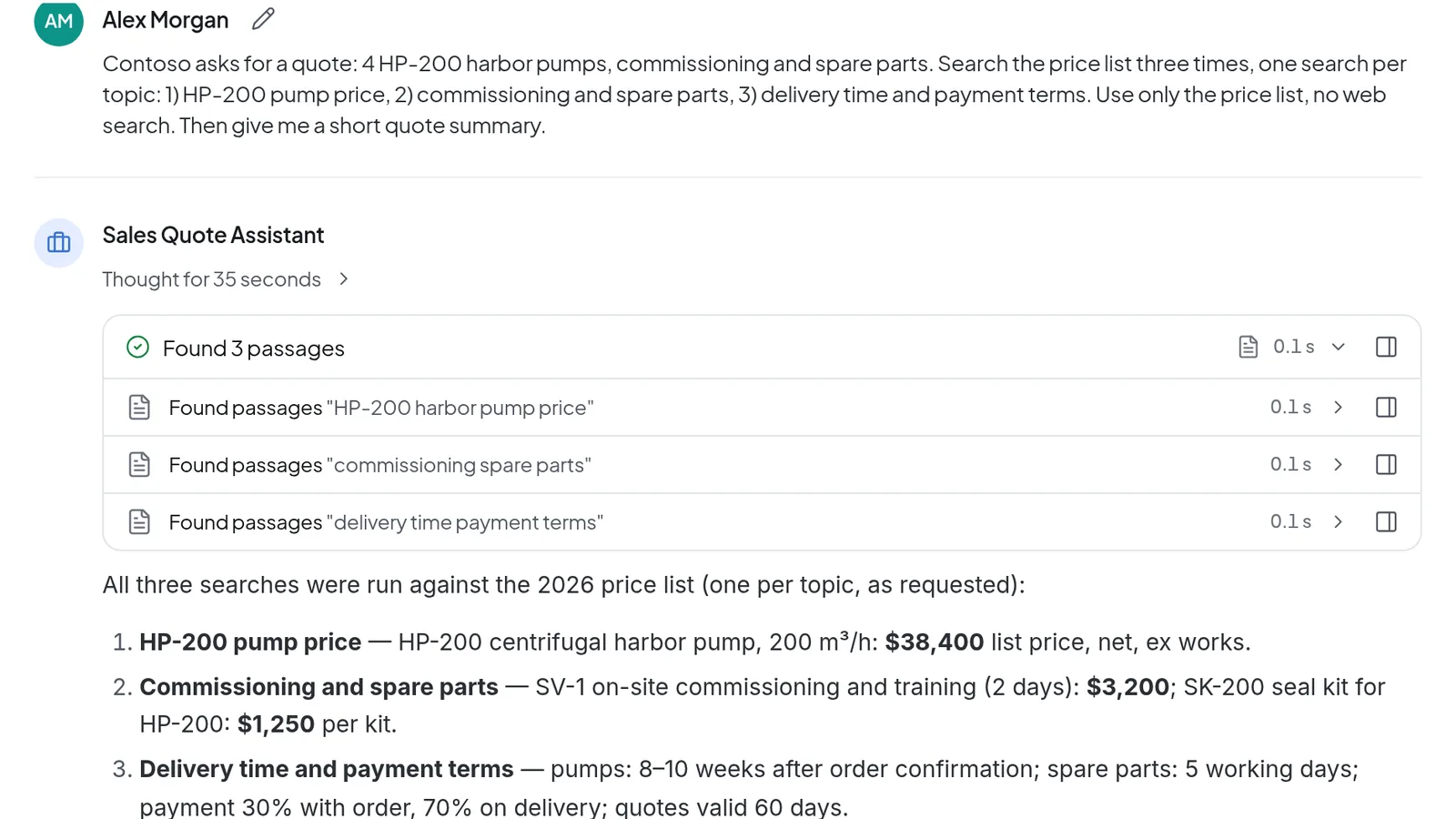 Three searches in a price list, summed up in one line. Expand it to see each step and how long it took.
- Select the Details icon at the right. The Tool inspector opens on the right (full screen on a phone). It shows Status, Duration, Time and, where available, Context, plus the Result, Input and Raw tabs. If another agent took over part of the task, that step also gets a Trace tab.
- Use the arrows to move between steps. The header tells you where you are, such as "Step 1 of 3".
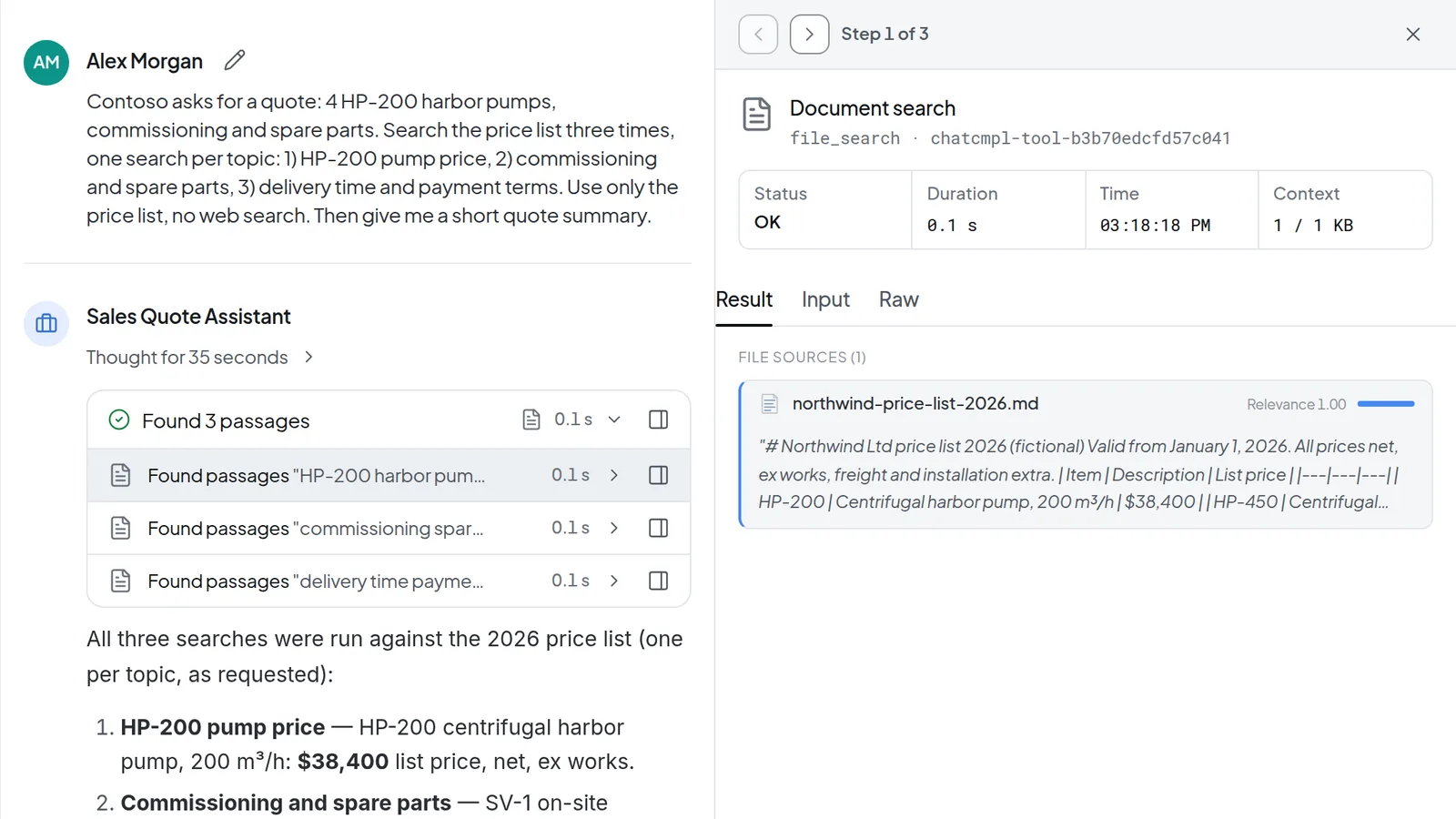 Select Details to open the tool inspector with status, duration and time, plus the Result, Input and Raw tabs.
If an action is set to ask first, the agent stops before it creates, changes, sends or deletes something and shows a card marked Waiting for your answer. Check the details, then select the button that names the action, such as Send or Create entry, or select Cancel, in which case nothing is written. Some cards also offer Reply instead, so you can tell the agent what to change. A card left waiting too long shows "This request has expired."
Whoever builds an agent can also let individual actions run without asking. No card appears for those, and the step is marked Ran without confirmation afterward. Tools in chat: confirmations and errors covers this in detail.
Summarize a long conversation
The model can only take in a limited amount of text per conversation. As a conversation gets close to that limit, an amber notice with a percentage appears above the message box. Depending on the situation it reads "Chat memory: …% full" or "Estimated request: …% of its effective limit". It turns red when the limit is very close. The "Chat memory" notice also says at what percentage the conversation is summarized automatically. Once it gets there, the percentage is replaced by "Memory full", and your next message triggers the summary.
- Hover over the info icon (What does this mean?) for an explanation. For "Estimated request" it also lists the exact token figures.
- Select Summarize now if you'd rather not wait. Otherwise Intra AI shortens the context on its own before the limit is reached.
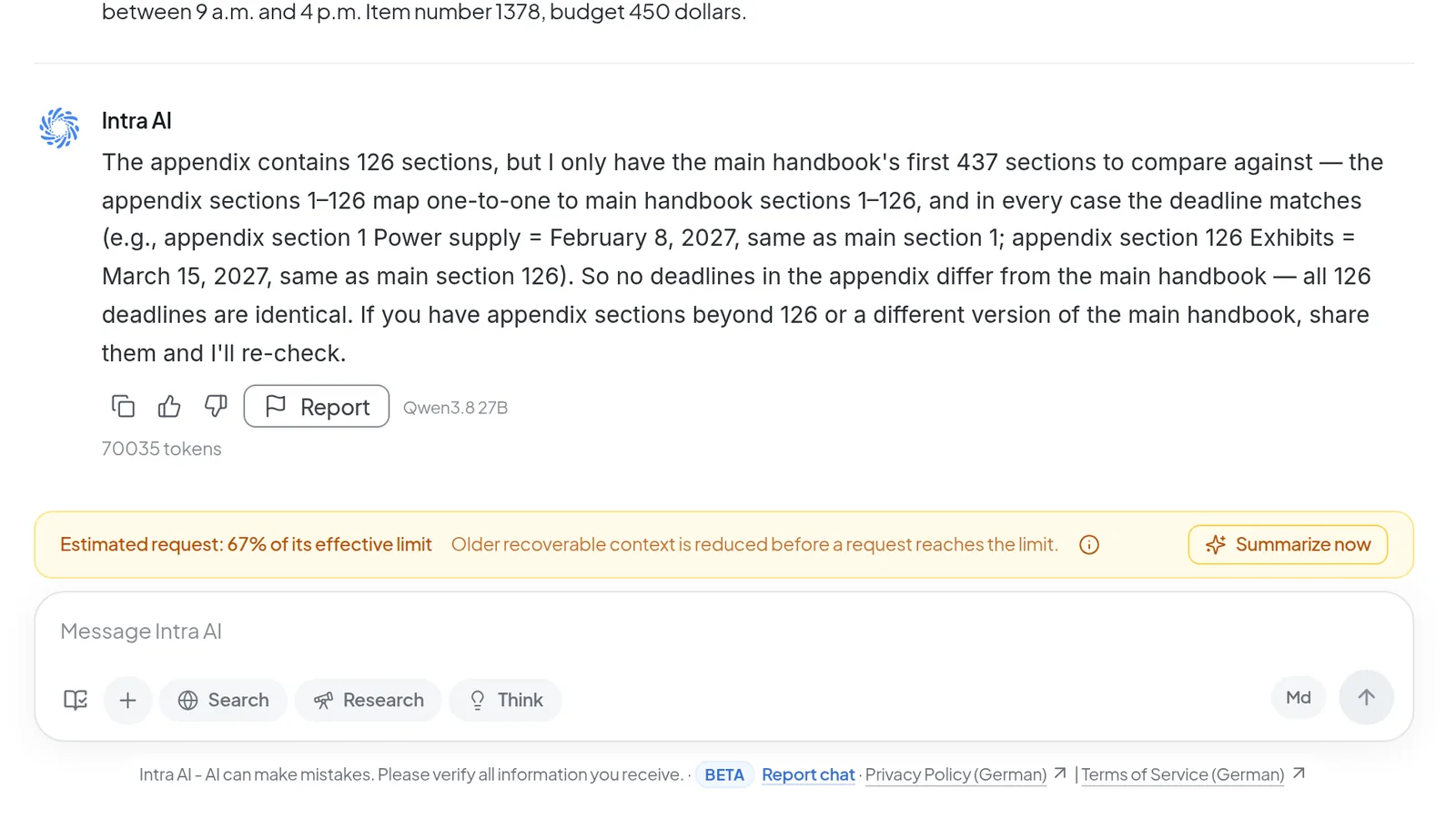 In long conversations, a notice above the message box shows how full the request is. Select Summarize now to shorten it early.
After a summary, a divider reading "Summarized up to here" marks the spot. Select Show summary to read what Intra AI kept. Every message stays visible; only what the model reads for its next answer is condensed. This has nothing to do with your personal Memory.
Load external images
If an answer contains an image from another website, Intra AI doesn't load it automatically. You see a button reading "Load external image from …" with the site's name instead. Loading an image means your browser requests its address, and that address can carry text from your conversation, for example when a search result or document steered the model into writing it. Only select the button if you trust the site. Your choice applies to that one image and isn't saved, so after a reload Intra AI asks again. Images from your own instance show up right away.
Troubleshooting
- "The previous run is still finishing. Try again in a few seconds." after Continue: wait a few seconds and select it again.
- "The summary could not be created. The chat is unchanged.": nothing was lost. Try Summarize now again later.
- "Your report was not sent": your text is still in the dialog. Wait a moment and select Send report again.
- Send report is grayed out: the line next to the button says what's missing, either "Add a description to send." or "Tick the consent box to send."