
Connecting FILERO DMS
Once FILERO DMS is connected, agents can search your document management system, read records and fetch documents. They always do this with your own FILERO login. You need a FILERO account, and your administrator must have set up FILERO in Intra AI.
Before you start
In the sidebar, open Integrations and select the FILERO DMS tile. If it says Needs setup and there is no Add connection button, FILERO is not set up in Intra AI yet. Ask your administrator.
Have these ready:
- The base URL of your FILERO instance, usually in the form
https://<server>/csp/<namespace>/. This is not the address you use to open the FILERO web client in your browser, and it does not end in/app. If you are unsure, ask your administrator. - Your FILERO username and password.
- The device that gives you a 2FA code, if your FILERO login uses one.
Setup is a wizard with four steps: Instance, Credentials, Schema and Indexing. If you reload the page partway through, the wizard stays on the step you were on.
Check the instance URL
- On the FILERO DMS page, under Connections, click Add connection. The Connect FILERO wizard opens.
- Enter the base URL in the Instance URL field. It has to start with
https://. - Click Validate. If the address is right, you see "FILERO SOAP service found at this URL."
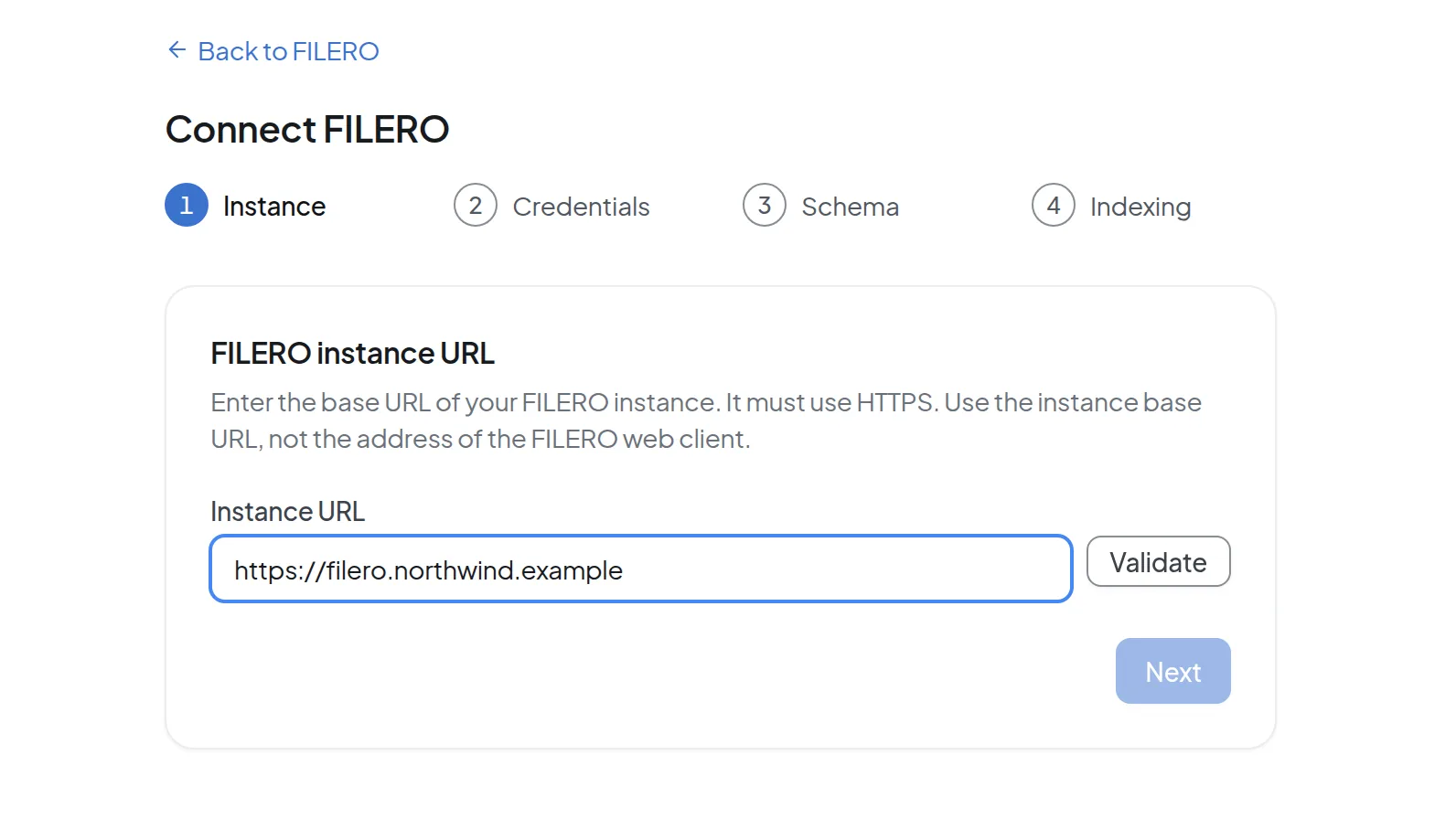 Step 1 of the Connect FILERO wizard: the Instance URL field with the Validate button, and Next still disabled.
- Click Next. The button stays disabled until validation succeeds. If you change the URL after that, validate it again.
Sign in to FILERO
- In the Credentials step, enter your FILERO Username and Password.
- Click Connect.
- If FILERO asks for a second factor, a 2FA code field appears with the hint "FILERO requires a 2FA code. Enter it above and submit again." Type the current code and click Connect again.
- When sign-in works, Intra AI shows "Connected to FILERO." and moves on to the Schema step.
If you need to correct the URL, Back returns you to the Instance step. The field is empty at that point, so enter the URL again and click Validate.
Choose what becomes searchable
FILERO organizes documents in classes, and each class has attributes. An invoice class might have fields for the invoice number and date, for example. Intra AI indexes this structure once so agents know where to look. The step is called Set up FILERO search.
To make everything searchable, click Start setup. To limit indexing to certain classes:
- Open Advanced: choose specific areas. The list shows the classes in your FILERO instance.
- Narrow the list with Search classes… and check the classes agents should find. The count of selected classes appears below the list.
- Click Start setup.
While the advanced section is open and no class is checked, Start setup stays disabled. Collapsing the section keeps your selection. Clear all removes every check mark. Select all checks every class in the list, including the ones your search term is currently hiding. With every class checked, Intra AI indexes everything, the same as with no selection.
If your FILERO instance has a very large number of classes, the list may show only the first ones, with a notice above it giving the total. Select all still indexes every class in that case.
Wait for indexing
The last step is called Setting up FILERO search. Under Indexing progress you see how many classes are finished, for example "12 of 40 classes", and a status for each class: Queued, Running, Done or Failed. Depending on how much data you have, this takes a few minutes. Indexing runs on the server, and you can check on it later from the connection's own page.
When it finishes, you see one of these results:
| Result | What it means | What to do |
|---|---|---|
| All set! | Every selected class is indexed. | Click View FILERO. |
| Indexed with errors | FILERO is searchable, but some classes are missing. They are listed under "… classes could not be indexed", each with its error. | Click View FILERO and re-index later. |
| "Indexing failed. Please go back and retry." | No index was built. | Click Try again to return to the Schema step. |
While indexing runs, you can stop it with Cancel indexing and confirm with Stop indexing. The progress made so far is lost, and agents can't search FILERO until an indexing run completes.
After you cancel, the wizard shows no further button. Use Back to FILERO to go to the FILERO DMS page, then open the connection with Manage. It shows "Indexing cancelled", and Re-index starts indexing again.
Manage a connection and re-index
On the FILERO DMS page, every login has its own row under Connections. Click Manage to open that connection's page. Under Schema status you see when it was last indexed, the Classes indexed count, Total attributes and the Indexed classes list with the status of each class.
Re-index when classes failed, when new classes were added in FILERO, or when you want to change your selection:
- Click Manage in the connection's row.
- Under Actions, click Re-index. The wizard opens directly at the Schema step, without your previous selection.
- To index only certain classes again, open Advanced: choose specific areas and check them again. With no selection, Intra AI indexes everything.
- Click Start setup and wait for indexing to finish.
Manage schema opens the Manage FILERO page. It shows the state of every class along with any error. Use Search indexed schema to check whether a term like "invoice" finds a matching class. Change class selection and Re-index all classes both take you to the Schema step as well.
Depending on how your instance is set up, the FILERO DMS page also has a Synced folders section. These are FILERO folders that Intra AI keeps up to date, and they also appear in Files. To add or remove folders, click Manage in Files. Managing files has the details.
Use more than one FILERO login
You can connect more than one FILERO login, for example one for each of two FILERO instances or two user accounts. Click Add connection again on the FILERO DMS page and go through the wizard once more. Each row shows the username and the server with its path, such as "j.smith · dms.northwind.example/csp/archive". Each login is its own connection with its own schema index, so a login's class selection and index apply only to that login.
If you connect the same login again (same URL, same username), for example after a password change, Intra AI doesn't create a second connection. It updates the existing one and keeps its index. Once the Credentials step is done, you can leave the wizard with Back to FILERO.
One login carries the Default label. On any other row you can click Set as default. Intra AI decides which login an agent uses in this order: what you picked for the conversation with the Active account chip below the message box, then the agent's Account binding, then your default. Connecting integrations covers this in more detail.
Disconnect a login
There are two ways to disconnect a login: Disconnect in its row, which asks you to confirm, or Disconnect under Actions on the connection's page. Either way, Intra AI deletes the stored credentials and the index for that login. Your other FILERO logins keep their indexes. If the login you removed was your default, the oldest of your remaining logins becomes the default.
Synced folders from that login stop updating until you reconnect it, and are removed after 60 days. Agents and conversations that used the login fall back to the Active account chip on their next message.
Warning: Disconnect on the connection's page takes effect immediately, without asking. The index is deleted. To use FILERO again, you go through the whole wizard, indexing included.
Use FILERO in conversations and agents
FILERO is available in conversations with agents that have FILERO actions. When you build an agent, select Add actions in the Tools step. The FILERO actions are on the Integrations tab of the Select action dialog. Tools, knowledge and sub-agents walks through it. Everyone who uses the agent connects their own FILERO login. The agent never uses the login of the person who built it.
You can see what the agent found in FILERO in the details of its tool calls. A record shows up there as a card with its FID, its class and up to six fields.
Actions that create or change something in FILERO can ask for your confirmation before they run. Tools in chat: confirmations and errors explains what those prompts and error messages look like.
If Intra AI has no valid FILERO login for you, the FILERO sign-in window opens, for example when you select an agent with FILERO actions or in the middle of a conversation. Choose the Instance, enter your Username and Password, and click Sign in. You then see "Signed in. Please resend your message." Send your message again.
The window has no field for a 2FA code. If your FILERO account needs one, or your FILERO instance isn't in the list, close the window and run the Connect FILERO wizard again with the same login. Your index is kept.
Troubleshooting
| Message | What to do |
|---|---|
| "The URL is not valid. Make sure it starts with https://." or "Only HTTPS URLs are allowed." | Enter the address with https://. Intra AI does not accept unencrypted addresses. |
| "This host is not on the allowed list. Contact your administrator." | Your administrator decides which FILERO servers are allowed. Ask them to add yours. |
| "The server answered, but this URL is not the FILERO SOAP service. …" | You probably entered the web client address. Remove /app and any other sub-path so the URL ends with the namespace. |
| "The server responded unexpectedly. …" or "URL rejected by server." | Check that the URL points to your FILERO instance and has the form https://<server>/csp/<namespace>/. |
| "The configured SOAP endpoint is on a different host than this URL. …" | Contact your administrator. |
| "The URL points to a private network address, which is not permitted." | Internal network addresses are blocked. Ask your administrator for the right address. |
| "The server address could not be resolved. …", "The FILERO server could not be reached. …" or "FILERO could not be reached. …" | Check the spelling of the URL. If the server is running, try again later. |
| "FILERO answered, but this URL is not the FILERO SOAP service. …" (in the Credentials step) | Click Back and enter the base URL without /app. |
| "Invalid credentials. Please check your username and password." | Check your FILERO credentials. Signing in to FILERO directly is the quickest test. |
| "Too many attempts. Please wait a minute and try again." | After five sign-in attempts within one minute, Intra AI briefly stops accepting more. Wait a minute before trying again. |
| "Connection failed. Please try again." | Click Connect again. If the message keeps coming back, contact your administrator. |
| "Could not load schema preview." | Reload the page; the wizard stays on the Schema step. If the message keeps coming back, contact your administrator. |
| "A previous FILERO operation has not finished yet. …" | Try again in a minute. If the message keeps coming back, contact your administrator. |
| "The FILERO connection is no longer active. …" | Go back and connect again. |
| An agent doesn't find documents of a particular class. | Under Manage, check that the class appears in Indexed classes with the status Done. If it shows Failed or is missing, re-index and include it in your selection. |