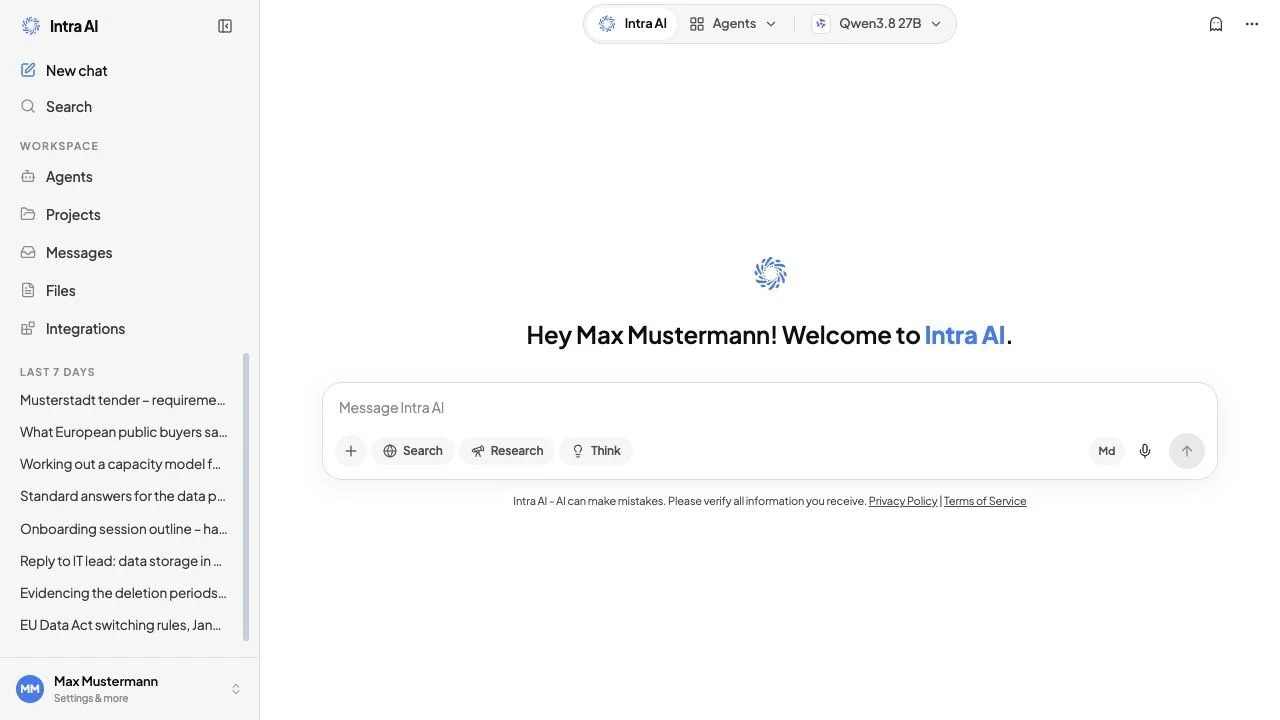
Web search
Intra AI can search the web for you in two ways: a quick Search that fetches live results for a single turn, and a thorough Research that breaks your question into sub-questions, reads dozens of sources, and writes a structured report. On screen that second mode is headed Deep Research. Both features reach an EU-operated search service; exactly what leaves your instance is set out under What reaches the search service.
At a glance: Look for the Search (globe icon) and Research (telescope icon) buttons at the bottom of the composer. Shown only when your administrator has enabled web search.
The two search modes
Search – one question, live results
When you turn on Search for a message, the AI queries your workspace's search service, reads the top results, and weaves the findings into its reply. Numbered citations like [1] or [2] appear inline. A row of source cards appears below the reply so you can see exactly where the information came from and open any source in a preview or in a new tab.
Use Search when you need a quick, grounded answer to a factual question – current news, prices, documentation, or anything that might be out of date in the AI's training data.
Research – multi-step investigation
Research is a longer, autonomous process. Instead of a single search pass, the AI:
- Plans a set of sub-questions that together cover your topic.
- Searches the web for each sub-question.
- Reads the most relevant source pages in full.
- Reflects on the gathered evidence and decides whether to run additional iterations.
- Synthesises a structured written report, with all sources cited.
A live progress panel tracks every stage in real time. The research continues running in the background even if you navigate to another conversation – you can come back and it will still be going.
Use Research when you need a comprehensive briefing, competitive analysis, or a question that requires evidence from many different sources rather than a single answer.
When to use which
| Situation | Use |
|---|---|
| "What is the current EUR/USD rate?" | Search |
| "Give me a quick summary of this week's news on X" | Search |
| "Write a market overview of AI tools for legal teams" | Research |
| "Compare our top three competitors' pricing models" | Research |
| You need a citable, structured report | Research |
| You want a fast, in-line answer | Search |
The two buttons are mutually exclusive
You can only have one mode active per message. Turning on Search automatically turns off Research, and vice versa. Both buttons appear in the composer only when your administrator has enabled web search for the workspace.
What reaches the search service
This is the section to hand to your data protection officer. Search and Research are the only features of Intra AI that send data from your instance to an external provider in normal operation.
The service. Search and Research run through Staan, the search service of European Search Perspective – the joint venture between Qwant and Ecosia. Staan is operated in the EU.
What is transmitted. Exactly two things:
- The query text. This is the search query the AI formulates from your question – not necessarily your own wording, but always just a search query.
- The web address of a page, when the AI needs to read one specific public page in full. In that case the hostname and a query derived from the address are transmitted.
What is not transmitted. User identifiers, your name, your email address, cookies, Intra AI's internal request IDs, your conversation history, and the contents of your uploaded files and projects. The connection to Staan uses a workspace-level key rather than a user account, so Staan cannot attribute an individual request to a person.
What happens to the results. Staan returns the result list and page content. Everything after that – combining it with your documents, composing the answer, storing the conversation – happens inside your instance only.
When a page is not in Staan's index. A retrieval service then fetches the public page directly. That service is also operated by Intra AI, not by a third party.
Self-hosted search. If your instance additionally has a self-hosted SearXNG service configured, it takes over automatically whenever Staan does not respond. SearXNG is therefore a failover, not an alternative: where both are set up, every request goes to Staan first. On instances that Intra AI operates for you, Staan is the provider in use; trial instances contain no SearXNG service.
How to use Search
Turn on Search for a single message
- Open any conversation. The composer is the text box at the bottom of the screen.
- Look at the bottom-left of the composer toolbar. You will see a globe icon labelled Search.
- Click Search. The button lights up blue to show it is active.
- Type your question – for example, "What is the current EUR/USD rate?" – and press
Enteror click the send button.
Composer toolbar showing the Search button (globe icon, blue/active) and the Research button (telescope icon)
Note: The Search button only appears when your administrator has enabled the web search feature. If you do not see it, contact your workspace administrator.
Reading sources and citations
After the reply arrives you will see:
- Inline citations – numbers like
[1],[2]embedded in the text. Click any citation to open a preview panel for that source. - Source cards – a scrollable row of cards below the reply, each showing the source number, domain name, and page title. Click a card to open a preview; hover over it to see an external-link icon that opens the full page in a new tab.
- The source cards row has an expand button (double-arrow icon) that switches the cards from compact to full view, showing a text snippet for each source.
Tip: Search is a sticky toggle: once on, it stays on for the rest of your browser session (across messages and reloads) until you turn it off manually or switch on Research. Only the Research toggle resets to off after each send.
How to use Research
Start a research run
- Open a conversation (or start a new one).
- In the composer toolbar, click Research (telescope icon). The button lights up blue.
- Type your research question – for example, "Write a market overview of AI productivity tools for legal teams in Germany" – and press
Enteror click send.
Note: Research resets the toggle to off after each send (unlike Search, which stays on for the session). You only need to activate it once per research request.
Watch the progress panel
A progress panel headed Deep Research appears immediately in the conversation while the run is active. It shows:
- A top progress bar that fills as stages complete.
- A five-stage tracker: Planning sub-questions → Searching the web → Reading sources → Reflecting on findings → Writing report. The current stage shows a spinning indicator; completed stages show a tick.
- A live activity line underneath the stages describing what is happening right now – for example, "Reading intranet-news.de…" or "Querying the web…".
- An iteration counter if the AI decides to run more than one research pass.
- A collapsible Sub-questions list so you can see exactly what the AI is investigating.
- A streaming report preview that starts appearing as soon as the synthesising stage begins.
Research progress panel mid-run, showing the five stages with the Reflecting on findings stage active and the collapsible Sub-questions list below
The research keeps running if you navigate away
You do not need to stay on the conversation while Research runs. The server continues working in the background. If you open a different conversation and come back, the progress panel will resume polling and show the current state. On the final transition to done, the conversation reloads and the full report appears as a regular message with source cards.
Reading the final report
When the run finishes the progress panel shows:
- A tick icon and "Synthesised from N sources".
- A source strip – a scrollable row of the web sources consulted, with title and domain. Click any source card to preview the page.
- The full structured report in the message below, with inline
[N]citations linking each claim back to its source card.
Reference – Search vs Research
| Search | Research | |
|---|---|---|
| Composer button | Globe (Search) | Telescope (Research) |
| Stages | Single pass: search → reply | Planning → Searching → Reading → Reflecting → Synthesising |
| Output | Inline answer with citations | Structured multi-section report |
| Source cards | Yes – below the reply | Yes – below the progress panel and in the report |
| Duration | Seconds | Minutes (varies by topic) |
| Continues if you navigate away | No (stream stops on disconnect) | Yes – server-side background run |
| Admin gate | The Web Search toggle (features.webSearch) must be on | Same – both buttons require the Web Search toggle |
| Resets after send | No – stays on for the browser session | Yes |
| Can combine with agents | Yes (agent must have the web_search tool enabled) | Agents are not used – this is a standalone pipeline |
Tips & notes
Tip: For current-events questions, include the year in your query – for example, "best practices for data residency in Germany 2026". The AI knows today's date and will prefer recent sources automatically, but an explicit year helps focus the search.
Note: Search and Research run through an EU-operated search service. Only the query text – and, where the AI needs to read one specific page, that page's web address – is transmitted. The full detail is under What reaches the search service.
Tip: Source cards are scrollable left and right. You can also drag the row sideways with the mouse. Click the expand icon (double-arrow) to switch to a wider card view that shows a text snippet for each source.
Warning: Research runs can take several minutes. If the run fails (the panel shows a red error state), the most common cause is a temporary search-service outage – try again. If it keeps failing, ask your administrator to check the search service.
Troubleshooting
| Symptom | Likely cause | What to do |
|---|---|---|
| Neither the Search nor the Research button is visible | The administrator has not enabled web search for this workspace | Ask your administrator to enable the Web Search toggle in System Configuration (config key webSearch) |
| The Search button is there but Research is not | Both are controlled by the same Web Search toggle (config key webSearch) – they should appear together | Reload the page without the cache (Ctrl+Shift+R / Cmd+Shift+R); if it is still missing, ask your administrator |
Source cards appear but clicking a citation [1] does nothing | The source index in the model's output is out of range or malformed | This is rare; re-send the message with Search on and the citation will be re-generated |
| Research panel shows an error in red | The search service or the retrieval service returned an error | Wait a moment and try the same question again; contact your administrator if it persists |
| Research panel is stuck at 0% for over a minute | The search service may be unreachable | Ask your administrator to check the search service and the retrieval service |
| Navigated away and came back – progress panel seems gone for a moment | The panel re-renders after the page finishes reloading | After a full page reload the progress panel is restored automatically: the in-progress research message reappears and resumes polling the server every couple of seconds, showing the current stage and, when finished, the full report. If it still does not appear, check the conversation for the completed or partial report message |
Frequently asked questions
Q: Does my search query leave our organisation's network? A: Yes – the query text leaves your instance. Intra AI sends it to Staan, an EU-operated search service run by European Search Perspective (Qwant/Ecosia). Where the AI needs to read one specific public page in full, that page's web address is transmitted as well. Nothing else goes out: no user identifier, no cookies, no internal request IDs, no conversation history, and no content from your documents. The full list is under What reaches the search service.
Q: Can web search run entirely without an external service? A: Technically yes: your instance can use a self-hosted SearXNG service. In practice SearXNG is operated as a failover rather than as the sole provider, because the search engines behind it block requests coming from data centres, which collapses result quality. If you need operation without an external search service, raise it with us before setup.
Q: Is my query stored at Staan or linked to me personally? A: Intra AI transmits nothing that would let Staan attribute a request to a person – the connection uses a workspace-level key. How Staan itself processes and stores incoming queries is governed by the contract between Intra AI and European Search Perspective; we will provide those details to your data protection officer on request.
Q: Can I use Search and an agent at the same time?
A: Yes, if the agent's configuration includes the web_search tool. In that case the agent calls web search automatically when it decides it is needed – you do not need to turn on the Search button separately. The button-based Search is for standard (non-agent) conversations.
Q: What happens to the Research result if I close the browser? A: The server continues running the research. When you reopen the browser and navigate back to that conversation, the progress panel resumes polling and will show the completed report once it finishes. Even a full page reload restores the live progress panel automatically – the in-progress research message reappears and resumes polling every couple of seconds – and the final report message is always saved to the conversation.
Q: Why does the Research button reset to off after I send a message? A: Each Research run is for one query. Resetting the toggle prevents you from accidentally triggering another expensive multi-minute run on your next message in the same conversation.
Q: Can I stop a Research run once it has started? A: There is no cancel button for the Research pipeline at present. The run will complete on the server even if you navigate away. Refreshing the page will not stop it.
Q: The citations in the reply show [9†source 4] – what does that mean?
A: Some AI models emit an extended citation format. Intra AI normalises all citation forms ([N], [N†…], 【N】, etc.) into standard numbered source links automatically, so they all behave the same way in the UI regardless of which format the model produced.
Related: Chatting · AI Agents · Files & Knowledge