
Memory
Personal memory stores selected details that may help in later chats. It is different from the Chat memory shown in the model menu: chat memory describes how much text a model can handle within one conversation, while personal memory can apply across regular chats.
Your administrator must enable the feature, and you can also turn it on or off with Use memory under Settings → Preferences.
What is saved and used
In regular chats, Intra AI may derive useful longer-term details from your message, such as preferences, goals, relationships, routines, skills or constraints. After an answer, a notice such as Remembered … for next time may appear. Open it to review newly stored details.
For a new message, only entries considered relevant are added to context. Memory is not a complete chat archive and does not guarantee that every stored detail is used in every answer.
Do not store passwords, access keys or information that your organisation’s rules prohibit in an AI system. Automated detection may assist review, but it does not replace your judgement.
Open memory
- Open the account menu beside your name.
- Select Memory.
- Review Token usage at the top and the entries below.
An entry shows its key and value, with available context such as category, personal or project scope, origin and last update. Displayed details vary by entry.
When memory is disabled, the account menu explains whether the administrator or your personal setting is responsible.
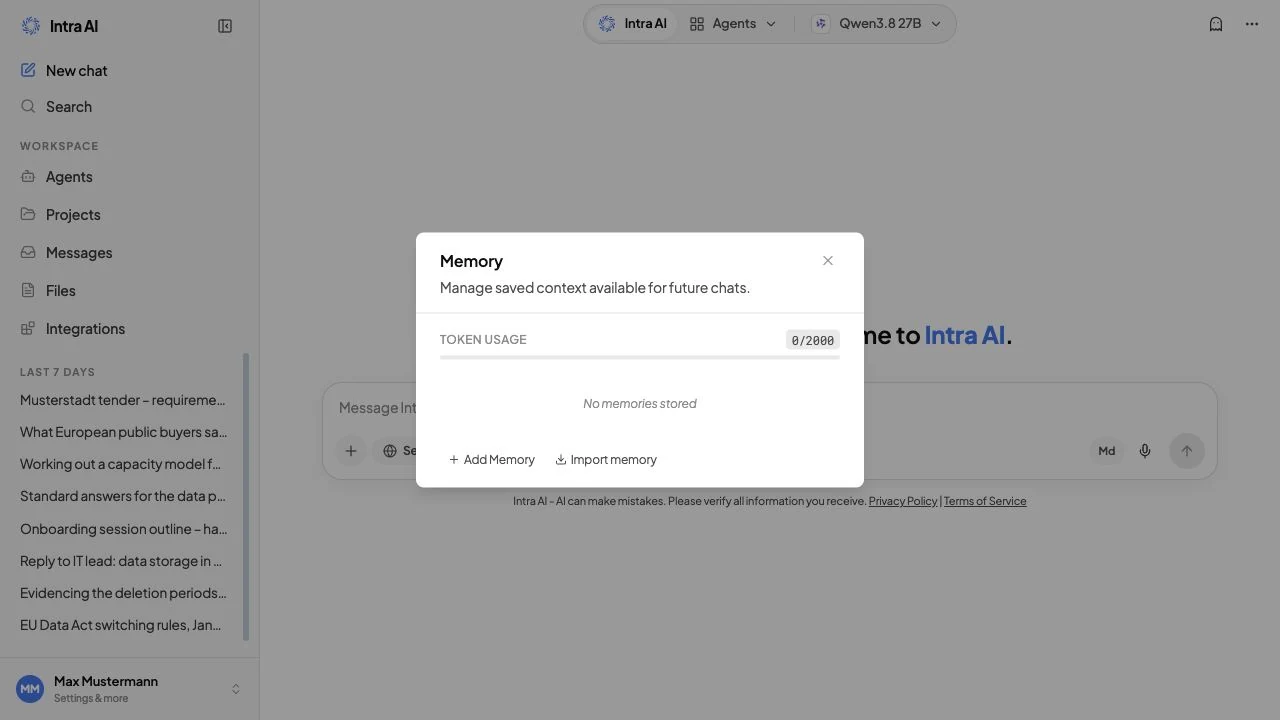 Personal memory panel
Example instance with sample data. Available controls depend on your role and configuration.
Add an entry
- Open Memory.
- Select Add Memory.
- Enter a short key and an unambiguous value.
- Select Save.
Example: key Answer style, value Short paragraphs, British English, explain specialist terms.
If the memory limit is reached, delete or shorten existing entries before adding another.
Review, edit and delete entries
- Select Edit entry, change the key or value, then save.
- If the entry changed elsewhere in the meantime, Intra AI loads the current version. Review it before saving again.
- Select Delete entry to remove one entry.
- Immediately after an automatic save, select Forget this if needed.
- Select Clear All, then confirm, to remove all entries.
Deletion and clearing cannot simply be undone in the interface. Check the target and scope before confirming.
Understand origin and categories
Entries can be marked Automatic, Assistant tool, Manual or Imported. Categories include identity, preference, goal, relationship, routine, skill and constraint. Scope can be Personal or a project.
Use the origin and last-update information to identify surprising changes, then review the current entry. The memory panel does not offer a full revision-history browser. Undo import is a separate action for an import operation, described below.
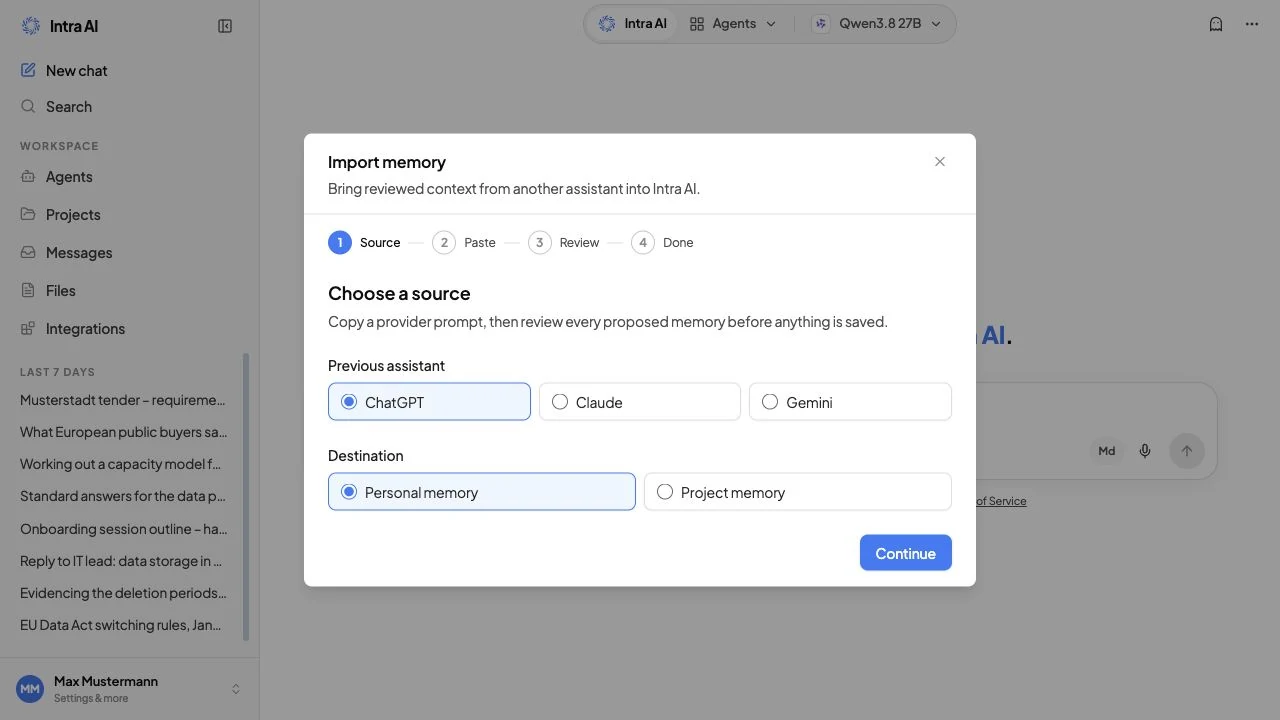 Memory import wizard before any data is imported
Example instance with sample data. Available controls depend on your role and configuration.
Import memory from another assistant
Import does not save pasted material without review. The text first remains inside a review workflow.
- Open Memory and select Import memory.
- Choose the previous assistant and a destination of Personal memory or Project memory. For project memory, select an accessible destination project.
- Select Continue.
- Copy the displayed Provider prompt, run it with the previous assistant and copy its answer.
- Paste that answer unchanged under Paste provider response.
- Select Analyse import and wait for Review proposed memories.
- Review every candidate. Keep suitable entries selected. For a conflict, choose Replace existing memory or Skip this conflict. Duplicates are not written again.
- Explicitly acknowledge sensitive or procedural entries if the dialog asks.
- Select Save selected memories and keep the dialog open until completion.
Imported text is evidence, not an instruction to Intra AI. Carefully check the content, destination project, categories, conflicts and sensitive details.
Resume or undo an import
Resume imports lists operations that still need attention, such as a pending pasted response, analysis, review, save or recovery. Select Resume import and follow its current state. After a connection failure, use Retry connection; when a save is safely repeatable, use Retry save.
After completion, you can select Undo import while the operation is retained. Later edits to the same entries can make a complete reversal unsafe. The result then lists conflicts or entries that still need review. Do not close an active recovery process prematurely.
Turn memory off and use temporary chats
Under Settings → Preferences, turn off Use memory. Existing entries are not deleted, but they are neither used nor extended. They become available again if you turn memory back on.
Temporary chats do not read or write personal memory. Switch to a regular chat to open the panel or resume an import.
Troubleshooting
| Problem | What to do |
|---|---|
| Memory is missing or disabled | Check Settings → Preferences or ask your administrator. |
| An entry is outdated | Edit or delete it, then state the corrected detail in your next chat. |
| Saving reports a conflict | Use the latest version and repeat your change. |
| An import remains open | Open Resume imports and use the offered retry action. |
| Undo does not reverse everything | Review the listed conflicts; later edits are not overwritten blindly. |