Skip to content

Sharing Conversations

Intra AI lets you collaborate on a conversation in real time with colleagues. You can invite people directly – each one gets their own role (viewer or editor) – or create a snapshot link so others can read a frozen copy of a thread at a moment in time. This page covers both methods end-to-end.

At a glance: Open any conversation you own → click Share (the icon with three connected dots) in the header → invite a colleague or create a link.

Note: Chat sharing is enabled or disabled by your administrator. If you do not see the Share button or the participant avatars at the top of a conversation, the feature is currently turned off for your workspace. Contact your administrator to have it enabled.


What chat sharing is

When you share a conversation with a colleague, you are inviting them into the same live thread. Every message either of you sends appears in one place, just like a group chat, but with an AI that any editor can talk to. You both see the full history from the very beginning.

This is different from forwarding a transcript or attaching a file. The shared conversation stays active – messages keep arriving and the thread keeps growing – and each participant sees exactly the same thing in their sidebar.

When to use it:

  • Working through a complex topic together (for example, reviewing a client brief with a colleague).
  • Handing off a thread so a colleague can continue where you left off.
  • Giving a manager or reviewer read-only visibility into an ongoing conversation without letting them post.

When not to use it:

  • You want a static snapshot for sign-off or archiving – use a snapshot link instead.
  • You want to share information across a whole team project – use Projects, which gives every project member a shared knowledge base and a shared set of conversations.

Inviting people to a conversation

Step 1 – Open the Share dialog

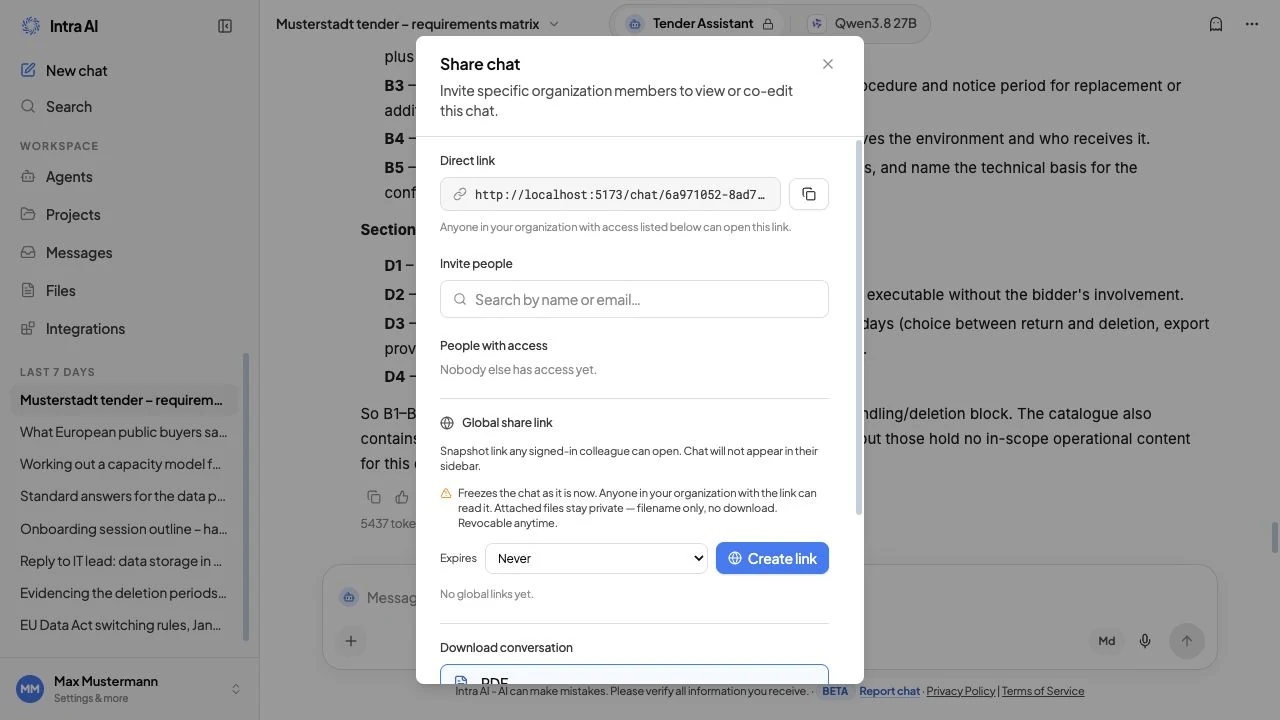
Open the conversation you own. In the header bar at the top, click the Share button (the icon with three connected dots). The Share chat dialog opens.

The Share chat dialog with the member search pickerThe Share chat dialog with the member search picker

Step 2 – Find the person

In the Invite people section, click inside the search box and start typing a name or email address. Results appear as you type – for example, type "Anna" to find Anna Weber. You can select multiple people at once; each one appears as a tag below the search box. Click the × on a tag to deselect someone before you send the invite.

Note: The search only finds active users in your Intra AI workspace. If someone does not appear, they may not have an account yet or their account may be inactive. Ask your administrator.

Step 3 – Choose a role

Before clicking Invite, choose the role you want to give using the dropdown that appears once you have selected at least one person:

RoleLabel shownWhat the person can do
ViewerCan viewSee all messages (past and future), but cannot post or interact with the AI
EditorCan chatSee all messages and send their own messages, including prompting the AI

The default role is Can view. If you want Anna Weber to be able to post, switch it to Can chat before clicking Invite.

Step 4 – Send the invite

Click Invite. The system immediately grants access. The conversation appears in Anna's sidebar under her list of conversations, marked as shared. You will see her listed in the People with access section of the dialog.

Tip: You can invite multiple people at once by selecting several names in step 2. They all receive the same role. To give different people different roles, invite them in separate batches.


Managing people who already have access

Once you have invited someone, they appear in the People with access list inside the Share dialog. As the owner, you have three actions for each participant:

ActionHow to do itEffect
Change roleClick the role dropdown next to the person's name and pick the new roleTakes effect immediately
Remove accessClick the trash icon next to the person's nameThey immediately lose access; the conversation disappears from their sidebar
See who has accessOpen the Share dialog at any timeThe full list of participants and their roles is always shown

Non-owners do not see the full list: the dialog shows only their own entry with their role label. Only the owner sees all participants.


What collaborators see

In the sidebar

The shared conversation appears in each participant's sidebar alongside their own private conversations. Intra AI shows a small indicator on shared conversations so you can tell them apart from conversations you own.

In the conversation itself

Everyone reads the same thread. Every message – whether posted by you, by Anna Weber, or by the AI – shows the author's name. You can see who asked what at a glance.

If a participant has the Can view role, the message composer at the bottom of the screen is replaced by a notice explaining that they can view but not post.

Live updates

Intra AI keeps the thread up to date using both live updates and periodic polling:

  • The conversation and participant list refresh automatically every 15 seconds while the tab is active.
  • They also refresh as soon as you bring the browser window back into focus.

While you have the conversation open, new messages from other participants appear almost immediately via a live event stream – you even see the AI's reply streaming in. The participant list and conversation details additionally refresh every 15 seconds and whenever the window regains focus, so role changes can take up to about 15 seconds to appear.


Leaving a shared conversation (participants)

If you are a participant (not the owner), you can leave at any time:

  1. Open the conversation.
  2. Click the participant avatars at the top of the conversation (participants do not see a Share button – it is shown to owners only). The Share chat dialog opens.
  3. In the People with access section, click the Leave chat button (shown with a door-and-arrow icon).

The conversation is removed from your sidebar immediately. No one else is affected. You will not receive further updates from that thread unless the owner invites you again.

The owner cannot leave their own conversation. They can delete it instead.


Owner vs participant permissions

PermissionOwnerEditor (Can chat)Viewer (Can view)
Read all messagesYesYesYes
Send messages / prompt the AIYesYesNo
Invite new participantsYesNoNo
Change participant rolesYesNoNo
Remove a participantYesNoNo
Create or revoke snapshot linksYesNoNo
Export / download the conversationYesYesYes
Leave the conversationNo (owner)YesYes
Delete the conversationYesNoNo

Any participant (read or write role) can export or download the conversation. For non-owners, the owner's private retrieved-file content is redacted from the export.


A snapshot link is a point-in-time, read-only copy of a conversation. It captures the thread exactly as it is at the moment you create the link. Later messages are not included unless you explicitly refresh the snapshot.

Snapshot links are useful when you want to share a finished or in-progress thread with someone for review – without giving them the ability to post.

Note: Opening a snapshot link still requires a valid, logged-in Intra AI account. Snapshot links are not publicly accessible to the internet – someone without an account cannot open them.

  1. Open the conversation you own and click Share.
  2. Scroll to the Global share link section (marked with a globe icon).
  3. Choose how long the link should stay valid using the Expires dropdown:
Expiry optionHow long the link works
In 7 daysSeven days from the moment you create it
In 30 daysThirty days from the moment you create it
NeverUntil you revoke it manually
  1. Click Create link. The link appears in the list below.
  2. Click the copy icon next to the link to copy it to your clipboard, then share it however you like (email, chat, etc.).

You can have up to 10 snapshot links per conversation at the same time. Expired links still count toward this limit until you revoke them.

The snapshot link section showing the expiry selector and an active link with view countThe snapshot link section showing the expiry selector and an active link with view count

Each active link shows:

  • The full URL (monospaced, truncated if long – hover to see the full address).
  • The expiry date, or "No expiry" if you chose the Never option.
  • How many times the link has been opened (view count).

You have two actions on each link:

ActionIconWhat it does
RefreshCircular arrowsRe-captures the current state of the conversation, so the snapshot now includes the latest messages. The URL stays the same.
RevokeTrash iconInvalidates the link immediately. Anyone who opens it afterwards sees an error.

What snapshot viewers see

Snapshot viewers see a read-only version of the thread at the time the snapshot was taken (or last refreshed). They can read every message's text but cannot post, and embedded images are replaced with a locked placeholder showing only the image name – no file content is exposed through a snapshot.

Attachment filenames are shown in the snapshot so readers know what files were referenced, but the actual files cannot be downloaded through a snapshot link.

Administrator oversight

Your administrator can see all active snapshot links across the entire workspace and revoke any of them at any time. If a link is revoked by an administrator, it stops working immediately.


Privacy and memory

  • Shared conversations are not private. Everyone you invite can read the full history, including messages you sent before you invited them.
  • The AI's memory (if your workspace has the memory feature enabled) is personal to each user. Inviting someone to a conversation does not give them access to your memory, and their memory is not visible to you.
  • Temporary chats cannot use snapshot links. If a conversation was started as a temporary chat (previously called incognito mode), which leaves no history, the system will not let you create snapshot links for it. You can still invite participants to a temporary chat if sharing is otherwise enabled, but the conversation never appears in the invitee's sidebar (temporary chats are hidden from all conversation lists) – they can only open it via the direct link. Note that temporary chats are deleted as soon as you leave them: navigating away from the conversation or closing the browser tab both trigger deletion.
  • Removing a participant is immediate. The moment you revoke someone's access, they can no longer open the conversation. The content they already read is not deleted from their memory.

At the top of the Share dialog you will also see the Direct link – the direct URL to this conversation, like https://intra.example.com/chat/abc123. Clicking the copy button next to it copies this link to your clipboard.

This link is not a public share link. It only works for people who already have access to the conversation (either as owner or as an invited participant). Sending it to someone who has not been invited will result in an error.


Troubleshooting

SymptomLikely causeWhat to do
The Share button is not visibleChat sharing is disabled in your workspaceContact your administrator and ask them to enable the Chat Sharing feature toggle
I can see the Share button but clicking Invite gives an errorSharing may have been disabled after the dialog opened, or a temporary server error occurredRefresh the page; if the error persists, contact your administrator
A colleague's name doesn't appear in the searchTheir account is inactive or doesn't exist yetAsk an administrator to create or reactivate their account
A colleague was already invited but I cannot change their roleOnly the conversation owner can modify participant rolesConfirm you are the owner of this conversation
Snapshot link stopped workingIt expired, or the owner or administrator revoked itAsk the conversation owner to create a new link
Role changes are not appearingThe participant list and conversation details refresh by polling (about every 15 seconds), not instantly; new messages themselves arrive liveWait up to 15 seconds, or switch away from the tab and back to trigger a refresh
I cannot create a snapshot link for a conversationThe conversation was started as a temporary chatSnapshot links are not available for temporary chats
Clicking Create link shows the error "Could not create global link."You may have reached the 10-link limitRevoke an existing link before creating a new one

Frequently asked questions

Q: Can I share a conversation I don't own? A: No. Only the conversation owner can invite participants, change roles, or create snapshot links. If you are a participant (editor or viewer), you can only read or post – you cannot share the conversation further.

Q: Does inviting someone give them access to my past messages in that conversation? A: Yes. When you add a participant, they can see the entire conversation history from the very beginning, not just messages posted after they were invited.

Q: Can I share a conversation that is part of a project? A: Conversations inside a project are already shared with all project members based on their project role. The per-conversation Share dialog also works within project conversations, but project members already have access through the project.

Q: What happens to a shared conversation if I delete my account? A: Account deletion cascades and removes all conversations you own, including shared ones. Participants lose access at that point.

Q: Can participants see each other's names? A: Partially. Each message in the thread shows its author's name, so participants see who wrote what. The full People-with-access list in the Share dialog, however, is visible only to the owner – participants see only their own entry there.

Q: Is there a limit to how many people I can invite? A: Yes – a conversation can have up to 100 participants in addition to the owner. Inviting more returns an error.

Q: Can snapshot links be shared outside the organisation? A: Only with people who have a valid Intra AI account on the same instance. Someone without an account cannot open a snapshot link – they will see a login screen.


Related: Chatting · Projects · Exporting Conversations