Search & Bookmarks
Two tools help you find what you need across your Intra AI workspace. Conversation search scans every conversation title and message to find a specific exchange in seconds. Bookmarks let you pin any conversation for later – with personal tags so you can organise and filter what you've saved.
At a glance: Press
Cmd+K(Mac) orCtrl+K(Windows/Linux) to open search. Open your account menu (bottom-left of the sidebar) and choose Bookmarks to see everything you've saved.
Note: Both features are enabled or disabled for your whole workspace by your administrator. If you do not see a Search button in the sidebar, or no Bookmarks option in the account menu, ask your administrator to enable them.
Part 1 – Conversation Search
What conversation search is
Conversation search lets you find any past conversation by its title or by something that was written inside it. It scans both conversation titles and the text of individual messages, so you do not need to remember what a conversation was called to find it.
Results appear as you type – there is no "go" button to press. The panel closes the moment you click a result, and Intra AI takes you straight into that conversation.
Note: Search does not scan the contents of files you have uploaded to a project. Finding answers inside uploaded documents happens through the RAG (retrieval) system when you chat – the AI searches the file contents on your behalf as part of the answer.
How to open search
Mouse: Click the magnifying-glass Search button in the left sidebar. It sits below the New chat button.
Keyboard: Press Cmd+K on a Mac or Ctrl+K on Windows and Linux. This shortcut works from anywhere in the app.
Either action opens the search panel as a floating overlay near the top of your screen.
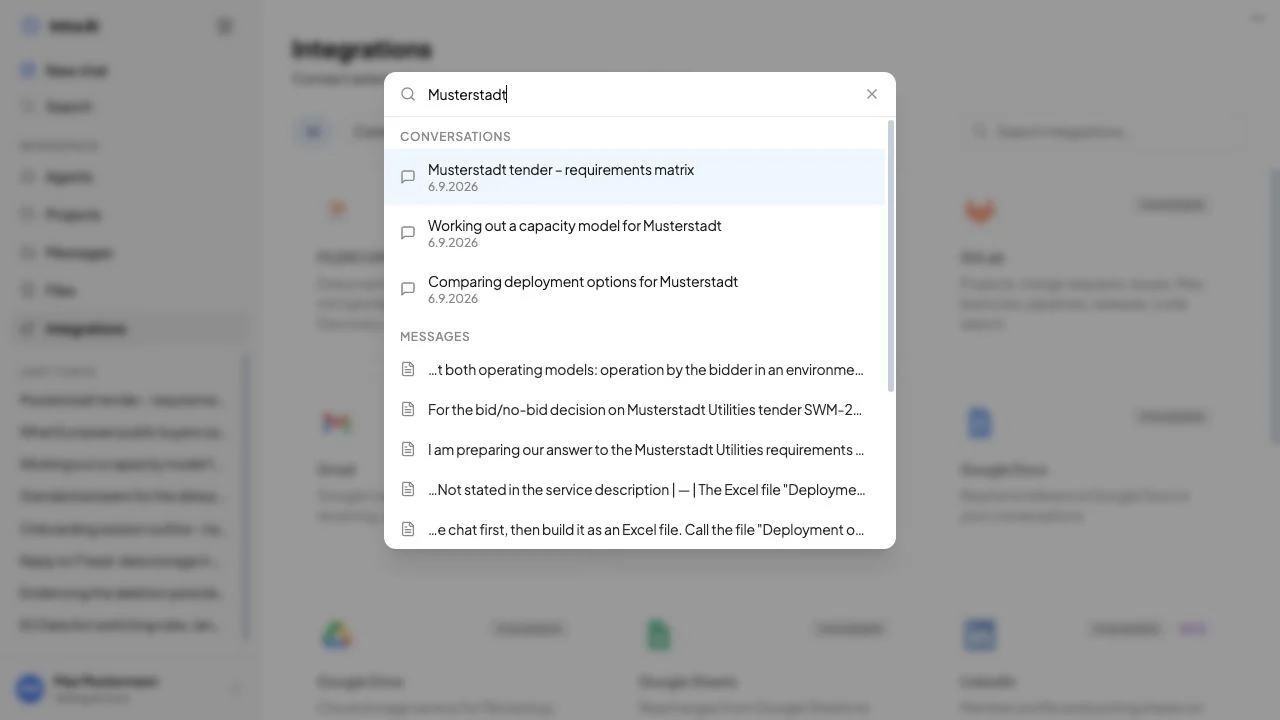
The search panel open, showing a text input at the top and two result groups – Conversations and Messages – below it
Searching step by step
- Open the search panel using the sidebar button or
Cmd+K/Ctrl+K. The text input is focused automatically. - Start typing – even two or three characters is enough. Results appear within 300 ms of you pausing, with no need to press
Enter. - Browse the results. Results are split into two groups:
- Conversations – conversations whose title contains your search term, shown with the conversation title and the date it was started.
- Messages – individual messages whose text contains your search term, shown with a short excerpt around the matching word.
- Open a result in one of two ways:
- Click the row with your mouse.
- Use the
↑/↓arrow keys to highlight a row, then pressEnter.
- The search panel closes and Intra AI opens the conversation for that result.
Tip: If you search for "Q3 risks" and you know you said it in a message rather than in a conversation title, look at the Messages section – it searches full message text, not just titles.
Note: Search requires at least two characters before it looks for results. Typing a single character shows no output.
What the search panel shows
| Section | What is matched | What each row shows |
|---|---|---|
| Conversations | The conversation's title | Title + the date the conversation was started |
| Messages | The text of individual messages | An excerpt (up to ~200 characters) with the matching word in context |
Message excerpts are built by taking the text 80 characters before and after the matching word, so you can see enough context to recognise the right result without opening it.
If there are no matches for your query, the panel shows "No results found."
Keyboard shortcuts – search panel
| Key | Action |
|---|---|
Cmd+K / Ctrl+K | Open the search panel from anywhere in the app |
↑ / ↓ | Move the highlight up or down through results |
Enter | Open the highlighted result |
Esc | Close the search panel without navigating |
Tips for finding things
- Short terms work well. Intra AI searches for your query as a substring, so "risks" matches "key risks", "risk assessment", and "potential risks".
- Check both sections. If you named a conversation something vague like "Monday meeting", search by a word you remember from the discussion – it will appear in the Messages section.
- Search is personal. Search covers only conversations you own. Conversations that someone else shared with you do not appear in search results. Colleagues' private conversations never appear in your results.
- Recent conversations are prioritised. The search scans your 500 most-recent conversations (and, separately, your 500 most-recent messages). This is a fixed limit, not something an administrator can change. Very old conversations from a heavily-used workspace may not always appear.
Part 2 – Bookmarks
What bookmarks are
A bookmark is a personal shortcut to a conversation you want to return to. Bookmarks are entirely private – they are stored on your account only, not visible to anyone else, even if the underlying conversation is shared. Every person manages their own bookmarks independently.
You bookmark a whole conversation, not individual messages. Tags let you label bookmarks so you can filter and find them later.
How to bookmark a conversation
There are two ways to add a bookmark:
Option A – from inside the conversation (header button):
- Open the conversation you want to save.
- Look for the bookmark icon (a ribbon shape) in the conversation header toolbar – the row of buttons near the top of the chat area.
- Click it. The icon fills in to show the bookmark is saved.
- A small dropdown opens immediately, letting you add tags right away (or close it and tag later).
Option B – from the sidebar:
- Find the conversation in the left sidebar list.
- Open its context menu – hover over the conversation row and click the ⋯ (more) button.
- Choose Bookmark from the menu.
Both methods have the same result: the conversation is bookmarked on your account.
The bookmark button states
The bookmark button in the conversation header changes to reflect the current state:
| State | Appearance | What clicking does |
|---|---|---|
| Not bookmarked | Outline ribbon icon, no highlight | Adds the bookmark and opens the tag dropdown |
| Bookmarked | Filled ribbon icon, blue background | Opens or closes the tag dropdown |
Adding and editing tags
Tags are short labels you choose yourself – they can be anything: a project name, a topic, a priority, a person's name. They help you filter your bookmarks list later.
From the bookmark button dropdown (inside a conversation):
- Click the bookmark icon in the conversation header. If the conversation is already bookmarked, the tag dropdown opens.
- Type a tag name in the text field inside the dropdown and press
Enter. The tag appears as a chip. - Add up to 20 tags per bookmark. Each tag can be up to 50 characters long.
- To remove a tag, click the × on the tag chip.
From the Bookmarks library (see below):
You can also add and remove tags inline from the Bookmarks modal without opening each conversation.
Note: Your tags are private to you. If you bookmark a conversation that Anna Weber also has access to, Anna never sees the tags you have applied. On shared conversations, your tags are stored encrypted and tied to your account only, so other participants cannot see them.
Opening your Bookmarks library
Your saved bookmarks live in the Bookmarks library (a modal panel):
- Click your account avatar or initials at the very bottom-left of the sidebar. This opens the account menu.
- Choose Bookmarks from the menu.
The Bookmarks library opens as a centred panel over the page. It lists all your bookmarked conversations.
The Bookmarks library modal showing a list of bookmarked conversations and a row of tag filter chips near the top
Filtering bookmarks by tag
When you have tagged bookmarks, a row of tag buttons appears at the top of the Bookmarks library.
- Open the Bookmarks library (account menu → Bookmarks).
- The filter row shows All (selected by default) followed by each tag you have used across all your bookmarks.
- Click a tag to show only conversations with that tag.
- Click All to clear the filter and show every bookmark again.
Each tag appears once in the filter row regardless of how many conversations carry it.
Navigating to a bookmarked conversation
In the Bookmarks library, click any conversation row. The modal closes and Intra AI opens that conversation.
Removing a bookmark
From the bookmark button dropdown (inside the conversation):
- Open the conversation.
- Click the filled bookmark icon in the header to open the tag dropdown.
- Click Remove bookmark (shown in red below the tag chips). The conversation is removed from your bookmarks immediately.
From the sidebar context menu:
- Hover over the conversation in the sidebar and click ⋯.
- Choose Remove bookmark.
Removing a bookmark does not affect the conversation itself – it is only removed from your personal bookmarks list.
Reference – bookmark controls
| Control | Where to find it | What it does |
|---|---|---|
| Bookmark icon (outline) | Conversation header toolbar | Adds the bookmark + opens tag dropdown |
| Bookmark icon (filled, blue) | Conversation header toolbar | Opens or closes the tag dropdown |
| Bookmark | Sidebar ⋯ menu on a conversation row | Adds the bookmark |
| Remove bookmark | Tag dropdown (red link) | Removes the bookmark |
| Remove bookmark | Sidebar ⋯ menu on a conversation row | Removes the bookmark |
Tag text input + Enter | Tag dropdown / Bookmarks library | Adds a tag to the bookmark |
| × on a tag chip | Tag dropdown / Bookmarks library | Removes that tag |
| Tag filter buttons | Top of the Bookmarks library | Filters the list to one tag |
| All filter button | Top of the Bookmarks library | Clears the tag filter |
| Conversation row | Bookmarks library | Opens the conversation and closes the library |
Tag limits
| Limit | Value |
|---|---|
| Maximum characters per tag | 50 |
| Maximum tags per bookmark | 20 |
Use cases for bookmarks
- Active work in progress – bookmark the "Q3 sales report – key risks" conversation and tag it
q3so you can return to it without scrolling through the sidebar. - Reference answers – bookmark a conversation where the AI gave you an explanation you want to quote later.
- Shared conversations – when Anna Weber shares a conversation with you, you can bookmark it on your own account with tags that make sense to you, without affecting Anna's view.
- Topic collections – tag multiple bookmarks with "Client: Müller GmbH" to build a personal reading list for that client.
Troubleshooting
| Symptom | Likely cause | What to do |
|---|---|---|
| No Search button in the sidebar | Conversation search is disabled for your workspace | Ask your administrator to enable Conversation Search in the admin panel |
Cmd+K / Ctrl+K does nothing | Conversation search is disabled | Same as above |
| Search returns no results | Query is fewer than 2 characters, or no matches in your 500 most-recent conversations | Type at least 2 characters; for older conversations, try a more specific term |
| Search finds a conversation but not a specific message | The message may fall outside your 500 most-recent messages, which is what message search covers | Open the conversation directly and use your browser's find function (Cmd+F / Ctrl+F) to locate the text |
| No Bookmarks option in the account menu | Bookmarks are disabled for your workspace | Ask your administrator to enable Bookmarks in the admin panel |
| No bookmark icon in the conversation header | Bookmarks are disabled, or you are viewing someone else's conversation | Check with your administrator; participants in a shared conversation use the sidebar ⋯ menu to bookmark |
| Tags I added have disappeared | Removing and re-adding a bookmark does not reset its tags – your previously added tags are preserved | Reopen the Bookmarks library to refresh the view; if a tag is genuinely missing, add it again |
Frequently asked questions
Q: Does search find content inside files I have uploaded? A: No. Search covers conversation titles and message text only. Finding content inside uploaded files happens through the RAG (retrieval) system – start a conversation in the relevant project and ask the AI about the file contents directly.
Q: Can I search across other people's conversations? A: No. Search is scoped to your own account. You see only conversations you own; conversations that someone else shared with you do not appear in search results.
Q: If I search for a message and click the result, does the app jump to that exact message? A: Clicking any search result opens the conversation. The app does not currently scroll to the specific message – you land at the top of the conversation and can scroll to find the message.
Q: Are my bookmarks visible to other people? A: No. Bookmarks and tags are personal to your account. Even if you bookmark a conversation that a colleague also has access to, they cannot see your bookmark or your tags.
Q: Can I bookmark a conversation shared with me by someone else? A: Yes. You can bookmark any conversation you have access to, including ones shared with you. Your bookmark and tags are private to your account.
Q: What happens to my bookmarks if the conversation is deleted? A: If the conversation owner deletes the conversation, the bookmark entry will no longer lead anywhere. The Bookmarks library may still show the entry until the next time it refreshes.
Q: Is there a limit to how many conversations I can bookmark? A: There is no set upper limit on the number of bookmarks you can have.
Related: Chatting · Sharing Conversations · Files & Knowledge · Projects