Chatting
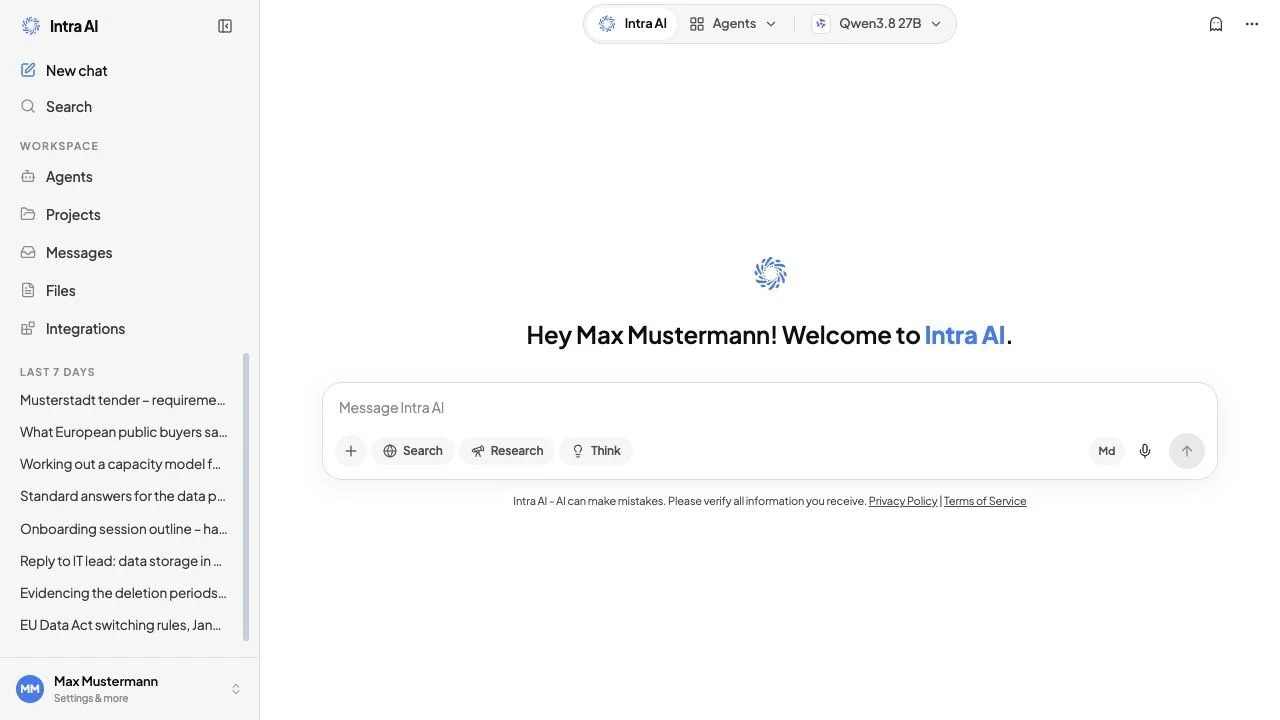
Chat is where you talk to the AI in Intra AI. You type a message, the reply streams back word by word, and everything you need – model choice, web search, document grounding, and reasoning depth – sits in or just above the message box.
Each conversation is independent. The model and the options you turn on apply to the conversation you are in, not to all of them.
At a glance: Click New chat in the sidebar (or start typing on the home screen) to open a fresh conversation. Everything you need to control the AI sits in the message box at the bottom of the screen.
Starting a new chat
There are two ways to begin a fresh conversation:
- Click the New chat button in the top-left of the sidebar. This always opens a blank conversation, regardless of what you currently have open.
- Start typing on the home screen. When no conversation is open, you land on the home screen with an active message box. Just type and press
Enter– your first message creates the conversation automatically.
When you open a new chat, your message history starts fresh, but your current model, Web Search, and Thinking selections carry over for the rest of the browser session (only the research mode turns itself off). The model resets to the workspace default only when you reload the page or sign in again.
Tip: If you want to continue where you left off, click any existing conversation in the sidebar rather than starting a new one.
Choosing a model
The model selector sits at the top centre of the screen, in the header. It shows the name of the currently selected model. Click it to open the model list.
Your administrator decides which models are available. The selection is made up entirely of open-weight models that we run in Germany, and it is put together by job rather than by vendor:
| Role in the selection | What it is for |
|---|---|
| Workspace default | The everyday setting – fast and balanced, understands text and images, thinking can be switched on |
| Alternative with image understanding | A second opinion with the same feature set when an answer does not convince you |
| Large model with adjustable reasoning depth | Long or nested tasks where extra thinking time pays off |
| Fast model with no thinking | Short questions where speed is what matters |
| Model tuned for code and structure | Code, configuration files and strictly formatted output |
Which models sit behind these roles changes with every model generation – which is why the roles are listed here and the version numbers are not. Which providers are in the selection today is on the models page; version numbers are deliberately not published there. In your instance the list shows the names your administrator has configured; newly added models appear in the picker a few minutes later.
Once you pick a model, it stays selected for the rest of your session. Navigating fully away from the app or reloading the page resets the selection to the workspace default.
Note: When an agent is active, the model selector is read-only and shows a lock icon with the agent's name. Agents always use the model they were built around – you cannot switch models inside an agent conversation.
Sending a message
Type your message in the box at the bottom of the screen. Press Enter to send, or click the send button (arrow icon on the right of the box).
The reply streams in token by token – meaning the words appear progressively as the AI writes them, rather than all at once. You can start reading before the reply is finished.
While the model is writing, you will see an animated cursor at the end of the reply.
Stopping, copying, and retrying
While a reply is streaming, the composer's send button becomes a Stop button – click it to halt (the partial text is kept). Below each reply, a Copy button and a Retry button let you copy the text or regenerate it (feedback thumbs also appear here).
Editing your own messages
You can edit any message you sent and resend it. Click the edit icon that appears when you hover over your message, make your changes, and confirm. Editing re-runs the conversation from that point: the AI ignores the previous reply and responds to your revised message instead. This is the cleanest way to correct a typo or refine a question without starting a new chat.
Reasoning (Thinking)
Some models can reason through a problem before they answer – they think step by step internally, then give you a considered reply.
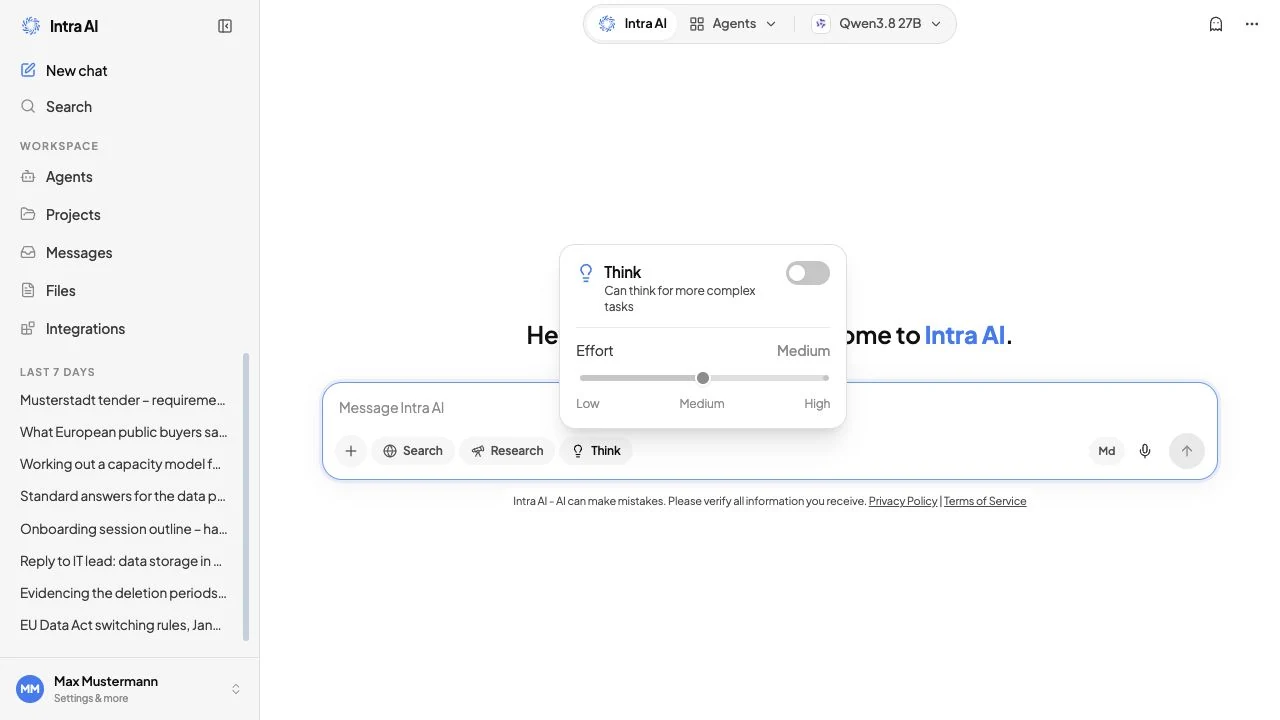
The Think button (lightbulb icon) in the message box controls this. Click it to open the Think popover.
The Think popover with the effort dial – the dial appears only on models with adjustable reasoning depth
What you see inside the popover depends on the model:
| Model type | Controls shown |
|---|---|
| Model with adjustable reasoning depth | An on/off toggle and a Low / Medium / High effort slider |
| Model with a plain thinking switch | On/off only – reasoning depth cannot be graded on these models |
| Other models | No thinking control |
Which control appears is decided automatically per model. If you see no slider, the selected model does not support graded effort.
Effort levels (models with adjustable reasoning depth only):
| Level | What it means |
|---|---|
| Low | Brief reasoning pass – fast replies, good for straightforward questions |
| Medium | Balanced depth (default when you turn thinking on) |
| High | Deep, methodical reasoning – slower but more thorough; good for complex analysis, multi-step problems, or tricky code |
When a reply used thinking, a collapsible Thought for N seconds panel appears above the reply text. Click it to read how the model worked through the problem.
Tip: Higher effort is worth it for multi-step problems, careful analysis, and difficult code questions. For quick lookups or simple requests, Low or off keeps replies fast and uses fewer tokens.
Your Thinking setting is remembered for the current browser tab and clears when you close the tab.
Note: The Think button only appears when the selected model supports reasoning. If you do not see it, the currently selected model does not have this capability.
Web search and research
Two buttons in the composer toolbar let the model reach beyond its training data to find current information. Both require your administrator to have enabled web search for your workspace.
The message box with the Search, Research, and Think controls, plus the Markdown and microphone buttons
The two buttons are mutually exclusive – you can turn on Search or Research for a given message, but not both at the same time. Turning one on automatically turns the other off.
| Button | Icon | What it does |
|---|---|---|
| Search | Globe | Gives the model live web results for that message. Source cards appear below the reply, and inline [N] citation numbers in the answer open a preview of the cited page when clicked. |
| Research | Telescope | Runs a multi-step research pass – a process that plans sub-questions, searches the web, scrapes pages, reflects on what it found, and synthesises a written report. A live progress panel shows each stage as it runs. The research continues in the background even if you navigate away. |
Tip: Use Search for a quick, current answer with cited sources. Use Research when you want a thorough, multi-source written report and do not mind waiting a few minutes.
Note: Both buttons are hidden when your administrator has not enabled web search. If you cannot see them, ask your administrator.
See the Web Search page for the full walkthrough of both modes.
Working with documents in chat
You can ground the AI's answer in your own files. This is called retrieval (sometimes abbreviated RAG): the AI searches the relevant passages in your documents and quotes them in its reply, rather than relying solely on its training knowledge.
Attaching files
Click the Plus button (plus icon on the left of the message box) to attach files. You can:
- Attach an existing file from your personal library or project.
- Upload a new file directly from your device.
- Paste an image into the message box (if the selected model supports images).
Files attached to a message are searched automatically alongside any files in your active project and any files an agent brings with it.
Note: File uploads must be enabled by your administrator. If the Plus button does not appear, this feature has not been turned on for your workspace.
The sources row
After a reply that drew on file content, a collapsible N sources row appears below the reply text. Click it to expand and see which passages were used.
Each source entry shows:
| Detail | What it tells you |
|---|---|
| Filename | Which document the passage came from |
| Section heading | Where in the document the passage is located |
| Page number | The page the passage is on |
| Relevance score | How closely the passage matched your question |
| Snippet | A short excerpt of the matched text |
Click any source entry to open a full preview of the file.
See Files & Knowledge for how uploads, text extraction, and translation work.
Tool calls and agent run cards
When the model (or an agent) uses a tool, you see exactly what happened.
- A single tool call shows as a small inline card you can expand to read the input and output.
- Two or more tool calls in one turn are grouped behind an N tool calls summary card. It opens automatically while the run is in progress and folds itself away when the run finishes.
- Web search results, file search results, and code output each get their own purpose-built card, so they are easy to read at a glance.
When an agent delegates work to a sub-agent, that sub-agent's run appears as its own card showing per-step status, the number of tokens used, and how long it took.
Composer power features
The message box does more than plain text.
Quote to reply
Select any text in a message (yours or the AI's) and an Ask Intra AI button pops up above the selection. Click it to pin that text as a quoted excerpt above the message box. When you send your next message, the quote is automatically included as context. This is useful when you want to ask a follow-up about a specific sentence or passage.
You can add multiple quotes before sending. Each appears as a chip above the text area with a remove button (✕) to discard it.
Markdown mode
Click the Md button in the composer toolbar to switch on the formatting bar. When Markdown mode is on:
- A slim formatting toolbar appears above the text area with buttons for bold, italic, strikethrough, inline code, code block, bullet list, numbered list, checklist, quote, heading, and table. (There is no link button.)
- An Edit / Preview toggle lets you switch between writing and seeing the formatted result before you send.
- Keyboard shortcuts work while in Edit mode:
⌘Bbold,⌘Iitalic,⌘Einline code.⌘⇧Mtoggles Markdown mode on/off from anywhere in the composer.
Your Markdown preference is saved to your profile, so it stays on (or off) between sessions.
Saved prompts (slash command)
Type / at the start of an empty message box to open the saved-prompt picker.
A floating list appears showing:
| Scope filter | What it shows |
|---|---|
| GLOBAL (purple) | Prompts your administrator has shared with everyone |
| PERSONAL (grey) | Prompts you have created yourself |
Start typing after the / to filter by title or body text. Use the arrow keys to navigate and Enter to insert, or click any row. The full prompt text replaces whatever is in the message box.
You can create and manage your personal prompts in Settings → Prompts. Administrators manage global prompts in the admin panel.
Temporary chat
A temporary chat is not kept on the server: it is deleted the moment you navigate away or close the tab (and it is never titled, indexed, or added to your memory). Use it when you want to ask something that you do not want stored in your conversation history.
To start one: click your name or avatar at the bottom of the sidebar to open the account menu, then choose the temporary chat option.
In a temporary chat:
- A Temporary chat label with a ghost icon appears above the message box.
- The message box itself has a dashed border so the mode is always visible.
- A notice below the box confirms: Temporary chats aren't saved and don't read from or update your memory.
The message box in temporary-chat mode with a dashed border and Temporary chat badge
While in a temporary chat:
- The conversation is deleted from the server the moment you navigate away or close the tab.
- It cannot be shared, exported, or accessed again.
- Your memory is neither read nor written – the AI does not use facts it has saved about you, and nothing from the session is remembered afterwards.
Warning: There is no way to recover a temporary chat after you leave it. If you want to keep any part of the conversation, copy it out before navigating away.
Viewing and reading a conversation
How messages are displayed
Your messages appear on the right side; the AI's replies appear on the left. Replies are rendered as formatted text – the AI can produce headings, bullet lists, code blocks with syntax highlighting, tables, and mathematical expressions.
A conversation showing formatted markdown replies with a code block
Code blocks have a Copy button in the top-right corner so you can grab the code with one click.
Older messages load as you scroll
Long conversations are not loaded all at once. As you scroll up, older messages load automatically. This keeps the page fast even in very long threads.
Jump to bottom
If you scroll up while a reply is streaming, a jump-to-bottom button appears at the bottom of the screen. Click it to snap back to the latest message. The button disappears automatically once the reply finishes and you return to the bottom.
Token usage
The number of tokens used by each completed reply is shown beneath it in small text. Tokens are the unit the AI uses to measure text length – roughly, one token is about three-quarters of an English word. Watching this number helps you keep track of your workspace balance consumption.
Memory saved panel
When the AI saves something to your long-term memory during a conversation, a collapsible blue panel appears below the reply. It lists each fact that was saved, showing the key and value.
- Click the panel header to expand or collapse the list. It auto-expands the first time a memory is saved so you always notice when something is recorded.
- Click Forget this (with a trash icon) next to any entry to delete that fact immediately.
Managing a conversation
Renaming, archiving, and deleting
Click the conversation title at the top of the screen (it has a small chevron) to access conversation actions.
| You are… | Available actions |
|---|---|
| The owner | Rename, Archive, Delete |
| Not the owner (shared chat) | Leave |
- Rename swaps the title for an inline text field – type and press
Enter(or click away) to save. - Archive removes the conversation from the main list and moves it to the Archived section in the sidebar. Archived conversations are still searchable and can be unarchived.
- Delete permanently removes the conversation after a confirmation prompt. This cannot be undone.
- Leave (shared chats only) removes you from the conversation. You will no longer see it in your sidebar.
Pinning a conversation
In the sidebar, hover over any conversation row and open the ⋯ menu to Pin it. Pinned conversations appear in a dedicated Pinned group at the top of the sidebar list, above the time-grouped conversations.
Note: Your administrator decides which models, web search, file uploads, and other capabilities are available to you. If something described here is not visible, it may not be enabled for your workspace.
Troubleshooting / Why can't I see X?
| Symptom | Likely cause | What to do |
|---|---|---|
| The Search or Research button is not visible | Web search has not been enabled by your administrator | Ask your administrator to enable it in System Config |
| The Think button (lightbulb) is not visible | The selected model does not support reasoning | Switch to a model that supports reasoning – normally the workspace default |
| The Plus (attach file) button is not visible | Uploads have not been enabled | Ask your administrator to enable the uploads feature |
| The Microphone button is not visible | Speech input has not been enabled, or your browser does not support it | Ask your administrator, or try a supported browser |
| A reply shows truncated text | You clicked Stop, or generation was interrupted | Click Retry to get a full reply |
| The reply shows an error card instead of text | The AI provider had a temporary issue | Wait a moment and click Retry; if it persists, contact your administrator |
| A model I used before is no longer in the list | Your administrator has removed or disabled it | Ask your administrator which models are available |
| The conversation is gone from my sidebar | It may have been archived or deleted | Check the Archived section at the bottom of the sidebar |
Frequently asked questions
Q: Does the model remember what I said in a previous conversation? A: Not automatically. Each conversation is independent. However, if the memory feature is enabled and the AI extracted facts from a previous session, those facts may be used to personalise replies in future conversations. To see what is remembered, visit Memory.
Q: Can I use the same model in every conversation? A: Yes. Your model selection persists across conversations for the current browser session. It only resets to the workspace default when you reload the page or sign in again.
Q: Why is my reply taking a long time? A: Several things can slow a reply: the model is busy (especially common during peak hours), Thinking is set to High effort, or a multi-step research pass is running. You can click Stop at any time and then Retry if you want a faster answer with lower settings.
Q: Can I start a conversation and continue it on another device? A: Yes. Conversations are stored on the server (unless you are in a temporary chat). Sign in on any device and the conversation will appear in your sidebar.
Q: What happens to my files after I attach them? A: Files you upload are stored in your personal file library and remain available for future conversations. See Files & Knowledge for details on how to manage, delete, or share your files.
Q: Can other people see my conversations? A: Not by default. Conversations are private to you. You can share a conversation explicitly using the Share button when chat sharing is enabled by your administrator. See Chat Sharing for details.
Q: The AI gave me a wrong answer. What should I do? A: Click Retry to get a fresh reply. If the answer is consistently wrong, try editing your message to be more specific, or turn on the Search button to give the model access to current sources.
Related: AI Agents · Files & Knowledge · Memory · Web search · Search & Bookmarks · Sharing Conversations