Exporting Conversations
You can save any conversation to your device as a PDF, Markdown, or JSON file. Use this to keep a personal record, hand a clean document to a colleague outside Intra AI, archive a thread for compliance, or process the messages in another tool.
At a glance: Open any conversation → click Share in the header → scroll to Download conversation → pick a format → click Download.
What exporting does
Exporting creates a self-contained file from the conversation as it stands at that moment. The file is generated fresh on the server and sent directly to your browser – nothing is stored in a third-party service. The conversation itself is not changed or deleted. You can export the same conversation as many times as you like, in any format.
Every export is recorded in the workspace audit log. Your administrator can see which conversation was exported, by whom, and in which format.
Step-by-step: how to export a conversation
1. Open the conversation
In the left sidebar, click the conversation you want to export. The conversation opens in the main panel.
2. Open the Share dialog
Look at the top-right area of the chat header. You will see either:
- A Share button (label: "Share"), or
- A row of small circular avatars showing who has access to the conversation.
Click either one. The Share chat dialog opens.
The Share button appears only if you own the conversation. If a colleague shared the conversation with you, click the avatar row instead – it opens the same dialog.
Note: The Share button and avatars are only shown when your administrator has enabled the Chat Sharing feature. If neither appears in the header, this feature is turned off for your workspace and export is not available through the current interface.
3. Scroll to "Download conversation"
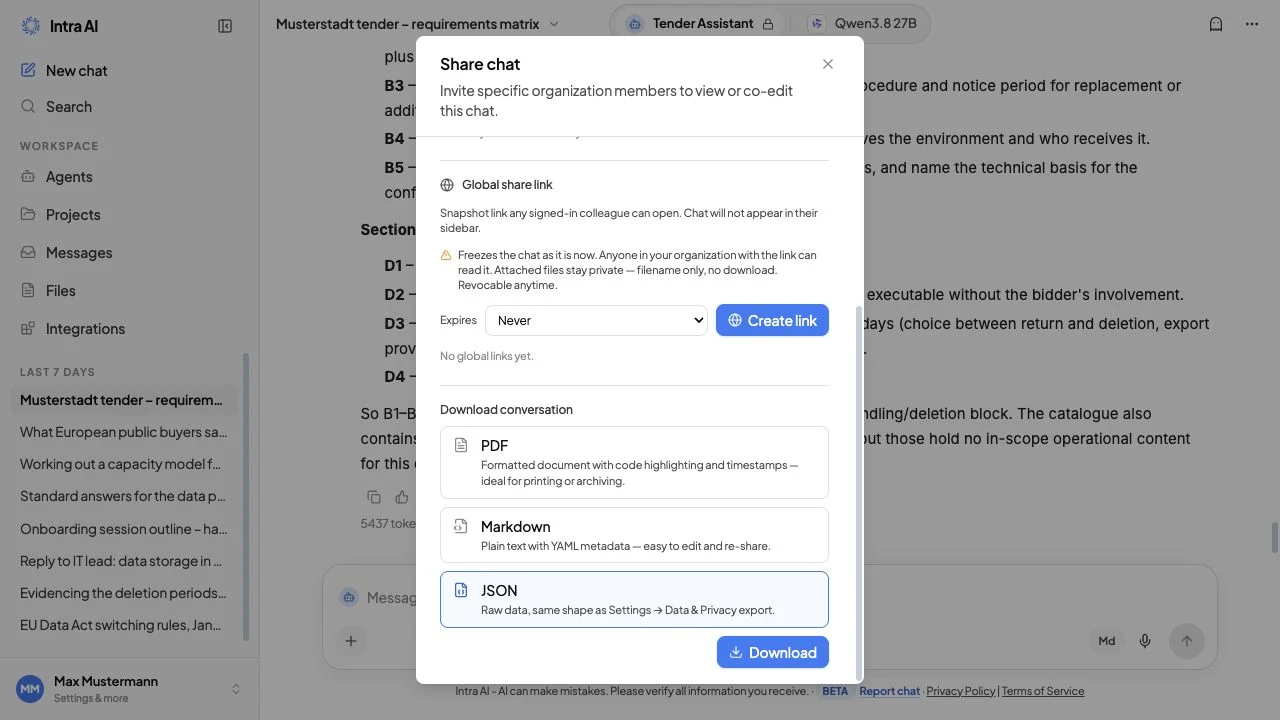
Inside the Share dialog, scroll down past the people-and-access section. You will reach a section labelled Download conversation.
The Download conversation section of the Share dialog, showing PDF, Markdown, and JSON format options with radio buttons and a Download button
4. Pick a format
Three formats are shown as selectable options. Click the one you want – the selected option highlights in blue. See the Format reference section below for a full breakdown of what each format includes.
| Format | When to use it |
|---|---|
| Sending a finished, readable record to someone else; printing | |
| Markdown | Pasting into notes, documentation, or any text editor |
| JSON | Archiving the full conversation for a system or for later processing |
5. Click Download
Click the Download button at the bottom-right of the Download section. The button label changes to Preparing… while the file is being generated on the server. When it is ready, your browser saves the file automatically.
The filename follows the pattern <conversation-title>-<YYYY-MM-DD>.<ext> – for example, Q3-sales-report-key-risks-2026-06-15.pdf. Special characters are stripped and the title is capped at 60 characters.
That is all. The dialog stays open so you can immediately download the same conversation in a second format if you need to.
Formats and what they contain
A polished, print-ready A4 document. Choose PDF when you want something that looks finished and can be opened by anyone without a text editor.
What is included:
- A cover section at the top with the conversation title, the model name, the total message count, the export timestamp, and a clickable link back to the conversation in Intra AI.
- Each message displayed under a speaker label – Intra AI for the assistant and your display name (or You) for user messages – with an avatar and a UTC timestamp.
- System and tool messages rendered in a code block under their own role header.
- Syntax-highlighted code blocks (language is detected automatically).
- Rendered tables.
- Web sources cited by the assistant appear as a numbered Sources list after the relevant message. Each source title is a clickable link.
- A header on every page showing the Intra AI logo and the conversation title.
- A footer on every page with a page counter and a link back to the conversation.
What is not included: file attachments and uploaded images are not embedded in the PDF.
Markdown
A plain-text .md file you can open in any text editor, paste into Notion, Obsidian, Confluence, or any other tool that reads Markdown.
What is included:
- A YAML front-matter block at the very top containing:
title,conversationId,model,endpoint,messageCount,exportedAt(ISO 8601 timestamp), andurl(a link back to the conversation). - Each user and assistant message under a
###heading showing the speaker (Intra AI or your display name), with its UTC timestamp on the line below. - If the assistant used extended thinking (reasoning), the reasoning is included in a collapsible
<details>block labelled Thinking, placed before the visible answer. You can expand it in any Markdown renderer that supports HTML details elements. - System and tool messages included in collapsible
<details>blocks so they do not clutter the readable output. - Web source citations converted to inline Markdown links, followed by a Sources list at the end of the relevant assistant message.
- A footer line at the end of the file with a link back to the conversation.
What is not included: file attachments and uploaded images are not embedded.
JSON
A structured .json file for archiving or processing. The file is formatted with two-space indentation and has three top-level keys:
| Key | What it contains |
|---|---|
exportedAt | ISO 8601 timestamp of when the export was generated |
conversation | The full conversation record (title, model, endpoint, creation date, and other metadata) |
messages | An array of every message object, including role, text, timestamps, web sources, and reasoning fields |
Choose JSON when you need a faithful, machine-readable archive or want to import the conversation into another system.
If you export a conversation that was shared with you, text snippets of the owner's retrieved documents are removed from the JSON for privacy – file names and IDs remain.
What is not included: file attachments are referenced by ID in the message objects but the attachment content itself is not bundled into the JSON file.
Who can export
Anyone who has access to a conversation can export it – this includes the person who started the conversation and any colleagues who have been invited to collaborate on it (whether they have read or write access). There is no owner-only restriction on the Download section.
Tips
Tip: If you need the same conversation in two formats – for example, a PDF to attach to an email and a Markdown copy to paste into your notes – you can download both without closing the dialog. Pick one format, click Download, then pick the other and click Download again.
Tip: The filename always includes today's date, which makes it easy to tell exports apart if you download the same conversation on different days.
Privacy note: Exported files leave the secured Intra AI environment the moment they land on your device. Handle them in line with your organisation's data handling and data protection policies.
Limitations
- Three formats only. PDF, Markdown, and JSON are the available options. There is no Word (.docx) or plain-text (.txt) export for conversations.
- Requires Chat Sharing to be enabled. The Download section lives inside the Share dialog. If your administrator has turned off the Chat Sharing feature for your workspace, the Share dialog is not accessible and export is not available.
- File attachments are not bundled. Images and files you uploaded into the conversation are not embedded in the exported file. The text content of the conversation is exported; the attachment files themselves stay in Intra AI.
Troubleshooting
| Symptom | Likely cause | What to do |
|---|---|---|
| No Share button and no avatars appear in the chat header | The Chat Sharing feature is disabled for your workspace | Ask your administrator to enable Chat Sharing in the admin panel |
| The Download button is greyed out | An export is still in progress | Wait for the current export to finish (the button shows Preparing…), then try again. |
| The download starts but the file is empty or corrupted | A server error during generation | Try again; if the problem repeats, contact your administrator |
The filename shows conversation-<date> instead of the title | The title contains only characters that are stripped from filenames (e.g. only emoji or special characters) | Rename the conversation via the ⋯ menu (owner only). If the filename shows conversation-<id>, the server's filename header was lost in transit – try again or contact your administrator. |
Frequently asked questions
Q: Can I export a conversation that someone else shared with me? A: Yes. Any participant in a conversation – not just the owner – can open the Share dialog and use the Download section.
Q: Does exporting notify other participants? A: Other participants are not notified. However, the export is recorded in the workspace audit log, which administrators can review.
Q: Will the export include the assistant's reasoning ("thinking") steps?
A: In Markdown it is included in a collapsible Thinking block; in JSON it is in the reasoning field of the message object. PDF exports do not include reasoning – only the visible answer. Choose Markdown or JSON if you need the reasoning.
Q: Can I re-import a JSON export back into Intra AI? A: No. The JSON format is for archiving and external processing, not for re-importing.
Q: The conversation title has special characters – will the filename be garbled? A: No. The server strips characters that are not safe for filenames and shortens the title to 60 characters. You will always get a clean filename.
Related: Sharing Conversations · Chatting