
Profile, usage and token balance
Check how many tokens you have left, when your balance refills and which numbers Intra AI keeps about your own usage. You can also change your profile picture and name, and find the running version when support asks for it. You don't need a special role for any of this.
Check your token balance
You'll find your token balance in the account menu.
- At the bottom of the sidebar, click your name (the line under it reads Settings & more).
- The Token balance block sits at the top of the menu. On the right is the percentage you have left, for example "47.2% left".
- Below that you see the tokens remaining out of your total, for example "0.9M of 2M", and Refills on with the date.
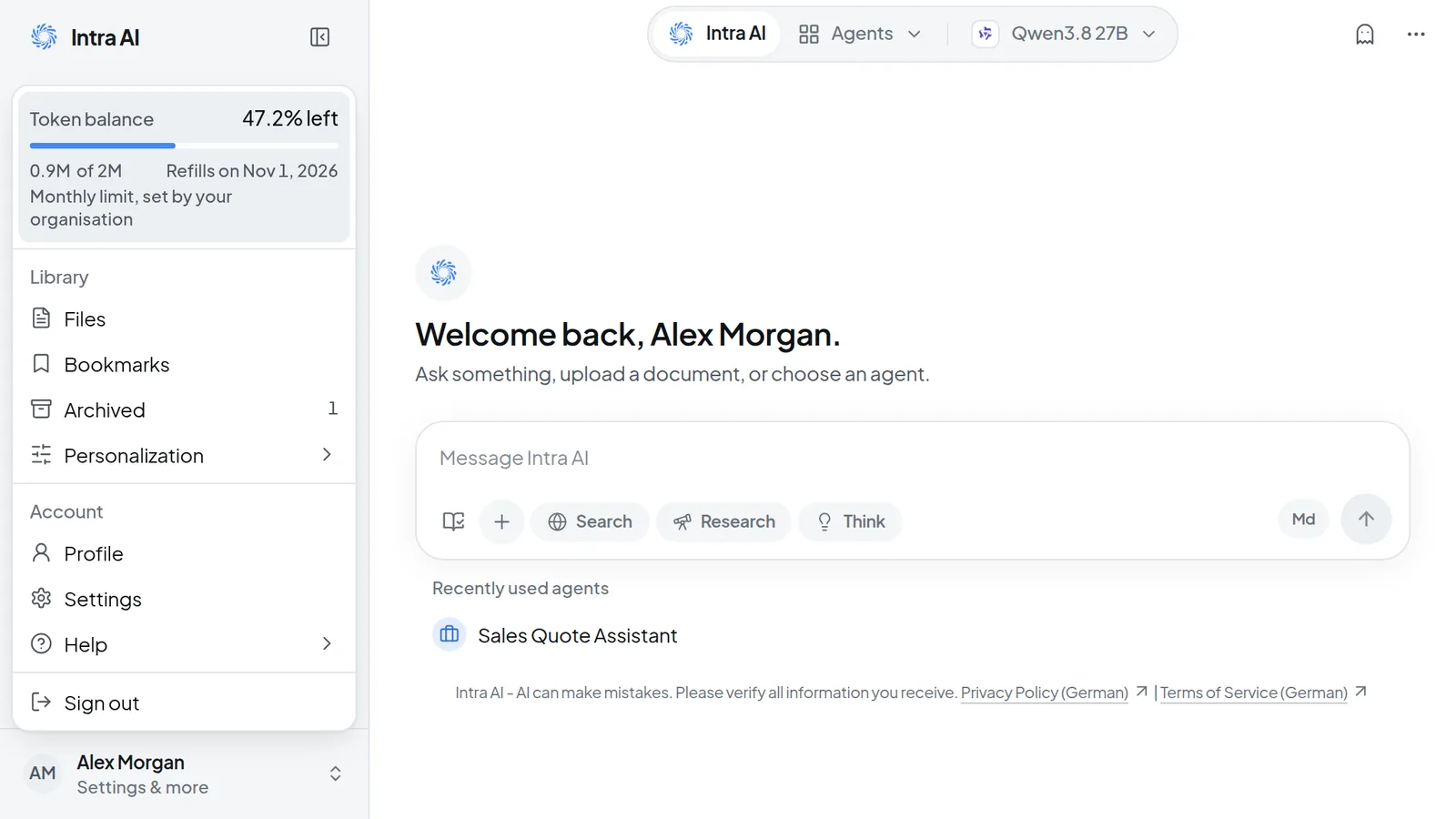 The account menu at the bottom of the sidebar shows your token balance, the next refill date and, in this example, a monthly limit set by the organization.
Your balance refills once a month, at midnight German time on the day your instance has set for it. A refill resets your balance to the full amount. Tokens you did not use before the refill are not added on top. If your last answer took your balance below zero, your instance may be set up to subtract that shortfall from the new balance.
If the menu says No automatic refill instead of a date, your balance does not refill on its own. When it runs low, contact your administrators. On a trial, you get your balance once and it is never refilled.
When 20% or less is left, a warning icon appears next to the percentage. Below 5% the figure turns red.
Monthly limits set by your organization
Some organizations have a manager or administrator set a monthly limit for each person. In that case the Token balance block also reads Monthly limit, set by your organisation, and the total after "of" is your limit until the next refill. When a limit is set or changed for you, you get a "Monthly limit set" or "Monthly limit applies now" notice under Messages.
If a different limit is already planned for the next period, the menu adds a line such as "Planned from Nov 1, 2026: 3M". The note below it says the plan can still change until the next refill. If you need more tokens, talk to your manager. How managers plan these limits is described in Planning monthly token limits.
Warnings when your balance runs low
Intra AI warns you at three points with a short notice in the corner of the screen:
| Notice | What it tells you |
|---|---|
| 50% of your tokens used | You have used half of your balance. |
| 80% of your tokens used | How many tokens remain and, if your balance refills automatically, in how many days. |
| 95% of your tokens used | How many tokens remain, and a request to contact your administrators. |
You only get the notice for the highest level you have reached. It shows again after you reload the page.
Once you have used 80%, a bar also appears above the message box in a conversation, for example "80% of tokens used" and, with automatic refills, "Refill in 12 days". At 95% the bar turns red.
When your balance can no longer cover a new request, Intra AI turns it down and shows "Your token balance is exhausted. Please contact your administrator."
An image costs 20,000 tokens. If your balance can't cover that, you see "Not enough tokens for an image (needs 20,000)", even while ordinary requests still get answers. Workflows don't start a run without balance, and a scheduled run then shows "Your token balance was used up — the run was not started." Synced folders pause. Once you have balance again, select Resume on the folder.
View your profile
The profile page shows your account and your own token activity. It has no comparisons with colleagues, rankings or scores.
- Open the account menu and, under Account, select Profile.
- At the top you see your picture or initials, your name, your username and your role.
- Four tiles follow: Tokens used ("Tokens, last 365 days" or similar if your instance has no token balance), Busiest day, Current streak and Longest streak.
- Under Token activity you get a calendar of the last 365 days. Daily shows one cell per day, Weekly one cell per week.
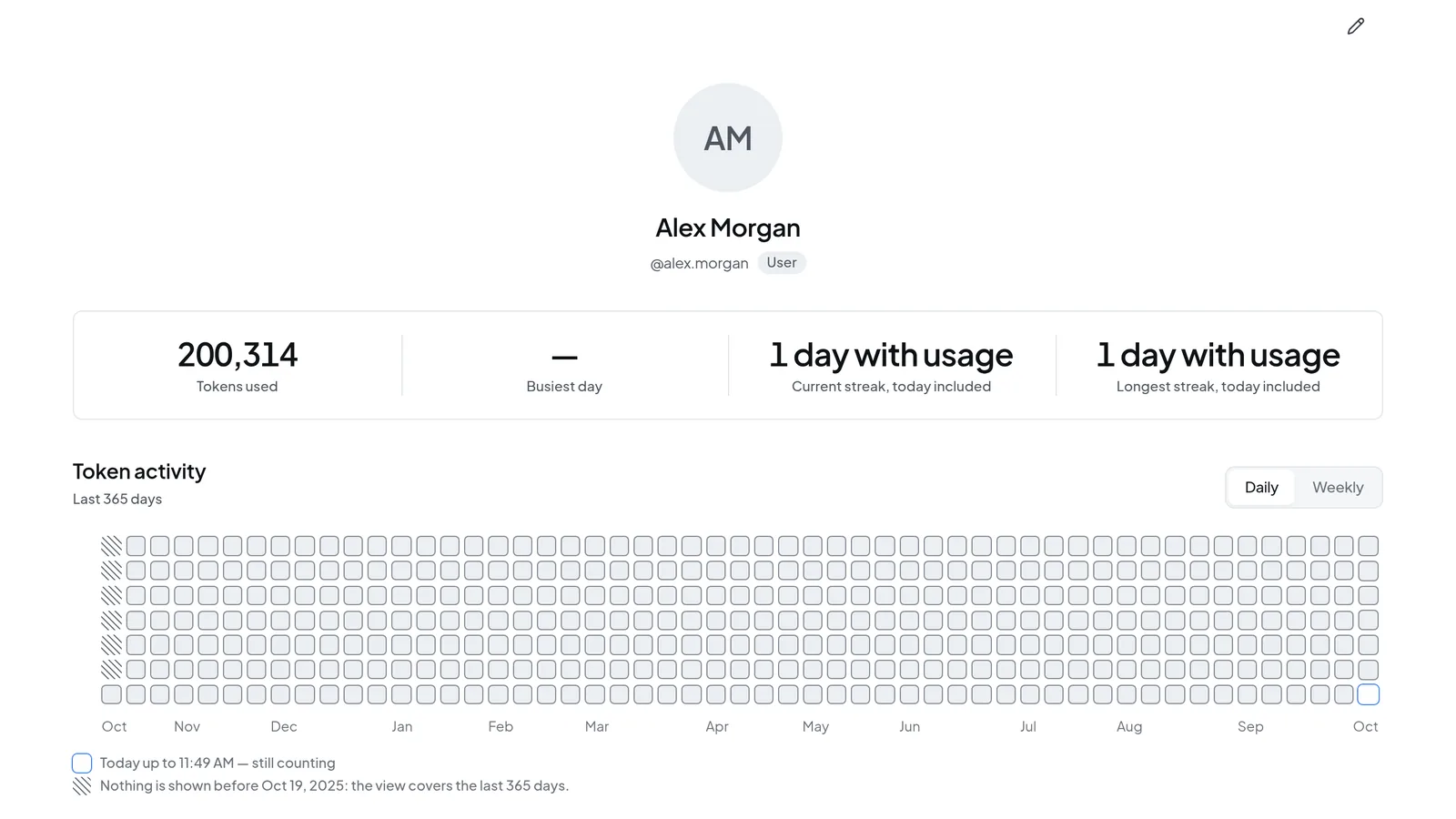 The profile page with its four tiles and the token activity calendar.
Tokens used is everything you have used since your account was created, today included. Without a token balance, the tile counts only the period the calendar covers.
A streak counts the consecutive days on which you used Intra AI. When today already counts toward it, the tile says "today included". If a streak runs back to the start of the calendar, it reads "at least …", because the calendar goes no further back. Today is still in progress, so the calendar marks it "still counting". If nothing has been measured yet, Busiest day shows a dash rather than a zero.
A line under the calendar tells you from which day it shows data. If older days fall outside your instance's retention period, that line says so.
Change your picture or name
- On the profile page, click the pencil at the top right (Edit profile).
- Select Change picture, then pick a PNG, JPEG or WebP file under 10 MB.
- Change Name (up to 100 characters) or Username if you need to.
- Select Save.
Remove picture brings your initials back.
A username is 3 to 20 characters long and starts with a letter. It can contain the letters a to z, digits, periods, underscores and hyphens. It can't end with one of those special characters or have two of them in a row. You can also change your name and username under Settings › Account.
If you sign in with single sign-on, the name and username fields are locked because your identity provider manages them. You can still change your picture.
View My usage
My usage lists the numbers the system keeps about your own usage.
- Open Settings and go to the Data & Privacy tab.
- In the Usage analytics section, select View my usage.
- Data through gives the period covered. Under Your numbers in this period you find Answers, Delivered answers, Answer failure rate, Total tokens, Days with an answer and Conversations started.
- Further down are Weekly trend, The agents you use most, Features, Your feedback and Your reports, which shows what became of each answer you reported.
Note: Nobody but you sees My usage. What managers and administrators can see in their reports is explained in Your data and privacy.
My usage covers the last 91 complete days, or fewer if your instance keeps data for a shorter time. The figures run through yesterday and only count chat requests that got an answer. Your profile counts every token since your account was created, today included, so its numbers are usually higher. The agents you use most lists up to five agents, and Your reports shows your 20 most recent reports.
If a tile says "The fact build is incomplete for this day.", there is no processed data about you for this period, for example because your account is new or you haven't used Intra AI in that time. Today's use shows up tomorrow at the earliest.
The table Which usage and operational records exist about you lists each kind of data with its number of entries and the Retention currently configured.
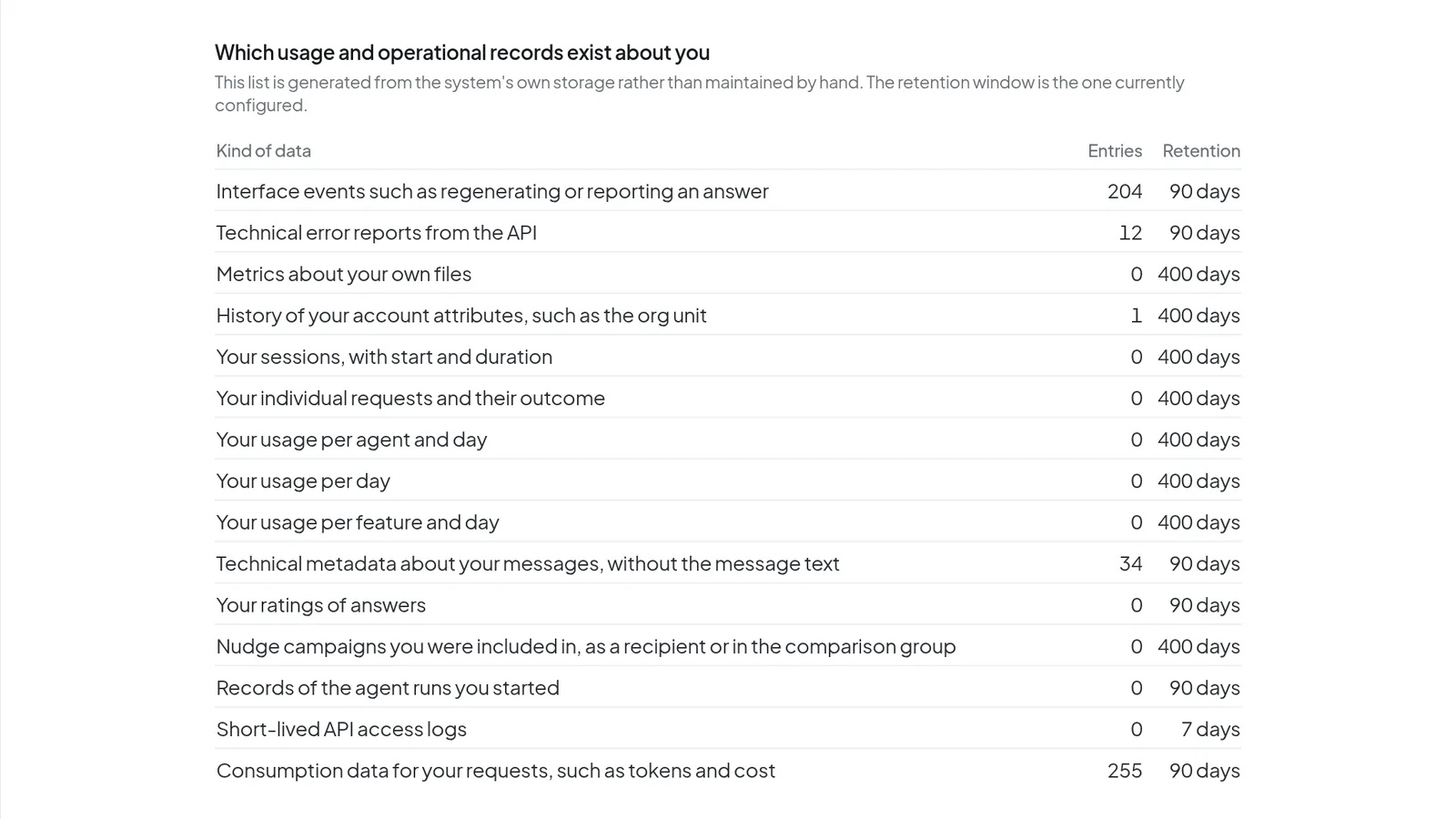 The table on My usage lists each kind of record kept about you, with its number of entries and its retention.
Object to recording interface events
Interface events are actions you take in the app, such as regenerating or reporting an answer. Whether your instance records them depends on its configuration. You can object either way.
- Scroll to the bottom of My usage, to Your rights.
- Turn off Record interface events.
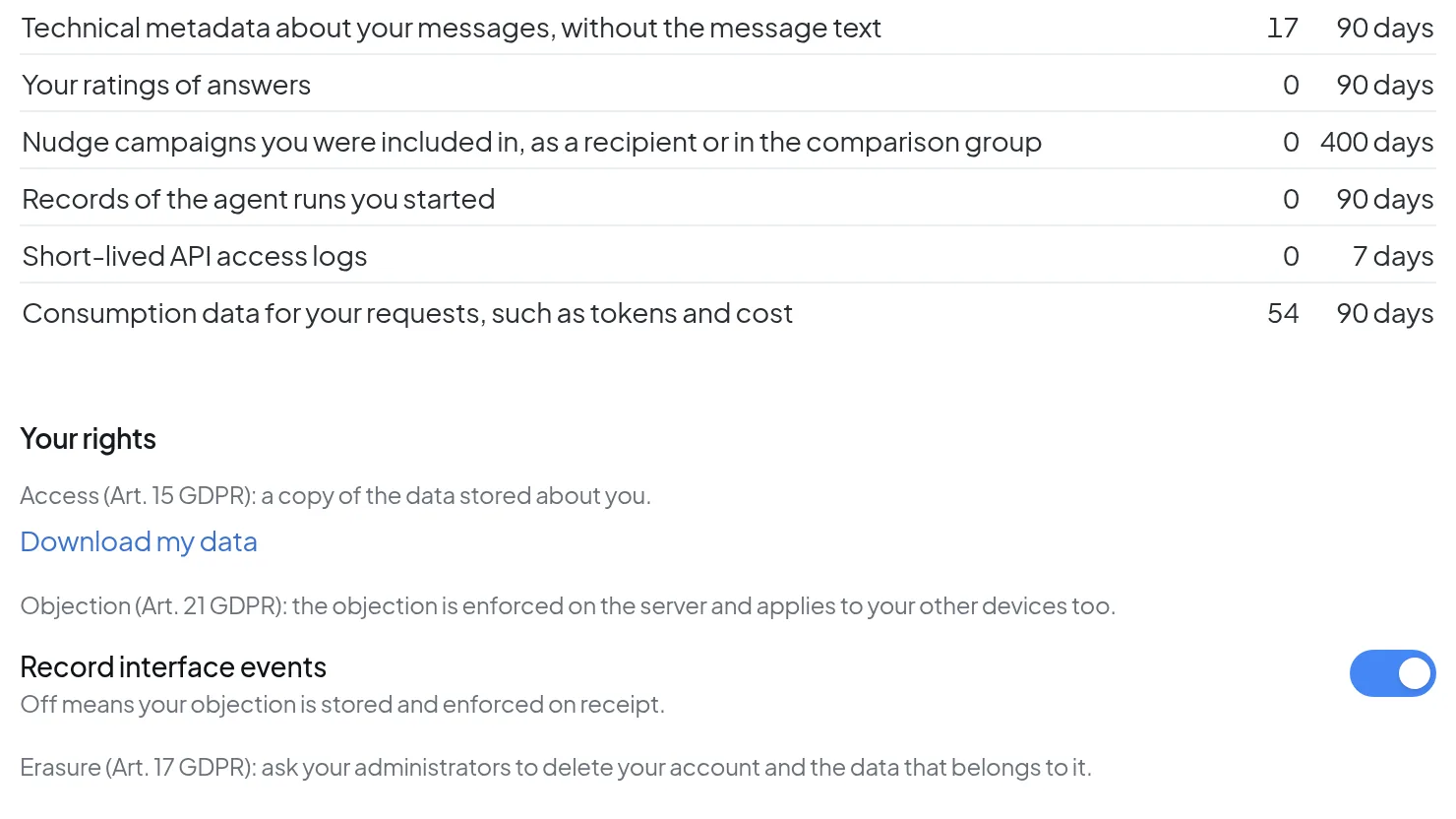 Your rights at the bottom of My usage, with Download my data and the Record interface events switch.
Your objection is stored on the server, so it applies on your other devices as well. It stays in place if recording is turned on for your instance later. Consumption data for your requests, such as tokens, is still recorded.
If recording is switched off on your instance, Answers reported reads "Not captured". Your reports themselves are still listed under Your reports.
In the same section, Download my data saves a copy of your data as a JSON file. To have your account deleted, ask your administrators.
Find the version for support
- Open the account menu and select Help › Version. You can also press Ctrl+K (Cmd+K on a Mac) and type "Version".
- Current version shows the version number, its status and, for a released version, Released on with the date.
- Select Copy for support. Intra AI copies the version, status and build to your clipboard, ready to paste into your support request.
- What's new in and Earlier versions list what changed. Click an earlier version to expand its notes.
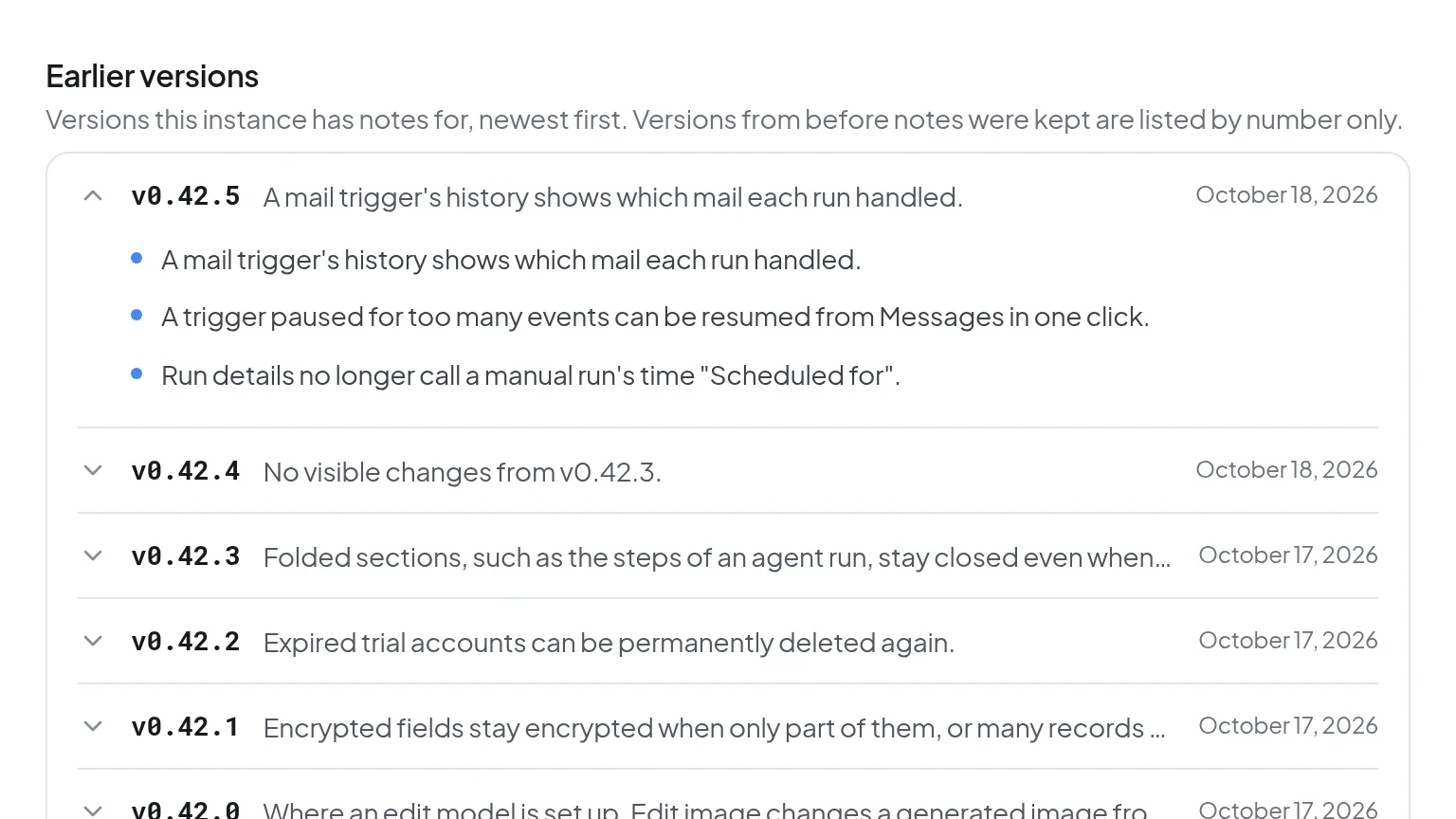 Under Earlier versions, an expanded release shows its changes and its date.
If the status reads Not yet released, your instance runs a build your administrators deployed ahead of the official release, and some of the listed changes may not be in it yet. At the bottom, Provider links to the Imprint, Privacy Policy and Terms of Service. For changes across many versions, see the Changelog.
Troubleshooting
| Message or situation | What to do |
|---|---|
| "Your token balance is exhausted. Please contact your administrator." | Check the refill date in the account menu. If you need tokens sooner, or the menu says No automatic refill, contact your administrators or your manager. |
| "Choose a PNG, JPEG or WebP image." | Save the picture in one of these formats and upload it again. |
| "That file is too large. Choose one under 10 MB." | Make the image smaller or pick a different one. |
| Name and username can't be edited | Your account is managed through single sign-on. Change these details with your identity provider. |
| "Copying is not available here …" on the Version page | Select the line shown on the page and copy it by hand. |
| "Your numbers could not be loaded." | Reload the page. If the message stays, contact your administrators. |