
The manager console
The manager console is where managers look after their organization in Intra AI: members and roles, groups, agents, appearance, integrations and announcements. You need the manager role, and your account needs two-factor authentication or a passkey. Sign-in and security explains how to set either one up.
Open the console
- Click your name at the bottom left to open the account menu.
- Under Organization, select Manager Console.
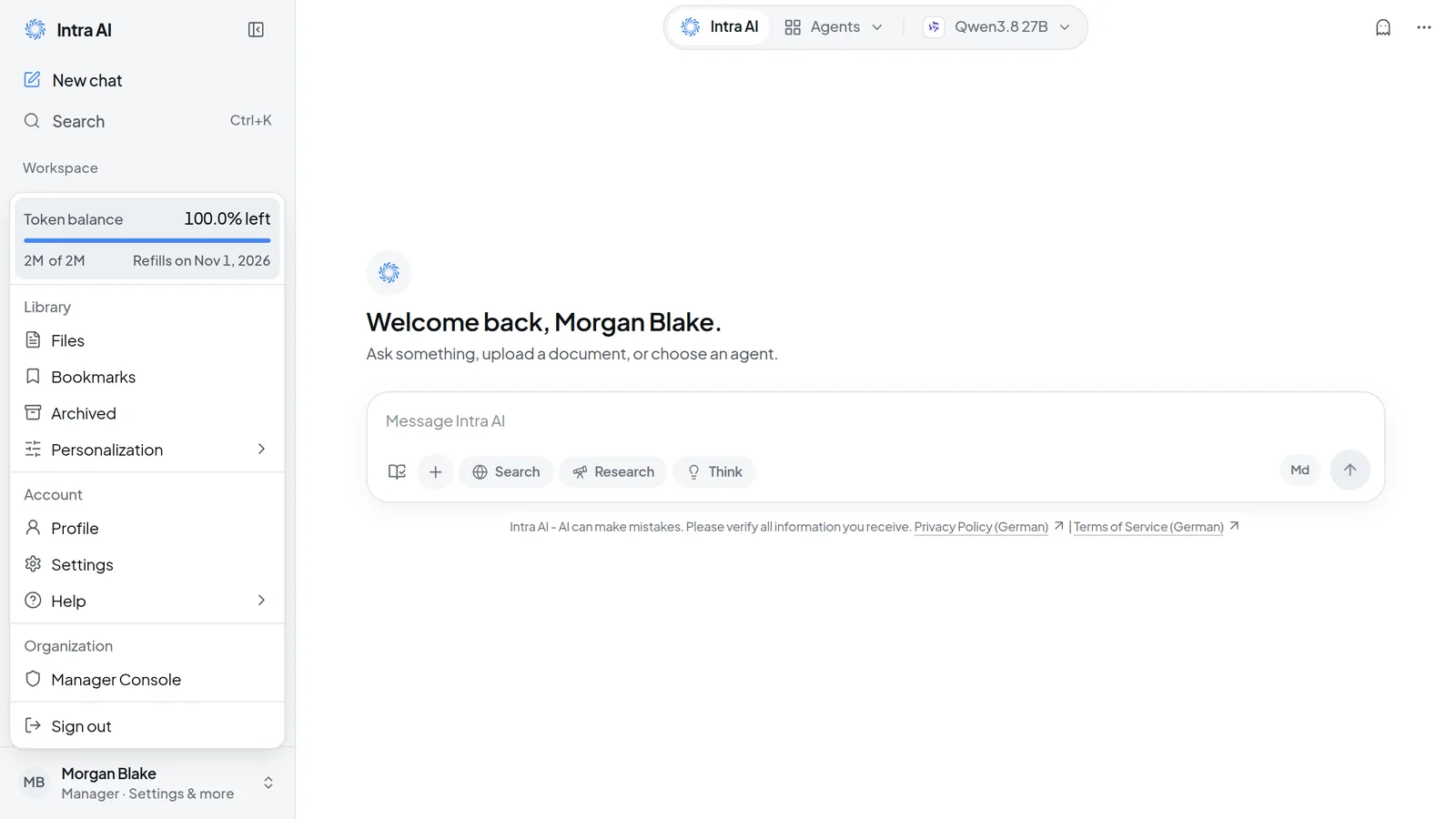 Open the manager console from the account menu at the bottom left: Organization › Manager Console.
The page heading reads Administration, with a row of tabs below it. The selected tab is part of the page address, so you can bookmark a tab or send someone a link to it. On a narrow screen, a drop-down showing the current tab replaces the tab row.
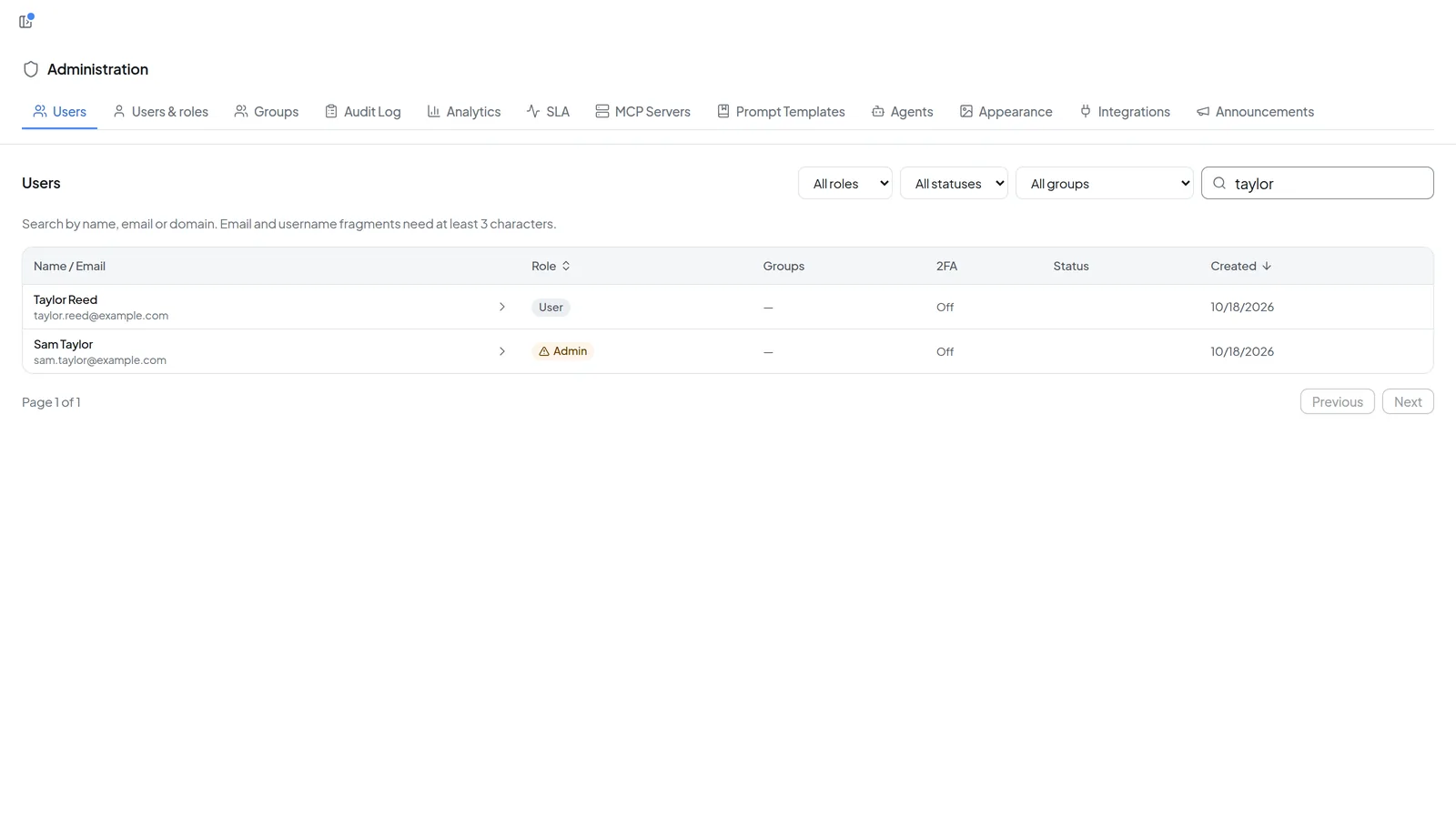 The manager console opens on the user list; which tabs you see depends on the permissions granted to you.
Which tabs you see
Intra AI decides which areas the manager role covers on your instance, and you only see the tabs granted to you. If your permissions change while you are signed in, tabs appear or disappear without a new sign-in.
| Tab | What it is for |
|---|---|
| Users | Look up members without changing anything |
| Users & roles | Make members managers, demote managers, deactivate accounts |
| Token Budget | Plan monthly limits, see Planning monthly token limits |
| Groups | Create departments and teams |
| Audit Log | See who did what in your area |
| Analytics, SLA | Usage figures and availability, see Analytics for managers |
| Agents | Switch off or limit Intra AI agents, pick the landing agent |
| Appearance | Set the display name, color and logo |
| Integrations | Set up apps for the organization and release them |
| Announcements | Publish notices to all members |
Every manager sees SLA. Token Budget shows up once Intra AI has switched the token budget on for your instance. A few more tabs, such as MCP Servers, Prompt Templates, AI Providers and Global Links, are read-only for managers.
Look up members
The Users tab lists every member with their role, groups, two-factor status and the date their account was created. Groups and the All groups filter only show if you also have the Groups tab.
- Open Users.
- Narrow the list with All roles, All statuses or All groups.
- Type a name, email address or domain into Search users.... Partial email addresses and usernames need at least 3 characters.
- Click a row. The person's details open, marked Read-only.
Deactivated accounts carry the label Banned in this list.
Change roles and deactivate accounts
Users & roles controls who is a manager and who can sign in. Changes take effect immediately. There is no confirmation step.
- Open Users & roles.
- Find the person in the table. Use Previous and Next to move through longer lists.
- In the Role column, choose Manager or User.
- To lock someone out, click Deactivate under Actions. Their status changes to Deactivated.
- Click Reactivate to let them back in.
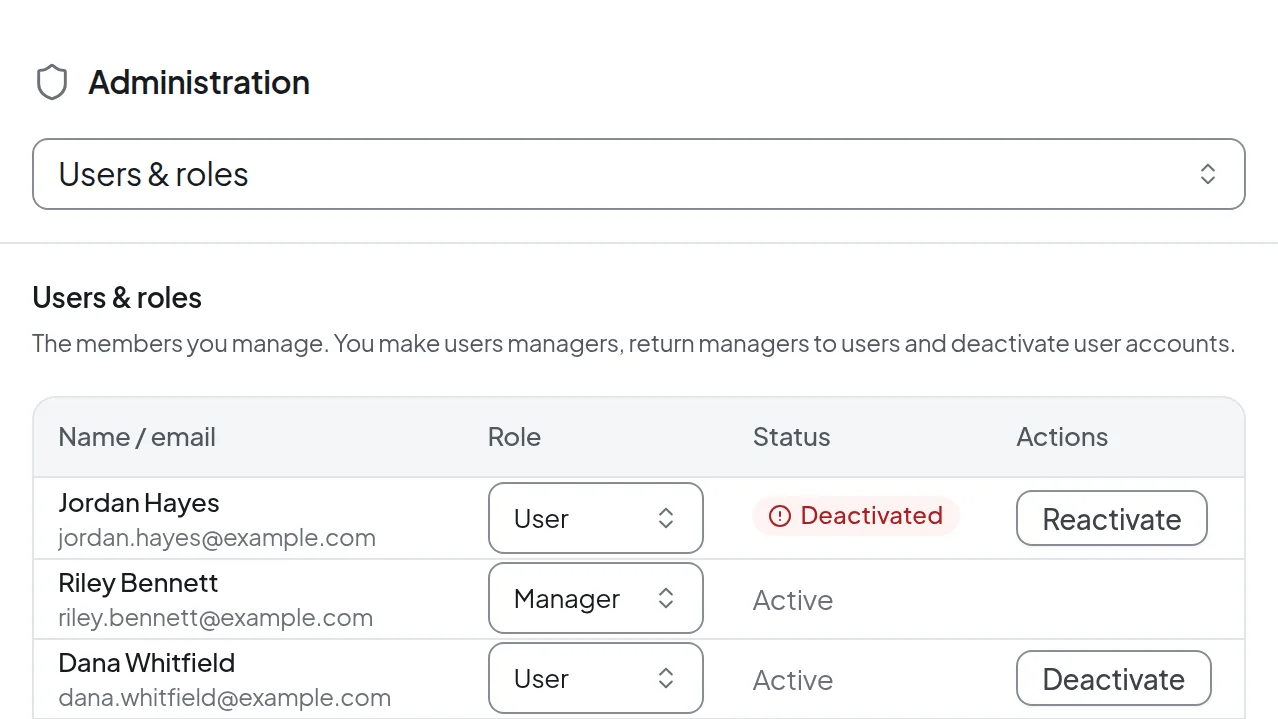 Under Users & roles you make members managers, demote them to users, and deactivate accounts.
A few limits apply:
- You cannot change your own role or the role of an administrator.
- You can only deactivate accounts with the User role. To deactivate a manager, demote them to User first.
- You can only make someone a manager if their account already has two-factor authentication or a passkey.
- A deactivated person can no longer sign in. They see "Account suspended. Please contact support."
The console has no way to invite people or remove them from your plan. Ask the Intra AI team for that.
Create groups
Groups mirror your departments and teams. You need them to limit an Intra AI agent to part of the workforce, or to release an integration to a test group before everyone gets it. A subgroup inherits every permission granted to its parent.
- Open Groups.
- Enter a name under Group name, for example "Sales", and click Create group.
- For a subgroup, click the plus sign in the parent's row. "Subgroup of …" now shows below the name field.
- Enter the subgroup's name and click Create group.
- Click the pencil to rename a group or move it under a different parent, then click Save.
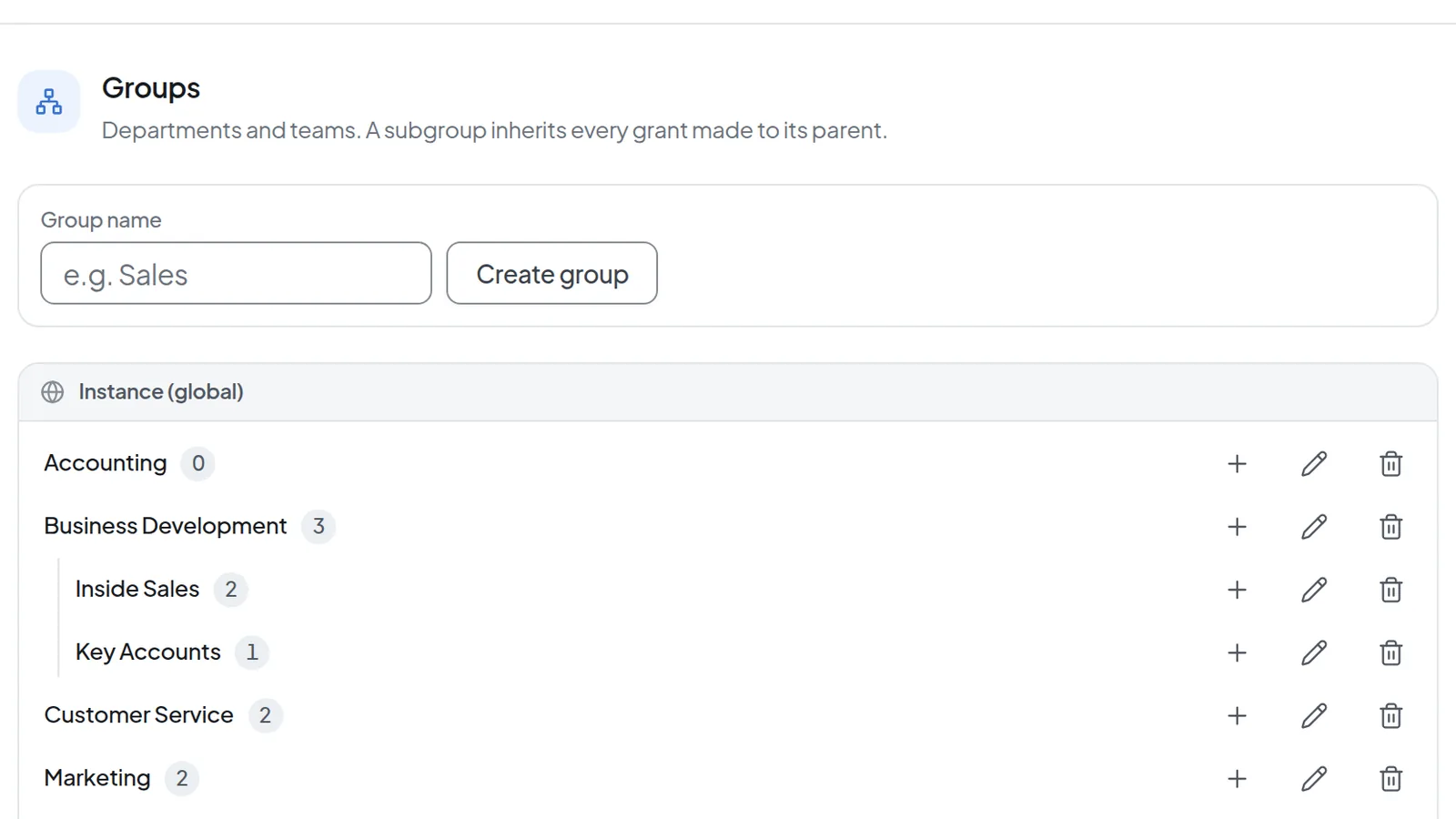 Under Groups you create departments and teams; a subgroup inherits every permission granted to its parent.
The number next to each group counts its direct members, not those of its subgroups. Managers cannot change who belongs to which group; ask the Intra AI team for that.
Warning: When you delete a group (trash icon, then Delete group), every agent and integration shared with that group stops being available to it. You cannot undo this. A group that still has subgroups cannot be deleted until you delete or move the subgroups.
Control Intra AI agents
The Agents tab lists the agents in your area. Only agents labeled By Intra AI can be switched off or limited to groups here. Any other agents in the list are there for reference.
- Open Agents. The controls sit in each agent's row.
- Under Status, choose Active or Off.
- Under Available to, choose All members or Selected groups.
- If you picked Selected groups, your groups appear below as buttons. Click each group that may use the agent.
Each change is saved as soon as you make it. The limit applies once you pick the first group. The last selected group cannot be cleared. To lift the limit, choose All members.
You can only limit an agent to groups if you also have the Groups tab. Otherwise no groups appear under Selected groups.
Pick the landing agent and featured agents
The Home page section of the Agents tab sets which agent a new conversation starts with and which agents are recommended to members. Your choice takes priority over Intra AI's central setting. Only agents that are active and available to All members are offered, so an agent you switched off or limited to groups does not appear here.
- Under Landing agent, pick an agent. As on the instance keeps the instance's default.
- Under Featured, choose Own selection if you want to pick the recommendations yourself.
- Select up to six agents. A counter shows how many you have picked.
- Click Save home page.
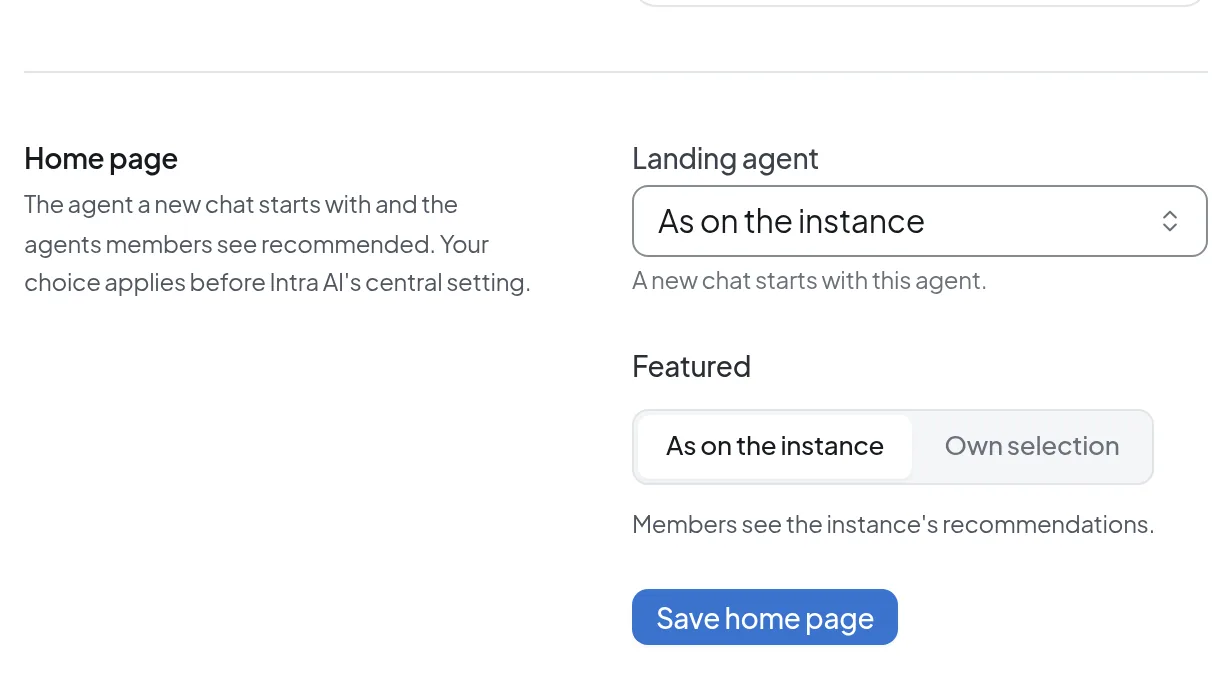 In the Home page section you pick the landing agent and, under Featured, whether the instance's recommendations apply.
Change the appearance
Appearance sets the name, color and logo members see in the app. Any field you leave empty shows the instance's value.
- Open Appearance.
- Under Display name, enter a name such as "Northwind Ltd", or leave it empty.
- Under Primary color, enter a hex value in the form #RRGGBB, such as #4587F4, or use the color picker.
- Click Upload logo and choose a PNG or JPEG file. Remove takes the logo off again.
- Click Save appearance.
The logo can be at most about 24 KB. Intra AI shrinks a larger image on upload; if it still does not fit, you get an error message.
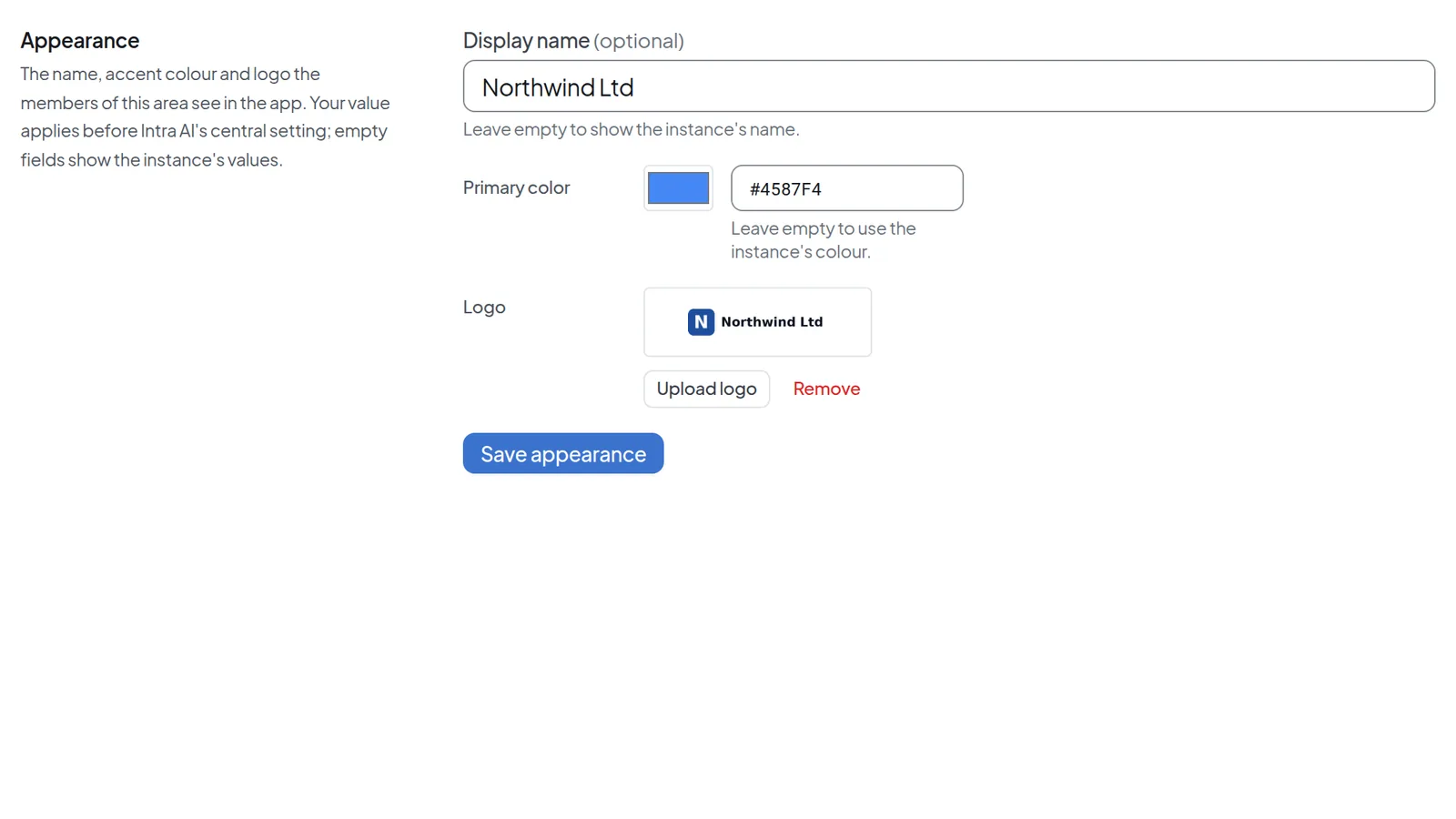 Under Appearance you set the display name, primary color and logo; empty fields fall back to the instance's values.
Check the audit log
The Audit Log tab records who did what in your area, including actions by administrators and members. Entries are kept for 90 days, and nobody can edit them from here.
- Open Audit Log.
- Narrow the entries with Event group, Event, Outcome, Target type, From and To.
- Enter a name or email address under User to see one person's entries.
- Click Details on an entry to see more, such as the request, the status code or which fields changed.
- Click the copy icon next to the item's ID to copy it, for example when you contact support.
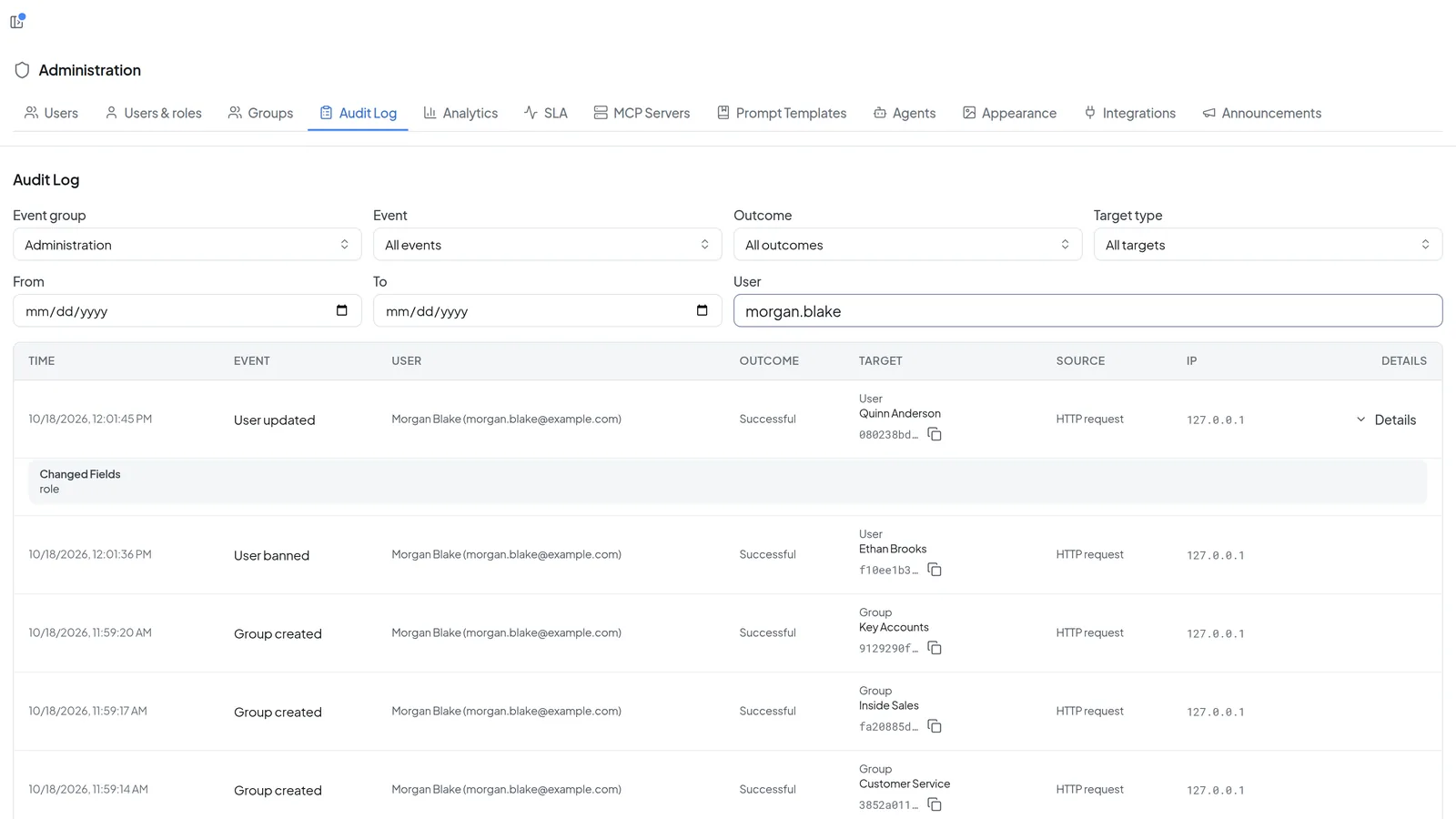 The Audit Log lists actions in your area; Details shows which fields changed.
Loading the user list or a person's details is logged as well, so entries such as "User directory accessed" under your own name are expected.
Publish an announcement
An announcement reaches all members inside the app. Messages and announcements shows what members see. Whether you can create and change announcements depends on your permissions. Without that right you only see the list, and New announcement is missing.
- Open Announcements and click New announcement.
- Fill in Title and Banner text. The banner text is a single line of up to 140 characters.
- Write the full message under Body (Markdown). Links must be complete addresses starting with https://.
- Under Severity, choose Info, Warning or Critical. Warning is selected by default.
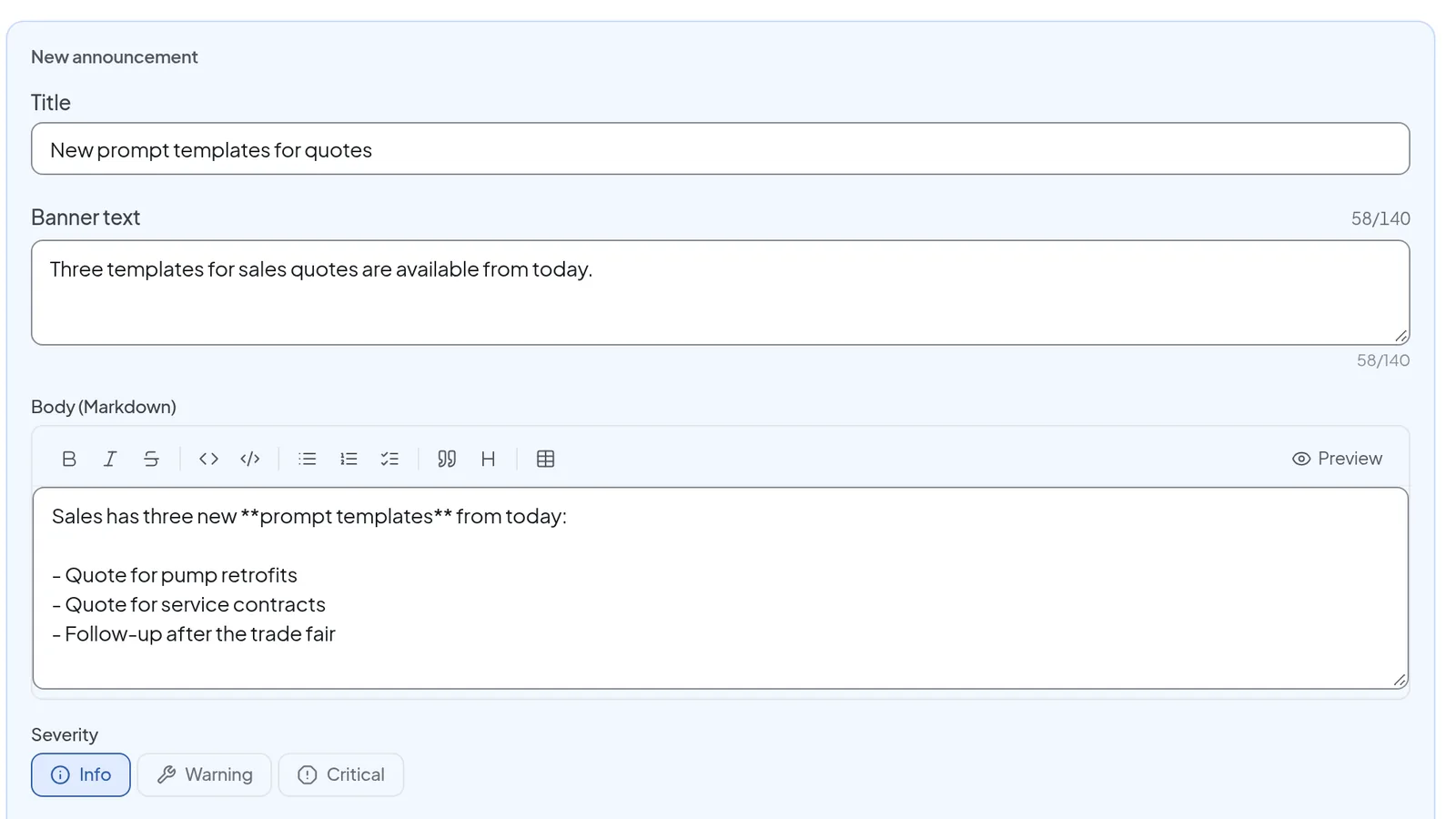 A new announcement has a title, banner text, a Markdown body and a severity.
- If needed, add a Link URL and Link label, a Priority from 0 to 100, and dates under Publish at and Expires at.
- Set the Status to Published so members see the announcement. Draft is selected by default. Archived withdraws an announcement.
- Check the Preview below the form and click Save.
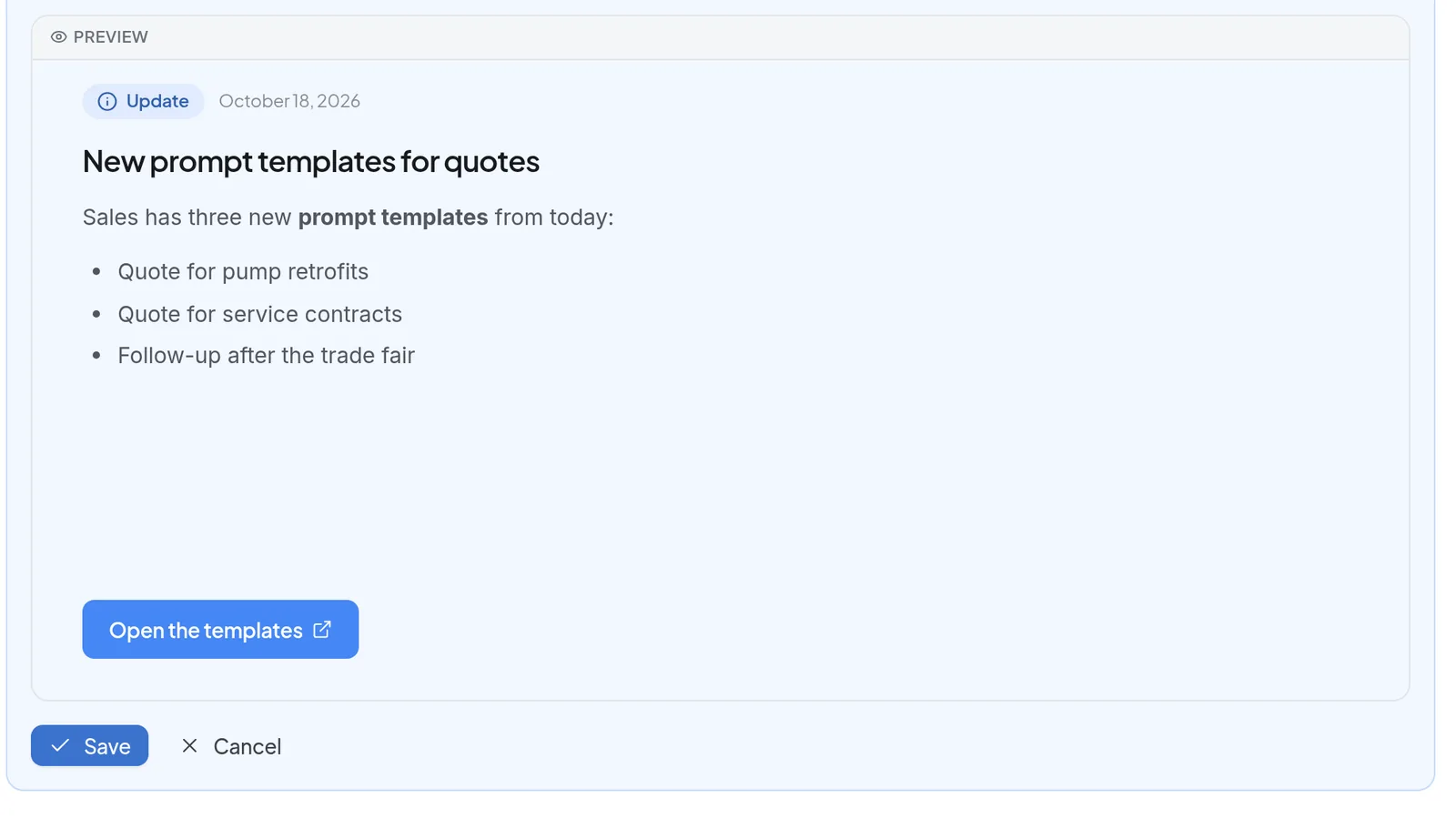 Below the form, a preview shows how members will see the announcement.
To edit or delete a saved announcement, use the icons in its row. Send as email also mails it to registered users, and a sent email cannot be recalled. Announcements labeled Centrally managed come from Intra AI and cannot be changed here.
Set up and release integrations
You set up an app once for the whole organization and decide who may use it. After that, each person connects their own account on their Integrations page.
- Open Integrations and click Set up next to the app.
- Work through the steps. Your progress is saved automatically.
- Use Copy address to carry the address over to the provider's admin console. Enter the values listed under Required scopes there as well.
- Check off the checklist items as you complete them. Intra AI cannot check these for you.
- Click Test the connection. The test only succeeds once every checklist item is done.
- Release the app with Release to the test group (recommended) or Release to everyone. A test group needs at least one existing group, see Create groups.
You can change the release at any time in the Who may use it column. Changes apply at once.
Whether you can change integrations depends on your permissions. Without the right to manage them, you can still view and copy everything. Only administrators can add or remove custom connectors.
Troubleshooting
| Message or situation | What to do |
|---|---|
| Manager Console is missing from the account menu. | Your account does not have the manager role, or the role is not switched on for your instance. Contact the Intra AI team. |
| "Set up two-factor authentication or a passkey to use administrative functions." | Add a second factor to your account, see Sign-in and security. |
| "This user needs two-factor authentication or a passkey before they can be given this role." | Ask the person to set up two-factor authentication or a passkey first, then try again. |
| "Your manager role does not include this action. Ask an administrator to grant it." | This area is not granted to your role. Ask the Intra AI team to grant it. |
| "Enter a colour as #RRGGBB, for example #4587F4." | Enter a # followed by six hex digits. |
| "PNG or JPEG only" | Save the logo as PNG or JPEG and upload it again. |
| "The logo is too large — max. approx. 24 KB. Please upload a smaller PNG or JPEG." | Save the logo smaller or at a lower resolution and upload it again. |
| A group cannot be deleted. | It still has subgroups. Delete or move them first. |