
Skills
A skill is a written procedure for one kind of task, such as checking a travel expense report or writing up meeting minutes. The AI follows it step by step when you call the skill in a message, or when the skill's description matches what you asked for. This page covers finding and switching on skills, writing your own, sharing them and giving them to agents.
Every user can work with skills. Your administrator can turn off skills, or skill sharing, for the whole instance. With sharing off, skills shared with you disappear from Shared with me and stop working. With skills off, the menu entry and the book icon Skills in the message field's toolbar disappear.
Open the skill library
- Open the menu with your name at the bottom left.
- Point to Personalization and select Skills. On a phone, Skills sits directly under the Personalization heading. During a temporary chat, Memory is hidden and Skills sits directly in the menu.
- To narrow the list, type in Search skills.
You can also press Ctrl+K, type "Skills" and open the page from the results.
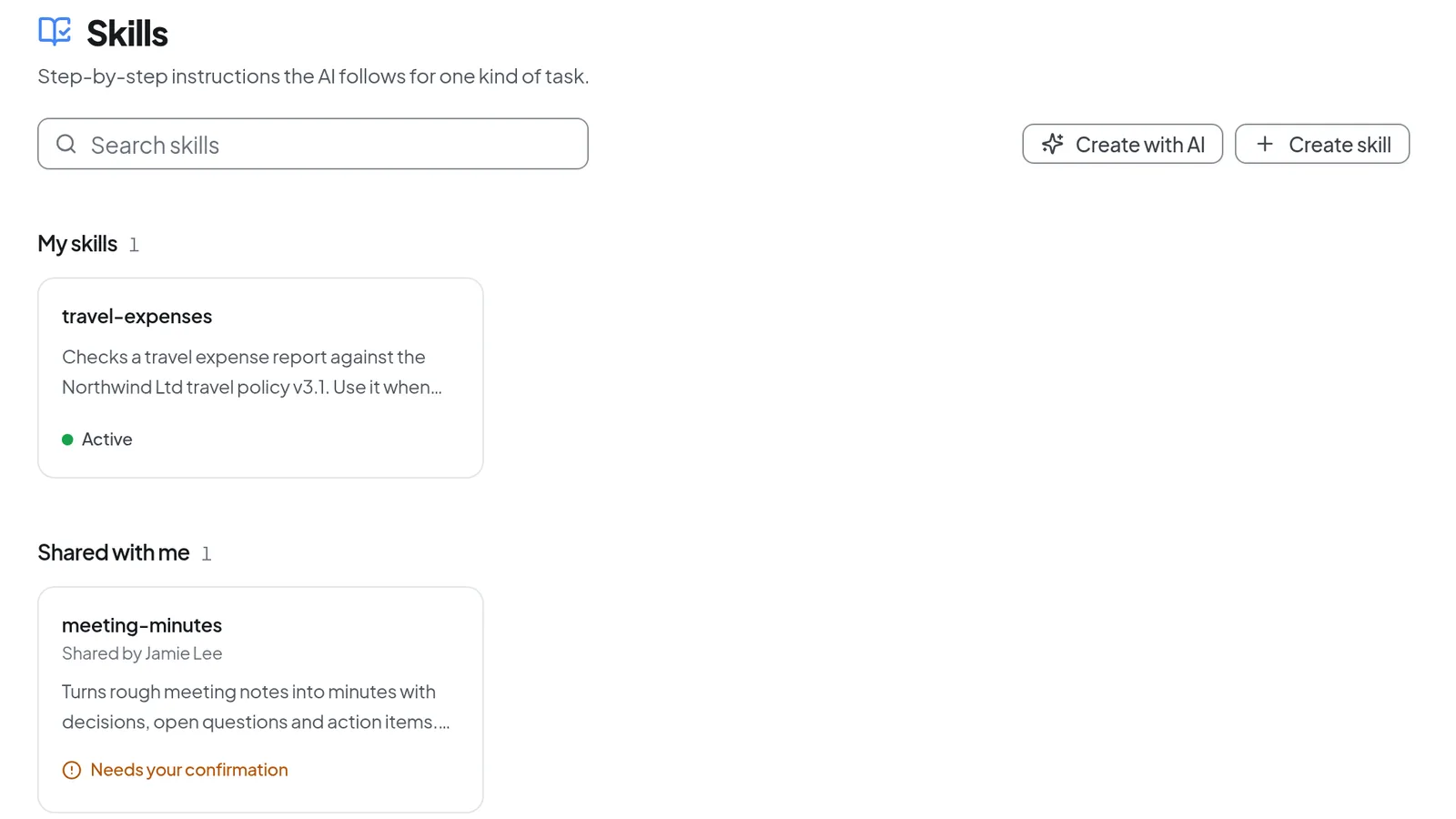 The skill library keeps your own skills apart from shared ones and shows each card's status.
The library has three sections. My skills holds the ones you wrote. Shared with me holds skills colleagues have shared with you. Intra AI holds the standard skills, which arrive from Intra AI once your instance is connected; until then the section is empty.
The bottom line of each card shows its status:
| Status | What it means |
|---|---|
| Active | The AI can use the skill in your conversations. |
| Off | You switched one of your own skills or a standard skill off for yourself. |
| Needs your confirmation | A shared skill you have not read yet, one that changed after you confirmed it, or one you switched off. |
| Disabled by your admin | Your administrator turned this standard skill off for the instance. |
Your own skills and the standard skills start out active. A standard skill that just arrived carries a New badge for 14 days, or until you first switch it on or off.
View details and switch a skill on or off
- Select a card. Its details open on top of the library.
- Under How it is used, check whether the AI loads the skill by itself or only when you call it, and which
#namecalls it in a message. Version shows the version number and the date of the last change. If a skill needs code execution, Requires says so. - Use Active for me to switch the skill on or off. This affects only you.
- Select Use in chat to start a new conversation with the skill attached. Edit (your own skill) or View instructions (a shared or standard skill) opens the skill's page.
Accept a shared skill
When someone shares a skill with you, you get a message with an Open skill button. The skill appears under Shared with me and stays off until you have read it.
- Open the card and select Read and confirm.
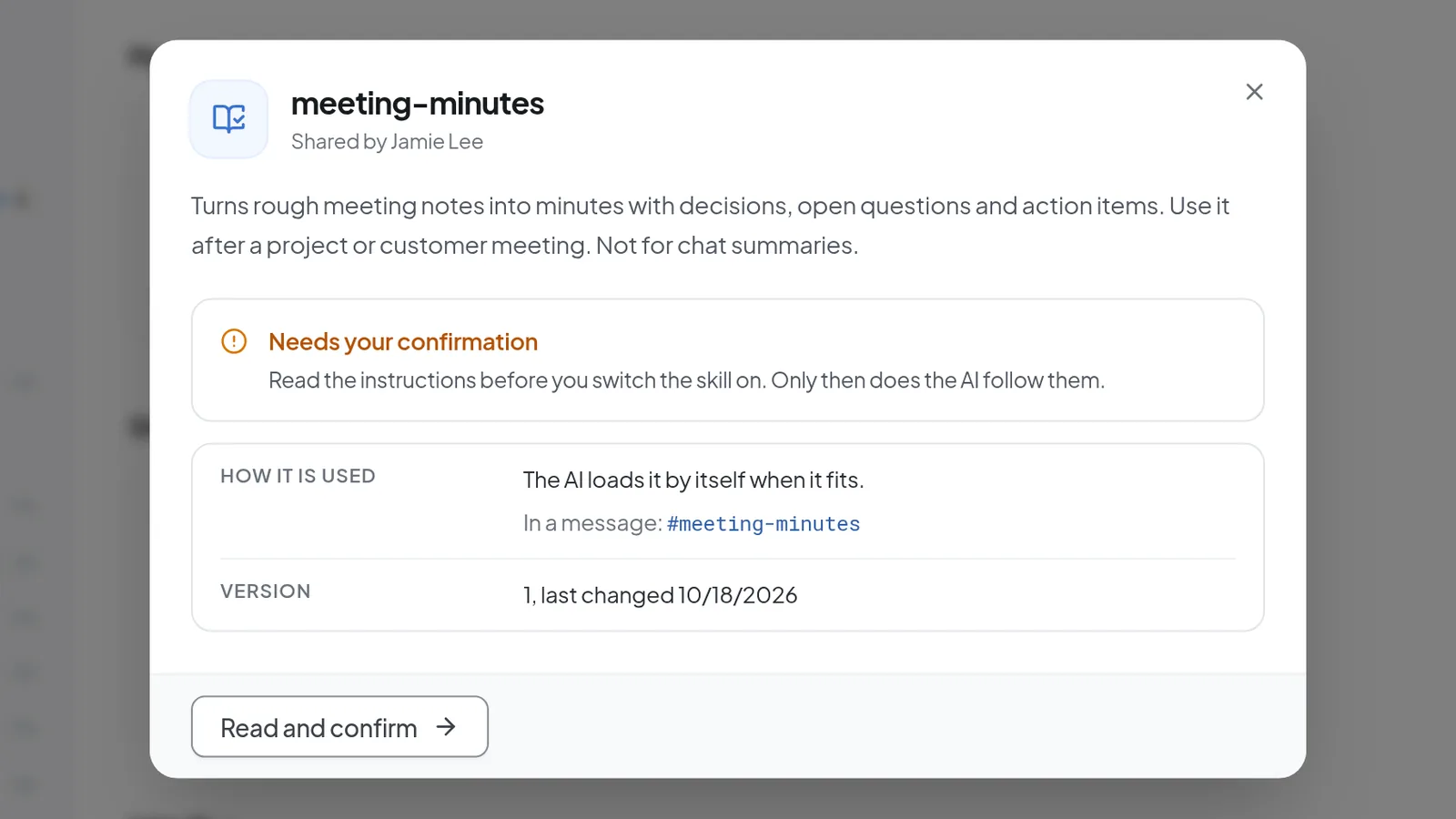 The details of a shared skill you have not confirmed yet: how it is called, its version and the "Read and confirm" button.
- On the skill's page, read the instructions below the description. If the skill contains a link, asks to upload something, uses wording like "ignore previous instructions" or mentions installing software, a box titled Before you switch it on points this out.
- Select Read, switch on. The Active for me switch then appears.
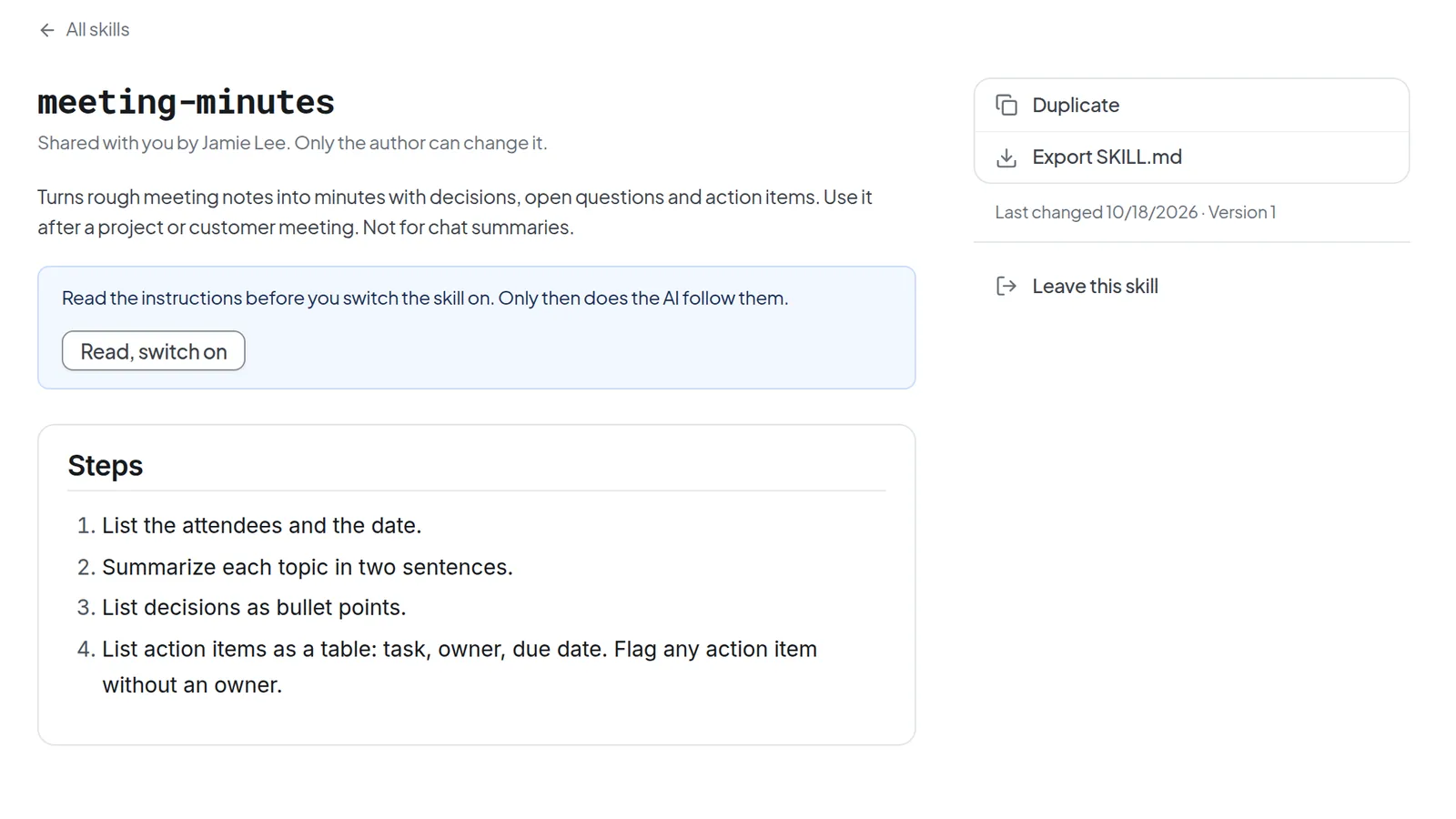 Read a shared skill first, then select "Read, switch on" to turn it on for yourself. Only the author can change it.
Note: When the author edits a shared skill, it switches itself off for you and shows Needs your confirmation again. The AI follows the new version only after you have read and confirmed it. A shared skill you switched off yourself also comes back on only through Read, switch on.
If you no longer want the skill, select Leave this skill on its page. Duplicate puts your own copy under My skills, which you can then change. Duplicate works on standard skills too. The copy is named <name>-kopie at first. Duplicating a standard skill switches the original off for you (status Off), so the two never run side by side.
Use skills in a conversation
- In the message field, type
#followed by the first letters of the skill's name, for example#tra. A#on its own does not open the list. You can also select the book icon Skills at the left of the toolbar. The list shows up to eight skills; keep typing to narrow it. Skills you switched off are not listed. - Pick a skill with the mouse, or with the arrow keys and Enter. It appears as a chip above the message field.
- Write your message and send it.
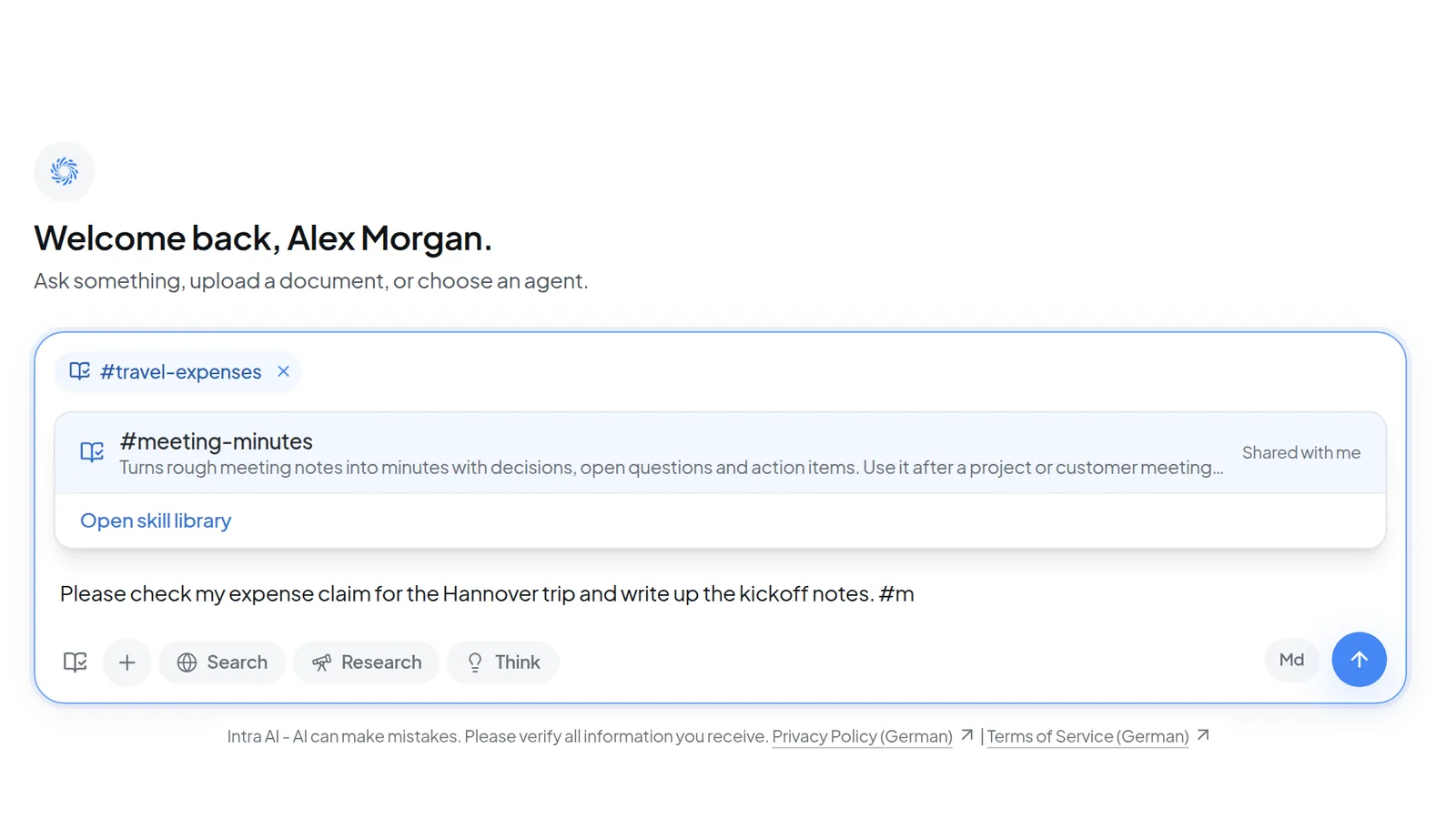 In the chat, type # and a letter to pick a skill. Skills you pick appear as a chip above the input field.
You can pick up to two skills per message. A conversation keeps at most two skills active at once, and that includes skills the AI loaded by itself, which also show as chips. When a third one arrives, the oldest drops out, and a skill the AI loaded goes before one you picked. Remove a chip with the ×. The removal applies from your next message.
A shared skill you haven't confirmed yet shows up as Review and switch on and links to its page. Open skill library at the bottom of the list takes you to the library.
You don't always have to call a skill. When The AI may load it by itself is on and the skill is active for you, the AI loads it whenever its description fits your request. The answer's steps then show a line such as Load skill travel-expenses. Skills that need code execution load only when code execution is available in the conversation.
Create a skill
- In the library, select Create skill.
- Enter a Name made of lowercase letters, digits and single hyphens, starting and ending with a letter or digit, at most 64 characters, for example
travel-expenses. Names of standard skills are taken. You will call the skill with#travel-expenses. - Write the Description: what the skill does, when to use it and when not to. While the field is empty, Insert template gives you a frame to fill in. The limit is 1,024 characters, and angle brackets are not allowed.
- Check the gray box What the AI sees in its list. The AI reads only the first 250 characters of the description when it decides whether to load the skill, so put the important part first.
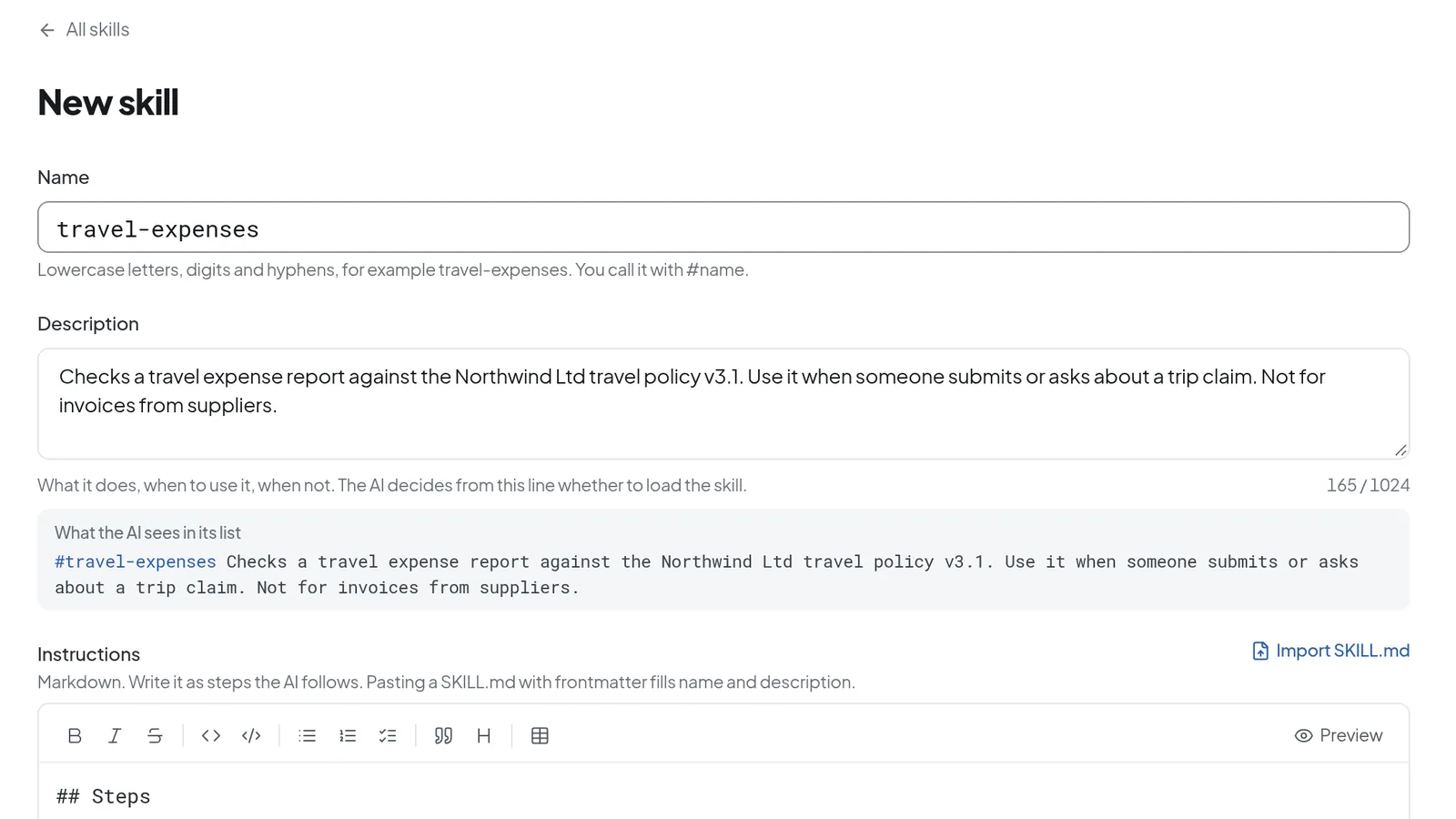 When you create a skill, enter a name in lowercase letters and hyphens and a description. The preview shows what the AI sees in its list.
- Under Instructions, write the steps the AI should follow, in Markdown. Preview shows the formatted result. The instructions can be up to 16,000 bytes long, and the counter below the field keeps track.
- Decide with The AI may load it by itself whether the AI can pick up the skill on its own. With the switch off, the skill only runs when you call it with
#. - Select Save. You see "Skill created." and the new skill's page opens.
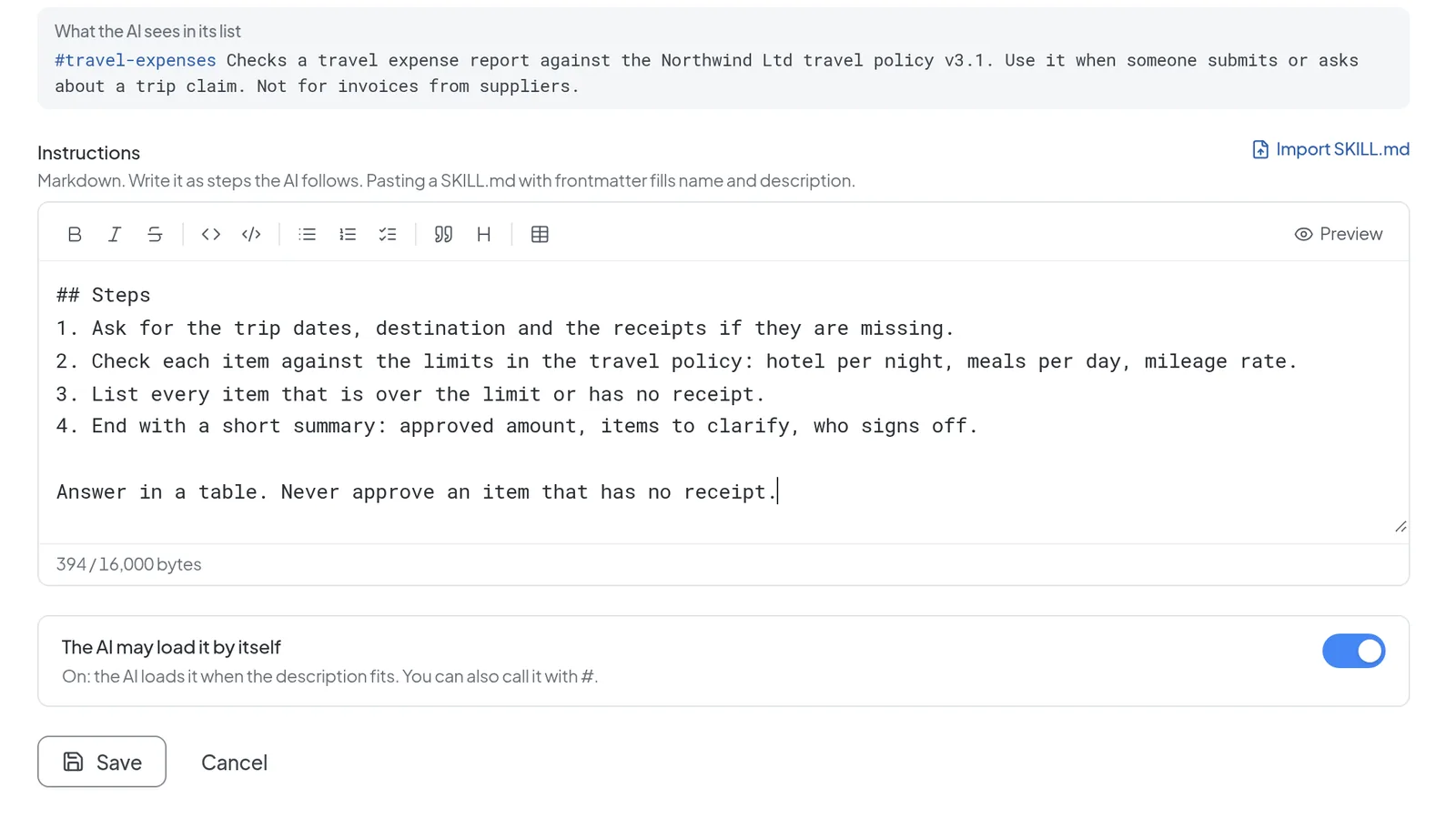 Write the instructions in Markdown, as steps. With "The AI may load it by itself" switched on, the AI loads the skill when the description fits.
Tip: Leave a blank line after a numbered list before you add a closing rule. Without it, the preview merges that line into the last list item.
On the saved skill's page, Test in chat opens a new conversation with the skill attached so you can try it out.
Create with AI is the other way in. It opens a new conversation with "Help me write a new skill." already in the message field. If the standard skill skill-erstellen is available on your instance, its chip is attached too. Add what the skill should do and send the message. When you are happy with the draft in the answer, copy it into the editor yourself.
Import and export a SKILL.md
You can move skills around as Markdown files with a short header (frontmatter). Such a file starts like this:
---
name: travel-expenses
description: Checks travel expense reports against our policy. Use when an expense report needs checking.
---
## Steps
1. …
- To import, select Import SKILL.md next to Instructions in the editor and choose a
.mdfile. The name and description come from the header and everything else becomes the instructions. Pasting the same kind of text into Instructions does the same. Either way, it replaces whatever was in the instructions before. - To export, select Export SKILL.md on a skill's page. The file is named after the skill, for example
travel-expenses-SKILL.md.
Edit or delete one of your skills
Your own skill's page is also its editor. Change the fields and select Save. Each saved change raises the version number, and anyone you shared the skill with has to confirm the new version before it runs for them again.
To delete a skill, select Delete in the right-hand column and confirm. Conversations that used the skill keep their answers. You cannot undo a deletion.
Share a skill
- Open one of your own skills.
- Under Share, type at least two letters of a name or email address into Search colleagues.
- Select the plus next to the person in the results. They appear under People with access, with the date you added them.
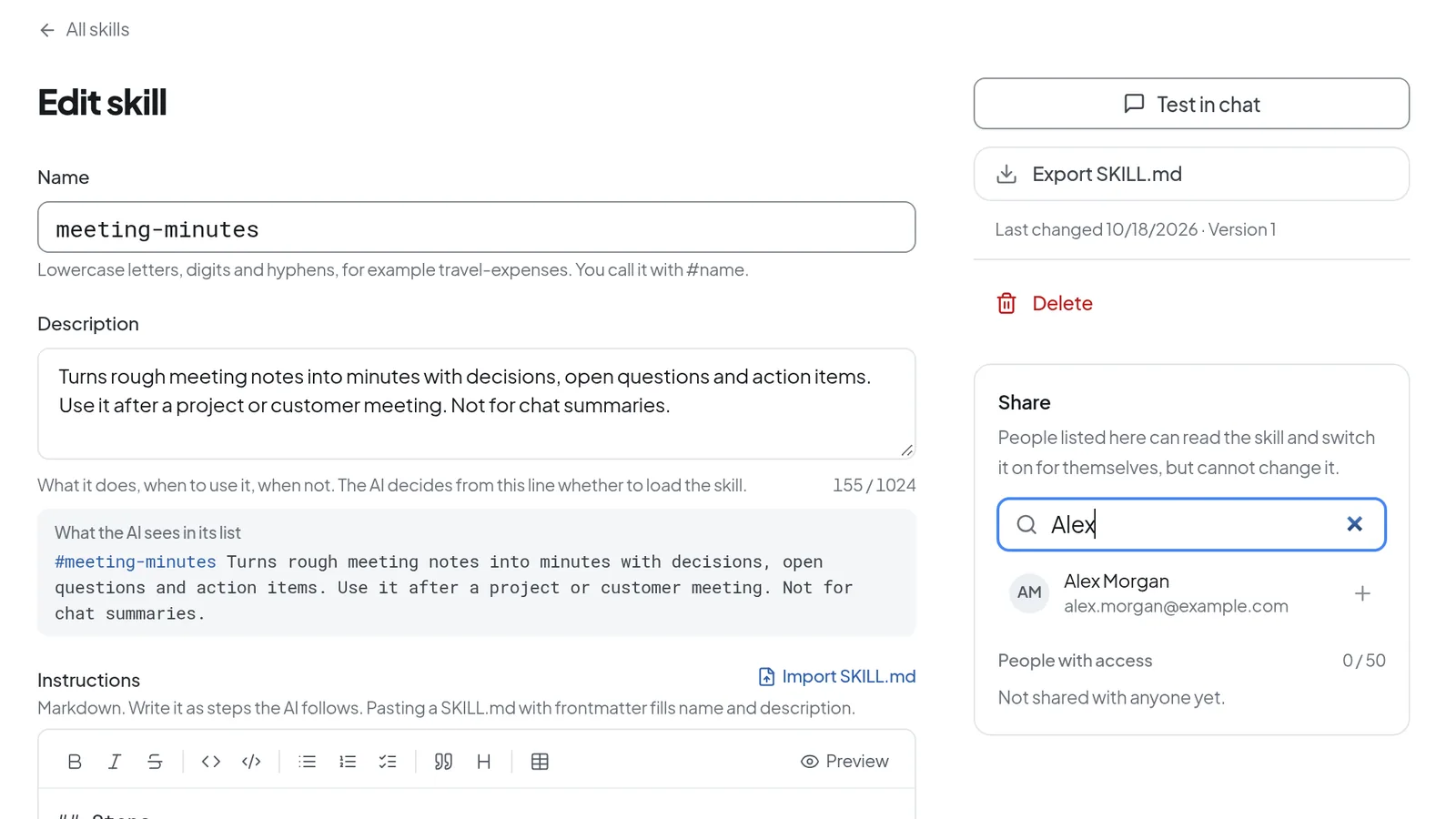 On your own skill's page, search for colleagues under "Share" and add them. They can read and switch on the skill but cannot change it.
The people you add can read the skill and switch it on for themselves, but they cannot change it. You can share a skill with up to 50 people. If your instance is split into tenants, you can only share within your own tenant. The icon next to a name removes that person again. If the Share section says "Sharing is switched off on this instance.", your administrator has turned sharing off.
Give skills to an agent
If you build agents, you choose their skills while building the agent:
- Open the Tools step and, under Capabilities, switch on the Use skills tile.
- In the Skills section, switch on Find matching skills automatically if the agent should pick skills the way a conversation without an agent does. It then picks from the skills of whoever is chatting with it: their own skills, skills shared with them and the standard skills.
- Under Always included, select the standard skills that should be active in every conversation with this agent, whoever is chatting. You can pick up to eight.
Always included lists standard skills only. Personal skills are left out because a shared agent would otherwise hand them to people who are not allowed to read them. In a conversation with the agent, these skills show as gray chips with a lock that you cannot remove. For more on capabilities and knowledge, see Tools, knowledge and sub-agents.
Troubleshooting
- "Use lowercase letters, digits and hyphens only, starting with a letter or digit.": remove capitals, spaces, underscores and accented letters from the name. The name also cannot end with a hyphen or contain two hyphens in a row.
- "Skill name is taken": the name is already used by one of your skills or by a standard skill. Pick a different name.
- "Remove the angle brackets from the description.": replace
<and>in the description. - "The instructions are longer than 16,000 bytes.": shorten the instructions. Accented letters such as ä or é count as two bytes each.
- "At most 100 personal skills": delete a skill you no longer need. Copies count toward the limit too.
- "Someone saved this skill in the meantime. Reload to see the current version.": the skill was saved in another window or tab. Reload and make your change again.
- "This file has no readable SKILL.md frontmatter.": the file has to start with a header between two
---lines, as in the example above. - "At most two skills per message": remove a chip before you pick another skill.
- "This skill does not exist or you cannot read it.": the skill was deleted, its author removed you from the share, or your administrator switched off this standard skill or skill sharing.
- "Skills are switched off on this instance": your administrator has turned skills off. Ask them if you need the feature.