
Your data and privacy
Decide how long Intra AI keeps your conversations and files, download a copy of your data, and find out what administrators and managers can see about your usage. The settings are in the account menu under your name, at Settings › Data & Privacy. Every user has this tab.
Set how long data is kept
The Retention section has two windows. For Chats, the clock starts at the last time you used a conversation, so every new message resets it. For Files, it starts at upload. If the window changes, existing files are recounted from their last change. When a window runs out, Intra AI deletes the data automatically.
- Open Settings › Data & Privacy. Retention is at the top.
- Under Chats or Files, pick a window: 7, 14, 30, 60, 90, 180, 365 or 730 days, or Never. If a different window set by your administrator already applies, it appears in the list too.
- Click Save. The button only becomes active after you change something. Undo puts back the saved value.
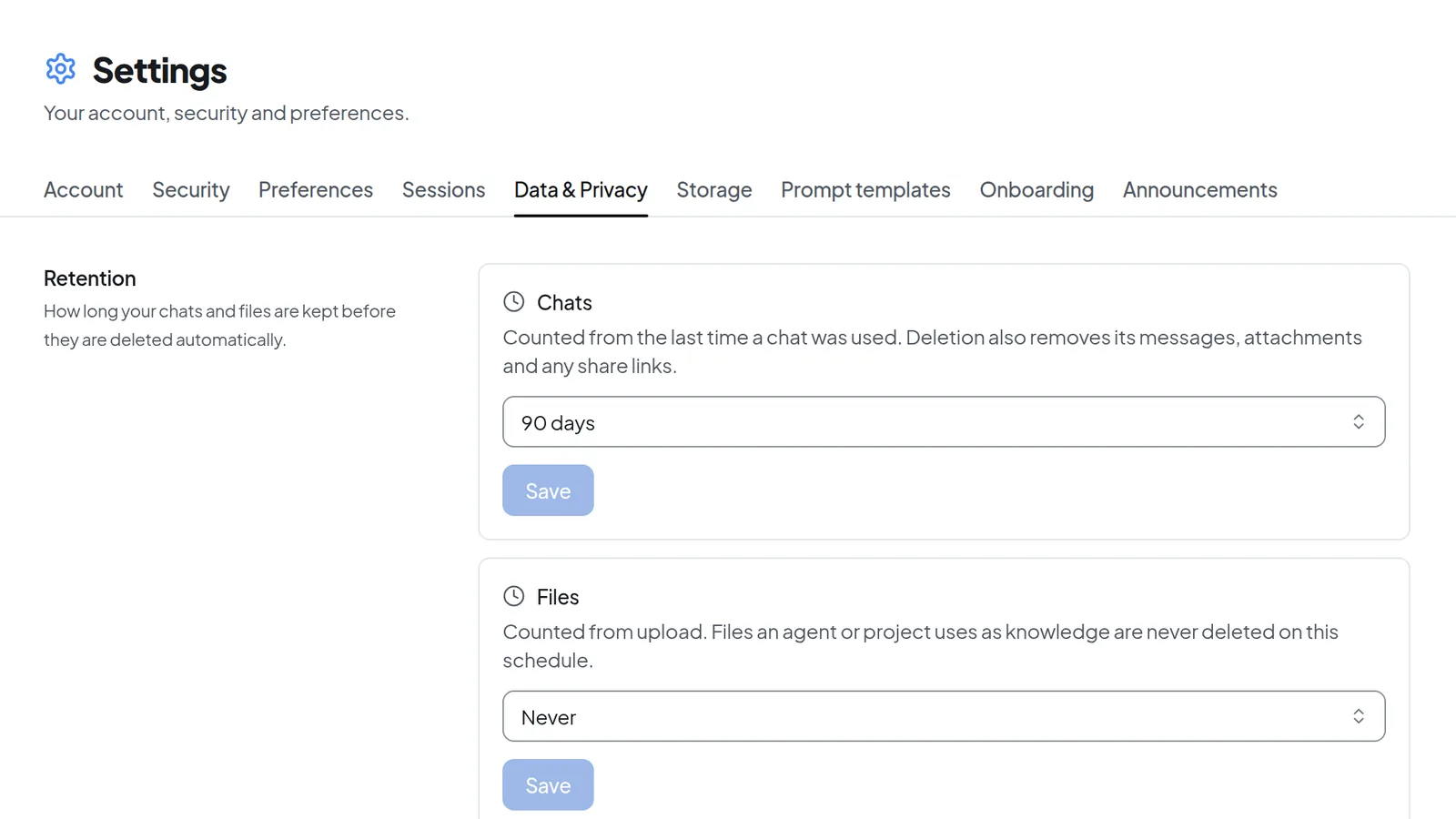 Under Data & Privacy you set how long conversations and files are kept.
Your administrator can narrow the range. The list then offers only the allowed windows, and Never disappears once there is a maximum. If your administrator has fixed the window, you see "Set by your administrator to … days." instead of a list.
Deleting a conversation also removes its messages, attachments and share links. A shared conversation follows the retention window of the person who owns it, not the window of the people it was shared with. Files that an agent or project uses as knowledge are never deleted on this schedule.
Shorten a window
A shorter window also applies to data you already have. As soon as you pick a shorter value, an amber warning says so.
- Pick the shorter window and click Save.
- A dialog asks you to confirm, for example "Shorten chat retention to 30 days?". Cancel has the focus.
- Read what will be deleted. Conversations you haven't used within the new window are deleted within the hour. Older files are deleted at the next cleanup.
- Click Delete and shorten to apply the new window, or Cancel to keep the current one.
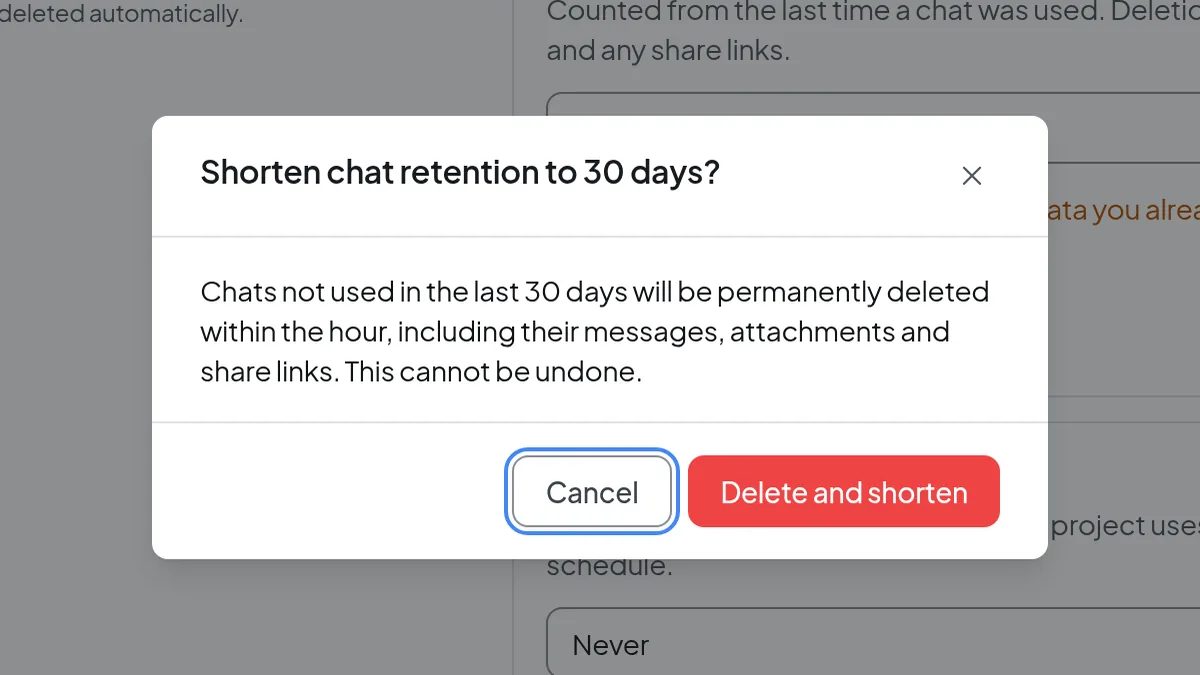 Shortening retention asks you to confirm that older conversations will be deleted for good.
Warning: Anything deleted when you shorten a window is gone for good. If you still need an older conversation, export it first as described in Exporting conversations.
Check what usage data is recorded
The Usage analytics section explains why Intra AI analyzes how it is used: to find faults, manage cost and improve answer quality. Under What is recorded you see each kind of usage record kept about you and how long it is kept. Examples include your sessions, your individual requests and their outcome, your ratings of answers and the tokens your requests used. The entry for message metadata states that it does not include the message text.
Nobody maintains this list by hand. The system generates it from the retention windows currently configured and shows when it was generated. If your organization changes a window, the list shows the new value.
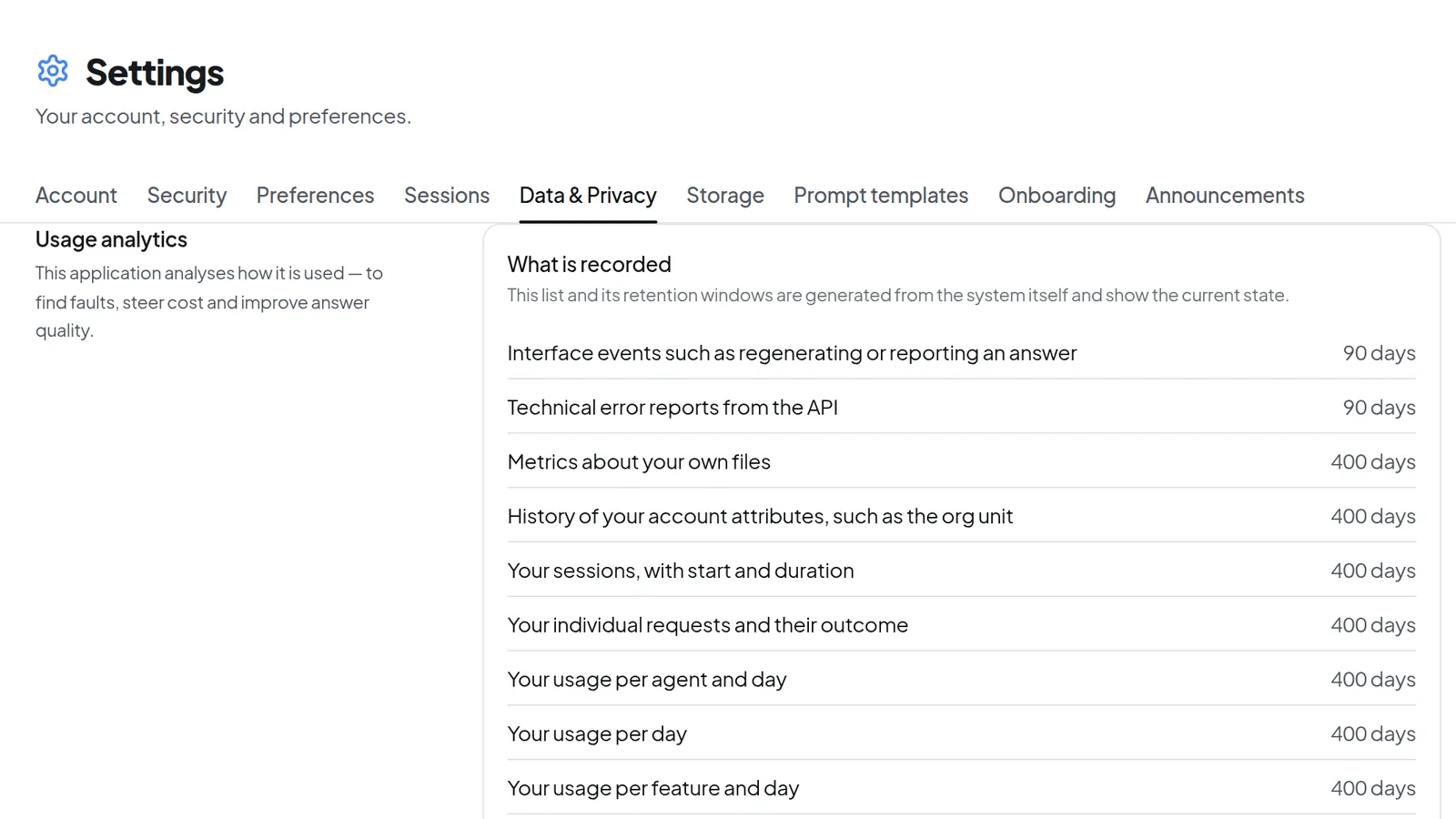 The Usage analytics section lists which usage data is kept and for how long.
Below the list, View my usage opens your own figures. Nobody but you sees that page. Profile, usage and token balance explains what is on it.
After you sign in, the About usage analytics window also opens. If you close it without acknowledging, it comes back on your next visit until you click Acknowledge. The notice lists the settings that apply on your instance. If your organization changes one of them, the notice appears again. Your acknowledgment is recorded in the audit log.
Download your data
- In Data & Privacy, scroll to Export data.
- Click Download data.
- Your browser saves a JSON file with your personal data.
The file contains:
- your profile, settings and preferences
- your conversations and messages
- what you created: agents, skills, projects, memories, templates and the details of your files
- your usage, balance and activity records, including your audit log entries
It does not contain the contents of your uploaded files. You can download those one at a time under Files (see Managing files). Sign-in secrets such as your password, two-factor codes and access tokens are left out too.
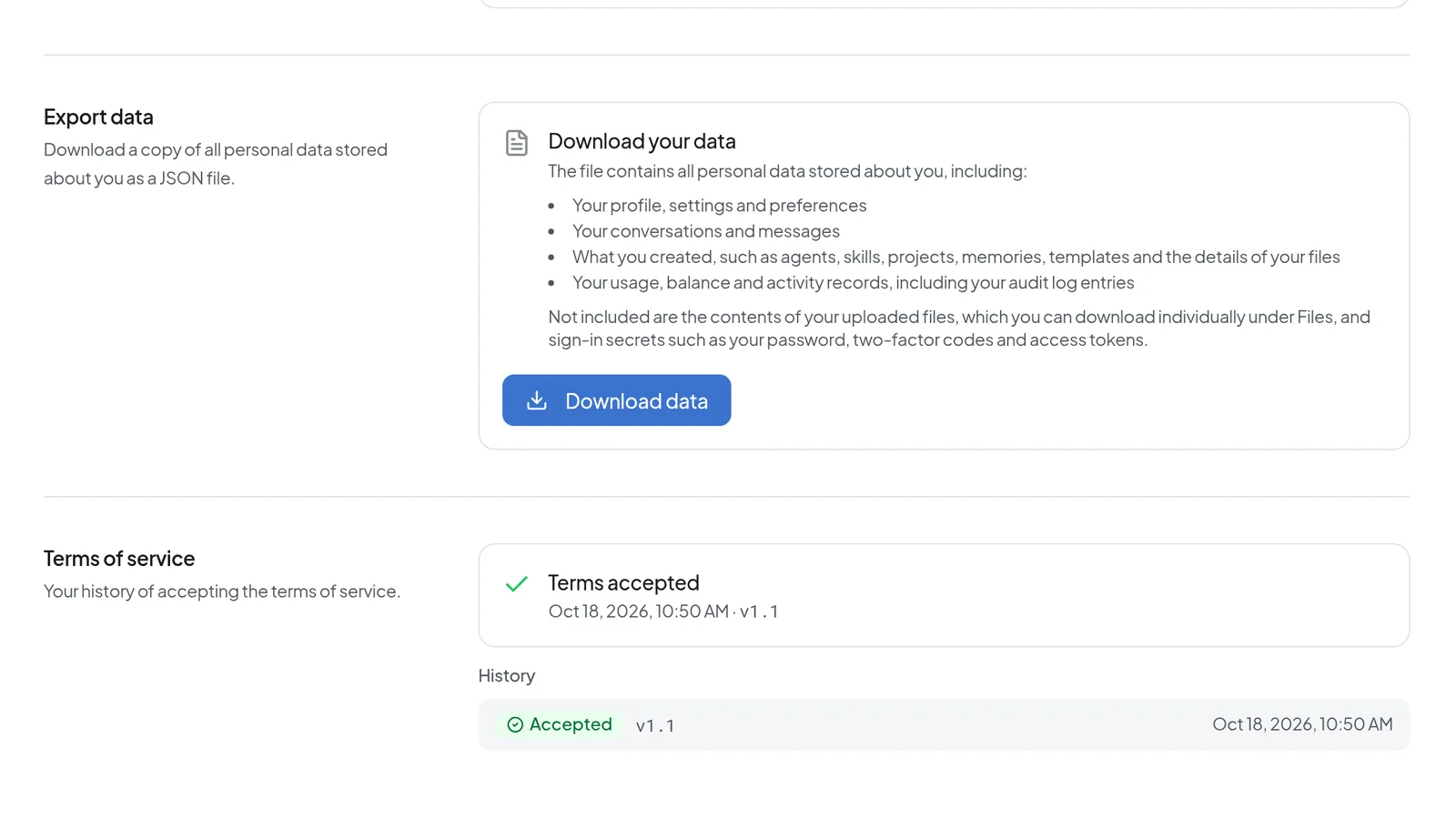 Download data gives you your personal data as a JSON file; below it is your terms-of-service history.
This export covers your whole account. To save a single conversation as PDF, Markdown or JSON, use the share dialog of that conversation instead, if sharing is turned on for your instance.
View your terms-of-service history
At the bottom, Terms of service shows when you last accepted the terms, with date, time and version, such as "v1.1". Below it, History lists each decision as Accepted or Declined. What declining at sign-in does to your account is described in Sign-in and security.
What administrators and managers can see
How much reports may reveal about individual people is set in your instance's configuration. Administrators can't change it in the admin area. There are three levels:
| Level | What reports show |
|---|---|
| Combined (default) | Combined figures only. Nobody sees your usage by name. |
| Pseudonymous | Figures per person, but only under a pseudonym that changes every month. Names are not shown. |
| Identified | Authorized people may also view reports by name. Every such view is logged with its purpose and visible to the works council. Revealing a pseudonym needs approval from a second person. |
The usage analytics notice tells you which level applies to you. If you have already acknowledged it, ask your administrator. Where your instance breaks reports down by organizational unit, it does so only above a minimum group size. Analytics for managers shows what this looks like from the manager side.
Outside of reports, administrators or authorized managers learn more about individual people in a few places:
- If your organization plans monthly token limits, whoever manages the token budget sees each member's name and monthly limit. They see each member's token use, top models and agents, and balance used only if your instance runs at the Identified level and that view has been granted to them. Every such view states its purpose, "Token budget planning", and is logged. Private agents appear there only as "Private agent".
- If you report a problem with Report under an answer, your administrators may read the reported answer, your question, the conversation history and the technical details, only to work on that report. With Report chat below the message box, consent covers only the conversation history and the technical details. You give it by checking a box in the report dialog. The report keeps a copy of this content, with the text encrypted. That copy stays even if the conversation is deleted later, whether by your retention window or because it was a temporary chat. By default it is removed 90 days after the report is closed.
- A global share link is a read-only snapshot of a conversation that only signed-in users of your instance can open. Administrators can see every global link under Global Links and can revoke it.
- The audit log records certain actions, such as exporting a conversation.
Use a temporary chat
A temporary chat disappears when you leave it. It doesn't show up in your conversation list, and it neither reads from nor adds to your memory.
- Open the chat and click the ghost icon in the header (Turn on temporary chat). The chat start page opens with "Temporary chat" above the message box.
- Send your first message. That starts the temporary chat.
- To end it, click the ghost icon again (Turn off temporary chat). Intra AI deletes the conversation.
Switching to another conversation, reloading the page or closing the tab deletes it as well. After a reload you see "Temporary chat ended". Once the chat has messages, your browser asks before you reload or close the tab. Temporary chats can't be shared, bookmarked, filed in a project or archived. The tokens they use are still recorded and count against your balance. Temporary chats are left out of usage analytics and of My usage. For how this works with memory, see Memory.
Exercise your rights
The My usage page lists your GDPR rights under Your rights:
- Access: Download my data produces the same JSON export as Download data.
- Objection: turn off Record interface events to object to the recording of interface events, such as regenerating or reporting an answer. The server enforces your objection, so it applies on your other devices too. By default, Intra AI records no interface events; the usage analytics notice tells you whether your instance does. The switch is always there so your objection holds if recording is turned on later.
- Erasure: to have your account and its data deleted, ask your administrators.
Troubleshooting
| Message or symptom | What to do |
|---|---|
| "The download was interrupted before it finished. …" | Click Download data again. If it keeps failing, contact support and quote the reference from the message. |
| "The usage-analytics details could not be loaded." | Reload the page. If the message stays, contact your administrator. |
| "Set by your administrator to … days." or "Set by your administrator: never deleted automatically." instead of a list | The window is fixed. Only your administrator can change it. |
| The window you want, or Never, is missing from the list | Your administrator has set a minimum or maximum window. |