
Analytics for managers
The Manager Console has two areas with figures. Analytics shows how your organization uses Intra AI, as aggregate numbers only. SLA shows how available your instance has been.
In the Manager Console, everyone with the manager role sees SLA. Analytics appears only if Intra AI has granted analytics to your manager role.
If you manage a tenant on a multi-tenant instance, you get a separate console for your tenant. It has no SLA tab. Its Analytics tab covers only your tenant and leaves out Findings, Opportunities, the data quality badge and the CSV export.
Open analytics
- Open the menu next to your name and, under Organization, select Manager Console.
- Select the Analytics tab. The page heading is Analytics as well.
- Pick a section: Overview, Adoption, Usage, Agents, Problems, Tokens, Knowledge, Opportunities, Changes or Findings.
- Under Range, choose the days to look at, for example 28 days. The line under the field ("Data from … to …") tells you which days the figures cover.
- Check the badge under the heading before you draw conclusions. It tells you how complete the data is.
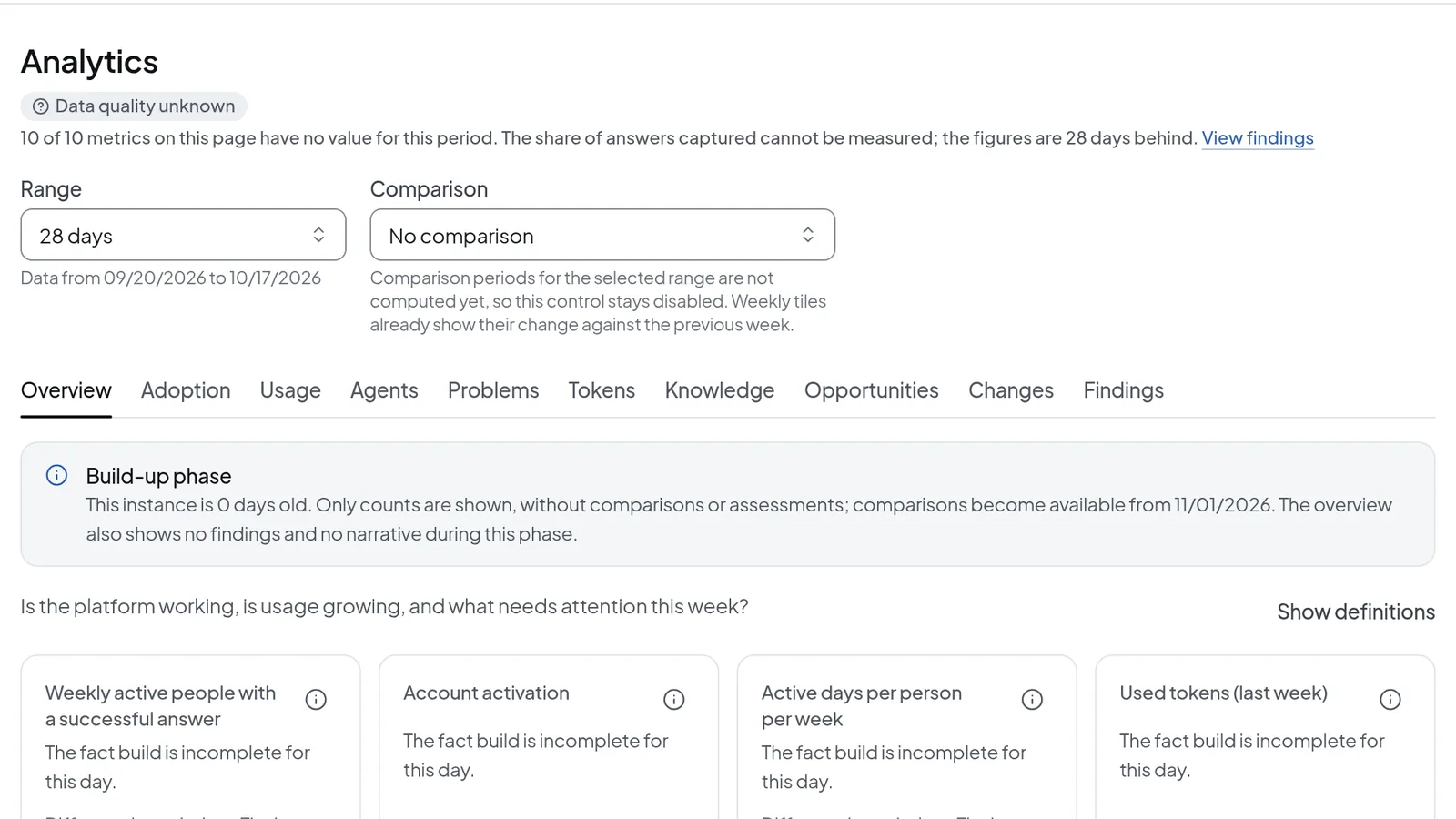 Analytics with the data quality badge, range, comparison and sections; on a new instance the build-up phase notice appears below.
The section, range and filters are part of the page address. If you copy the address and send it to a colleague, they get the same view, as long as they are allowed to open analytics themselves.
Range, comparison and filters
Range offers 7 days, 28 days, 91 days, 364 days, Calendar week, Month to date, Quarter to date and Custom. With Custom you enter From and To yourself.
The Comparison field is disabled for now and stays on No comparison, because comparison periods are not computed yet. Weekly tiles already show their change against the previous week on their own.
When a view is filtered to a particular group or value, the filter appears under Filters, and you can remove each one separately. If none of the figures in the current section can be calculated with your filters, Not applicable here appears under Filters and the section shows unfiltered figures. The filters stay in place and apply again as soon as you switch to a section that supports them.
What data protection holds back
Note: The analytics grant gives you aggregate figures only. The server strips names and per-person rows before the data reaches your browser.
If the group behind a figure is too small, analytics does not show it. By default this minimum group size is 10% of the people active in the range, never less than 3 and never more than 5. An instance administrator can set a fixed value between 1 and 50 under Operations > Analytics; on instances Intra AI operates, that is Intra AI. Managers can't change it.
What you see depends on how much is affected. If a whole page is affected, it says Withheld for data protection, followed by "… people were active in the selected period, below the minimum group size of …". In tables, the affected rows are left out and a line below says something like "3 rows were withheld for data-protection reasons."
Views that name individual people are switched off. Turning them on takes two things. The instance's configuration file has to switch on identified analytics, which takes a new deployment. An instance administrator also has to select Grant identified analytics under Operations > Analytics. That grant covers the whole instance, administrators and managers alike, but never tenant managers. As a manager you can't switch on either one yourself. Every request for such a view is recorded in the audit log, including refused ones.
Some notices are about too little data rather than privacy. "Too few observations to judge (n = …, … needed)." means there is not enough data yet for a reliable statement. "Counts only: the data basis is too small for a rate." means you get the count but no percentage.
The build-up phase of a new instance
For the first 14 days of an instance, analytics shows a Build-up phase notice. During that time you only get counts, with no comparisons and no assessments. The Overview also shows no findings and no narrative.
The notice gives the date from which comparisons become available. After that date it goes away on its own.
Read the data quality badge
The badge under the Analytics heading has four states:
| Badge | What it means |
|---|---|
| Data complete | At least 98% of answers are captured and the figures are at most one day behind. |
| Data delayed | At least 90% are captured and the figures are at most three days behind. |
| Data incomplete | Less is captured, or the figures are further behind. |
| Data quality unknown | The share of captured answers can't be measured. Or the data would be complete, but figures are missing on this page or the page was withheld for data protection. |
Below the badge, a sentence says how many figures on the page have no value, for example "10 of 10 metrics on this page have no value for this period." If even one figure on a page is missing, the badge on that page won't say Data complete. View findings takes you to the Findings section.
Export figures as CSV
The Tokens section has an Export block. There you can download the Summary and each breakdown as a CSV file. The file header lists the range, the definitions version, the reported scope and how many rows were withheld for data protection. Missing values stay empty and give a reason instead of showing up as 0.
View SLA figures
A check point separate from the production hosting tests the core functions every 120 seconds. The SLA tab shows the results for your instance.
- In the Manager Console, open the SLA tab.
- Under Period, choose So far (month), Last 30 days or a single month since the measurement started.
- In Overview, read Availability, Counted downtime, Remaining budget and Measurement coverage. Below them are Current status for each check target and the Daily history for up to the last 90 days.
- Select Incidents to see the month's outages and how much of each counts, along with adjustments and measurement gaps.
- Select Maintenance to see the maintenance windows of the last 92 days and any upcoming ones, and whether each was announced in time.
- Select Method to read how availability is measured and calculated, and which exclusions apply.
For So far (month) the first card reads Availability so far, and for Last 30 days it reads Availability, last 30 days. Remaining budget only has a value for a calendar month; otherwise the card says "calendar months only". At the bottom of Overview you'll find operating data and the status of the inference providers. They are kept as evidence and don't count toward availability.
Figures for So far (month) and Last 30 days are provisional and carry the Provisional label. The figure for the closed calendar month is the one that counts. A closed month can still be marked Provisional, for example while the end of the month hasn't been confirmed by a check. The reason appears next to the label.
Download a monthly report
- In the SLA tab, open the Method view.
- Under Monthly reports, find the month you need. Only reports Intra AI has released are listed.
- Download the report as JSON or HTML.
The JSON file holds the report exactly as Intra AI signed it, with the signature and the public key that verifies it. A correction appears as a new version.
For a month's figures, with daily values, incidents and maintenance windows, use Export CSV or Export JSON at the top of the tab. The export covers the month of the period you selected. The CSV file has German column headers, even when you use Intra AI in English.
Troubleshooting
| What you see | What to do |
|---|---|
| There is no Analytics tab | Your manager role has no analytics grant. Intra AI sets the grants. |
| "The fact build is incomplete for this day." or "The fact build is incomplete for part of this period." | The figures for that day, or part of the period, haven't been computed yet. Check the page again later. If, a day or two later, the line under the badge still says the figures are several days behind, write to support@intra-ai.de. |
| "Analytics could not be loaded" | Select Try again. If it keeps failing and an error code appears below the message, send that code to support. |
| "The end date is before the start date." | Choose a later date under To. |
| "The SLA data could not be loaded" with "The Hub is not reachable" | The Manager Console gets SLA figures from a central Intra AI service, and it isn't answering right now. Select Try again. If the disruption continues, write to support@intra-ai.de. |
| "As of … – Hub not reachable" | You are looking at the last figures that loaded. The time shows how old they are. |
| "No SLA measurement is assigned to this instance." | Your instance has no SLA measurement. Monthly reports that were already released stay visible. |
| "This instance is not under SLA." | Nothing counts toward availability and there are no SLA figures. |
| "The SLA measurement for this instance has not started yet." or "The SLA measurement begins on …" | There are no figures before the measurement starts. Intra AI starts it once the instance is set up. |