
Tools, knowledge and sub-agents
The Knowledge and Tools steps of the agent builder decide what an agent can reach: built-in capabilities, actions from integrations, other agents working as sub-agents, its own files, and details each person fills in for themselves. For opening the builder and moving between steps, see Building an agent.
Both steps need a saved agent. Give it a name in the Identity step and select Next. Some fields only appear when you turn on Expert mode at the top of the builder. They carry an Expert label, and once one of them holds a value, it stays visible with expert mode off.
Turn on capabilities
- Open the Tools step.
- Under Capabilities, click each tile the agent needs. A tile that is on is highlighted. Click it again to turn it off.
- If you turned on Use skills, go to Skills below the tiles and, under Always included, pick the standard skills of your instance that the agent should always have. The counter there shows how many you can pick. With Find matching skills automatically, the agent chooses from the skills of whoever is using it. The Skills section only appears when skills are turned on for your instance.
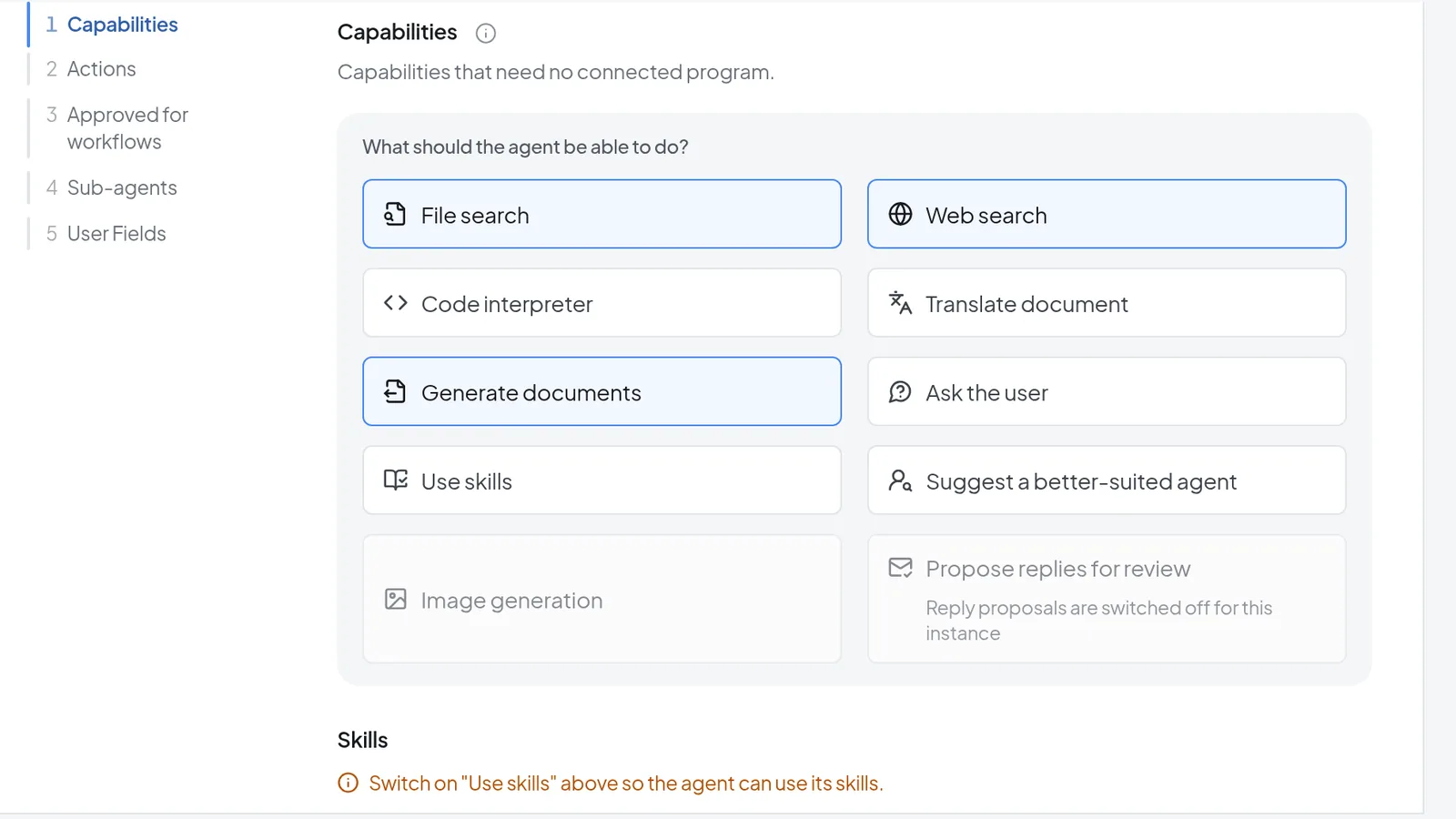 Capabilities in the Tools step: File search, Web search and Generate documents are on.
| Capability | What it lets the agent do |
|---|---|
| File search | Search the files you give the agent in the Knowledge step. |
| Web search | Look things up on the web. The query goes to Staan, a European search service. See Web search and sources. |
| Code interpreter | Run Python code to analyze data and files. See Analyzing data and creating charts. |
| Translate document | Translate an uploaded document into other languages as a downloadable file. |
| Generate documents | Create PDF, DOCX and XLSX files. See Generating documents. |
| Ask the user | Pause mid-answer to ask a follow-up question, either as options to click or as a short form. |
| Use skills | Open the selected skills when a task matches one. |
| Suggest a better-suited agent | Point to another agent when a request needs a system this one cannot reach. It costs about 350 tokens per message and can only be turned on when the agent has at least one other tool. |
| Image generation | Create an image when the person turns on Image in the conversation. Each image costs 20,000 tokens. |
| Propose replies for review | On a workflow run for a new email, save the reply as a draft and put it in Messages for you to review. Needs actions from a mailbox that supports reply proposals. |
A grayed-out tile can't be turned on right now, for example because your administrator turned the feature off or a requirement from the table is missing. Propose replies for review shows the reason under its name; on the other tiles, hover to see it. If the tooltip only says “Unavailable”, ask your administrator.
Add actions from integrations
An action is a single function of a connected program, such as searching mail. You can pick the actions of every integration set up on your instance. They run with the account of whoever is using the agent, so anyone who has not connected the integration cannot run them. If you have not connected it yourself, the builder points that out next to the integration.
- Under Actions, select Add actions. The Select action dialog opens.
- Use Search actions… or switch between the All actions and Integrations tabs.
- Add each action the agent needs.
Instead of single actions, you can select Add action packages. A package grants several related actions at once. Your administrator creates packages in the admin console.
Below the list, Tools the agent chooses between shows the current count. The more tools there are to choose from, the more often the agent picks the wrong one, so grant only what the job needs.
Decide what the agent may do without asking
For every added action that can create, change, send or delete something, you decide under What the agent may do on its own whether the agent asks first. Actions that only read are listed without a choice, because they never ask.
- For each action marked please decide, pick one of the two options:
- always ask before running: the conversation shows a card that you confirm or cancel. Tools in chat shows what that looks like.
- run without asking: the action runs right away, and the conversation shows what it did afterward.
- If you pick run without asking, explain in the field below why that is acceptable.
- To set every undecided action of an integration to ask first, select set all … to “always ask” next to What the agent may do on its own for that integration. With a single undecided action, it reads set 1 to “always ask”. The button shows only while that integration has undecided actions. Actions already set to run without asking stay as they are.
Warning: On a shared agent your choice applies to everyone. People run the agent with their own accounts, and whatever runs without asking for you runs without asking for them too.
Once an action is set to run without asking, or a sub-agent has an entry under Write rights for the sub-agent, the agent can only be finished if it already has a procedure. The builder currently has no way to create one. If the agent has none, set the action to always ask before running and remove the sub-agent's write rights.
Expert mode also shows Approved for workflows. Turning on This agent may run unattended in workflows lets everyone who can use the agent set it up as a workflow, provided workflows are turned on for your instance. The approval takes effect with the next publish. In an unattended run, read-only actions and actions set to run without asking go ahead immediately. An action that asks first pauses the run until someone answers, and so does a question from Ask the user.
Add sub-agents
A sub-agent is another agent that takes over one part of the job and reports the result back. It has its own instructions, knowledge and tools, and the main agent decides when to use it. This pays off when one part of the job needs its own rules or should be tested on its own. For two or three extra sentences, edit the instructions instead.
-
Under Sub-agents, select Add sub-agent.
-
Find the agent in your library and click Select next to it. Agents that have sub-agents of their own cannot be picked.
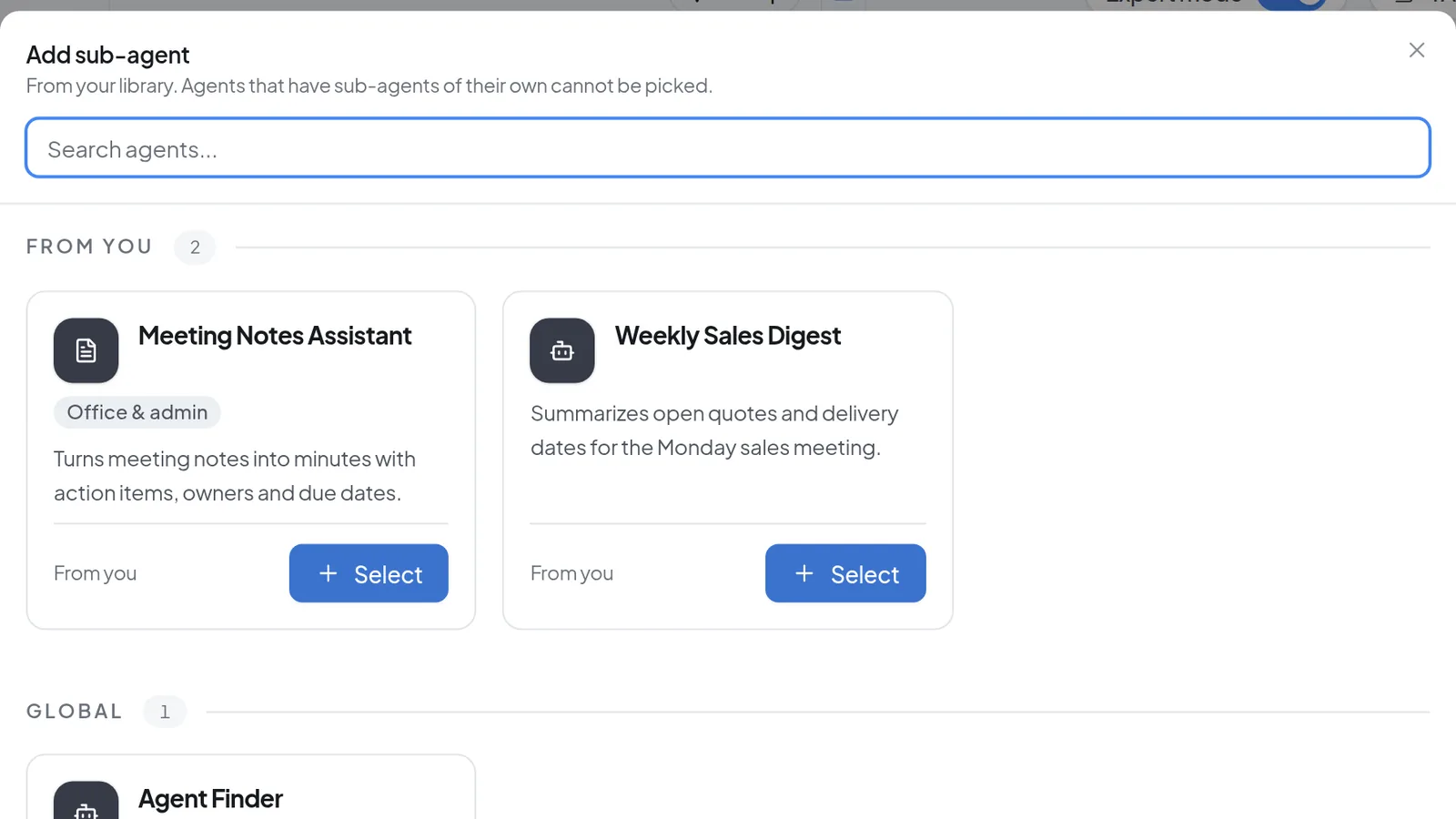 Add sub-agent lists agents from your library; agents that have sub-agents of their own cannot be picked.
 -
Optionally enter a Display name on the card.
-
Under Usage hint, write one sentence telling the main agent what it uses this sub-agent for. That exact sentence goes into the main agent's instructions. Without a hint, the sub-agent's own description is used.
-
Under Return contract, dependencies and write permissions, you can list fields the sub-agent must hand back. With no fields it answers in free text, and the card shows Free-text answer.
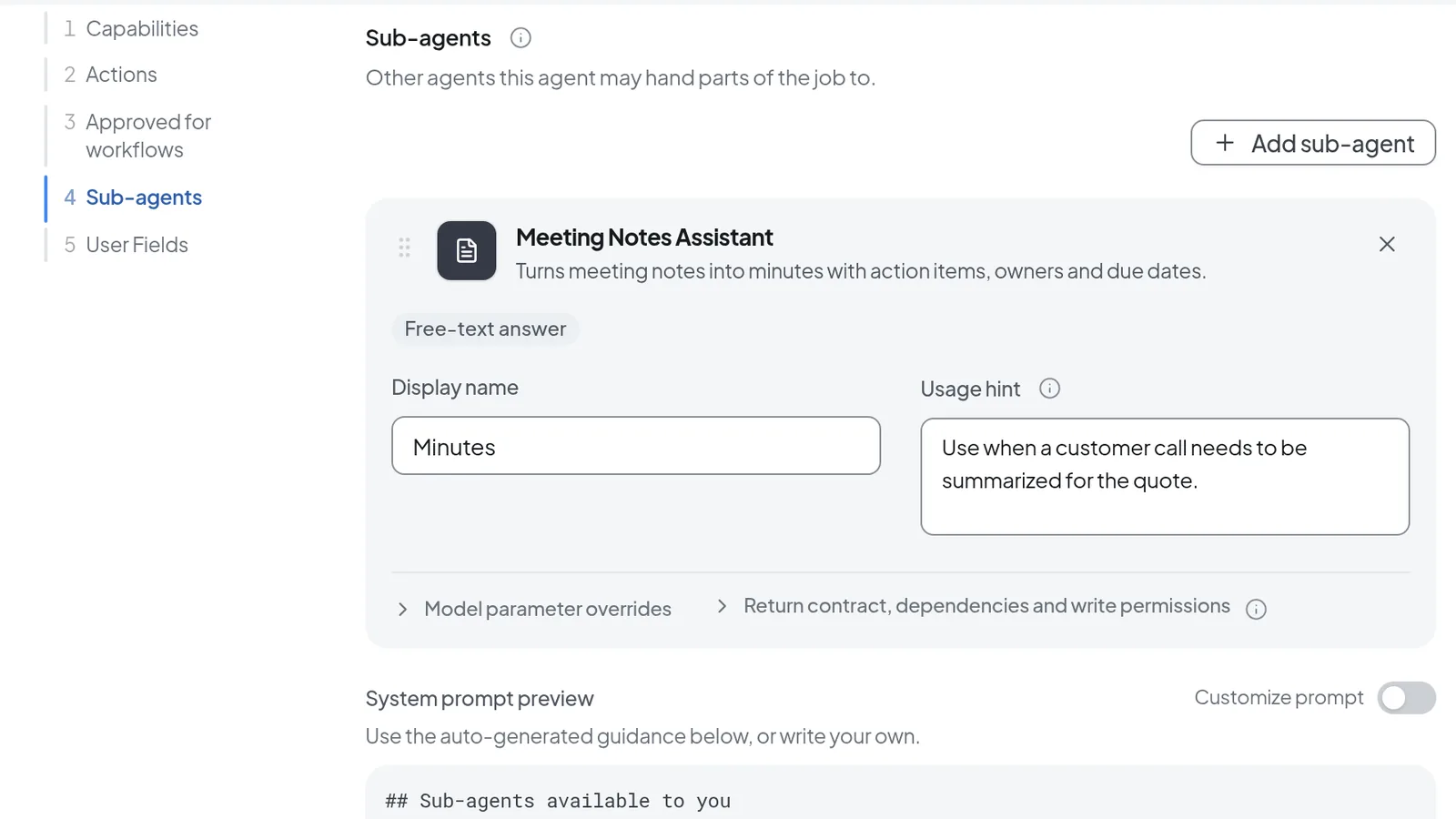 An added sub-agent with display name and usage hint.
Without an entry under Write rights for the sub-agent, a sub-agent may only read. System prompt preview shows what the main agent is told about its sub-agents. Customize prompt replaces that text with your own, which then no longer updates when you add or remove sub-agents.
In expert mode, you can cap what sub-agents use per turn at the end of the step: Max calls per turn (default 5), Max tokens per turn (200,000) and Per call timeout (ms) (180,000).
Add user fields
User fields hold details that each person enters once for themselves, such as an email signature. On every answer, the agent gets the values of the person asking.
- Under User Fields, select Add user field.
- Enter a Label and a Field ID. The field ID cannot be changed after saving.
- Choose a Type: Short text, Long text, Markdown, HTML or Documents.
- Check Required if needed and select Save.
A gear icon labeled Configure agent then appears next to the message box. It is orange while not every field is filled in, red when a required field is missing and green once every field is filled in. If a required field is missing, sending a message opens the agent's Set up … dialog, with the notice Complete required fields at the top. The values apply only to that person and carry over to all their conversations. Fields declared by an added sub-agent are asked for under Configure agent on the main agent too, so you have to fill in a required sub-agent field before you can message the main agent.
Start the agent from a form
If every request needs the same details, let the agent start from a form.
- Turn on Expert mode and open the Behaviour step.
- Under How does the request arrive?, choose Form.
- Add fields with Add field. The types are Text, Long text, Select, Number, Email, Checkbox, Date and File.
A form agent with no fields cannot be finished.
Give the agent knowledge
-
Open the Knowledge step.
-
Under Files, select Attach. Choose Upload to add a new file, or Attach existing to pick one from your library. That list only shows files that have finished processing. Attaching a file turns on File search automatically.
-
Wait until the file shows Ready. While it shows Processing, the agent finds nothing in it.
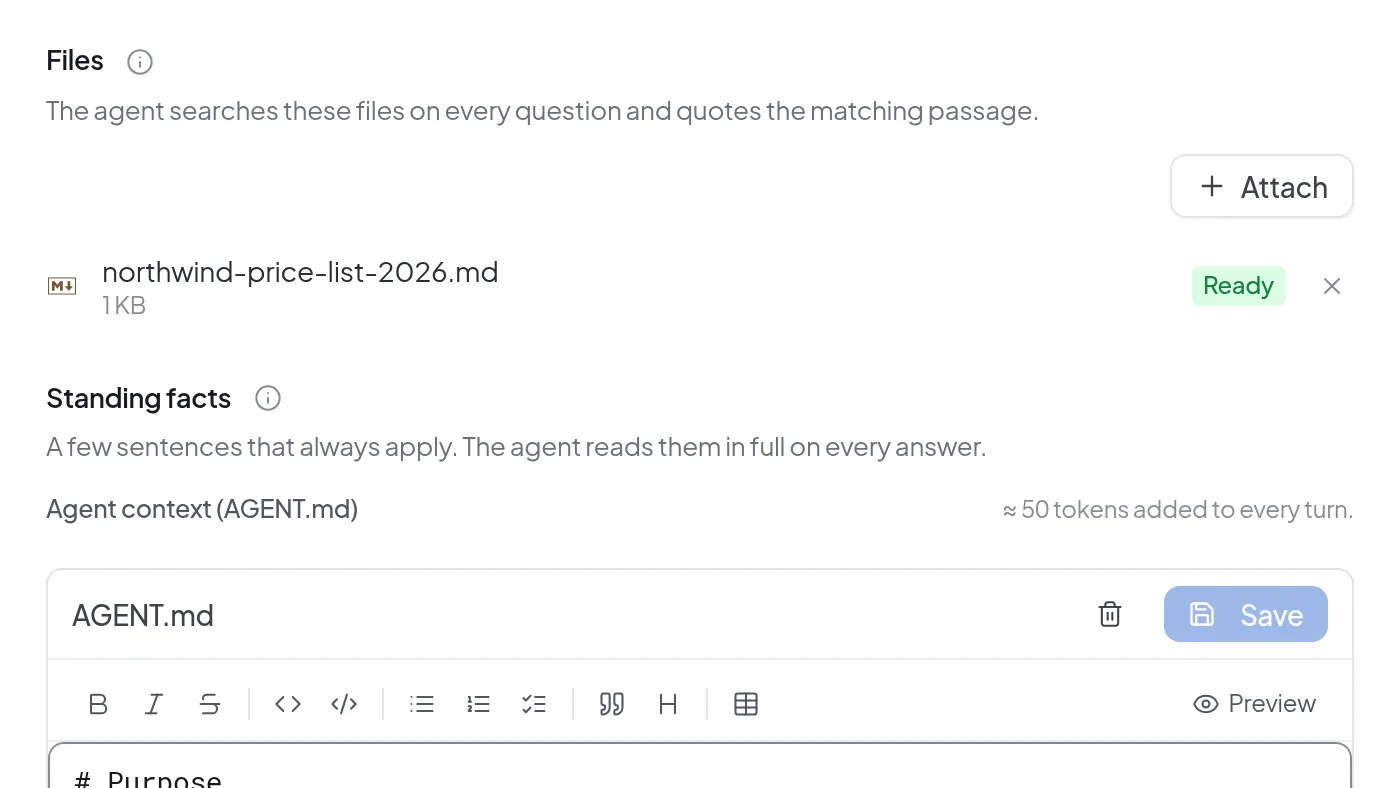 A price list in the Knowledge step showing Ready, with the standing facts in AGENT.md below.
 -
For facts that always apply, select Create AGENT.md under Standing facts and write them down. The agent reads this document in full on every answer, and the step shows how many tokens that adds per answer.
A file marked Stale was split with older section settings. The circular arrow Re-embed in its row reprocesses it. The Re-embed … button above the list reprocesses every stale file at once.
For a searchable file, which is the default, the agent reads only the sections that match the question, not the whole file. How Intra AI uses your documents explains how that works.
Expert mode adds three settings to the step:
- What happens to uploaded files: Make searchable is the normal case. Pass through hands the file unchanged to a connected program without searching it. Both does both.
- Sections: how large the sections are that a file is split into.
- Document templates: Word templates with your letterhead. Select Upload template, enter a Template ID, choose the Mode (Fill placeholders or House style), pick the DOCX file and select Save template. A later template with the same ID replaces the earlier one. For the agent to use templates, also turn on Generate documents in the Tools step.
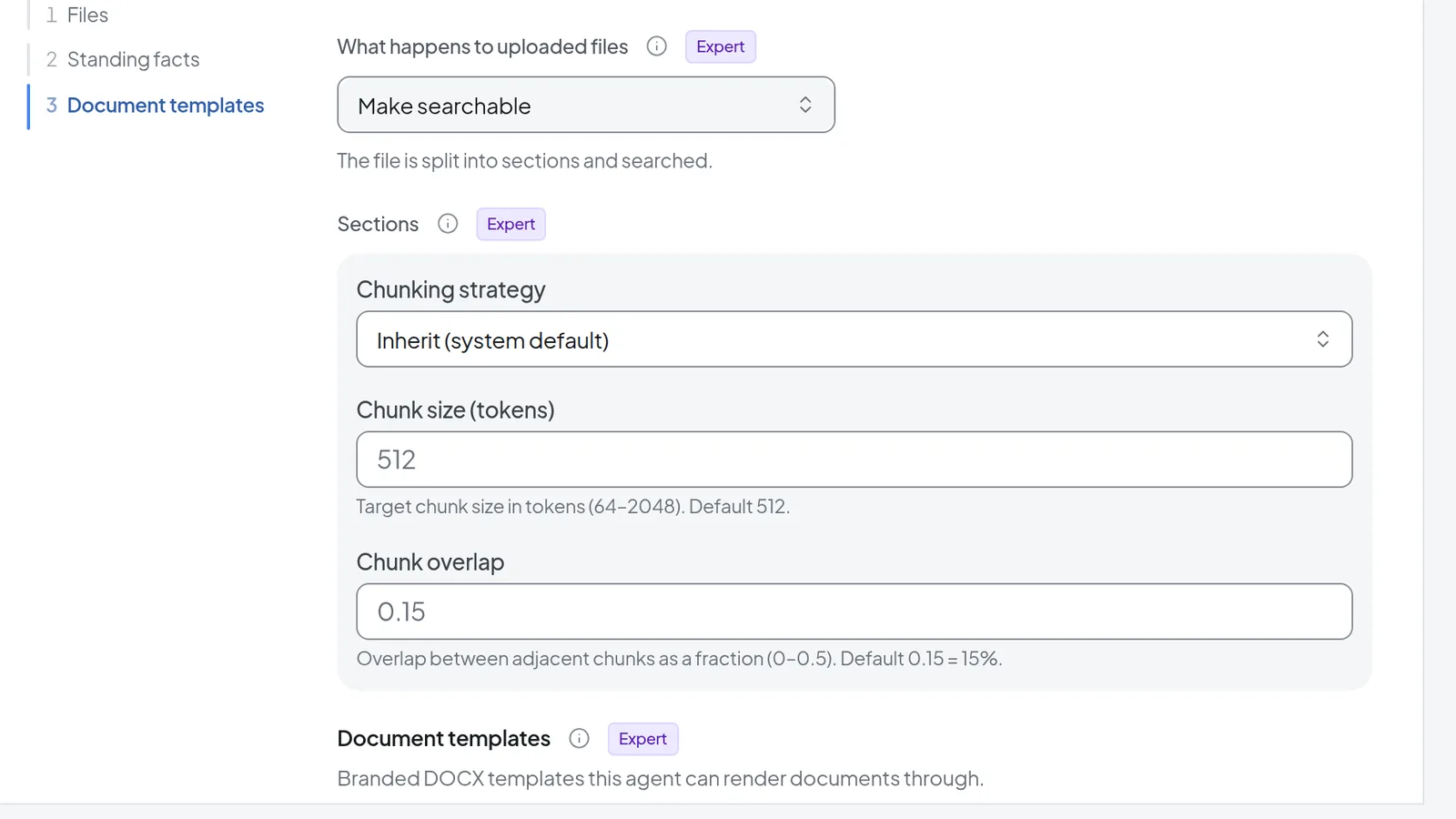 Expert options in the Knowledge step: what happens to uploaded files, and sections.
Limit tool steps per answer
In expert mode, Tool steps per answer in the Tools step sets how many tool steps the agent may take in a row for a single answer. The hint below shows your instance's global default and maximum. When the agent hits the limit, the conversation shows a Step limit reached card. Until the time shown on the card, Continue resumes the same run where it stopped. After that, send a new message.
Troubleshooting
- A file shows “Error”: the Release step then reports that knowledge files could not be processed, and the agent cannot be finished or published while the file is attached. Remove the file with the X and upload it again. If every upload fails, file processing on your instance may be broken; contact your administrator.
- “Please decide: should … ask before running?”: an action has no answer yet under What the agent may do on its own. On a shared agent, or one approved for workflows, this blocks the release. If the integration does not say whether the action only reads, it blocks the release on a private agent as well.
- “Without asking, the agent may only write inside a procedure.”: set the action to always ask before running under What the agent may do on its own, and remove any entry under Write rights for the sub-agent.
- “No actions found” in Select action: either nothing matches your search, so clear the search field, or no integration with actions is set up on your instance, so ask your administrator.
- A sub-agent card shows “Missing: …”: that agent was deleted. Anyone deleting an agent that others use as a sub-agent first sees Sub-agent is referenced and can go ahead with Delete anyway. Remove the card and pick a different sub-agent.