
Finding your way around
This page shows where things live in Intra AI: the sidebar with your conversations, the account menu, the agent and model controls at the top, search, and keyboard shortcuts. What you see depends on the features your organization has turned on and on your role.
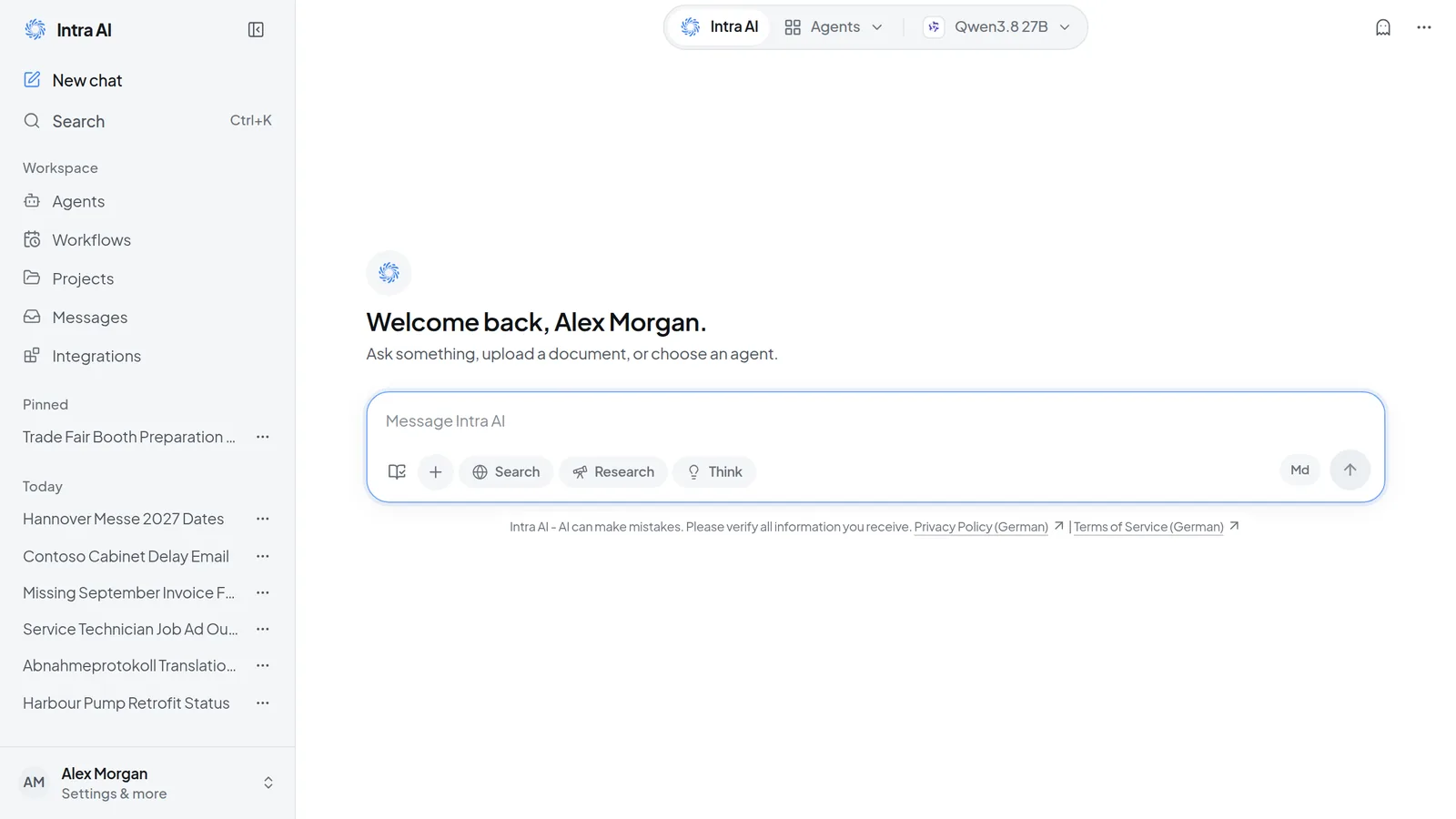 The interface: the sidebar with navigation and your conversations on the left, agent and model selection at the top, and the message box in the middle.
Use the sidebar
From top to bottom, the sidebar holds:
- The Intra AI logo, which takes you to a new conversation, and Close sidebar next to it.
- New chat to start a conversation, and Search, which opens the same search as
Ctrl+K. - The Workspace group: Agents, Workflows, Projects, Messages, Integrations and Academy. Only the areas your organization has turned on appear. Workflows and Academy are off by default until Intra AI turns them on, and Workflows also needs Agents to be on. Next to Messages, a number counts unread items and a blue dot means someone is waiting for your answer.
- Your conversations: Pinned first, then Today, Last 7 days, Last 30 days and older ones by month.
- Your name at the bottom, which opens the account menu.
Files is no longer in the sidebar. You'll find it in the account menu under Library.
The conversation list also shows status. A pulsing blue dot means an answer is still being written. A steady blue dot with a bold title means a new reply has arrived. A small share icon marks a shared conversation. A clock icon appears when a conversation will be deleted automatically within 14 days, and it turns orange in the last three days.
Each row has a More actions menu (…) to rename, pin, archive, bookmark or delete the conversation. For a conversation someone shared with you, there is no Rename, and Leave replaces Delete. See Organize and find conversations. Ctrl-click (Cmd-click on a Mac) opens a conversation in a new tab.
To adjust the sidebar:
- Drag its right edge to make it wider or narrower.
- Select Close sidebar next to the logo, or press
Ctrl+Shift+S. The conversation takes the full width. - Select Open sidebar in the top left corner, or press
Ctrl+Shift+Sagain, to bring it back.
Open the account menu
Select your name at the bottom of the sidebar, and the menu opens upward. The line under your name reads Settings & more, Admin · Settings & more for administrators, or Manager · Settings & more for managers who can open the Manager Console.
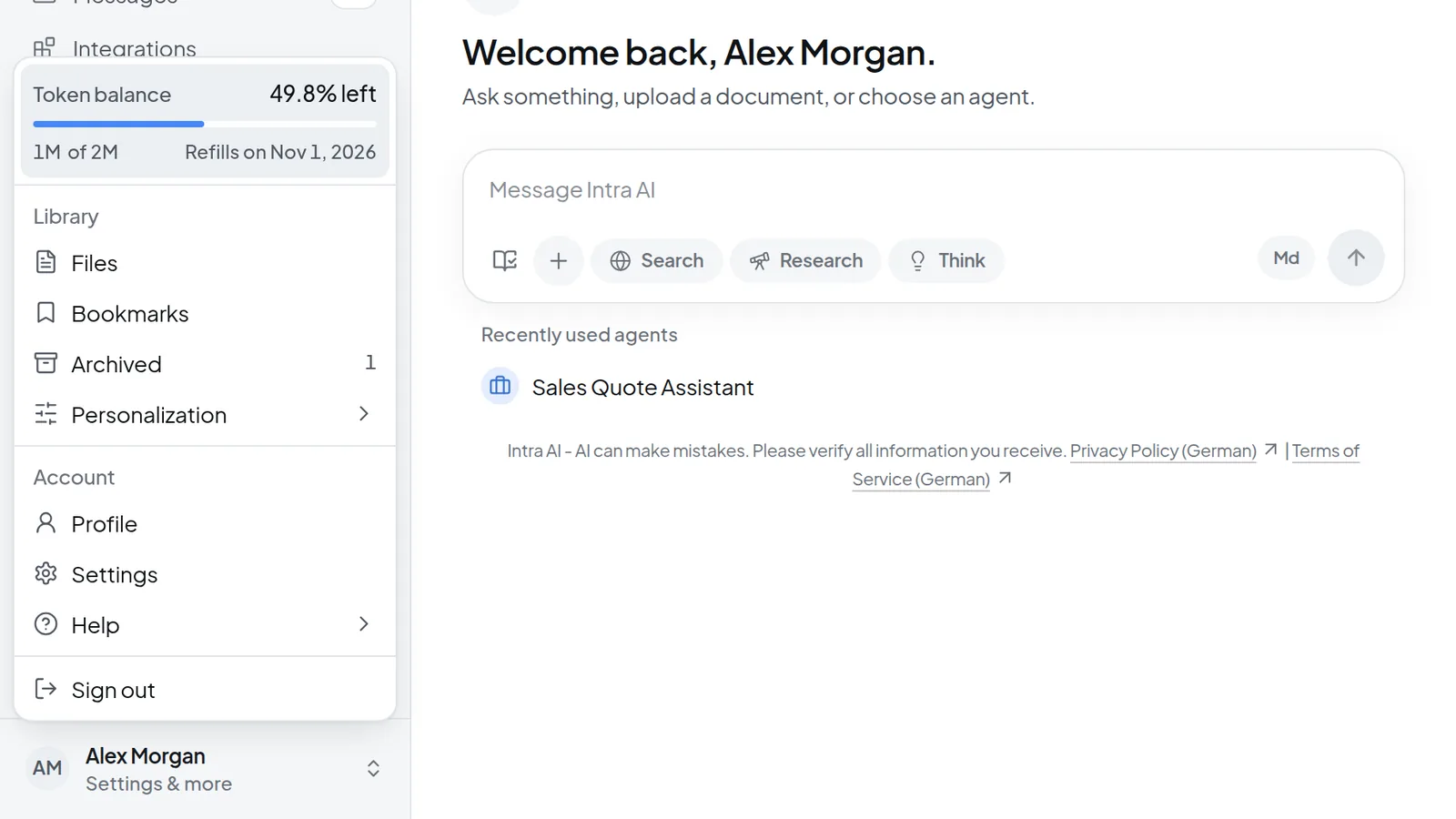 Select your name to open the account menu with your token balance, Library, Account, Help and Sign out.
What's in it:
- Token balance, if your organization tracks one: the share left (for example 49.8% left), the amount in millions of tokens, and either Refills on … or No automatic refill. See Profile, usage and token balance.
- Library: Files, Bookmarks (when bookmarks are on), Archived (with a count once something is archived) and Personalization, which holds Memory and Skills. If only one of the two is available, it sits directly in the list. Memory is grayed out if you turned it off in your settings or your administrator disabled it, and it is hidden in a temporary chat.
- Account: Profile, Settings and Help, which contains Documentation (opens in a new tab), Keyboard shortcuts and Version.
- Organization, only for administrators and for managers with admin access. Administrators get Administration, managers the Manager Console. Administrators also see Hub if the instance has it.
- Sign out.
Pick an agent and a model in the header
The center of the header shows Intra AI, Agents and the current model. At the far right, the ghost icon (Turn on temporary chat) starts a new conversation that isn't saved and doesn't use your memory. Selecting it takes you away from any open conversation. Next to the ghost icon, More actions holds sharing, bookmarking and a few other options. On wider screens, a running conversation also shows its title on the left, with its own menu.
To pick an agent:
- In a new conversation, select Agents. The agent picker opens.
- Choose an agent. Its name replaces Agents in the header.
- Select Intra AI to go back to the assistant without an agent.
After you send the first message, the agent stays with that conversation and the header shows only its tab, with a lock. To use a different agent, start a new conversation. See Using agents.
To pick a model:
- Select the model button to the right of Agents. Models are grouped by provider. With eight or more models, a Search model or provider field appears at the top.
- Select a model. A check mark shows the current one.
On each row, the lightbulb means Thinks before answering, the image icon Reads attached images, and the crossed-out image Does not read images – text only. Default marks the preset model. The number at the right end of the row (such as 131K) is the context size; that column only appears when every model has a context size recorded.
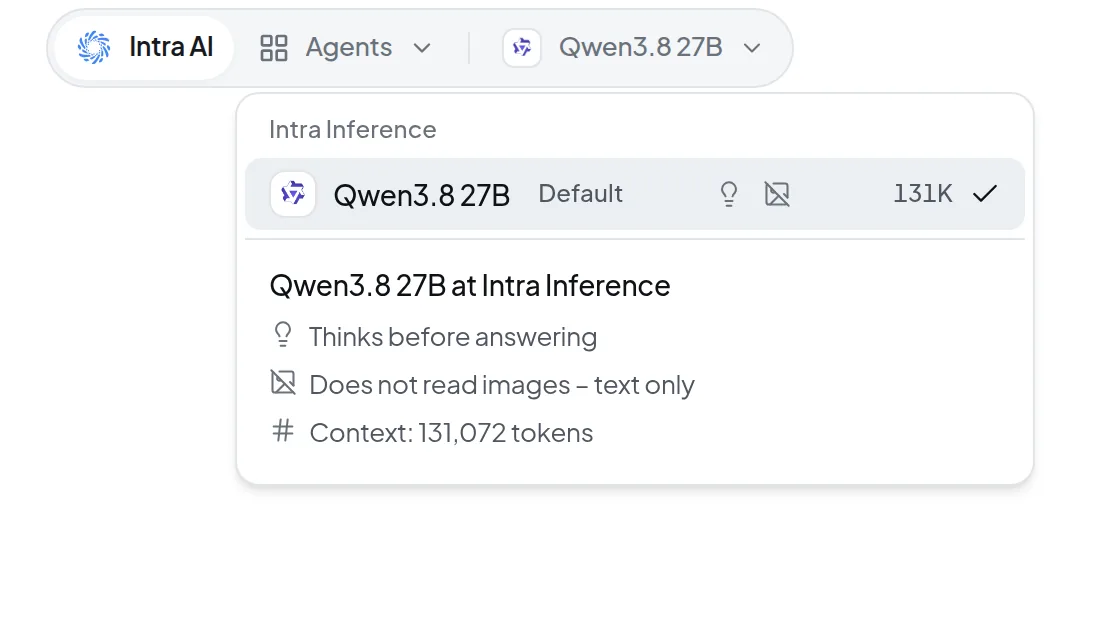 Select the model button at the top to choose a model; icons show whether it thinks before answering and reads images.
If an agent sets the model, the model button shows a lock instead of the arrow. Select it to see Model set by the agent with the model and a Fixed badge. In a new conversation, you'll also find Chat without an agent there. Selecting it removes the agent so you can pick the model yourself. Once the conversation has started, the agent's model stays. Project conversations, and instances without agents, show only the model button. Switching models mid-conversation is covered in Writing messages.
Search with Ctrl+K
- Press
Ctrl+K, or select Search in the sidebar. - Before you type, you see Recently opened (your five most recently active unpinned conversations), Pages and Actions.
- Type a search term. From two characters on, Intra AI also searches the titles and content of your conversations and lists matches under Conversations and Messages.
- Pick a result with the mouse, or with the arrow keys and
Enter. PressEscto close search.
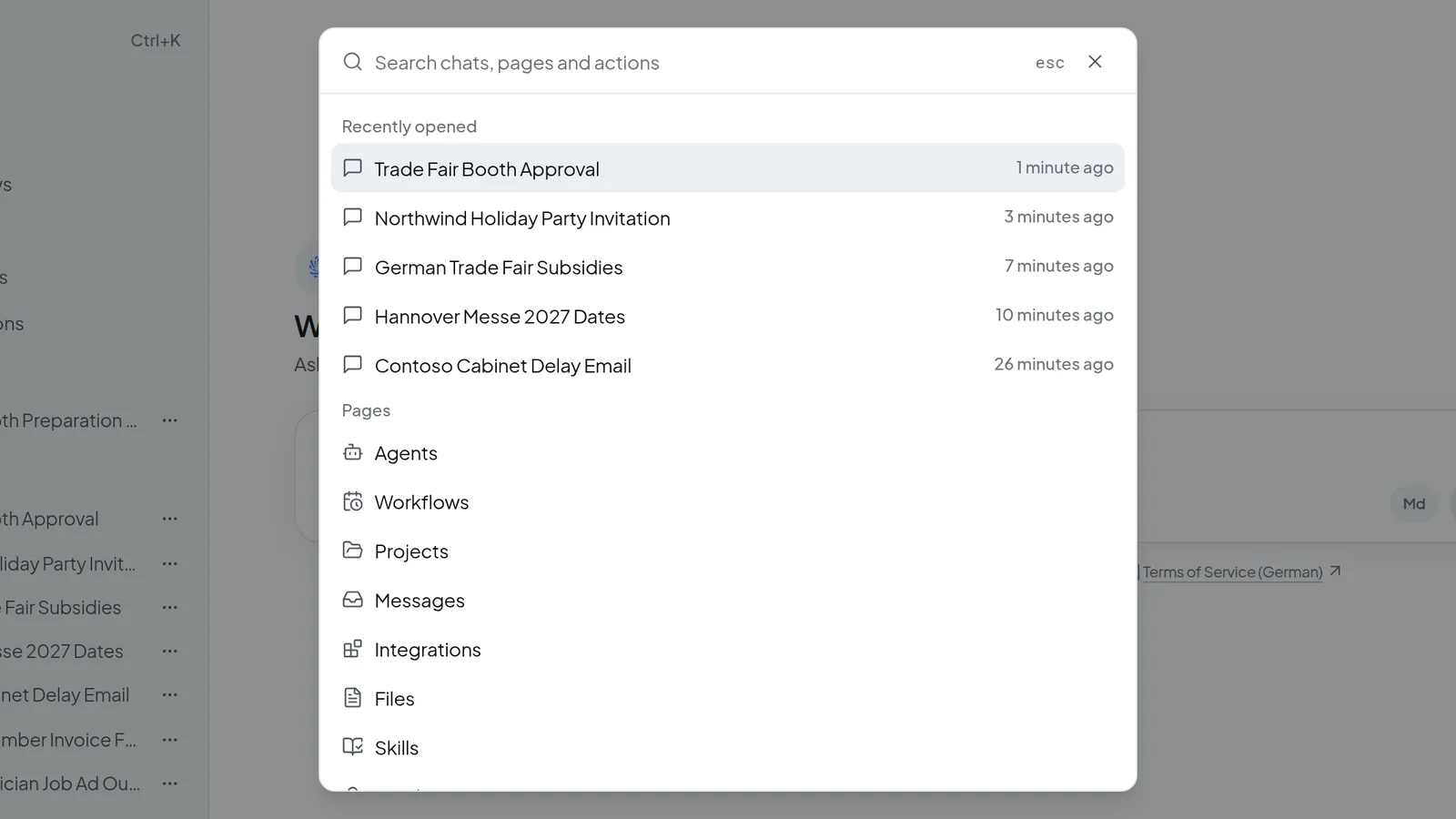 Press Ctrl+K to search conversations, pages and actions.
Actions offers New chat, Upload file, Switch agent (only in a new conversation) and Keyboard shortcuts. If search is turned off for your instance, Search and Ctrl+K are gone.
Use keyboard shortcuts
Press ? while no text field is focused, or open the account menu and choose Help › Keyboard shortcuts. On a Mac, press ⌘ wherever this page says Ctrl. The shortcut list shows the Mac symbols, for example ⇧⌘O for Ctrl+Shift+O.
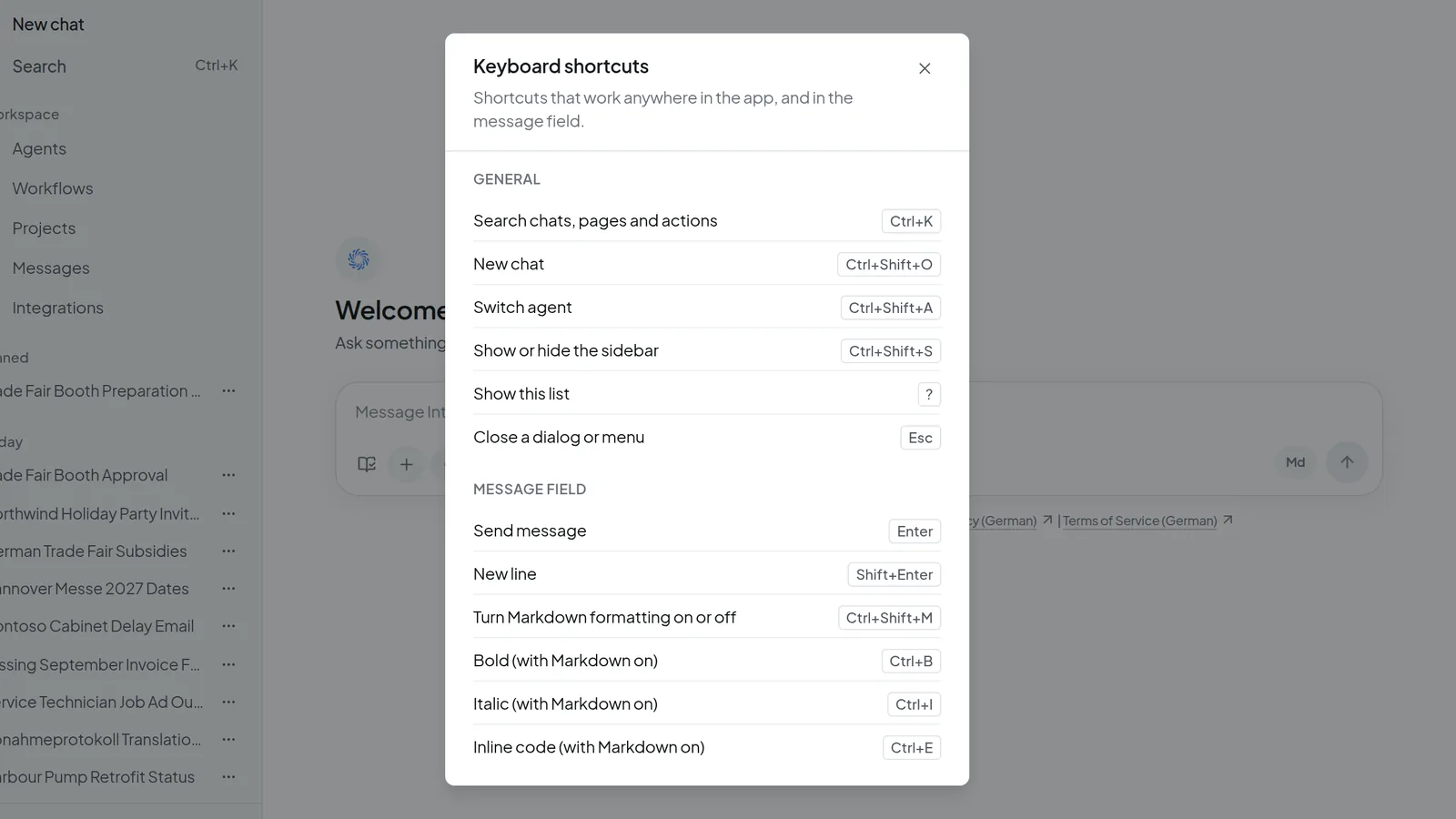 Press ? (outside a text field) to see all keyboard shortcuts.
These work anywhere in the app (General):
| Shortcut | What it does |
|---|---|
Ctrl+K | Search chats, pages and actions |
Ctrl+Shift+O | New chat |
Ctrl+Shift+A | Switch agent (in a new conversation, not in projects) |
Ctrl+Shift+S | Show or hide the sidebar |
? | Show the shortcut list |
Esc | Close a dialog or menu |
These only work while the cursor is in the message box (Message field):
| Shortcut | What it does |
|---|---|
Enter | Send message |
Shift+Enter | New line |
Ctrl+Shift+M | Turn Markdown formatting on or off |
Ctrl+B / Ctrl+I / Ctrl+E | Bold, italic, inline code (with Markdown on) |
Read the notices at the top
When something affects the service, Intra AI shows a notice. Most appear as a bar at the top of the window; the provider notice appears in the chat area.
| Notice | What it means and what to do |
|---|---|
| MAINTENANCE – Some features are limited or unavailable until … (German time). | A maintenance window is running. If no end time is known, the bar reads MAINTENANCE – Some features are limited or unavailable. It stays as long as the maintenance lasts and can't be dismissed. |
| No internet connection. Please check your connection. | Your browser is offline. Check your Wi-Fi or network; the bar goes away once you're back online. |
| A new version is available. | Select Reload now when it suits you, or dismiss the bar. |
| A required update is available. | The page reloads after a 10-second countdown, which starts only once no answer is being written and the message box is empty. You can also select Reload now right away. This bar can't be dismissed. |
| … is disrupted right now. … works – you can switch to it. | Shown on the start screen of a new conversation and inside a running one when your model's provider has problems. Select Switch to … to carry on with a working model. If there is no alternative, or an agent relies on that provider, the notice warns that answers may not arrive. Dismiss notice hides it for the rest of the session. |
Use Intra AI on a phone
- The sidebar becomes a drawer. Open it with Open sidebar in the top left corner. It closes when you open a conversation or page, and the Back button closes the drawer before it leaves the page.
- In the message box, Enter starts a new line. Tap Send to send.
- In the account menu, Personalization and Help appear as sections instead of submenus. Keyboard shortcuts isn't offered on phones.
Troubleshooting
| Problem | What to do |
|---|---|
| An area such as Workflows or Projects is missing from the sidebar | It isn't turned on for your organization (Workflows also needs Agents). Your administrator can ask Intra AI to turn it on. |
| The header shows a single tab with a lock | The conversation has started and its agent is fixed. Select New chat to start over with another agent. |
| Search isn't available right now. | Select Try again. |
| No models available. | Your administrator hasn't set up a model yet. Contact them. |