Tools & MCP
Agents in Intra AI can do more than write – they can search your files, run code, translate documents, browse the web, and call connected services like Google Workspace, Microsoft 365, or GitHub. This page explains every built-in tool, how tool calls look in the chat, and – for administrators – how to add external MCP servers and manage tool approvals.
At a glance: Open the agent editor, click Add action, and toggle the capabilities or integrations the agent should use.
What tools and MCP are
An agent is an AI that can take actions – not just reply. Those actions are called tools. A tool is a specific operation the agent can call: search the web, run a Python script, look up a file, and so on.
MCP (Model Context Protocol) is the open standard that Intra AI uses to connect tools to the AI. Think of it as a plug-in socket: any service that speaks MCP can hand the agent a set of tools. Intra AI ships a set of built-in tools out of the box, and your administrator can plug in additional MCP servers to extend what agents can do.
There are two sources of tools:
| Source | Examples | Who manages it |
|---|---|---|
| Built-in capabilities | File search, web search, code interpreter, document translation, base64 decoder, context file update | Enabled per-agent in the agent editor |
| MCP integrations | Google Workspace, Microsoft 365, GitHub, GitLab, FILERO, and any custom server your admin adds | Connected by the administrator; selected per-agent in the agent editor |
An agent only uses a tool if it has been explicitly enabled for that agent. A tool being listed here as "available" means the platform supports it – the administrator still controls which are active, and the agent builder controls which are assigned to a given agent.
Built-in tools
These capabilities are part of Intra AI itself. They do not require a connected external account.
File search
The agent searches the knowledge files attached to it (or files you uploaded to the conversation) and retrieves the most relevant passages. This is called RAG – the AI searches your documents and quotes the bits that answer your question. Results arrive as source cards in the chat, each showing the file name, a relevance score, and the quoted text.
File search is available to any agent whose administrator has enabled the uploads or projects feature.
Web search
The agent looks up live information on the internet using the workspace's configured search service. What that service receives is set out under What reaches the search service. Results appear as a numbered list of sources, each with a title, URL, and a short excerpt. The agent then synthesises an answer from those sources.
Note: Web search is only available when your administrator has enabled it for the workspace. If it is not visible in the agent editor, it has not been turned on.
Code interpreter
The agent writes and runs code – Python, JavaScript, or bash – in an isolated sandbox. Useful for tasks like analysing a spreadsheet, generating a chart, or running a calculation. The sandbox has no network access and is wiped after each run; nothing it touches persists between calls.
What you see in the chat:
- The source code the agent wrote, with syntax highlighting.
- The program's output (text and any errors).
- How long the run took.
- Any images or files the code produced (shown as download chips).
Note: The code interpreter requires the sandbox service to be set up by your administrator. If it is not configured, an agent that tries to use it will tell you the code interpreter is unavailable.
Document translation
The agent translates an attached document into one or more target languages. It produces a new, downloadable file for each language rather than translating in place. Where the format allows, the translated file keeps the same structure as the original.
| Source format | Result |
|---|---|
Plain text (.txt) | Translated plain text |
Markdown (.md) | Translated Markdown |
Word document (.docx) | Translated .docx, layout preserved |
| Other formats (e.g. PDF) | Returned as Markdown |
Base64 decoder
A small helper tool that decodes Base64-encoded text into readable form. Useful when working with encoded data in API responses, emails, or technical documents.
Context file update
A private agent can keep its own knowledge document accurate. If the agent discovers that the information it relies on is out of date (for example, a price list or an internal procedure), it can patch its own Markdown context document. The corrected content takes effect on the next conversation turn.
Note: This capability is available to private agents only. It is disabled for shared agents so that no one interacting with a shared agent can trick it into rewriting its own instructions.
Built-in tools at a glance
| Tool | What it does | Requires |
|---|---|---|
| File search | Retrieves passages from knowledge files and cites them | Uploads or projects enabled by admin |
| Web search | Looks up live information and lists sources | Web search enabled by admin |
| Code interpreter | Runs code in an isolated sandbox | Sandbox service configured by admin |
| Document translation | Translates an attached document into a new file | No extra setup |
| Base64 decoder | Decodes Base64-encoded text | No extra setup |
| Context file update | Lets a private agent patch its own knowledge doc | Private agent only |
How tool calls appear in chat
Whenever an agent uses a tool, you see exactly what it did – in real time, as it happens.
The tool-call card
Each tool call streams into the conversation as a collapsible card. The card header shows:
- A wrench icon.
- The tool's name.
- A live status indicator: a spinner while the tool is running, a green tick when it finishes, or a red X if it errors.
Click the header to expand the card. Inside you will see the exact input the agent sent to the tool and the result that came back.
Purpose-built views
Several tools have their own purpose-built view so the output is easy to read at a glance:
| Tool | What the expanded card shows |
|---|---|
| Web search | A numbered list of sources – title, URL, and a short snippet for each |
| File search | Cards for matched passages, grouped by file, each with a relevance bar and page citation |
| Code interpreter | Source code with syntax highlighting, output text, run time, and any produced files or images |
| FILERO records | Field grids for retrieved records, lists of search hits, and download chips for documents |
For file search results, clicking a card opens the file directly in the document preview panel at the cited page.
Grouped tool calls
When an agent makes several tool calls in a single turn, they collapse behind one summary row – for example, "3 tool calls" – with a combined status indicator. The group expands automatically while calls are still running, then collapses itself once the turn finishes. If you open or close it yourself, your choice is kept for the rest of the session.
Tool results are saved with the message, so the cards render correctly when you reload the conversation later.
MCP integrations
Beyond the built-in tools, agents can use tools provided by MCP servers. These are separate services – either built into Intra AI or added by your administrator – that each provide a set of tools through the MCP standard.
First-party integrations
Key first-party integrations include the following. Each is included in your workspace's deployment if the administrator has enabled and connected it. This is not the full catalogue – see the Integrations page for every available integration.
| Integration | What it provides | Auth required |
|---|---|---|
| Google Workspace | Gmail, Calendar, Drive, Docs, Sheets | Connect your Google account once in Settings |
| Microsoft 365 | Outlook email, Outlook calendar, Teams, SharePoint | Connect your Microsoft account once in Settings |
| GitHub | Repositories, issues, pull requests, Actions runs, code search, releases | Connect your GitHub account once in Settings |
| GitLab | Projects, merge requests, issues, pipelines, code search, releases | Connect your GitLab account once in Settings |
| FILERO (Beta) | Record retrieval, document search, record creation and updates, download and upload (Contiss coop only) | Each user's own FILERO credentials, entered once in the connection wizard – two-factor supported |
| Utilities | Date/time, maths, UUID generation, base64 | No auth – always available when enabled |
When a tool works against one of your connected accounts (for example, sending an email through your Gmail), the agent acts as you. Your credentials are supplied to each tool call inside a short-lived, encrypted envelope and are not held by the agent between calls.
Note: Connecting your Google, Microsoft, GitHub, or GitLab account is a one-time step in Settings → Integrations. See the Integrations page for how to connect and disconnect each service.
Progressive tool discovery
When an agent has access to a very large number of tools – more than 60 by default – Intra AI automatically switches to progressive tool discovery mode. Instead of loading every tool description into the AI's context at once (which wastes capacity and can confuse the model), the agent uses two helper tools to search for and load only the specific tools it needs for the current task.
This is completely transparent: you talk to the agent exactly as you normally would, and it finds the right tools on its own.
Selecting tools for an agent (agent builders)
Note: This section is for users who create or edit agents. Shown when your administrator has enabled the agents feature.
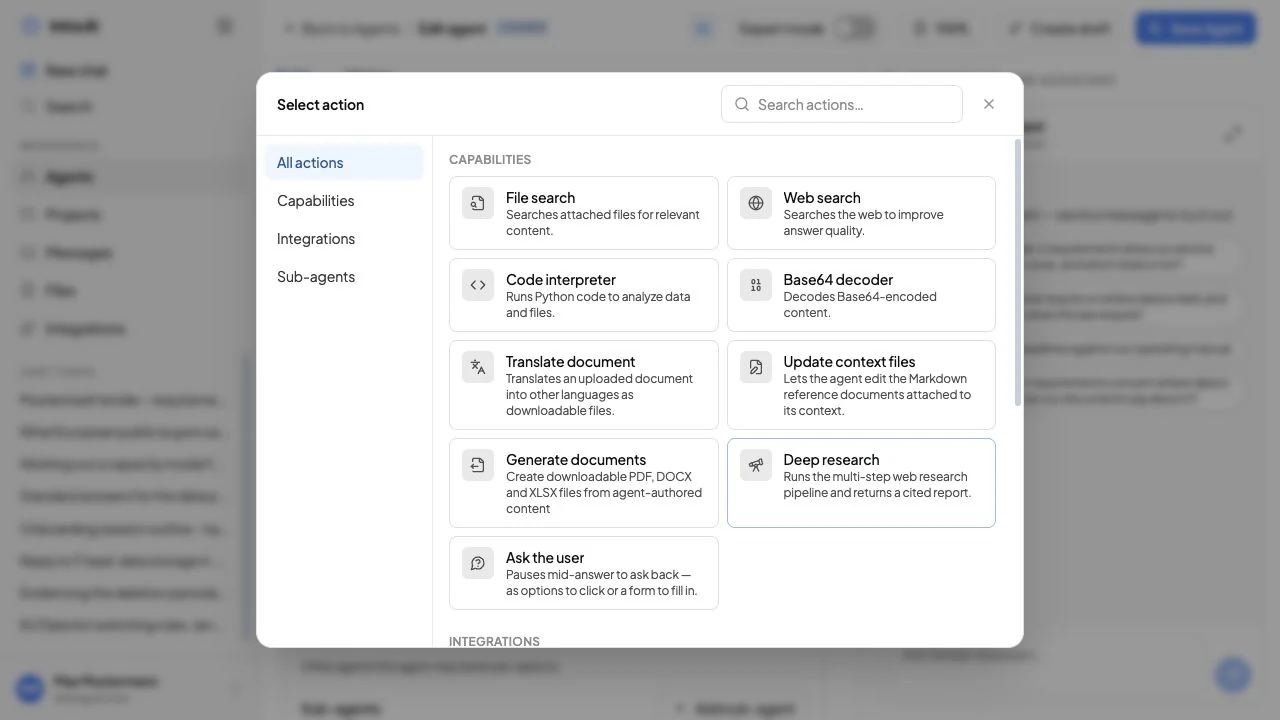
When you open the agent editor and click Add action, the action picker opens. It has three sections:
| Section | What you find |
|---|---|
| Capabilities | The built-in tools listed above – file search, web search, code interpreter, and so on |
| Integrations | Connected MCP integrations – Google, Microsoft, GitHub, GitLab, FILERO, and any custom server your admin has added |
| Sub-agents | Other agents you can chain as steps inside this agent |
Action picker modal showing Capabilities, Integrations, and Sub-agents sections
To add a built-in capability: Click its card. A blue "Added" badge confirms it is enabled. Click again to remove it.
To add an integration: Click an integration card to open its detail panel. There you see every individual tool the integration provides (for example, "Send email", "Create calendar event", "Search Drive"). You can add all tools at once with Select all, or pick specific tools by clicking each one. A search box is available when an integration has many tools.
To remove a tool or integration: Open the action picker, find the item, and click it again to deselect.
Changes take effect immediately in the agent editor. Save the agent to commit them.
What your administrator sets up
The following is relevant for workspace administrators. Regular users do not need to take these steps.
MCP server configuration – the two methods
Administrators can add MCP servers to the workspace in two ways, and they can be combined.
Method 1 – Configuration file
Add a mcpServers: block to intrachat.config.yaml on the server. This is the recommended method for servers that are always present.
mcpServers:
MyServer:
type: streamable-http
url: '${MY_SERVER_URL}'
headers:
X-API-Key: '${MY_SERVER_KEY}'
timeout: 30000
serverInstructions: |
Describe what this server does and any tool syntax notes here.
Secrets must never be written directly into the config file (which is committed to git). Instead, store them in the .env file on the server and reference them as ${MY_SERVER_URL}. The server substitutes the values at startup.
Method 2 – Admin UI
Administrators can also add and manage MCP servers through the admin panel at Admin → MCP Servers. This panel shows each server's connection status and tool count. You can add, refresh, and remove servers, and override tool descriptions, without touching the config file.
Priority order
When the same server name appears in multiple places, the order of precedence is:
MCP_SERVERSenvironment variable (highest)intrachat.config.yaml- Admin UI / database (lowest)
Verify a server is connected
After adding a server, check the admin panel or call the status API:
GET /api/v1/admin/mcp/status
Authorization: Bearer <admin token>
The response lists every server with its connection state, tool count, and last error.
Tool approval and fingerprint management
Every tool from Intra AI's built-in MCP runtime plugins must be approved before agents can call it. This is a security gate – it prevents a tool from changing what it does without the administrator noticing. Tools from externally-added MCP servers are not fingerprint-gated (see the warning below).
Approval is based on a fingerprint: a hash of the tool's name, version, input schema, output schema, and description. When a tool's fingerprint matches the stored approval, it is active. If a server update changes any of those fields, the tool is automatically quarantined (status: Drift) until an administrator reviews and approves the new version.
| Fingerprint status | Meaning |
|---|---|
| Approved | Fingerprint matches the stored approval. Tool is active. |
| Pending | Tool discovered for the first time. Awaiting review. |
| Drift | Tool definition changed since last approval. Tool is quarantined. |
Administrators manage approvals in Admin → MCP Runtime → Approvals. The panel lists every tool with its plugin, tool name, version, fingerprint, and approval status. Selecting one or more rows and clicking Approve clears the pending or drift state and makes the tools available to agents.
The admin MCP Runtime tab listing servers and tool approval states
Warning: Review what changed before approving a drifted tool. The drift state is a rug-pull protection – it catches supply-chain changes where a tool silently expands what it can do.
Tool description overrides
Administrators can rewrite tool descriptions across the whole workspace so that what agents see matches your organisation's terminology. This is done in the admin panel. The change is workspace-wide – every agent using that tool sees the updated description.
Compose profiles
The MCP runtime container and FILERO sidecars are gated behind Docker Compose profiles so they only start for workspaces that need them. Add the relevant profile names to .env:
COMPOSE_PROFILES=mcp,filero
| Profile | Services started |
|---|---|
mcp | The per-customer MCP runtime container |
filero | Qdrant search + the FILERO schema indexer |
Omit a profile name to skip those services entirely.
Reference tables
Built-in capability IDs (agent editor)
| Capability ID | Display label |
|---|---|
file_search | File search |
web_search | Web search |
code_interpreter | Code interpreter |
translate_document | Translate document |
base64_decoder | Base64 decoder |
context_file_update | Update context files |
MCP server configuration fields
| Field | Required | Default | What it does |
|---|---|---|---|
type | Yes | – | Transport type. Use streamable-http for all new servers. |
url | Yes | – | The server's MCP endpoint URL. Supports ${ENV_VAR} substitution. |
headers | No | – | Arbitrary HTTP headers, for example API keys. Values support ${ENV_VAR}. |
timeout | No | 30000 ms | How long to wait for a response before treating the call as failed. Configured values are capped at 30000 ms (larger values have no effect); admins may set a lower value. |
chatMenu | No | true | Whether to show this server in the chat-input tool menu. |
serverInstructions | No | – | Text injected into the agent system prompt when this server's tools are active. Describe syntax and constraints here. |
Tips & notes
Tip: If you want an agent to use web search and file search together, add both capabilities in the action picker. The agent will choose which to use based on the question.
Tip: The code interpreter sandbox is wiped after every call. If you need files to persist between turns, have the agent write them as attachments and download them from the chat.
Note: The "Integrations" section in the action picker only shows services your administrator has enabled and connected. If Google Workspace is not listed, the integration has not been set up for your workspace.
Note: If you are building an agent and want to use a specific subset of an integration's tools (for example, only Gmail – no Calendar or Drive), drill into the integration card and select individual tools rather than using "Select all".
Warning: External MCP servers added via the config file or admin UI do not go through the same conformance and fingerprint guarantees as Intra AI's built-in plugins. They are marked with a yellow warning in the admin panel. Only add servers from sources you trust.
Troubleshooting
| Symptom | Likely cause | What to do |
|---|---|---|
| A built-in capability is missing from the action picker | The feature is not enabled for your workspace | Ask your administrator to enable it (for example, web search or uploads) |
| An integration is missing from the action picker | The integration is not connected, or the service has not been enabled | Ask your administrator to connect it in Admin → Integrations |
| A tool call card shows a red X | The tool returned an error | Expand the card to read the error message; common causes are a disconnected account (reconnect in Settings → Integrations) or a rate limit |
| Code interpreter says "not available" | The sandbox service is not configured | Your administrator needs to set up the sandbox service |
| An MCP tool shows as "Drift" in the admin panel | The tool's definition changed after it was last approved | An administrator must review and approve the new version in Admin → MCP Runtime → Approvals |
| An MCP tool shows as "Pending" in the admin panel | A new tool was discovered but not yet approved | An administrator must approve it before agents can use it |
| An agent ignores a tool even when it is enabled | The agent's system prompt may not be written to use it, or the tool count exceeds the discovery threshold | Review the agent's instructions; if using many integrations, progressive discovery is active – this is normal |
| The MCP server shows as "Error" in the admin panel | The server is unreachable or its URL or credentials are wrong | Check the server URL, network connectivity, and any API keys in .env |
Frequently asked questions
Q: Does enabling a tool mean the agent will always use it? A: No. The agent decides which tools to call based on the conversation. Enabling a tool makes it available; the agent uses it only when the task calls for it.
Q: Can the code interpreter access my files or the internet? A: No. The sandbox has no network access and cannot reach your files. You can paste content into the chat for the agent to work with, or attach a file to the conversation – the agent can read those and process them in the sandbox.
Q: I connected my Google account, but the agent does not seem to have Gmail tools. Why? A: Connecting your account in Settings → Integrations authorises Intra AI to act on your behalf. The tools still need to be added to the specific agent you are using. Open the agent editor, click Add action, find Google Workspace under Integrations, and add the Gmail tools.
Q: Can an agent use tools from more than one integration at once? A: Yes. An agent can have multiple integrations enabled at the same time and will call whichever tools are relevant to each step of the task.
Q: What happens if a tool call fails? A: The error appears in the tool-call card with a red X. The agent sees the error too and will usually try a different approach or tell you what went wrong. You can expand the card to read the raw error message.
Q: We use a custom internal system. Can it be added as an MCP server?
A: Yes, if it implements the MCP standard (streamable-HTTP transport). Your administrator adds it to intrachat.config.yaml or the admin panel, then approves its tools in the fingerprint panel before agents can use them. Contact your administrator to set this up.
Q: What is the "context file update" tool, and is it safe? A: It lets a private agent correct its own internal Markdown knowledge document. It is only available on private agents (ones only you can use). It is disabled on shared agents precisely because shared agents are accessible to many people – the restriction prevents someone from tricking a shared agent into rewriting its own instructions.
Related: AI Agents · Chatting · Files & Knowledge · Integrations · Document Generation