
Planning monthly token limits
The Token Budget tab in the manager console is where you decide how many tokens each member of your organization gets next month. Managers see the tab once Intra AI has switched the token budget on for your instance. To open the console, see The manager console.
How the token budget works
You always plan the next period. Usually that is the next calendar month, starting with the refill on the 1st at 00:00. If your instance refills on a different day, the tab shows a date range such as "period Dec 15, 2026 – Jan 14, 2027" instead of a month name.
The budget is the number of members times the default amount, which Intra AI sets for your instance. With 20 members and a 10M default, for example, that would be 200M tokens. You split that total among your members: if someone gets more than the default, others have to get less. You can only save a plan that uses up the budget exactly.
You can change the plan until shortly before the next refill. The first refill of the new period seals it, and from then on the amounts for that period are fixed. If nobody saves a new plan, the previous one carries over. If there has never been a plan, every member gets the default.
A token counts the same whichever model a member uses, and tokens are not a measure of cost.
Read the current state
Two status lines sit at the top of the tab. The first is about the next period, for example "For November 2026, no plan has been saved yet." or, after a save, "Plan for November 2026 saved by … (Manager) on …", followed by "Editable until …". The second tells you what applies in the current period.
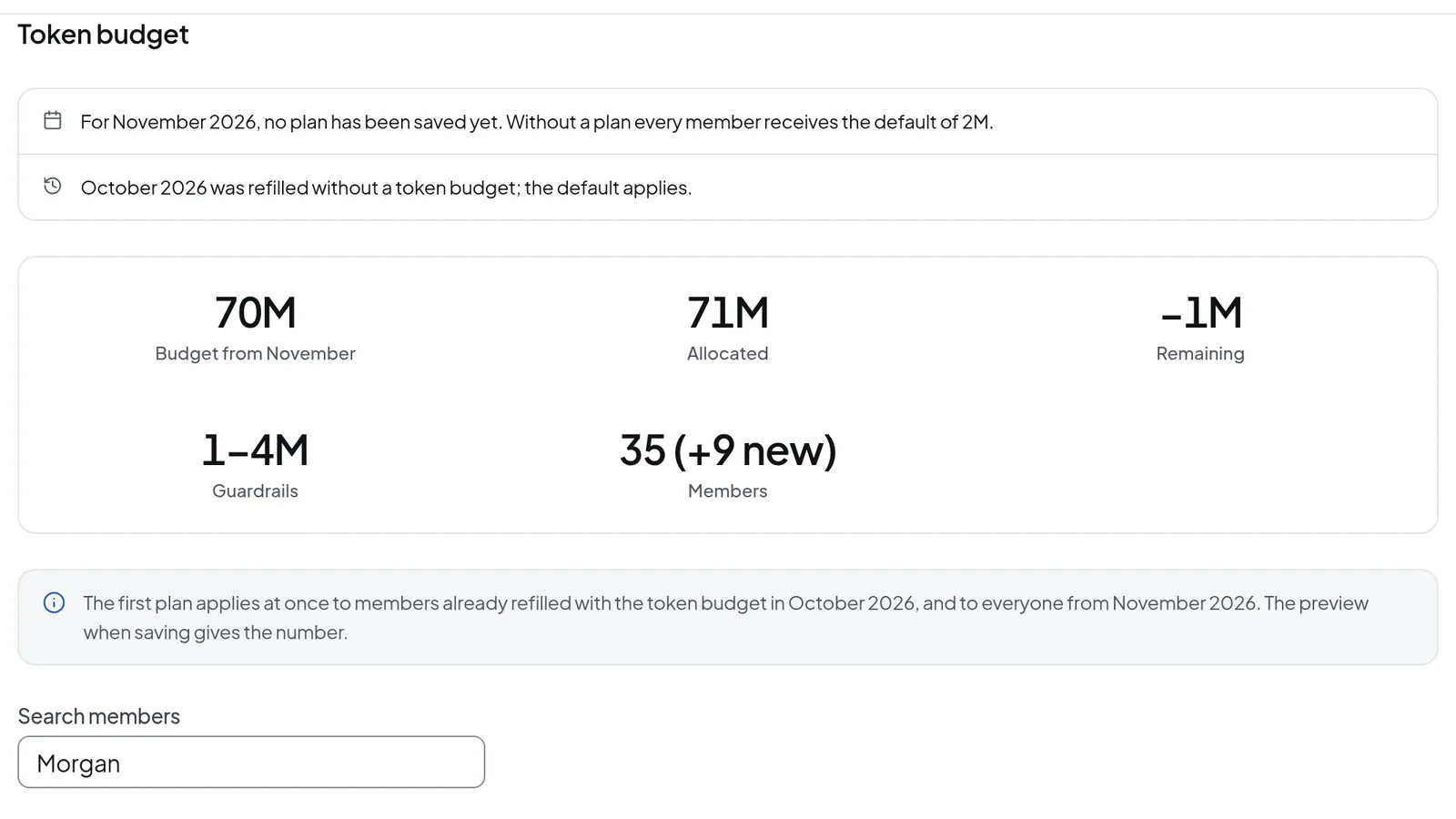 The top of the Token Budget tab: the two status lines and the Budget, Allocated, Remaining, Guardrails and Members tiles.
| Tile | What it shows |
|---|---|
| Budget from … | The total for the next period |
| Allocated | The sum of all limits you entered |
| Remaining | Budget minus allocated; must be 0 before you can save |
| Guardrails | Minimum and maximum per member, set by Intra AI |
| Members | The number of people with a monthly limit. "(+… new)" is how many of them received their start balance this period; they are already part of the count. |
Enter monthly limits
- In the manager console, open the Token Budget tab.
- To find someone, type in Search members. The search matches names only, not email addresses.
- In the column for the next period, such as From November 2026, enter the limit in millions. 3 means 3M tokens.
- Keep an eye on Remaining. A negative number means you have handed out more than the budget allows, so lower other limits.
- Once Remaining is 0, every row holds a whole number within the guardrails, and the plan differs from the saved one, Save becomes available.
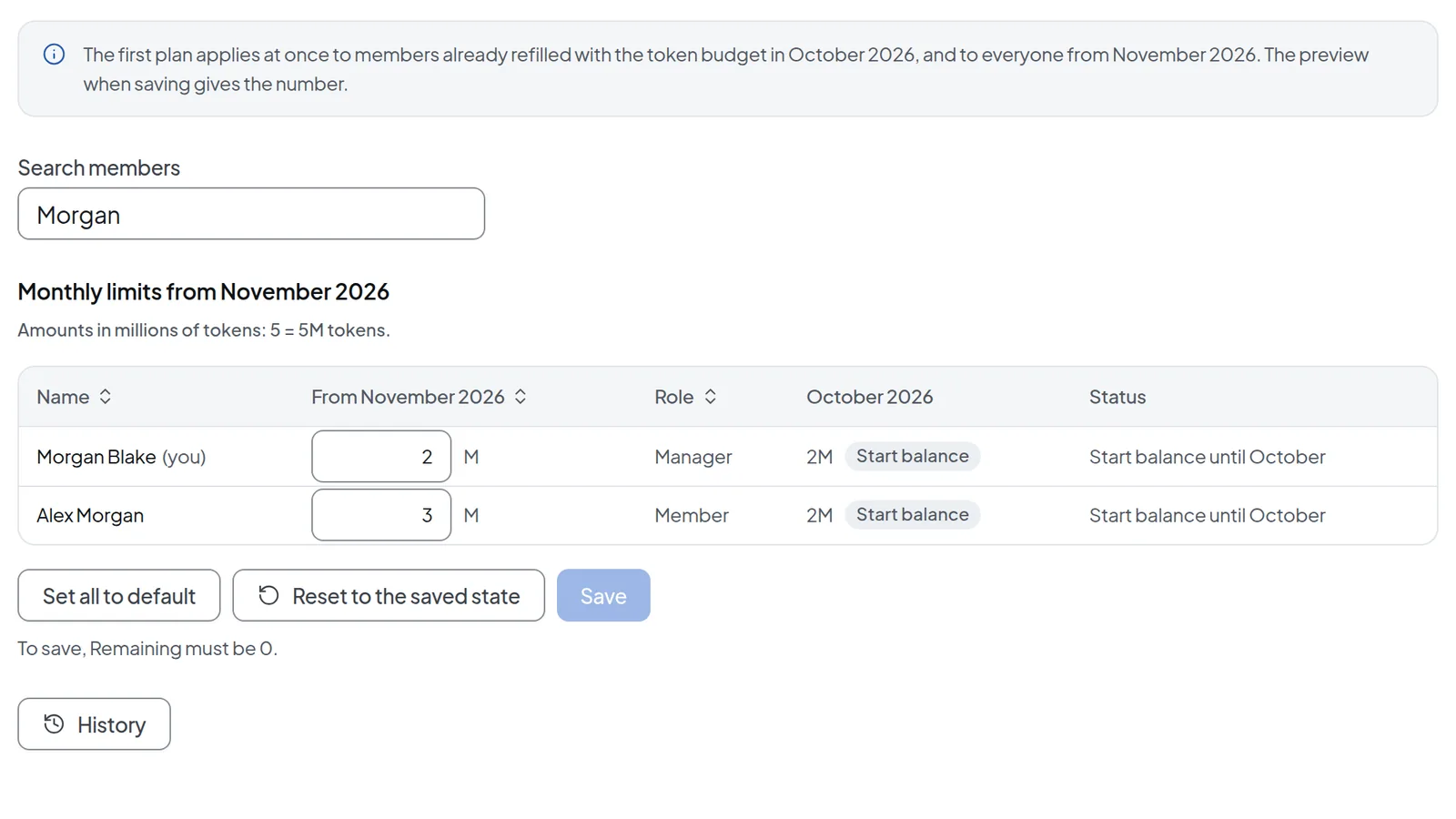 Enter monthly limits in millions of tokens; you can save only once Remaining is 0.
Set all to default puts every row back to the default amount. Reset to the saved state throws away your edits since the last save.
The list shows every member and manager who receives a monthly limit, you included, marked "(you)". Blocked accounts, trial accounts and accounts Intra AI has excluded are left out and do not count toward the budget. The current month's column shows the limit each person received for this period and where it came from, for example Start balance. If the person has not received anything yet, it says "not yet refilled". Status tells you where their next amount comes from: Plan, Plan carried over, Default, or "Start balance until October" for new members. An entry outside the guardrails is flagged "outside the guardrails". If it says "will be trimmed to …", that person's amount would be cut back at the seal.
If your instance and your role are set up for identified (per-person) analytics, the table also shows each member's usage, switchable with Previous month / this month. Otherwise you see no usage figures for individuals. Analytics for managers explains what that setup involves.
Save the plan
- Select Save. The Save plan dialog opens.
- Check the preview: how many rows changed, "Allocated: … of … tokens", and the date the plan takes effect.
- Confirm with Save plan, or back out with Cancel.
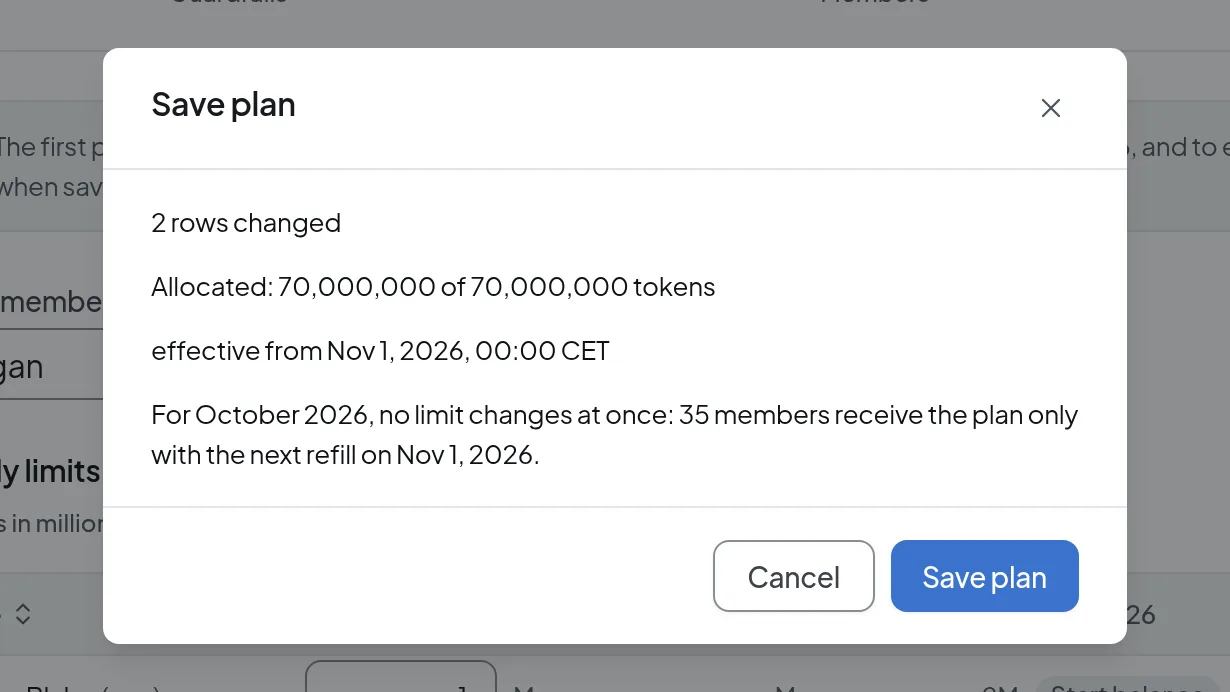 Before saving, the preview sums up how many rows change and when the plan takes effect.
Any manager can change the plan until it is sealed. If someone else saved in the meantime, your entries stay in place so you can review them and save again.
The first plan applies right away
The first plan saved after the budget is switched on already counts in the current period, but only for members who were refilled under the token budget in that period. Everyone else gets it with the next refill. The preview says how many members fall into each group, for example "For October 2026, no limit changes at once: 35 members receive the plan only with the next refill on Nov 1, 2026."
Warning: With the first plan, a lowered limit applies in full straight away. A member who has already used more than the new limit this period cannot send requests until the next refill. The preview tells you how many members this affects; names and usage appear only if you have access to identified analytics.
Without access to identified analytics, each manager gets at most 10 previews for this first plan. After that you can still save, and the plan applies at once without a preview.
When the plan is sealed
The first refill of the new period seals the plan. At that point:
- Entries outside the guardrails are moved to the nearest limit and marked "adjusted to the guardrails".
- If the plan exceeds the budget, for example because the number of members changed, amounts above the default are cut proportionally in whole millions. Nobody drops below the default. The tab then shows a "Plan trimmed: …" notice and marks the trimmed rows. The tab warns you before the seal as well: when the plan would be trimmed, the same notice appears for the next period, and Status shows "will be trimmed to …".
- Members without a plan entry get the default. New members first receive their start balance in the month they join.
At every seal, managers get "Plan sealed" under Messages, plus "Plan trimmed" if entries were trimmed and "Members without a plan entry" if a plan applied and some members had no entry in it. History lists the periods of the last 24 months, and Show the amounts … opens the amounts per member.
What Intra AI controls
Intra AI switches the token budget on and off, sets the minimum and maximum per member, and can exclude individual accounts. Excluded accounts do not appear in your list. Intra AI also sets the default amount. A plan saved by Intra AI replaces the managers' plan, and the status line then shows "(Intra AI)" as the role. Only Intra AI can discard a saved plan. For changes to any of these, contact the Intra AI team.
What members see
While the token budget is active, each member with a monthly limit sees "Monthly limit, set by your organisation" under the token balance in their account menu. If next period's plan differs from their current limit, the menu adds "Planned from …: …" with the date and amount, plus a note that the plan can still change until the next refill. If the seal changes a member's limit compared with the previous period, the member gets the message "Monthly limit set". Members the first plan reaches at once get "Monthly limit applies now". Members see only their own limit. For more, see Profile, usage and token balance.
Troubleshooting
| Message | What to do |
|---|---|
| To save, Remaining must be 0. | Raise or lower limits until Remaining shows 0. |
| Enter a whole number (millions). | Enter a whole number, for example 3 for 3M. |
| Allowed: … to …. | Enter a value between the minimum and the maximum. |
| Refused by the server: outside the guardrails or not a whole million. | Correct the marked row and save again. |
| No change from the saved plan. | The plan is already saved; there is nothing to do. |
| The plan has been changed by … in the meantime. Your entries are kept. Please check them and save again. | Review the current state and save again. |
| … has begun in the meantime. The plan was not saved … | That period has started. Your entries stay in place; check them for the following period and save again. |
| Too many previews in a short time. Please try again in a few minutes. | Wait a few minutes. |
| The default does not fit the guardrails. Please contact Intra AI. | Contact the Intra AI team. You cannot save until this is fixed. |
| The balance system is switched off. Plans can be saved again once Intra AI switches it on. | Contact the Intra AI team. You cannot save until then. |
| The Token Budget area is no longer available to your account. Unsaved entries were discarded. | The budget was switched off or your role changed. Check with the Intra AI team. |
If the tab is missing altogether, the token budget is not switched on for your instance, or your account does not have the manager role.