
Building an agent
The agent builder is where you set up an agent of your own: its name, instructions, knowledge, tools, and who may use it. Anyone with access to Agents can build one, except accounts with the Manager role, which can only view agents. Your administrator can turn agents off. To use agents that already exist, see Using agents.
Start a new agent
- In the sidebar, open Agents.
- Under Created by you, click the New Agent card. The "Create an agent" screen opens and asks "How would you like to start?"
- Pick one of the three ways in. The list on the left shows the steps ahead.
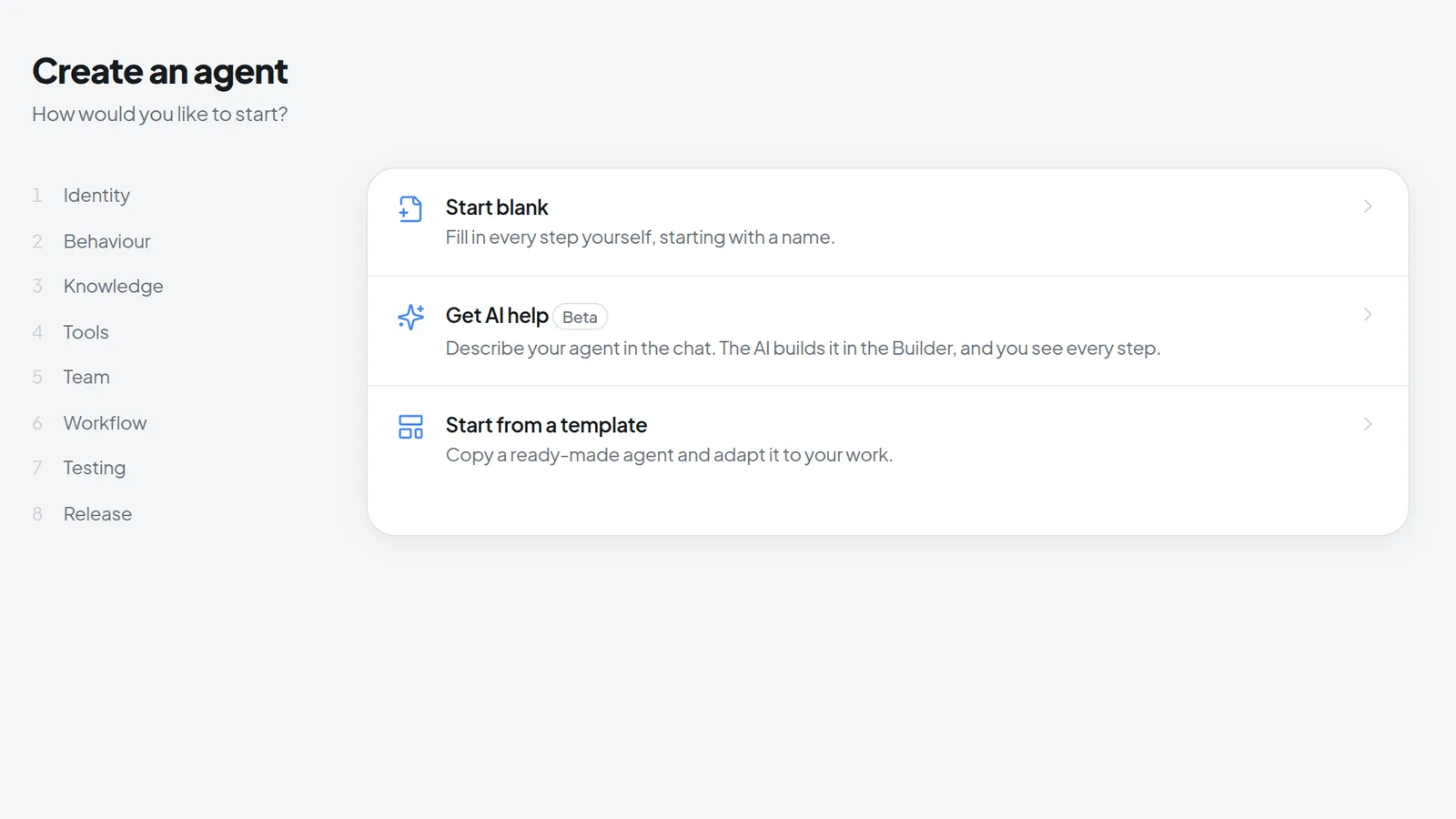 New Agent opens Create an agent with three ways to start: Start blank, Get AI help, or Start from a template.
| Option | What happens |
|---|---|
| Start blank | The builder opens on the first step and you fill in everything yourself, starting with a name. |
| Get AI help (Beta) | You describe the agent in a chat and AI help fills in the builder fields for you. |
| Start from a template | You copy a ready-made agent from "Choose a template" and adapt the copy. |
Start with AI help
- Select Get AI help. The AI help column opens next to the builder and asks "What should your agent do?"
- Describe the job in one sentence, or click one of the examples such as Answer emails.
- AI help follows up with specific questions. Most can be answered with one click. Use Write it instead to answer in your own words, or Skip to leave a question out.
- Every change shows up in the conversation. Go to field takes you to the field it changed, and Undo reverts that change.
- To carry on by hand, choose Continue without AI help. You can reopen the column later with AI help at the top of the builder.
AI help only changes this one agent. Finishing and publishing stay with you. On an agent that is already finished, AI help writes into a draft, and the live agent stays unchanged until you publish. If the option reads "Not available on this instance", your instance has no suitable model set up for it, so ask your administrator.
Start from a template
- Select Start from a template. The "Choose a template" overview opens.
- Open a template and click Duplicate.
- The dialog lists What the copy contains and What does not travel. Confirm with Duplicate.
- The builder opens your copy on the Identity step. It has the template's name followed by "(Copy)".
The copy is yours, and it is already a finished, private agent, so you do not need to finish it. That is why the Release step shows Save instead of Finish. A copy does not save automatically: save your changes with Save Agent at the top. Later changes to the template never reach the copy.
Basic mode and expert mode
In basic mode the builder has six steps. The Expert mode switch in the top right adds the Workflow and Testing steps plus extra fields, each marked Expert. The setting belongs to your account and is remembered.
If you switch expert mode off again, anything you already set there stays visible. An agent with test cases, for example, keeps its Testing step, and the counter reads "Step 2/7" instead of "Step 2/6".
| Step | What you set | Added in expert mode |
|---|---|---|
| Identity | Name, description, gallery appearance | – |
| Behaviour | Instructions, model, style, memory, notifications | Form input, failure rules, advanced model settings |
| Knowledge | Files and standing facts (AGENT.md) | File handling, sections, document templates |
| Tools | Capabilities, actions, sub-agents, user fields | Approved for workflows, tool steps per answer |
| Team | Members and groups | Publish as template |
| Workflow | When the agent runs for you on its own | Whole step is expert only |
| Testing | Test cases run against the saved version | Whole step is expert only |
| Release | Checklist and Finish | – |
Move between steps with Next and Back, or click a step in the bar at the top.
Help on steps and fields
Each step has a collapsible "What this step is for" section with an example, usually right under the step title. On the Identity step it sits below the fields. Many fields have an info button ("Open the explanation for …") that says what the field does and shows "How to do it well" and an "Example".
Identity
This is what your colleagues see in the agent list.
- Under Name, enter a short name that says what the agent does, such as "Invoice check". It is the only required field on this step.
- If you like, expand Gallery appearance. There you choose an Icon (your own PNG, JPG, WebP or GIF up to 10 MB, or one from the library), a Category, the Thumbnail gradient and Tags.
- In the same section, add sample questions under Conversation starters. They appear as buttons when someone starts a new conversation with the agent.
- Under Description, write one sentence on when to pick this agent. Once you share the agent, a description is required.
- Click Next. Intra AI now creates the agent, the header switches to "Edit agent", and from here on the builder saves automatically.
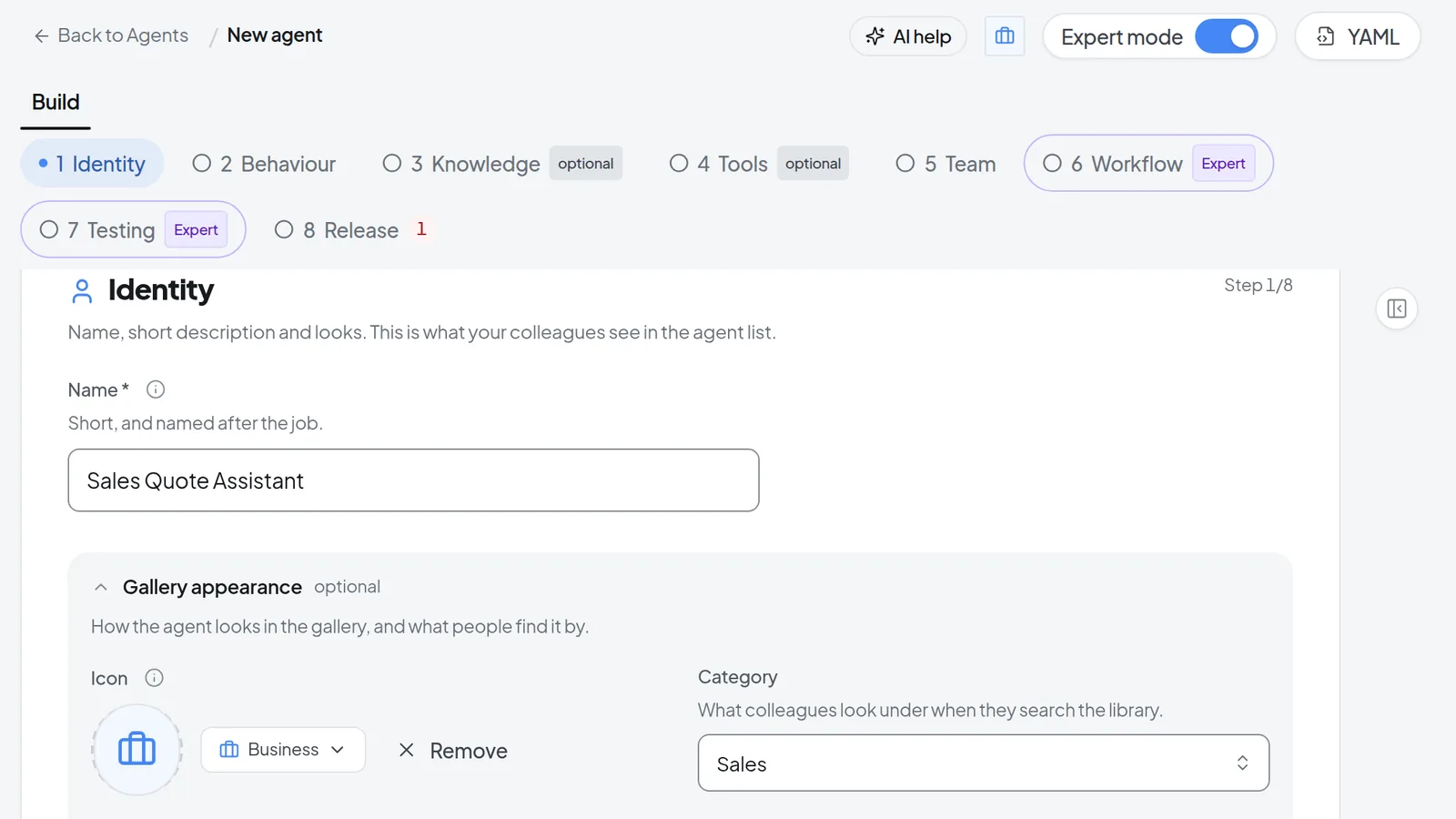 The Identity step: the required Name field and, under Gallery appearance, icon and category.
Behaviour
- Write the Instructions the way you would brief a new colleague: the role first, then the rules, then the shape of the answer. Say what the agent should do when a detail is missing. The instructions apply to every answer.
- To get going faster, pick one of the three Templates: Assistant, Extractor or Reviewer. If the field already has text, the template replaces it after asking you. From library inserts a saved template and lets you choose Replace or Append. Afterward, fill in every blank in square brackets, such as "[team]".
- Optimize suggests a reworked version. Accept replaces your text with it, Discard keeps yours.
- Choose a Model. When in doubt, keep the preset. If the model can think before answering, Thinking and How long the model thinks control how thorough it is. More thinking takes longer and costs more.
- Under Style, set Language, Answer length and Formality. The middle settings change nothing. If the agent should always answer in one language, pick that language instead of Match the question.
- Decide on Use memory and Allow user notifications. With memory off, the agent neither reads nor writes memories, which suits agents that should give everyone the same answer. See Memory.
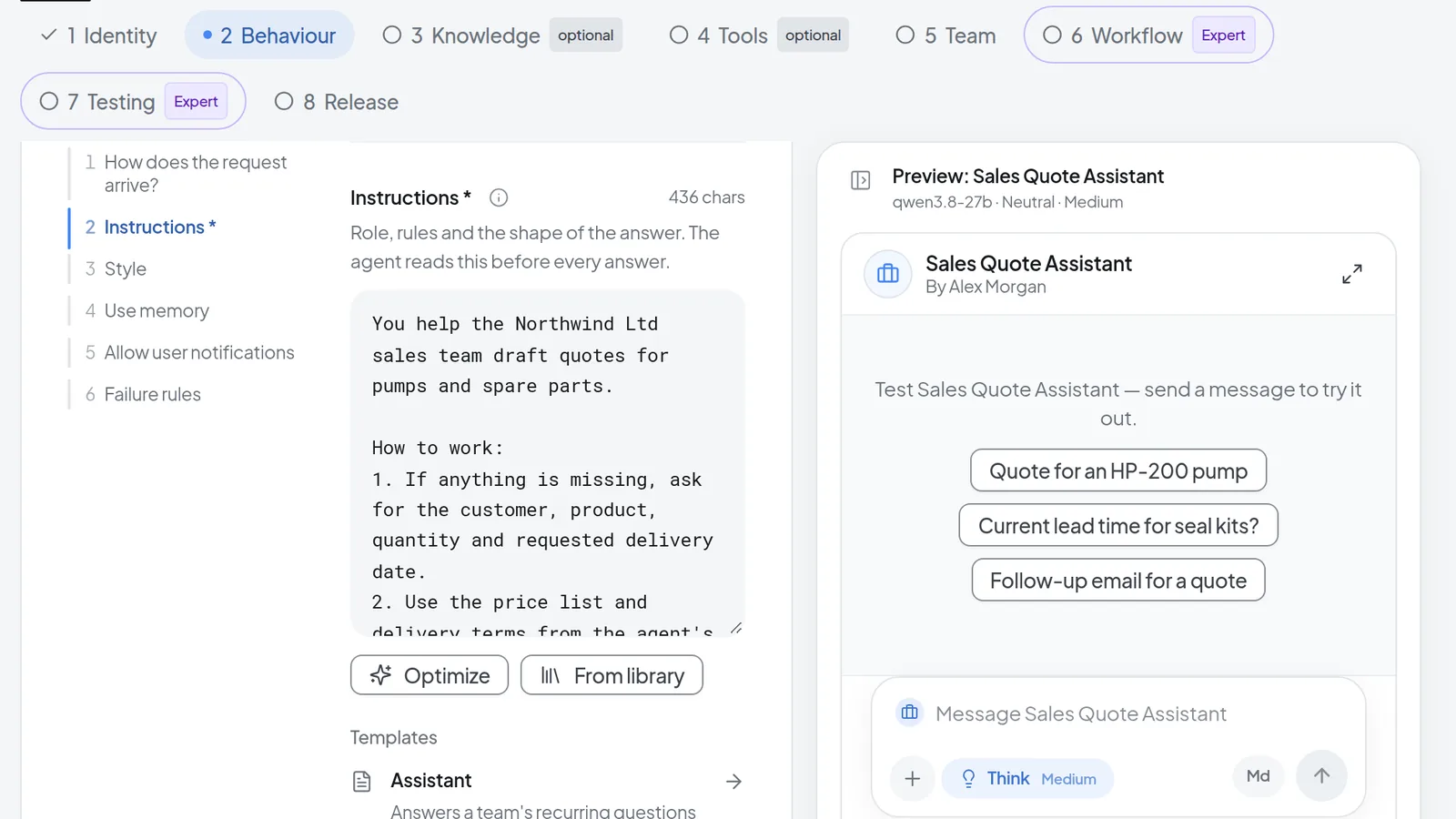 The Behaviour step: instructions with Optimize and From library, with the agent preview on the right.
Expert mode adds "How does the request arrive?" (free chat or a form), Failure rules, and the fields Creativity, Maximum answer length and Top P.
Knowledge
Under Files, attach the material you want the agent to quote from, such as handbooks or price lists. Click Attach and choose Upload, or Attach existing for files you have already uploaded. You can also drag files onto the drop zone. The agent can only find a file once it shows as ready. Under Standing facts, click Create AGENT.md to write a short document of facts that always apply. Write the text and click Save in the editor; the builder does not save this document automatically. The agent reads it in full on every answer, and the builder shows how many extra tokens that adds to each one.
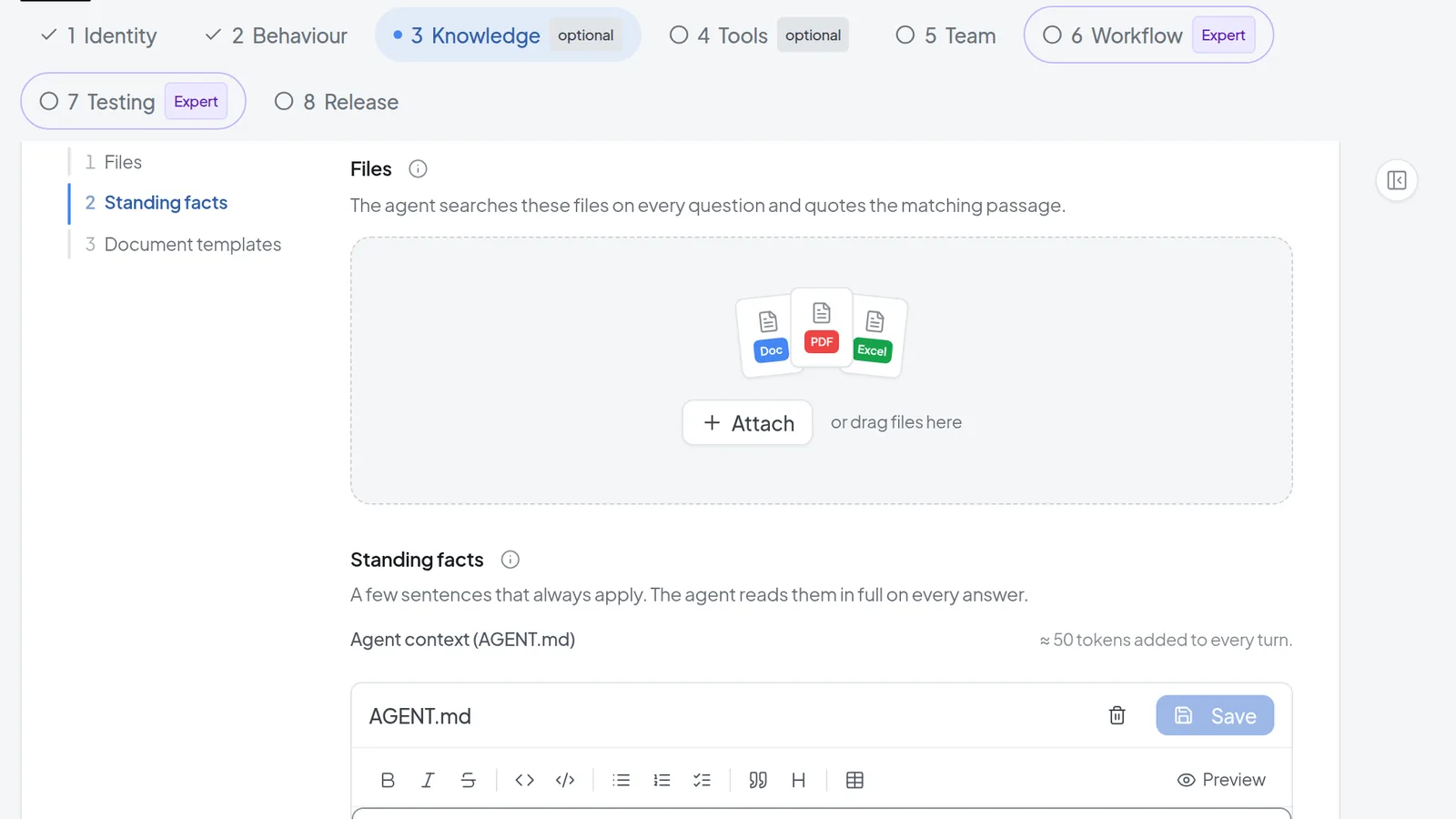 The Knowledge step: attach files and keep standing facts in AGENT.md.
How files are processed and what document templates are for is covered in Tools, knowledge and sub-agents.
Tools
Under Capabilities, choose what the agent can do without a connected program, for example Web search or Generate documents. Actions grants tools from your connected integrations, and Sub-agents lets other agents take over parts of the job. User Fields are filled in once by each person for themselves, such as their own email signature. Grant only what the job needs.
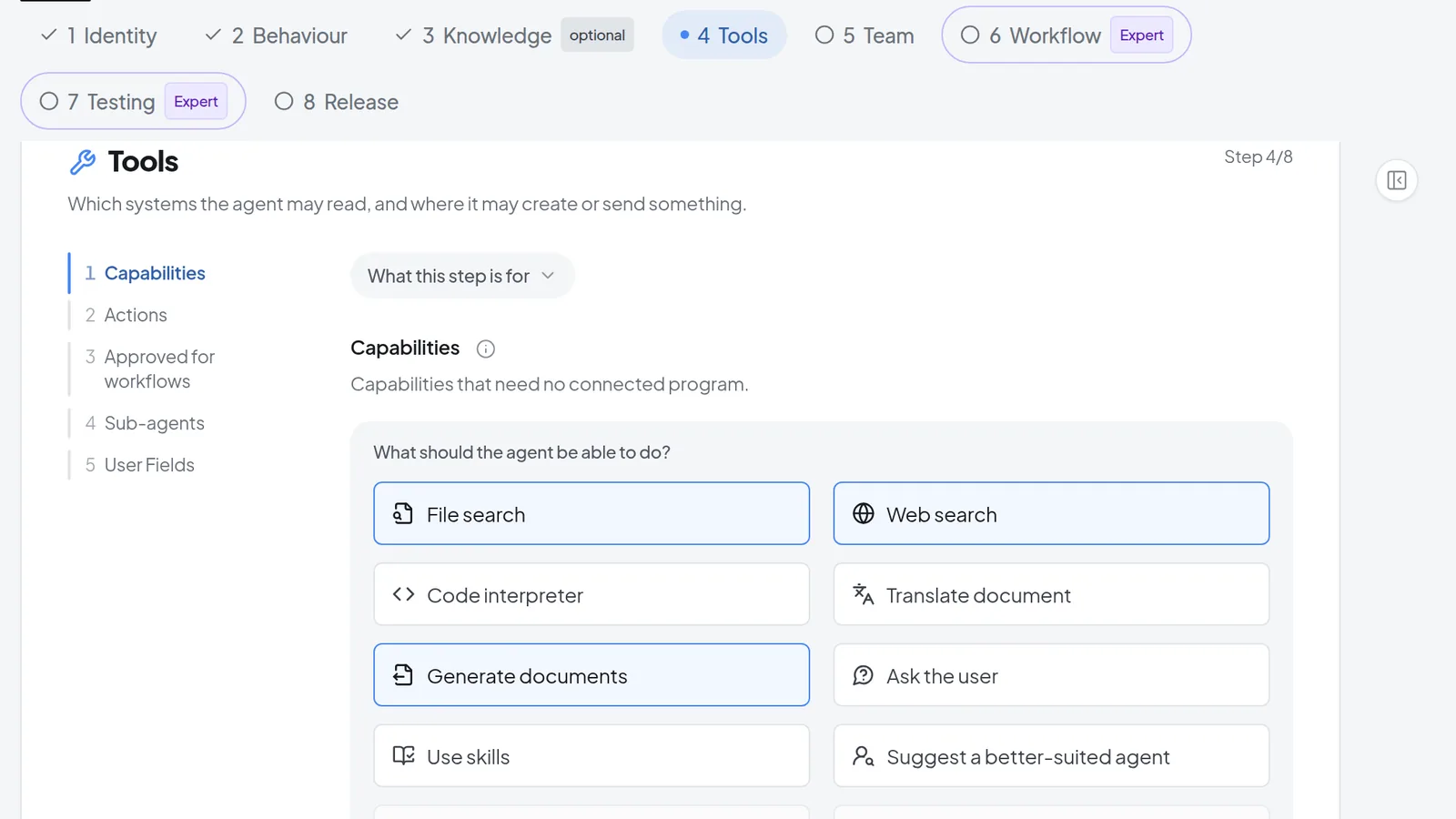 The Tools step: under Capabilities you choose what the agent should be able to do.
Tools that create, send or delete something ask before they run unless you explicitly allow them to run without asking. The details are in Tools, knowledge and sub-agents.
Team
Under Members, add people. A Member can only use the agent. A Co-editor may change its instructions, knowledge and tools. Under Groups you share the agent with whole groups at once: select the groups and click Save. Nobody you add sees the agent until you finish it on the Release step.
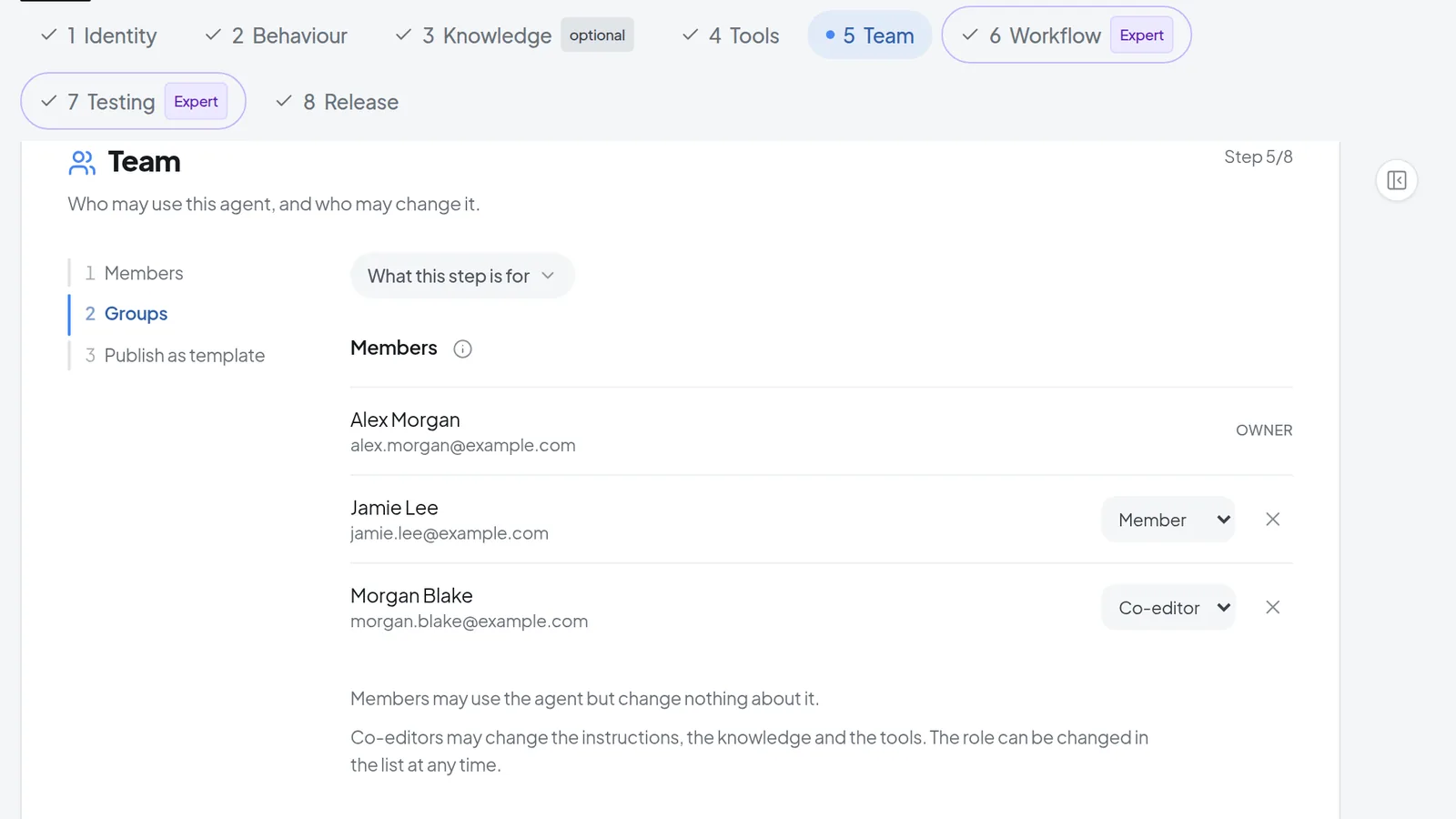 The Team step: owner, one member and one co-editor with their roles.
Roles, visibility and templates are explained in Sharing and publishing agents.
Workflow and Testing
Both steps exist in expert mode only. Workflow schedules when the agent runs for you on its own. For that, workflows must be turned on for your instance, and the agent needs Approved for workflows selected and saved on the Tools step (see Workflows). Testing lets you write test cases and run them against the saved version (see Testing and evaluating agents).
Finish the agent
- Open the Release step. It sums up every step at the top, and Change takes you back to the right place. Health shows whether the model is available, the state of the tools, and how much of the prompt budget the instructions and standing facts use.
- Check What is still missing. Red items must be fixed, yellow ones are suggestions. Each item takes you to the place where you fix it.
- When it says "Everything is done. You can finish the agent.", click Finish.
- "Agent is ready" appears, with Use to open the agent in a new conversation right away. The header now shows "Live · v1".
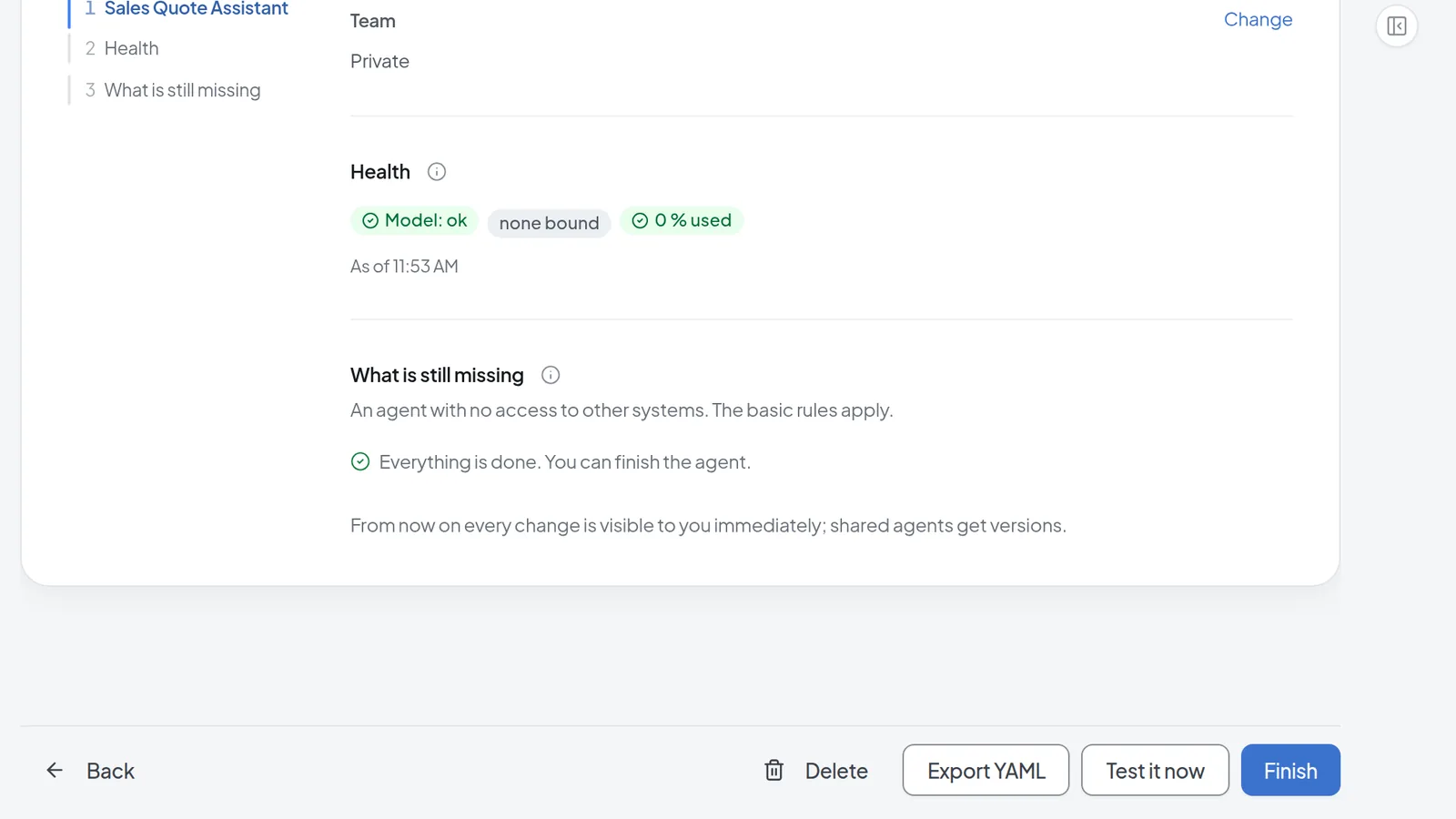 The Release step: health, What is still missing, and the Finish button.
Next time you edit a finished agent, it opens on Release. You get there with Edit in the agent's details, which the owner and every co-editor can use.
Save and publish changes
Until the agent is finished, the builder saves your changes on its own and the header reads "Saves automatically", "Saving…", "Saved", "Saved, except unfinished entries" or "Not saved". The second-to-last one means an incomplete entry, such as a conversation starter or a failure rule, is not saved yet. Complete it and the builder saves it too.
Two things you always save yourself: the standing facts (AGENT.md), with Save in their editor, and group sharing on the Team step, with Save below the group list.
After you finish, you save with Save Agent. The same goes for a copy of an agent or a template, because a copy starts out finished:
- On a private agent, the change takes effect immediately.
- On a shared agent, Intra AI asks whether you want to edit a draft instead. Choose Edit as draft or Save live anyway.
Warning: Save live anyway changes the agent at once for everyone who uses it. A draft keeps your changes to yourself until you publish them.
To work with a draft:
- Click Create draft at the top. A yellow banner tells you that you are editing a draft. Everyone else still gets the published agent.
- Make your changes and click Save draft.
- To try it out, select Use this draft in my chats or Let other users opt into testing it.
- Click Publish and describe the change under "What changed?". For a shared agent that now behaves differently, the note is required and needs at least 10 characters.
- Confirm with Publish. The draft replaces the live agent for everyone.
Discard draft throws the draft away. Earlier versions are on the History tab (see Sharing and publishing agents).
Try the agent in the preview
On a wide screen the preview sits to the right of the builder from the Behaviour step onward. If it is collapsed, click the panel icon on the right edge (Expand preview). On a phone, tap the speech-bubble icon at the top (Open preview). While AI help is open there is no separate preview column; test on AI help's Try it tab instead. Test it now on the Release step also takes you to the preview.
- Type a question into the preview's input box and send it.
- The agent answers with whatever is in the builder right now, saved or not.
- The arrows icon (Maximize chat) gives the preview the full window. After the first message, New preview starts over.
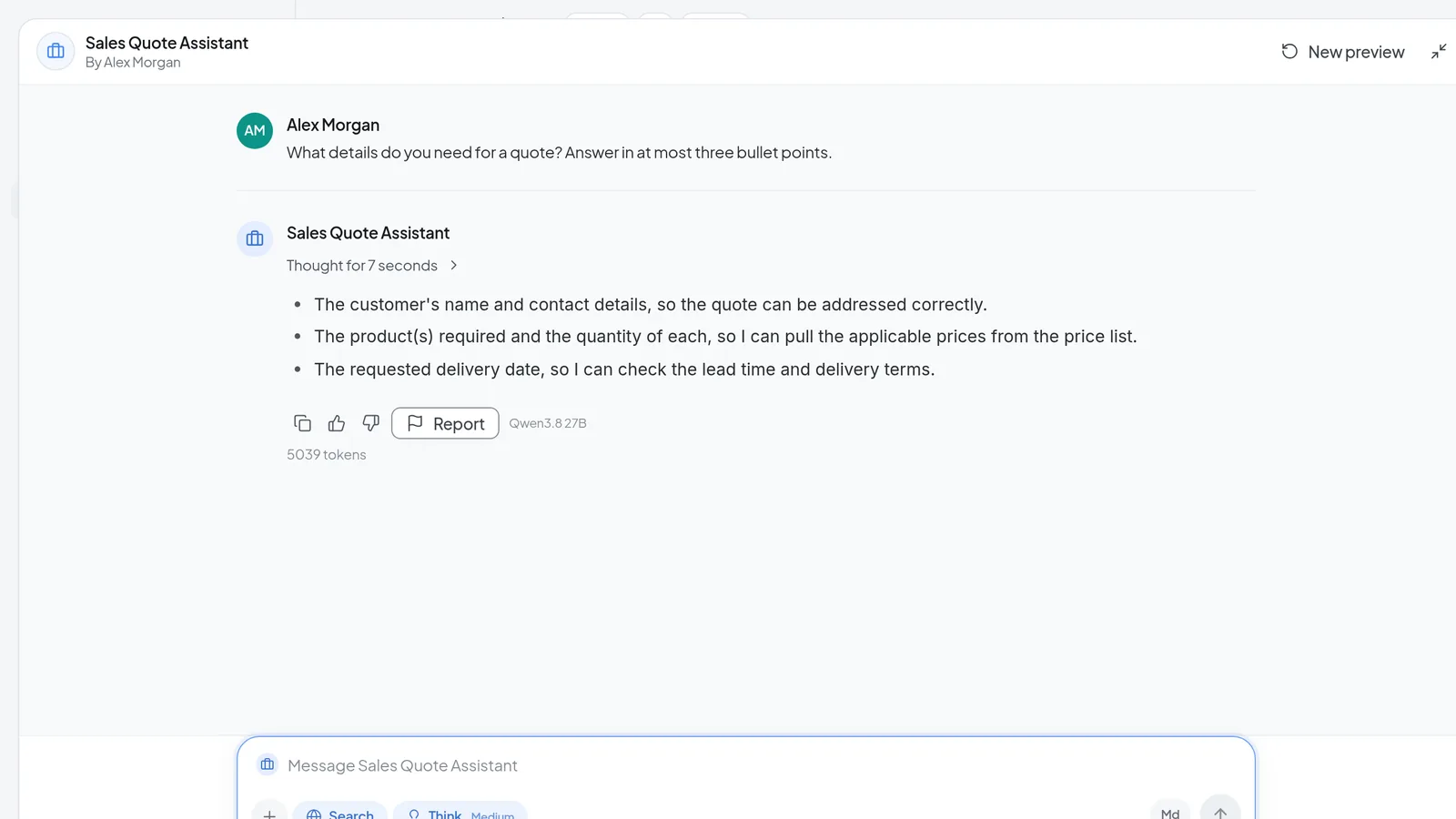 The maximized builder preview: a test question and the agent's answer, with New preview to reset it.
Note: Every preview message is a real model request and comes out of your token balance. The preview never carries out actions that write anything, and it uses neither the standing facts (AGENT.md) nor memory. To see how the agent handles its standing facts, use the Testing step or a regular conversation.
Duplicate an agent
- Under Agents, click the agent's card to open its details.
- Click Duplicate.
- Check What the copy contains and What does not travel, then confirm with Duplicate.
- The copy is added to your agents and opens in the builder on the Identity step. It has the original's name followed by "(Copy)".
The copy is already a finished, private agent, so you do not need to finish it. Save your changes with Save Agent at the top, because a copy does not save automatically. Later changes to the original never reach it.
Export and import the configuration as YAML
- Click YAML at the top of the builder. While AI help is open, it sits under More actions. The "Import or export YAML" dialog opens.
- The Preview tab shows the whole configuration as text. Copy it, or click Download YAML. The Release step also has Export YAML.
- To import, paste YAML on the Edit tab and click Apply to form. Recognized fields fill the builder, and it jumps to the Release step. If the agent did not exist yet, Intra AI creates it at this point. Anything the dialog does not recognize is listed under "Ignored keys", and the dialog stays open so you can read it. Otherwise it closes.
- Reset to current throws away what you typed in the dialog.
Values you apply are saved like any other change. An uploaded icon image is not part of the YAML.
Troubleshooting
- "This step needs a saved agent": the agent does not exist yet. Enter a name on the Identity step and click Next, or use Back to Identity.
- Finish is grayed out: there is still a red item under What is still missing. After inserting a template, for example, you may see "The instructions still contain a blank in square brackets, such as [team]." Click the item and fix it.
- "Please decide: should … ask before running?": on the Tools step, decide whether that action asks first.
- "Files are still being processed. Until that is done the agent finds nothing in them.": wait until the file shows as ready.
- The preview says "Please select a model first": pick a Model on the Behaviour step.
- "Invalid YAML syntax." on import: check the indentation and colons in what you pasted. Nothing in the form has changed.