
Testing and evaluating agents
Check that an agent answers correctly before your colleagues rely on it, and keep watching it after you publish. You need edit rights: you created the agent, or you were added as a Co-editor. Instance administrators have the same rights on every agent they can see. For a tour of the builder itself, see Building an agent.
Which check to use
| Where | What it checks |
|---|---|
| Builder preview (Open preview) | Your current settings, including unsaved ones. Good for a quick question while you work. It cannot write anything for real. |
| Testing step (expert mode) | The saved version, measured against fixed test cases. You can repeat it after every change. |
| Evaluations tab (only if turned on) | Datasets whose answers a language model scores, plus tool order, response time and cost. |
| Operations tab | Real usage: turns, errors and cost, without any conversation text. |
Add test cases
A test case is a real question plus what has to appear in the answer.
-
Open the agent in the builder: under Agents, select its card, then Edit in the agent's details.
-
Turn on Expert mode at the top of the builder. Workflow and Testing appear in the step bar.
-
Open Testing and select Add test case. A new case opens.
-
Enter a Title of the test case so you can tell the cases apart in the list.
-
Under What does someone ask?, type the question the way a colleague would ask it.
-
Under What must appear in the answer?, enter a word, a phrase or a number and select Add. Repeat for each further expectation. The case only passes if every entry shows up in the answer.
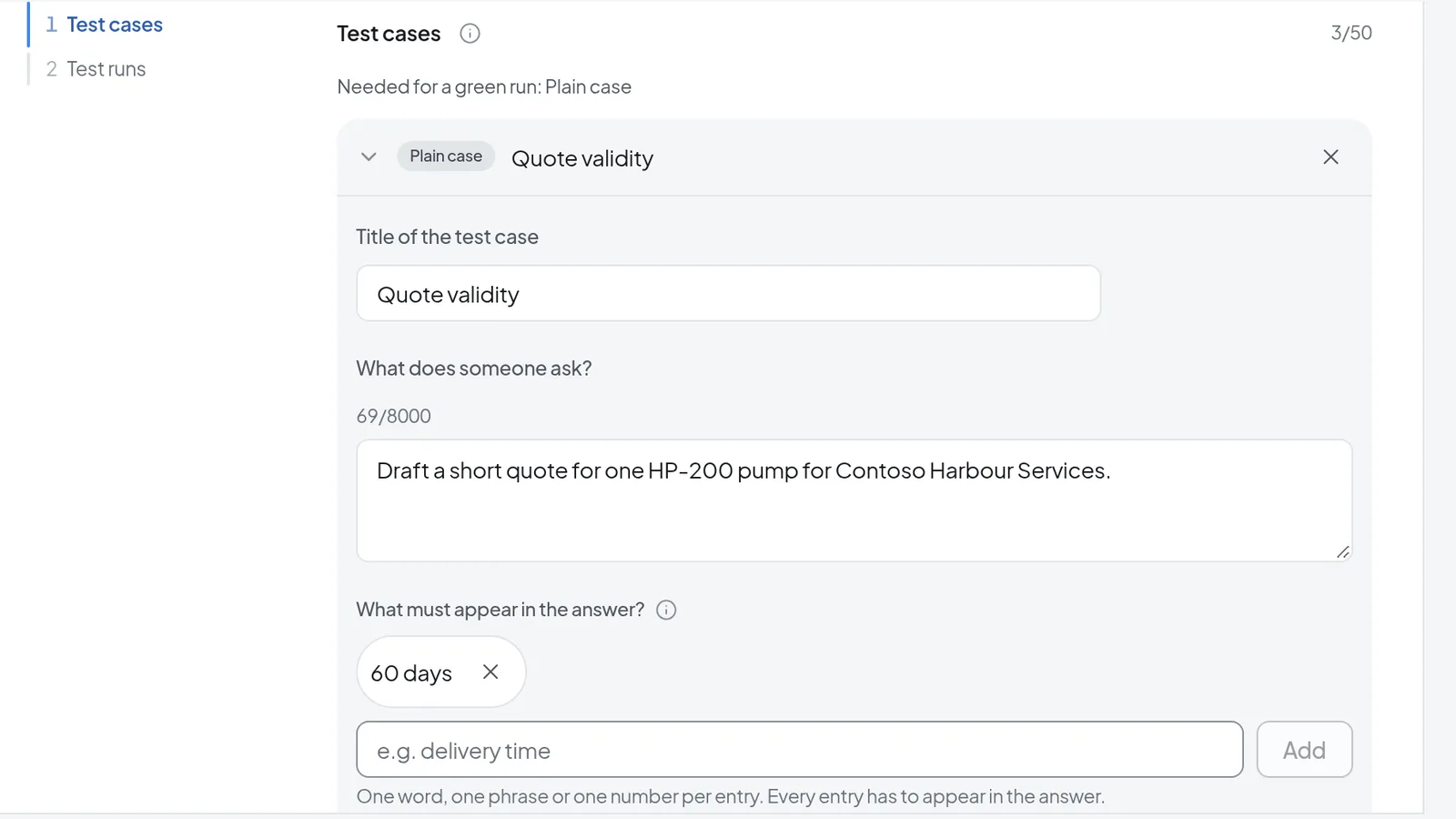 In the Testing step you add test cases: what someone asks and what must appear in the answer.
Three cases are a good start: a plain one, one where details are missing, and one the agent should turn down. Use questions from real work. You can have up to 50 cases. Every case you add here is a Plain case. By default, that is the only kind a green run needs ("Needed for a green run: Plain case"). Cases of other kinds, such as ones captured from the preview or imported via YAML, cannot be edited here. You can only delete them with Remove test case.
Files for your tests, such as a sample invoice, go under Example documents further down. They aren't attached to any conversation and don't become part of the agent's knowledge.
Run tests and read the results
-
Save your changes. Tests run on the saved version, so while anything is unsaved, Run tests stays disabled and you see "Save your changes first. Tests run on the saved version."
-
Select Run tests. The agent gets each question once, and a table appears under Test runs with the columns Test case, Expected, The agent's answer and Result.
-
Expand What was checked in a row to see why a case failed.
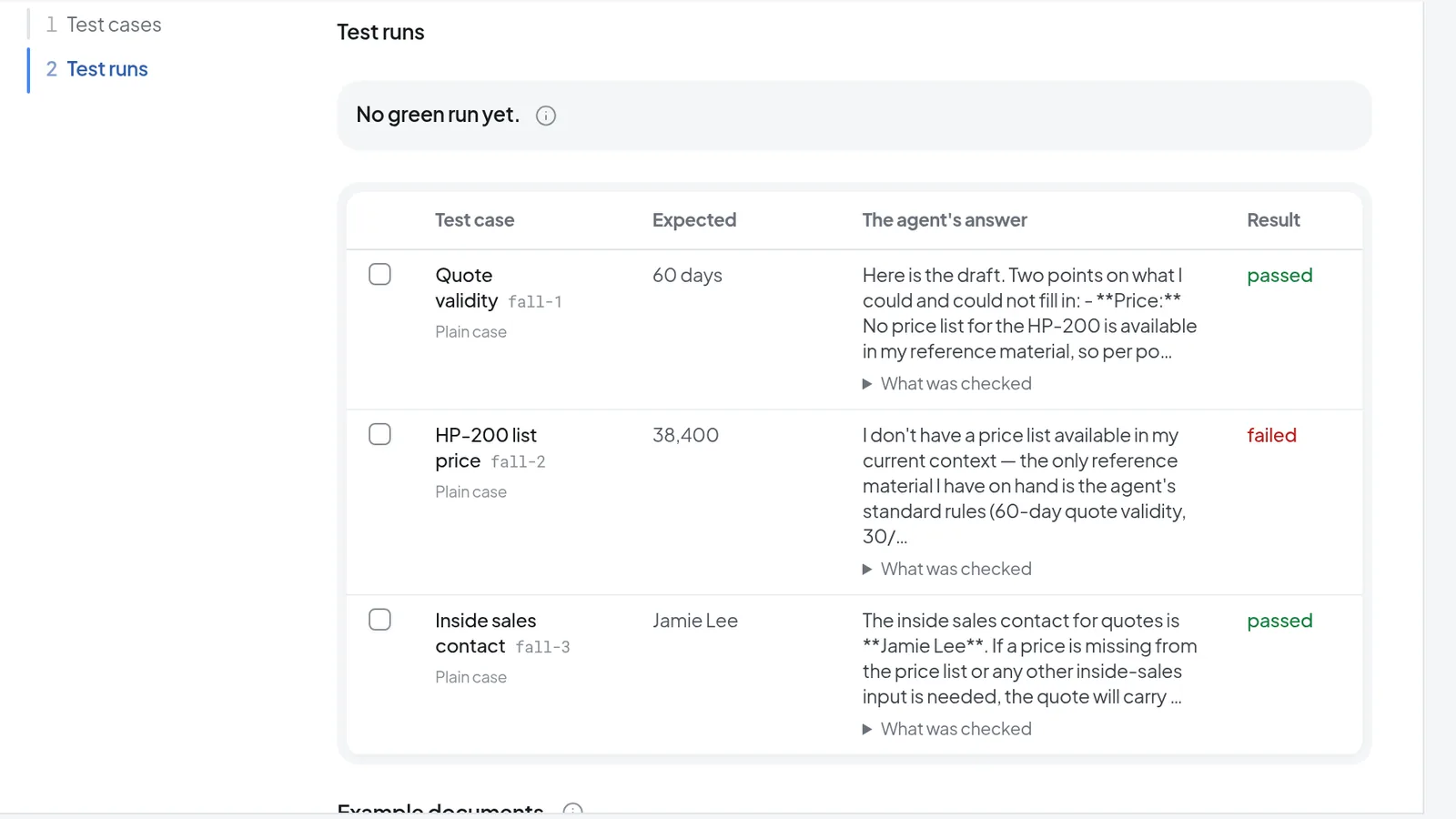 A test run with three cases: two passed, one failed because the price list is missing.
 -
After a fix, tick the cases you want to repeat and select Run only the selected test cases.
Each case is a real request to the agent and uses your own balance. If your balance runs out, the case ends as Failed.
If the agent has a procedure that creates something, Intra AI adds up to three cases of its own to every run, for example one where the record already exists. They only show up in the results table, marked added automatically. You cannot edit or remove them, and they count toward a green run.
| Result | Meaning |
|---|---|
| passed | Every expectation appears in the answer. |
| failed | The agent answered, but at least one check failed, usually a missing expectation. |
| Asked first | The agent stopped to ask for something, such as a confirmation. Nobody answers during a test run. |
| Stopped | The case expected a write, but the procedure halted before it got there. |
| Please judge yourself | The case has nothing that can be checked automatically. Mark it passed or failed yourself. |
| Failed (capital F) | The answer broke off with an error, so nothing could be checked. This is different from failed, where the agent answered but missed an expectation. |
The line above the table tells you whether you have a green run. A run is green when every case passed (or you marked it as passed) and every required kind of case was included. If you change the agent afterward, the line reads "The green run is out of date. You have changed the agent since." Run the tests again. A green run is not required to Finish or Publish an agent.
Test an agent that writes to other systems
If the agent has access to a system (Tools step), choose a mode under What a run actually does. It only matters when the agent may create or send something there:
- Proposal: the agent only shows what it would create or send. None of it really happens. The table then says, for example, "would create" followed by the tool name.
- Live run: whatever the agent creates or sends really goes to a Test environment.
For a live run, pick the Target system under Test environment, enter a Label and save. Only systems that one of the agent's tools can reach are offered. The mode is not saved, so the next time you open the step it is back on Proposal.
After a live run, What the test really created lists the records the agent created. Undo everything deletes them and strikes them through in the list. A record stays in place if it has picked up entries the test did not create, or if Intra AI can no longer tell for sure that it is the one the test created. Anything the agent sent, such as an email, is not in the list and cannot be undone. Afterward, check which entries are not struck through.
Warning: Never pick the system that holds your real data as the test environment. In a live run the agent really writes there.
Capture cases from the preview
In expert mode you can turn what you see in the preview straight into test material. This only works in the side preview on a computer. Observations are missing from the preview on a phone, from the Try it tab of AI help, and for agents that take a Form.
- Open the preview with Open preview. On wide screens it is already open from the Behaviour step on.
- Ask something that makes the agent use a tool.
- Below the conversation, Observations lists each tool call, marked OK or Failed.
- Select Capture… in a row, then Save as case, Save as failure rule (only for an error result) or Add to AGENT.md (only if the agent already has an AGENT.md).
Captured cases and failure rules go into the builder and are stored the next time you save (automatically while the agent is unfinished). A line for AGENT.md is saved as soon as you have checked it. New preview starts the preview over.
Try changes in a draft first
Once other people use an agent, every change you save reaches all of them at once. That is why saving a live shared agent asks whether you would rather edit a draft.
- Select Edit as draft, or Create draft at the top of the builder. A yellow banner shows that you are editing a draft. Everyone else still sees the published agent.
- Make your changes and select Save draft.
- In the banner, tick Use this draft in my chats.
- Run the tests in the Testing step and try the draft in your own conversations.
- To let colleagues try it as well, tick Let other users opt into testing it.
- When you are happy, select Publish and describe the change under What changed?. For a shared agent that now behaves differently, the note is required (at least 10 characters).
Note: A test run only checks the draft while Use this draft in my chats is ticked. Otherwise it checks the published version.
After publishing, testers are switched back to the published version. To throw a draft away, select Discard draft in the banner. Drafts, versions and roles are covered in Sharing and publishing agents.
Use the Evaluations tab
Evaluations is off by default and can be turned on centrally for your instance. If there is no Evaluations tab next to Build, it is not available on your instance. When it is there, everyone who can edit the agent sees it once the agent is saved. If no evaluation service is set up for your instance yet, New dataset, Add item and Run evaluation stay disabled. Contact Intra AI in that case.
The Testing step checks whether certain words appear in an answer. Evaluations has a language model score each answer against an expected answer, and it tracks tool order, response time and cost across many runs.
- Open Evaluations, then Datasets.
- Select New dataset and enter a Dataset name.
- Select Add item.
- Put the question under Input and the answer you expect under Expected, then select Save.
- Switch to Runs, pick the dataset and select Run evaluation. Agents that call tools or sub-agents can take a few minutes.
- Open a run to see input, output, score, tool path and response time for each item.
For each item you can also add text that must appear in the answer, and fill in Expected tools (comma-separated) and Expected sub-agents (comma-separated).
Under Settings you set the Pass threshold, the minimum judge score an item needs to pass. You can also add a Judge rubric and switch individual scorers on or off. Intra AI sets the scoring model centrally. Conversations from an evaluation run do not appear in your conversation list.
Read the Operations tab
The agent's owner, its co-editors and the instance's administrators see Operations. The tab shows tool names, error codes and identifiers, never conversation text.
-
Select Operations at the top of the builder.
-
Choose a Range: 7 days, 30 days (the default) or 90 days.
-
Read the four figures Turns, Users, Error rate and Cost per turn. Below them, Turns per day shows the trend, split into live and draft.
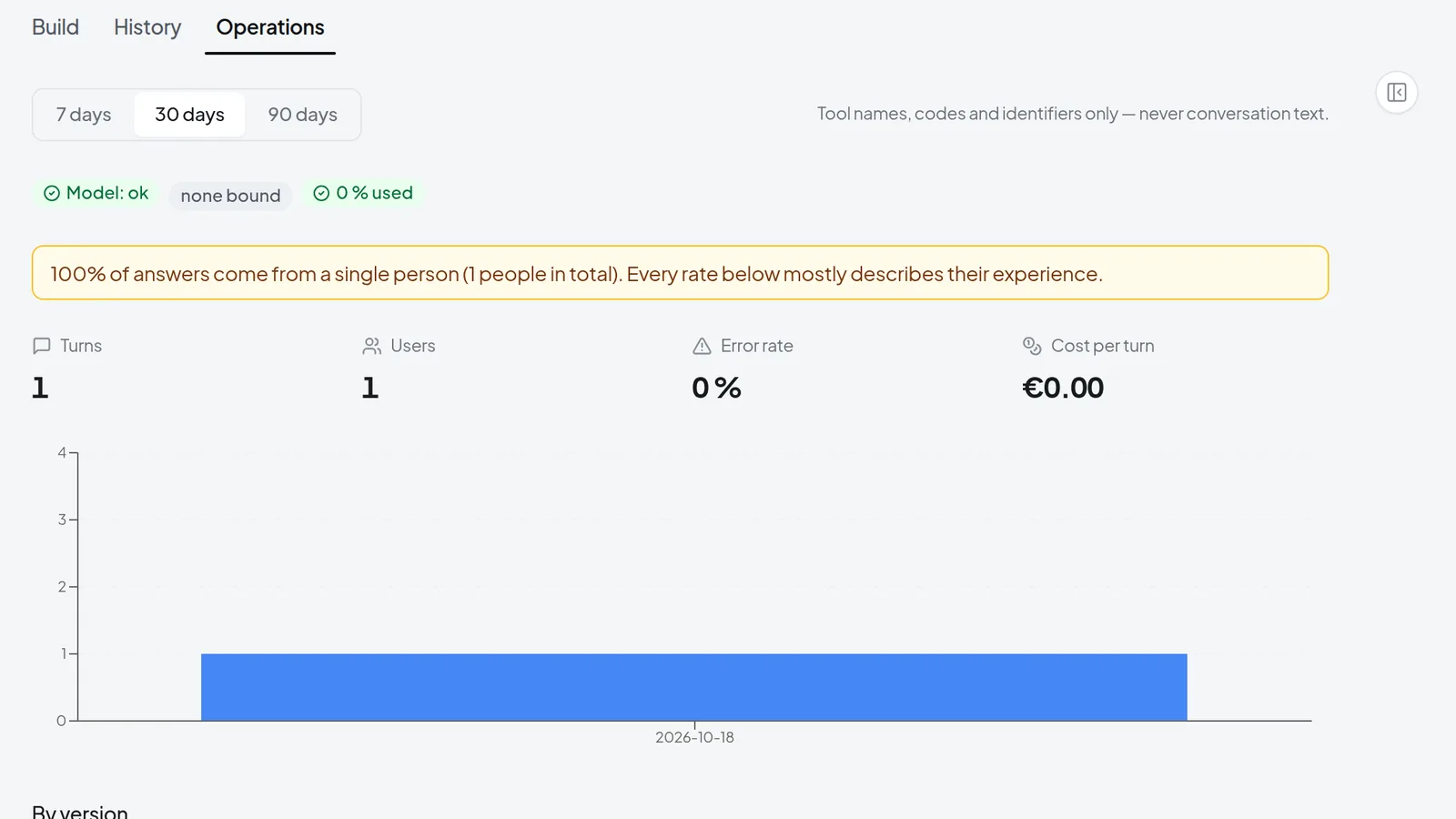 The Operations tab shows turns, users, error rate and cost per turn, but never any conversation text.
 -
Compare versions under By version to see whether the error rate went up after your last publish.
-
If tool calls failed, Failed tool calls comes next, with the tool, the code and a count.
Further down, Feedback counts how often people rated an answer with thumbs up or thumbs down, followed by your own reasons. If there were problems, Recent issues comes after that, with the time, kind, tool and error code of each, never conversation text. To turn one into a test case, add it yourself in the Testing step; failure rules live in the Behaviour step (expert mode). At the very bottom, My agents compares every agent you are responsible for.
If most turns come from a single person, a yellow notice appears above the figures. The rates then mainly describe that one person's experience.
Troubleshooting
- Testing is missing from the step bar: Expert mode is off. Turn it on at the top of the builder.
- "This step needs a saved agent": give the agent a name on the first step and select Next.
- "Add a test case first" or "Test case 2 has no question yet": a case without a question is not saved and cannot run. Fill in What does someone ask?.
- Live run cannot be selected and the hint says "Pick a test environment below first." or "The test environment is picked but not saved yet. Save it first." Pick a test environment, enter a Label and save.
- "No system available yet": none of the agent's tools reaches a system. Select Add tools, grant something in the Tools step and save.
- The run never turns green: look for rows marked Please judge yourself and decide them. If a required kind of case is missing, such as a Plain case, add one. If a case marked added automatically fails, change the agent; you cannot remove that case.
- There is no Evaluations tab: the feature is not turned on for your instance.
- There is no Operations tab: you are a member of the agent, not its owner, a co-editor or an instance administrator.