
Sharing and publishing agents
You can share an agent with individual colleagues or with whole groups. Changes to a shared agent can wait in a draft until you publish them, and the history lets you bring back an earlier version. The person who created the agent can share it, and so can anyone they added as a co-editor. Building an agent and finishing it on the Release step is covered in Building an agent.
Who sees what
| Access | Where the agent shows up | What the person can do |
|---|---|---|
| Owner | Created by you | Everything, including adding co-editors, changing roles and submitting the agent as a template |
| Co-editor | Shared with you | Change the instructions, knowledge and tools, publish drafts, use the history, add and remove members, share with groups |
| Member | Shared with you | Use the agent. A member cannot change anything about it. |
| Shared with a group | In the library, until the person adds it | Use the agent |
| Everyone in the company | In the library, until the person adds it | Use the agent |
| Sub-agent only | In no agent list; system admins find it under Building blocks | Only other agents can call it |
To open the library, go to Agents, find Global agents and select Open the library. See Using agents for more.
Note: If the agent uses an integration, it acts through the connected accounts of whoever is using it, not through yours. Each person who uses it needs their own connected account. See Connecting integrations.
Add people
- Open the agent with Edit and go to the Team step.
- Under Add, type the person's address into Search by email and pick them from the results.
- Choose a role. A Member can use the agent. A Co-editor can change the instructions, the knowledge and the tools. Co-editor is only offered if you are the owner.
- Select Add. The person appears under Members right away, gets a notification, and finds the agent under Shared with you.
As the owner, you can change a role later in the person's row, from Member to Co-editor and back. The X at the end of the row removes someone; you're asked to confirm first. Co-editors can remove members but not other co-editors. An agent can have up to 100 members.
You can add people before the agent is finished, but they only see it once you finish it on the Release step. A row marked Invitation pending is left over from an older invitation that nobody has answered yet; the X withdraws it.
If an agent was shared with you by name and you no longer need it, open its details on the Agents page and select Leave. Co-editors also find Leave at the top of the builder. The owner can share it with you again later.
Share with whole groups
-
In the Team step, go to Groups. You only see groups you belong to yourself.
-
Check the groups that should get the agent. A sub-group inherits every grant made to the group above it.
-
Select Save. The heading shows how many groups you shared with, for example "1 group".
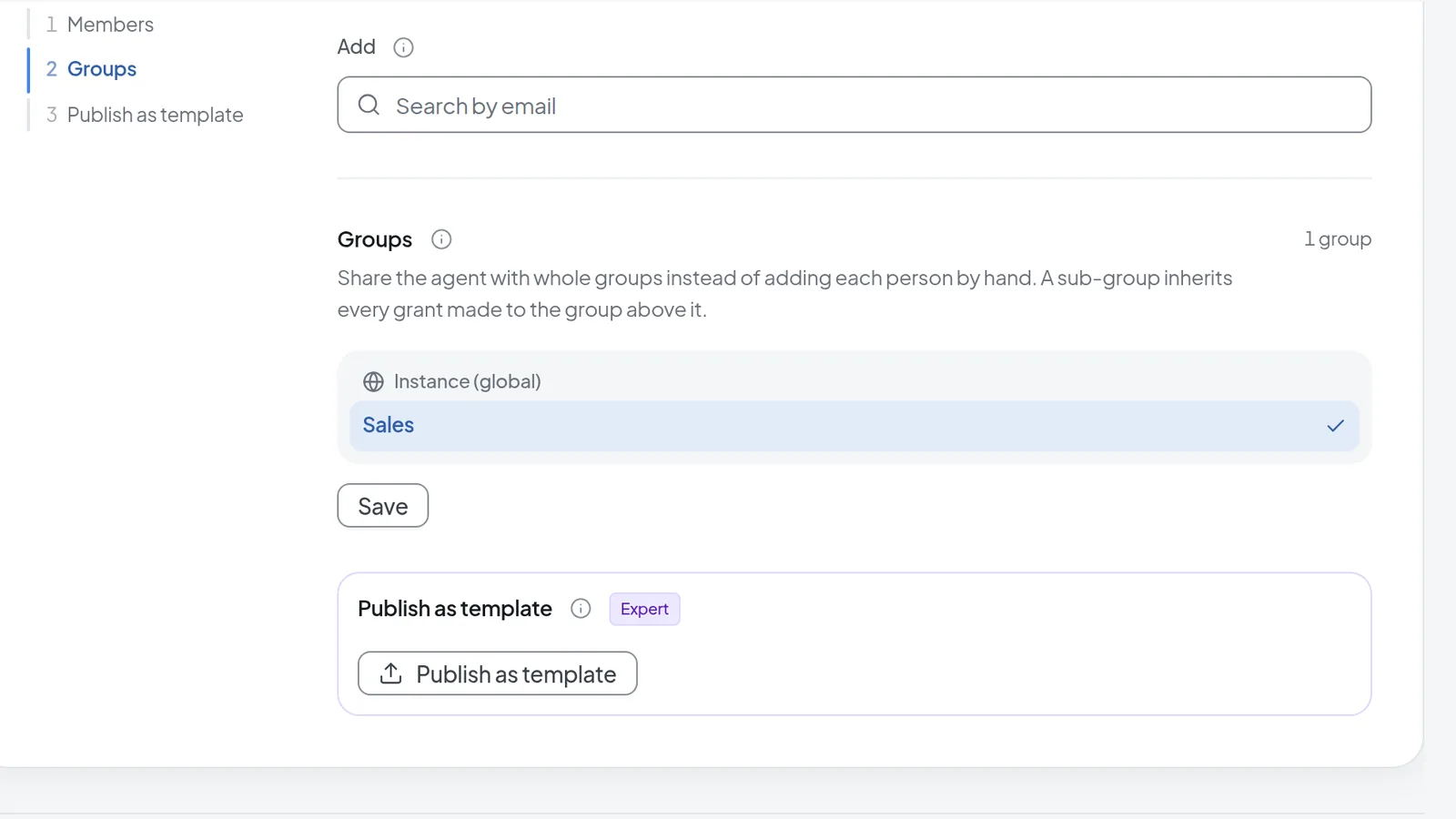 Under "Groups" you share the agent with whole groups; here "Sales" is selected.
Group members then find the agent in the library and select Add to put it in their own list. If you are not in any group, the section says "You are not in a group yet. Your administrator assigns them."
System admins see this section as Groups and tenants. They can pick any group on the instance, and sub-groups that inherit a grant are marked, for example "Granted through Sales".
Set the visibility
Only system admins see the Visibility field in the Team step. It has three options:
- Private: only you, the people you added and the groups you shared with can see the agent.
- Everyone in the company: everyone in the company finds the agent in the library, which makes it a global agent. It only shows up in someone's own agent list after they add it from the library. If you picked groups under Groups and tenants, only those groups get it.
- Sub-agent only: the agent appears in no agent list, group shares have no effect, and only other agents can call it. See Tools, knowledge and sub-agents. System admins can list these agents on the Agents page with Show building blocks under Filter.
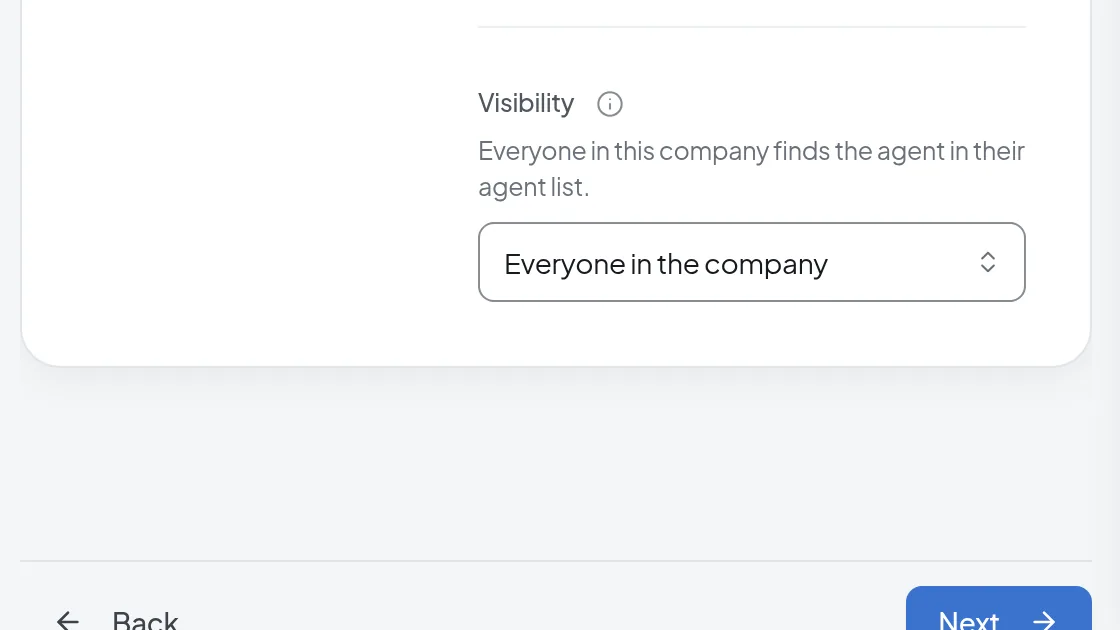 Only system admins see "Visibility"; "Everyone in the company" makes the agent a global agent.
You can only change the visibility after the agent is finished.
Submit the agent as a template
A template is a starting point for other people. Anyone who selects New Agent and then Start from a template gets their own copy to adapt. Only the owner can submit one. The section appears in Expert mode, and once you have submitted, it stays visible in basic mode too.
- Turn on Expert mode in the builder and open the Team step.
- Under Publish as template, select the button of the same name.
- Check the Category in the dialog. It comes from the Identity step; if it is missing, set it there first.
- Write a Gallery tagline and choose a Thumbnail gradient.
- Select Submit to template gallery. The status changes to "Pending admin review".
The dialog spells out what this means: "Once an admin approves it, every user in this workspace will be able to run this agent and read its instructions." If the submission is rejected, the reason appears under "Rejected" and you can fix it and select Resubmit for review. Changing the instructions or tools of a live template sends it back for review. While the submission is waiting for review, Withdraw submission takes it back.
Prepare changes as a draft
On a finished agent that only you use, Save Agent saves your changes immediately. Once the agent is shared, saving asks whether you want to make the change as a draft instead.
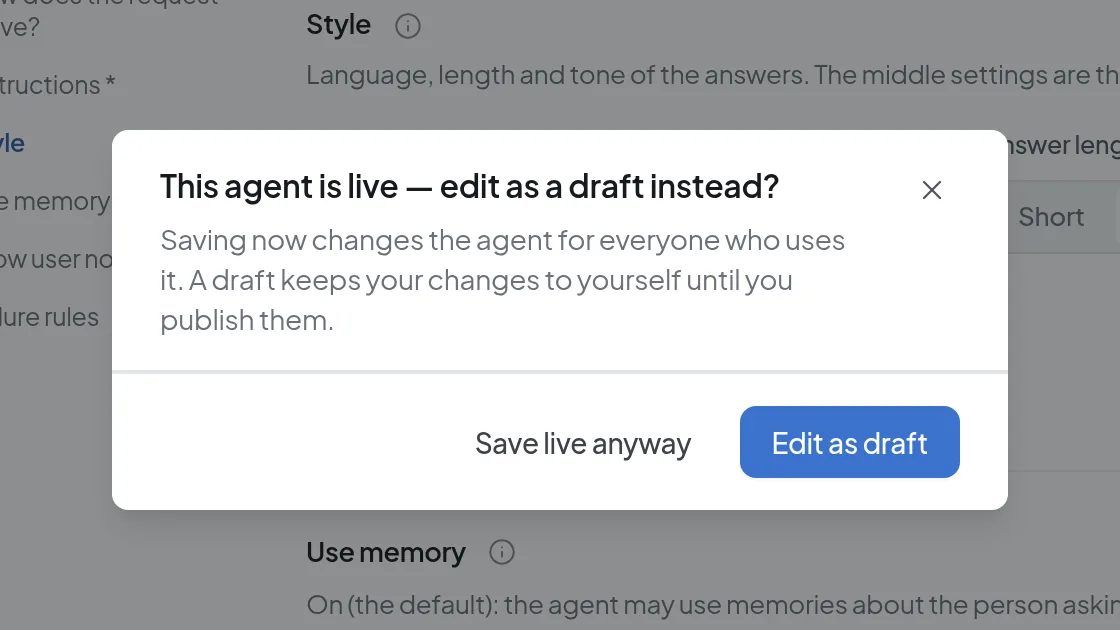 Saving a shared live agent asks whether to make the change as a draft instead.
- Edit as draft starts a draft. Everyone else keeps working with the published version.
- Save live anyway changes the agent for everyone at once. The publish dialog does not open, so no note is recorded, and no new version appears in History.
You can also start a draft yourself with Create draft at the top of the builder. An agent has only one open draft at a time, and the owner and all co-editors share it: whoever opens the builder keeps working in the same draft.
While you work on a draft, a yellow banner says so and the save button reads Save draft.
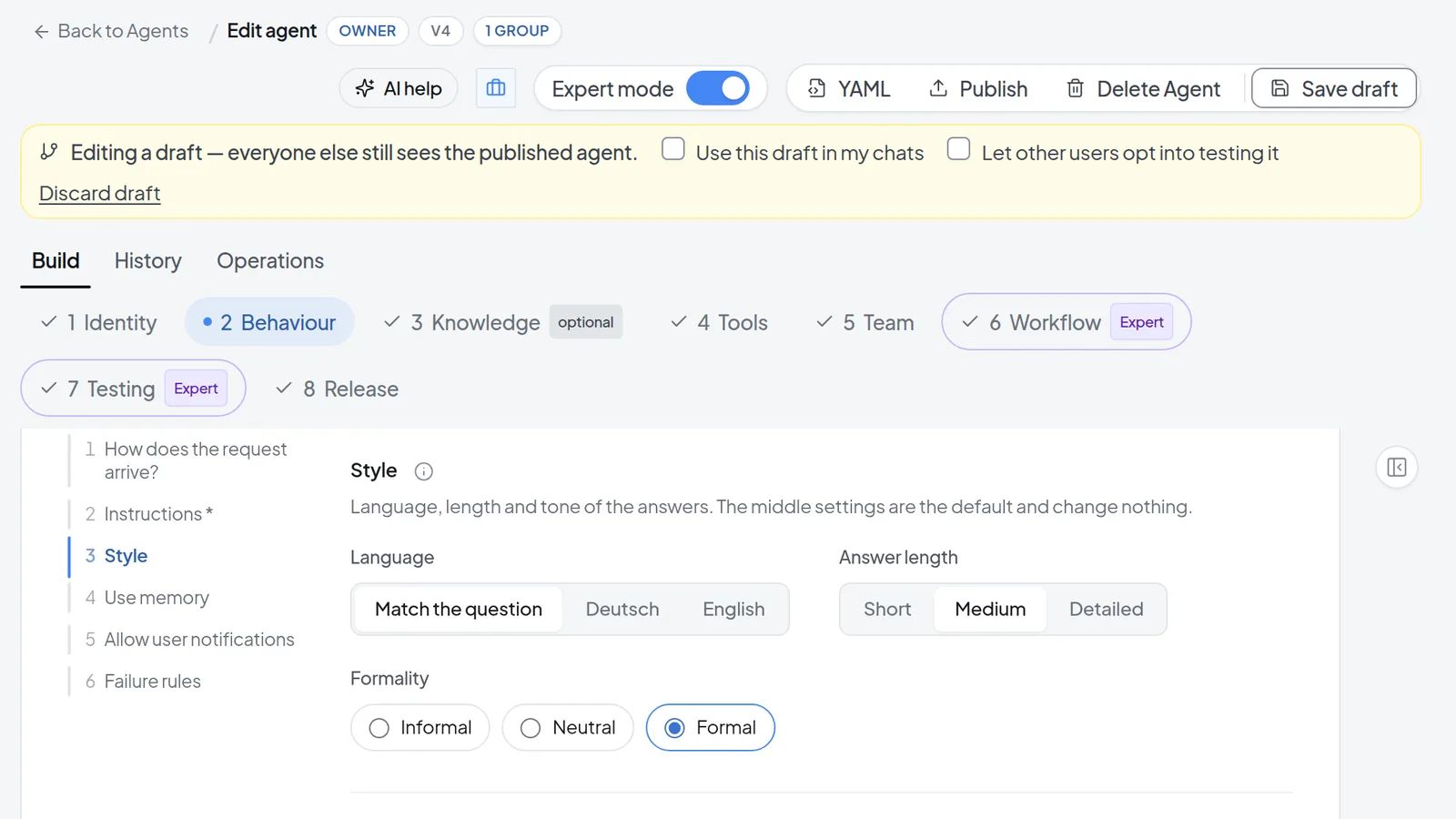 While you edit a draft, everyone else still sees the published agent; the banner offers testing and discarding.
- Use this draft in my chats runs your own conversations with the agent on the draft.
- Let other users opt into testing it shows "Test draft?" in the message box for people using the agent. Each of them decides for themselves, and turning it on only affects that person.
- Discard draft throws the draft away for everyone working on it. The published version stays as it is.
For checking a draft systematically, see Testing and evaluating agents.
Publish a draft
-
Select Publish at the top of the builder. The dialog "Publish this draft?" opens.
-
Describe the change under What changed?. The note is optional, unless the agent is shared and its instructions or tools changed. Then it is required and needs at least 10 characters.
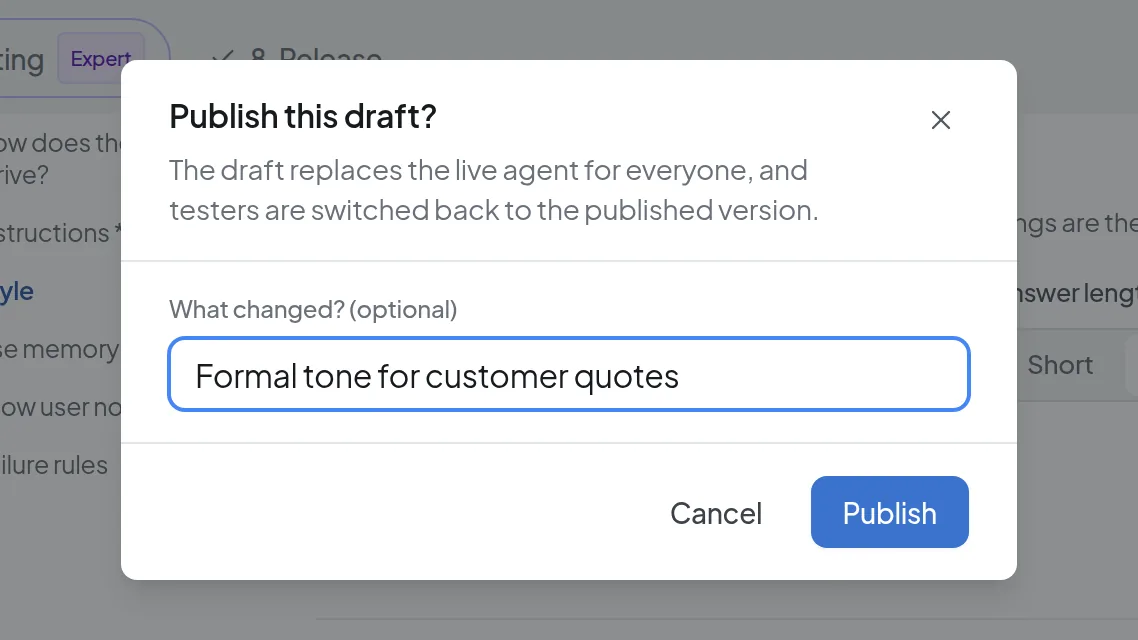 When you publish, describe the change under "What changed?"
 -
Select Publish. The draft replaces the live agent for everyone, and anyone who was testing the draft goes back to the published version. A new version appears in the History tab.
Restore an earlier version
The owner and co-editors see the History tab. It keeps every published version with its number, note, author and time. The current one is marked Live.
- Open the History tab at the top of the builder.
- If you want to compare first, pick a comparison. Show changes 2 → 3 compares two versions: removed lines come from the older one, added lines from the newer one. Show changes since version 3 compares against what is in the builder right now. Some fields appear under their internal name there, such as "brevity".
- Click the version you want back.
- Select one of the two buttons:
- Restore to draft: the old configuration opens as a draft in the builder. You review it and publish it as described above.
- Restore and publish now: confirm with Publish version 2 (the number matches the version you picked). This replaces the live agent immediately.
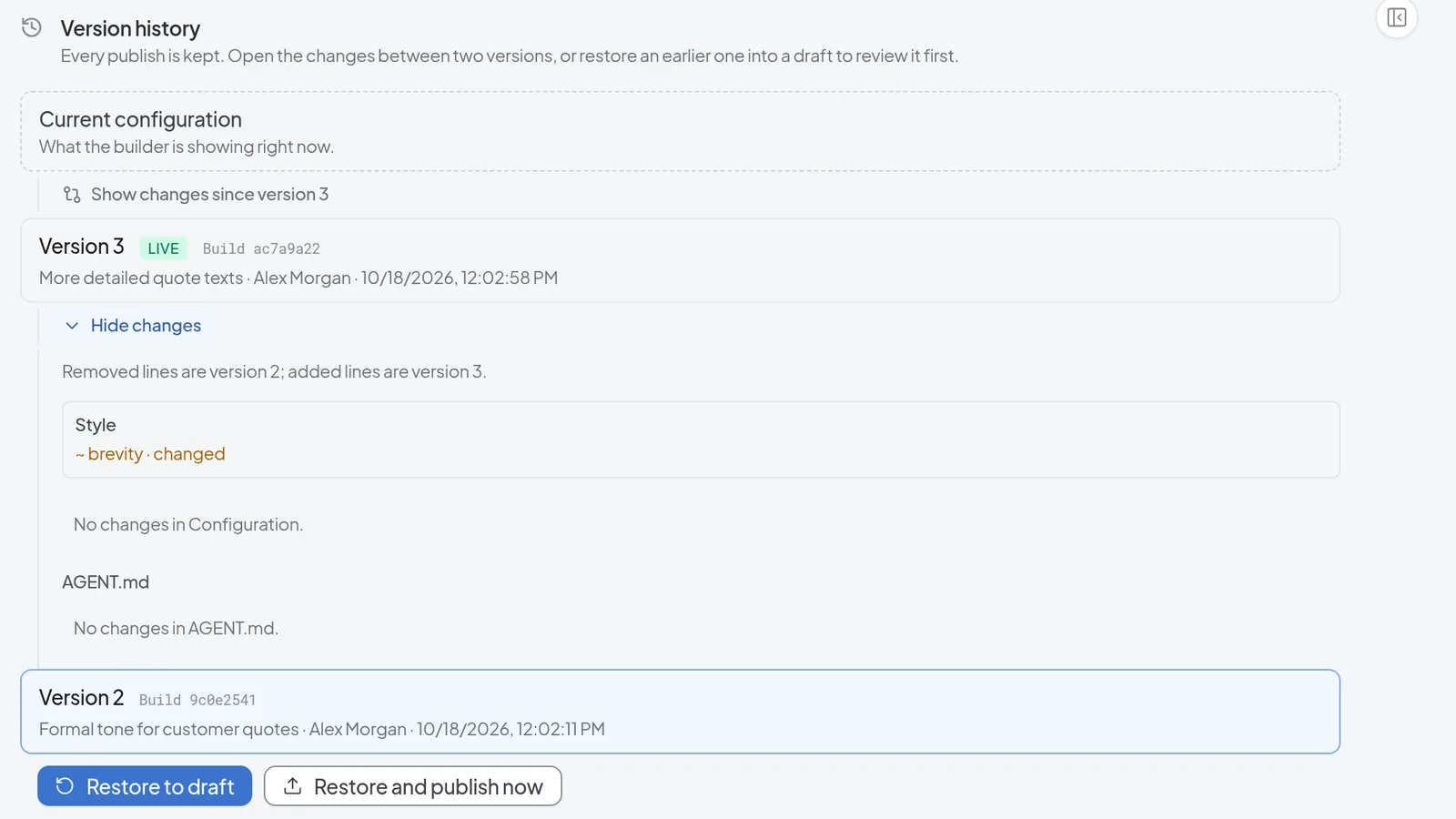 History lists every published version, the changes between two versions, and the restore options.
Restoring never deletes a version. Once you publish, the old configuration becomes a new version on top. Knowledge files stay as they are today; only the text of AGENT.md is rolled back.
Troubleshooting
- Publish is grayed out: the note is required and still shorter than 10 characters. Add a sentence under What changed?.
- "Release blocked" in the publish dialog: the list below it says what is in the way. Fix those items in the builder and publish again. A system admin can enter a Reason for the waiver of at least 10 characters and select Publish anyway.
- "This version cannot go live as it is" when restoring: select Open as draft, fix the listed items in the draft, then publish.
- The restore buttons are disabled: there is already an open draft. Publish or discard it first.
- "This agent already has an unpublished draft.": someone else started a draft at the same moment, or you did in a second tab. Reload the builder; it opens the existing draft and you carry on there.
- You cannot choose Visibility or Publish as template: the agent is not finished yet. Finish it on the Release step.